
Primary Program Interface Regions
.png)
The top toolbar is split into 4 areas as follows:-
1. File management
.png)
2. Beam definition options
.png)
3. PowerPad definition options
.png)
4. Output printing/exporting
Toolbar - File Management
.png)
Toolbar - Beam Definition options
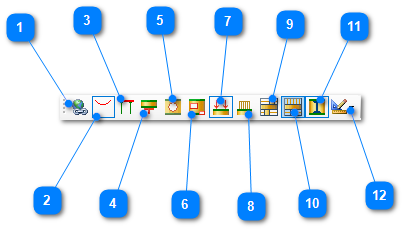
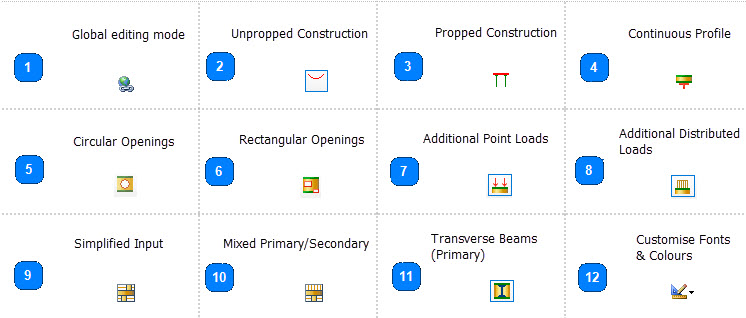
Global Editing Mode
The Global Editing Mode icon can be found on the top toolbar .png) . It will give you access to the tree view of parameters shown below.
. It will give you access to the tree view of parameters shown below.
The Global Editing mode allows you to set one or more parameters as global values, applicable to all design briefs in your current composite beam design file. These values will be set as the same for each beam design in the file. For example, you may wish all the beams to have a concrete grade of 30 N/mm2 or a minimum mesh reinforcement of 142mm2. This saves you having to alter the value for each individual design brief in the file.
To set a particular parameter to a global value, first set the parameter to the value you require on the tabs at the bottom of the screen in one of the briefs, eg, concrete grade on the reinforcement tab to 30. Then open up the global editing screen by clicking on the icon on the top toolbar. Place a tick against the Concrete Grade. This has now set the concrete grade as a global value. To go back to the design briefs, click again on the global icon on the top toolbar. Now all design briefs will have been set to 30 N/mm2. The Concrete Grade box will now have a blue background indicating that it has been set as a global value.
To reset a global parameter, click on the icon again to bring up the tree view, remove the tick from the appropriate box, change the parameter at the bottom of the screen and tick the box again to reset the new value of the parameter as global.
.png)
Under the Customise Fonts and Colours option, you can change the colour of individual parts of the graphics, although this is not recommended unless you find it really necessary.
You can also change the font size and type on the graphics display and similarly the size of the overall graphics should you need a bigger picture.
.png)
Toolbar - PowerPad Definition options
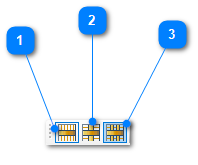
.png)
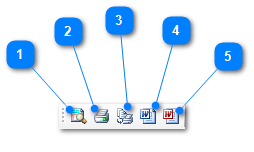
Toolbar - Output Printing and Exporting
.png)
Top Menu
.png)
The File Menu
.png)
The Edit Menu
.png)
The Job and Project References can be filled in as shown below.
This information will appear in the top right of the report pages when printed or exported to Word or PDF. Each of the 6 items can be added to or deleted from as desired using the + and scissors buttons. A list of saved entries can be accessed using the up/down arrows, thus simplifying the task of setting up the table prior to each export/printing.
.png)
The Options Menu
.png)
The Print Menu
.png)
The PowerPad Menu
.png)
The Utilities Menu
.png)
The Defaults Menu
.png)
The Design Codes Menu
.png)
The Help Menu
.png)
The Detailed Design Output and Graphics Areas
Where non-compliance with a design criteria is present, the background area of the calcs will appear blue in colour. A white background indicates that all design checks are passing.

The Design Summary Area
The design summary area permits immediate evaluation of the fundamental design checks. The unity ratios are dynamically updated with any alteration of information in the editing area.
.png)
By clicking on any of the items in the design summary area the corresponding detailed design output is displayed.
Any unity ratios exceeding 1.0 represent a design failure and are highlighted in red. The background colour of the design output and graphics area also changes to blue, making any failure immediately apparent.
The Editing Area
The editing area is divided into 8 tabs as follows:-

1. | Beam and floor dimensions and loadings
| |
2. | Composite deck information
| |
3. | Steel beam section and stud & reinforcement details
| |
4. | Additional point and partially distributed loads
| |
5. | Circular and rectangular web openings
| |
6. | Design assumptions for shear connection & web openings
| |
7. | Default values for loadings, deflections & natural frequency
| |
8. | Library of metal deck profiles and shear connectors
|
Click on the relevant link for further information on each tab and their options/entries.