
Floor Information Tab
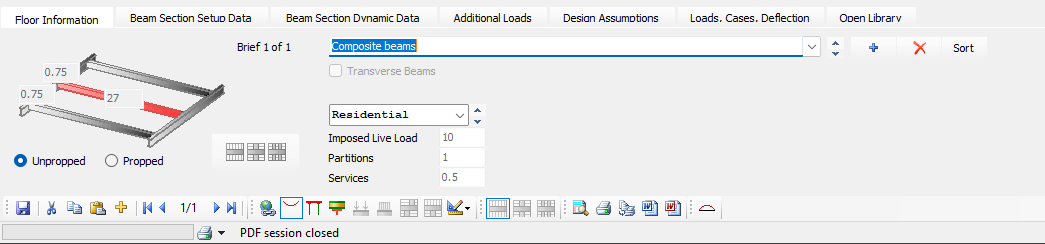
The Floor Information tab allows you to manually input your primary / secondary beam arrangement and

1. Brief Management
To add a new brief, click on the Add New Brief (blue +) button on the Floor Information tab or the Add Brief button on the top toolbar  .
.
.png)
A title for the brief is entered at the top of the tab. Additional briefs can be added or briefs deleted and sorted from the 3 icons to the right of the brief title box. When adding a new brief, it will be a copy of the current brief. This can then be edited as desired for the new design check.
2. Beam Layout
A graphical arrangement of the layout can be seen within the Floor Information tab.
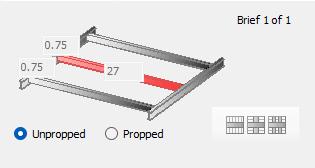
The user can specify the lengths of the different beams within here and the calculation output will update accordingly for the new arrangement / areas.
For example, a simple secondary beam can be defined with the span of the beam and the distance each side to the next adjacent secondary beam being entered on the floor layout diagram.
To model an edge primary beam, set the upper dimension to zero. Loads and concrete are then taken from one side only of the primary beam.
Unpropped or Propped
Select if the beam is propped or not during the construction.
Setting the beam to "Propped" on the Floor Information tab bypasses construction stage bending checks and limits initial deflections, as temporary loads are transferred to the props.
Simplified Input Options (Beam Layout) .png)
This option allows the user to quickly set up if the beams are Primary, secondary or mixed primary/secondary. When the simplified input button is selected, it will add 3 simple options to choose from.
Secondary Beam
.png)
Primary with One (Central) Transverse Beam
.png)
Primary with 2 Transverse Beams (2/3rds)
.png)
Selecting Primary with Incoming Secondary beam enables an additional input for the secondary beams framing into the primary beam.
The secondary beam weight can be selected from the section size list at the bottom of the tab.

Transverse Beams (Checkbox)
Turn off Simplified Input to open a table where you can place the incoming secondary (transverse) beams at your own positions along the primary beam.
X (m)
Location along the beam of the incoming secondary beams.
Section No.
The secondary beam weight can be selected from the section size list at the bottom of the tab.
Mixed Primary - Secondary beam
.png)
Ticking the box for Mixed Primary-Secondary will allow the beam to act as a mixed beam with secondary beams coming in to one side and the slab spanning directly on to the other side.
Overwrite Area
By default, each secondary beam uses the same loaded areas as shown in the main diagram, unless you overwrite them. This can be useful if the distance to the next primary beam is not constant, e.g., at an angle relative to the beam you are considering.
Length
These will be assumed to be the same lengths as in the main diagram unless you wish to overwrite the loaded areas.
Width
The Width defines the loaded width of the floor slab that is supported by each individual transverse (secondary) beam.
3. Loading
This will affect the combination factor for the imposed load. The type of imposed live load should be selected from the drop down list for
- Residential
- Office
- Shopping
- Storage
- Roof
Add loads for:
Imposed live load
Partitions
Services (and finishes)
Old Manual
Floor Information
On the Floor Information tab you can define the beam layout dimensions and loadings.
Primary, secondary and mixed primary/secondary beams can be set up quickly.
To add a new brief, click on the Add New Brief (blue +) button on the Floor Information tab or the Add Brief button on the top toolbar .png) (yellow +).
(yellow +).
Secondary beam.
.png)
A simple secondary beam can be defined with the span of the beam and the distance each side to the next adjacent secondary beam being entered on the floor layout diagram. The values for the imposed live load, partitions and services and finishes are added. The type of imposed live load should be selected from the drop down list for Storage, Residential, Office, Shopping and Roof. This will affect the combination factor for the imposed load.
A title for the brief is entered at the top of the tab. Additional briefs can be added or briefs deleted and sorted from the 3 icons to the right of the brief title box. When adding a new brief, it will be a copy of the current brief. This can then be edited as desired for the new design check.
The secondary beam can be set as propped during the construction stage.
Primary with incoming secondary beams.
.png)
When the simplified input button is selected, it will add 3 simple options to choose from.
A secondary beam
A primary beam with one central transverse (secondary) beam
A primary beam with transverse beams at third positions
The secondary beam weight can be selected from the section size list at the bottom of the tab.
Primary Edge beam with several secondary beams.
.png)
If you switch off the simplified input button, a table opens up enabling you to input transverse (secondary) beams at your own chosen positions along the primary beam. These will be assumed to be the same lengths as in the main diagram unless you wish to overwrite the loaded areas. This can be useful if the distance to the next primary beam is not constant, eg, at an angle relative to the beam you are considering.
To make the beam an edge primary beam, set the upper dimension to zero as shown above and the loads and concrete will only be considered from one side of the primary beam.
Mixed Primary - Secondary beam.
Ticking the box for Mixed Primary-Secondary will allow the beam to act as a mixed beam with secondary beams coming in to one side and the slab spanning directly on to the other side.