RC Shear Wall Panel
Here is a step-by-step design tutorial for a single concrete shear wall panel modelled as a finite element (FE) surface in MasterSeries:
Model Setup & FE Surface Definition (MasterFrame FEA)
- Within MasterFrame, define 4 boundary members using the Create > Add Members General. The member section sizes will be ignored once an FE Surface is defined (next step).
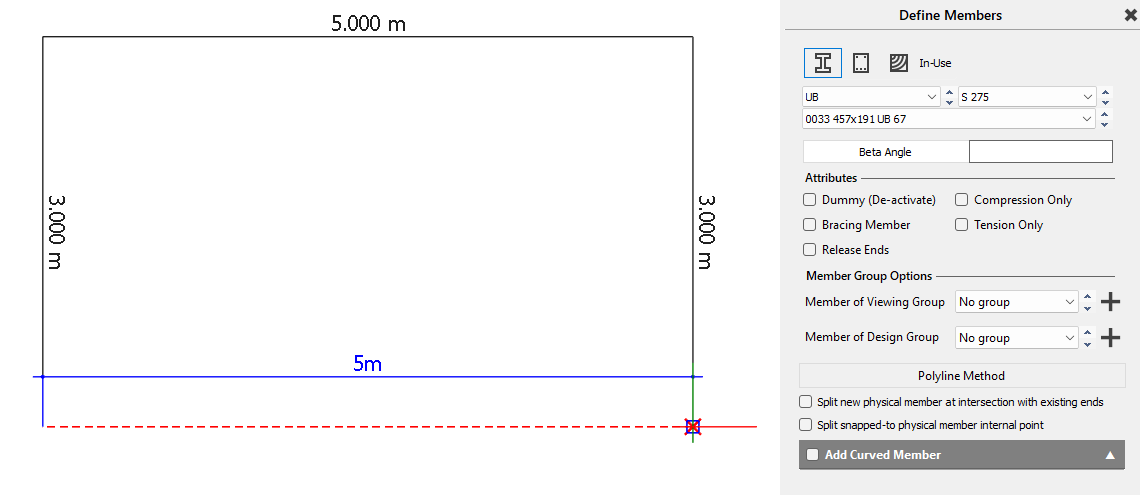
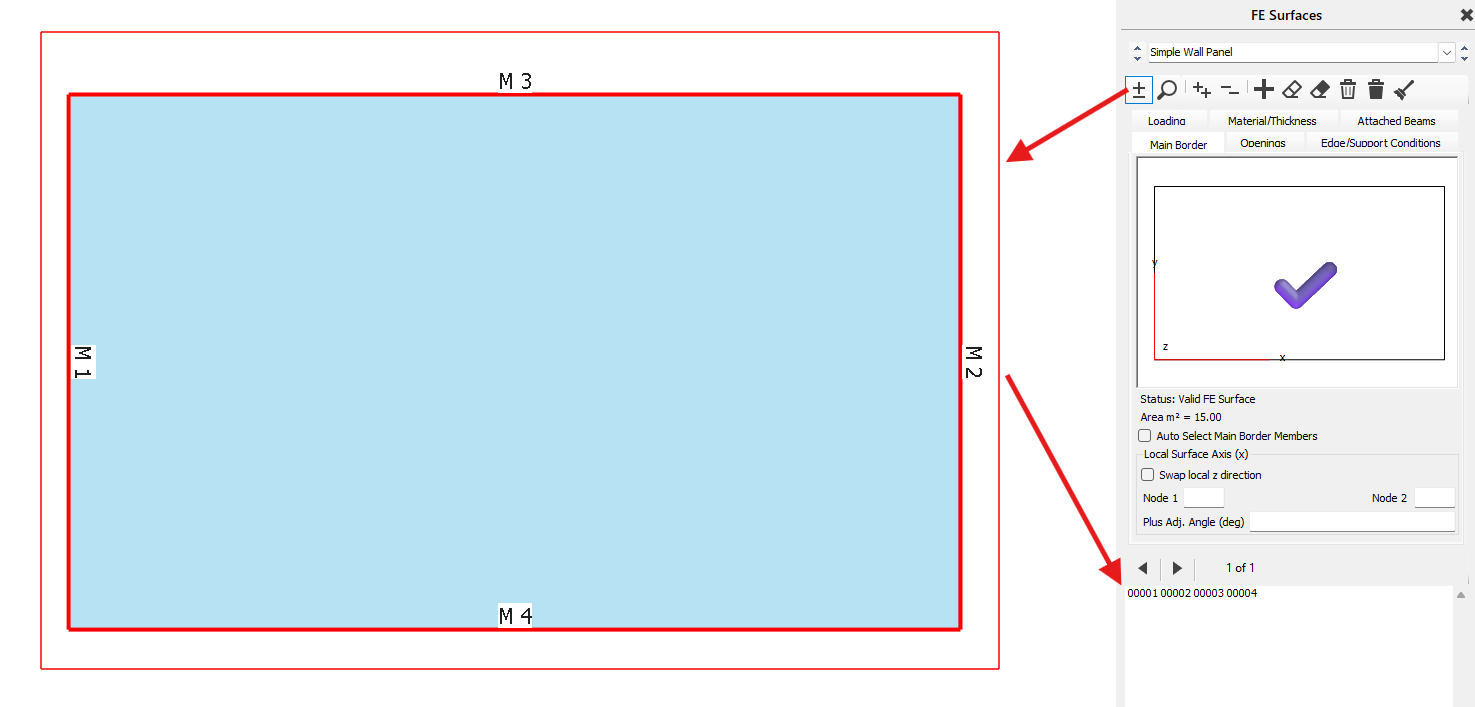
- Create the FE Wall Panel: Navigate to Slab, Wall, Ramp (FE Surface) and under Main Border select the four boundary members forming the rectangular outline of your shear wall panel.
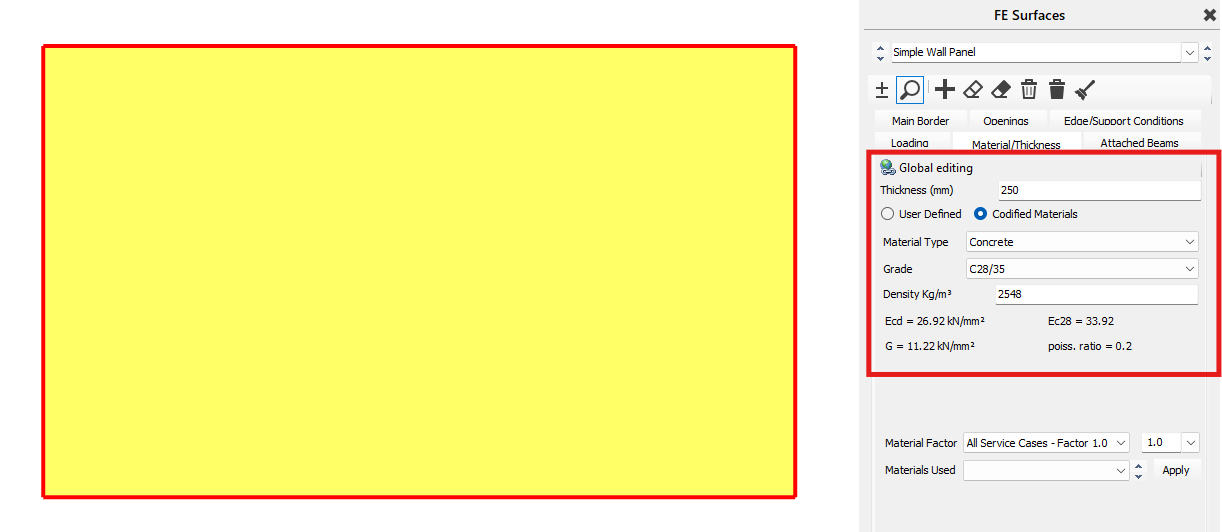
- Assign Material & Thickness: In the Material/Thickness tab, set the material type to Codified Materials (e.g., Concrete grade C28/35 or C25/30) and enter the wall thickness (typically 200 mm to 250 mm). Specifying codified materials is mandatory so that the wall design module can communicate with the FE surface.
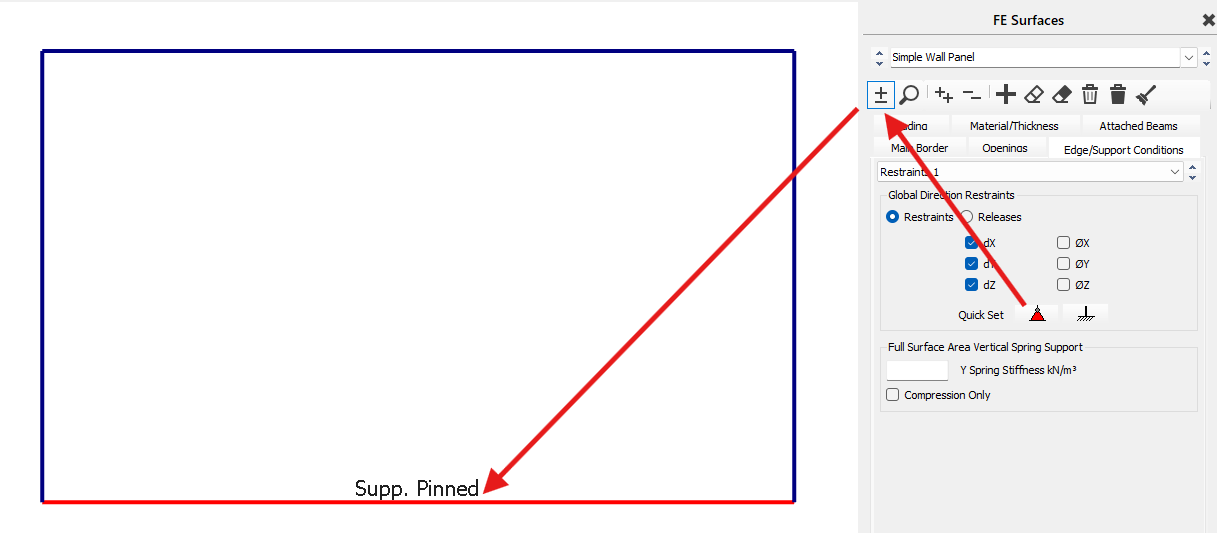
- Apply Base Supports: Under the Edge/Support Conditions (Restraints and Releases) tab, select Quick Set > Pinned and apply a pinned line support along the bottom edge of the wall panel to prevent translational movement.
Continuous Support labels can be turned on within the Display Settings, under Finite Element Display Options.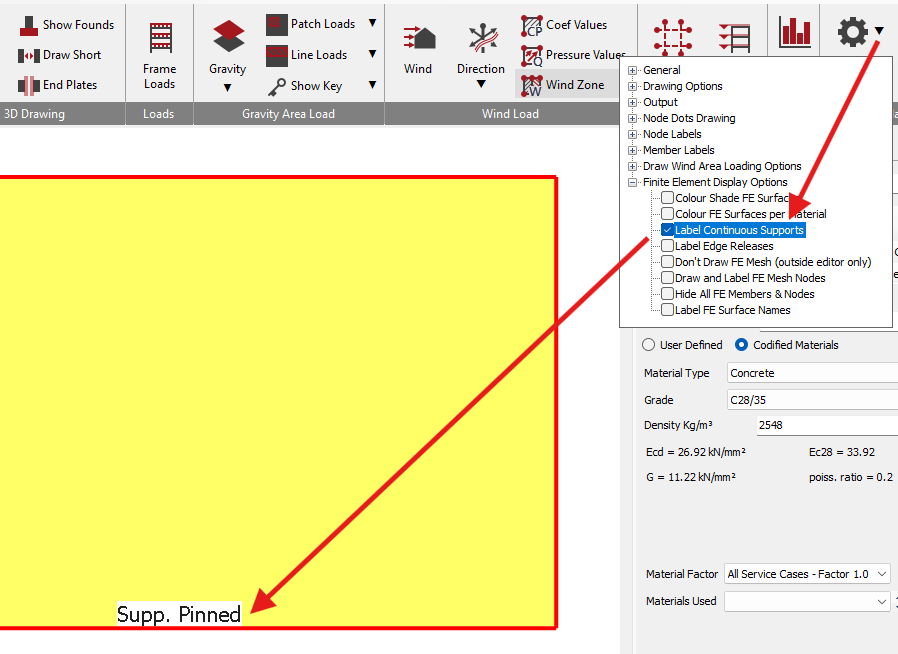
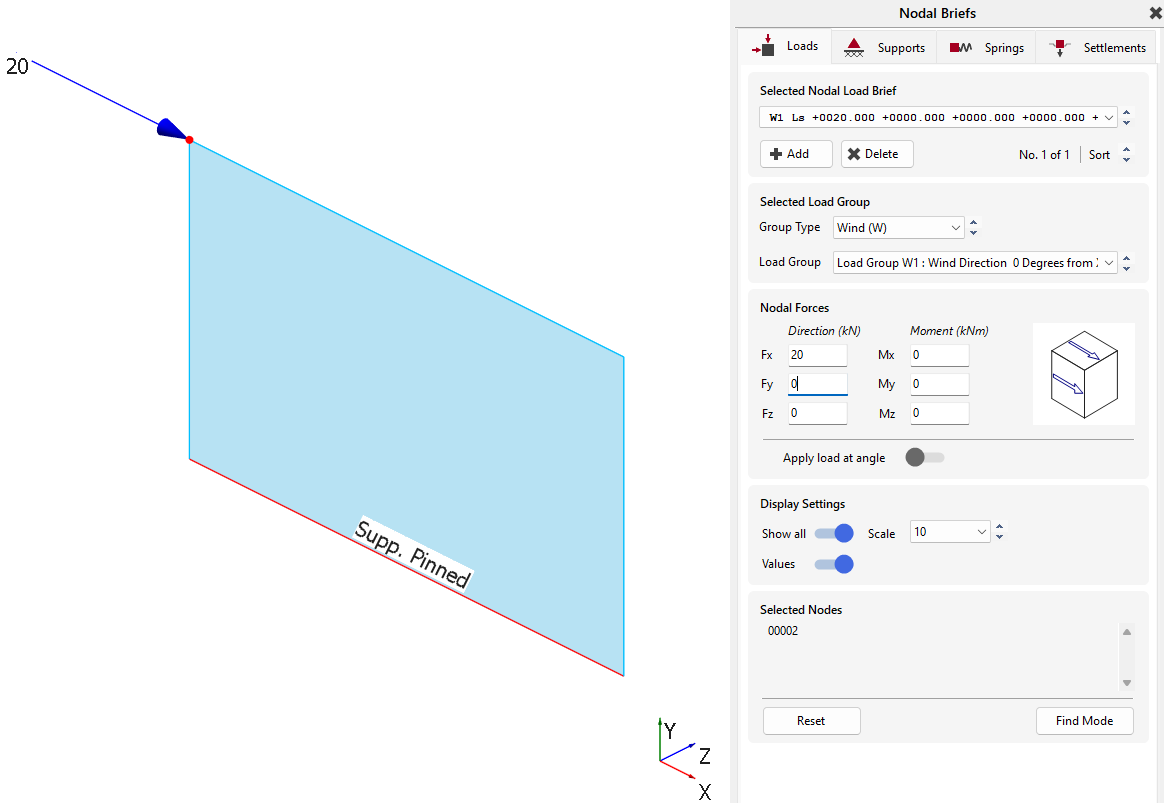
- Apply Loading: Apply Nodal Loading in the direction of the wall. Load Cases (with Auto Load Case Generator) can then be set up .
- 💡
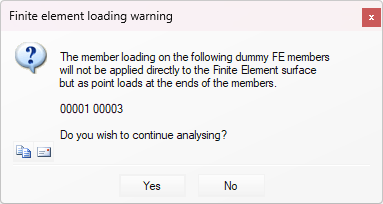
Note: FE Surfaces do not allow for in-plane Area Loading. Where line loads are applied, the member will act in a similar fashion as a MasterFrame dummy member, with the reactions at the ends of the beams being transferred to the nodes at the ends of the beams.
- Add Openings: Openings (within an FE Surface) can be created.
Tip: create the opening using 'Add Dummy Member' function, which can be accessed by right clicking within the model space.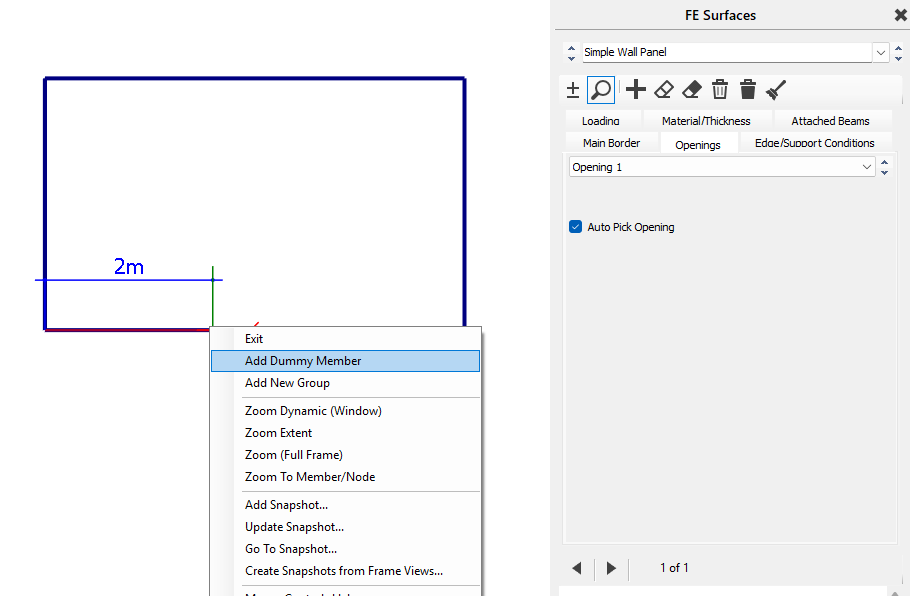
Select the members which define the boundary.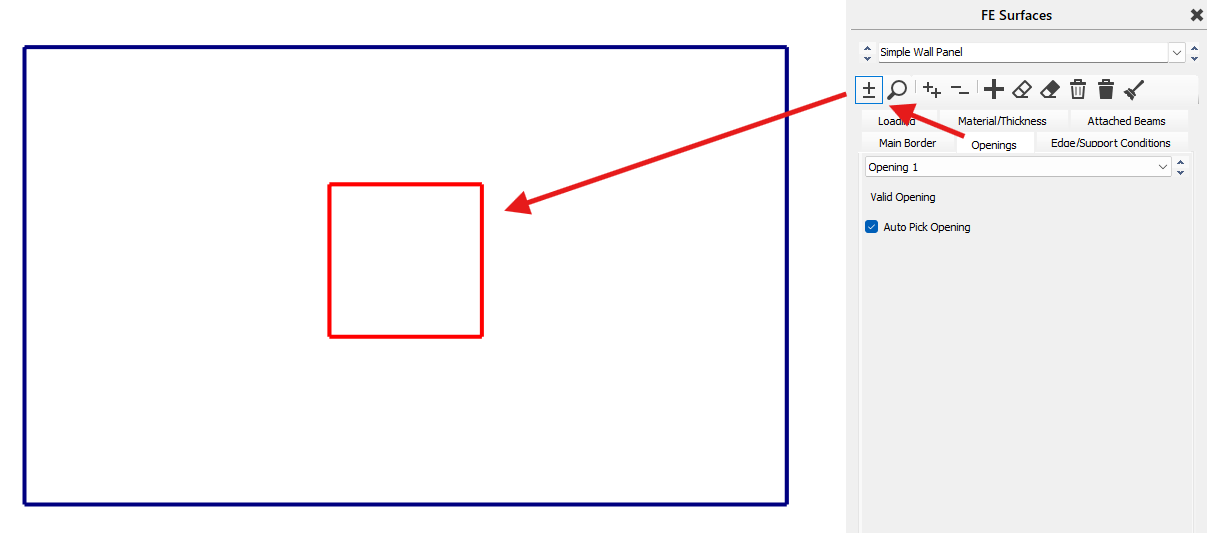
FE Meshing and Static Structural Analysis
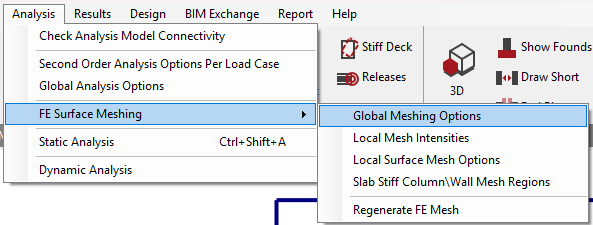
- Set Meshing Options: Navigate to Analysis > FE Surface Meshing > Global Meshing Options and specify an initial mesh element size (typically ≤ height/10 or 0.5 m).
- Enable Stiff Regions: Check the option to Mesh to Column/Wall Stiff Regions if the wall connects to adjacent slabs or columns to account for physical cross-sections and mitigate artificial stress singularities.
- Run Analysis: Perform a Static Space Frame Analysis (Analysis > Static Analysis). MasterSeries solves the stiffness matrix to generate internal axial forces, in-plane/minor-axis bending moments, and horizontal shear forces across all defined Ultimate Limit State (ULS) load cases.
Grahpical Analysis Results
Read more here:
- 📄 Calculating and Reporting Distributed Wall Reactions for Pinned FE Surface Edges
- 📄 Viewing Total Forces and Stresses for Individual Wall FE Surfaces
- 📄 Viewing and Interpreting FE Line Support Reactions
Access the Concrete Wall Design Module & Set Defaults
Open Wall Designer: Go to Design > Concrete Wall Design (part of the MasterKey Concrete Slab and Wall Design suite).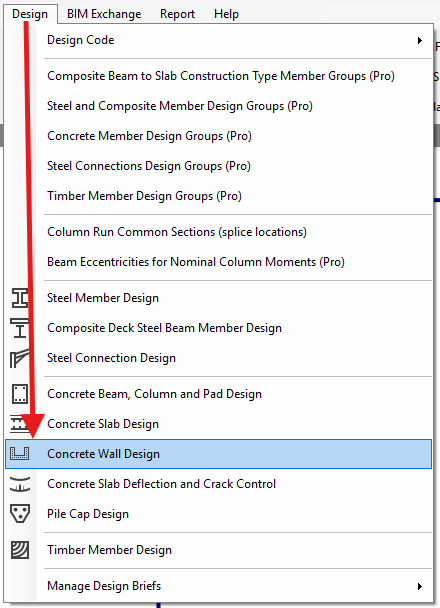
Set Design Defaults
In the Basic Data and Defaults dialog, set global project preferences
Grades and Cover
Set steel reinforcement grade (fy = 500N/mm^2), and concrete cover in mm.
Wall Pier Design Defaults

Default Rebar
This section sets the baseline vertical and horizontal reinforcement automatically assigned when a new wall pier zone is created:
- Vertical Bar Dia. & Spacing: Enter the default vertical bar diameter and pitch (e.g. 16 mm @ 200 mm).
- Horizontal Bar Dia. & Spacing: Enter the default horizontal bar diameter and pitch (e.g. 10 mm @ 200 mm).
Default Design Method
This section defines global defaults for how the wall panel is subdivided into sub-piers for structural evaluation:
Design Methodology: Select the preferred default pier subdivision method from the drop-down menu:
- Strips Equal Width / Equal strips - fixed width: Subdivides the wall into fixed-width strips starting from the ends, with a central make-up strip.
- Equal no. of strips: Divides the wall into a specified number of equal-width strips.
- User defined strip widths: Allows custom strip widths.
- One zone: Treats the entire wall pier as a single design zone.
- Left and right zone - axial and bending: Resists in-plane bending using reinforced end zones.
Left Right method:
- Width (m): Define the default end zone width (e.g. 2 m).
- Symmetrical Rebar: Check this box to enforce symmetrical reinforcement at both ends.
Equal methods:
- Width (m): Define the default fixed strip width (e.g. 1 m) when using fixed-width strips.
- No.: Specify the default number of sub-strips (e.g. 4) when using equal number subdivision.
- Use 'One Zone' design when W/D <: Set the width-to-thickness ratio limit (e.g. 6). If a wall pier's aspect ratio falls below this threshold, the software automatically defaults to a single "One Zone" design rather than subdividing.
Permissible Bar Size and Spacing for Auto Design
This section specifies the allowable bar diameters and spacings available to the Auto Design algorithm when sizing rebar:
Vertical Reinforcement:
- Bar Dias. (mm; mm...): Input allowed vertical bar diameters separated by semicolons (e.g. 10;12;16;20;25;32).
- Spacings (mm; mm...): Input allowed vertical bar pitches separated by semicolons (e.g. 100;150;200;250;300).
Horizontal Reinforcement:
- Bar Dias. (mm; mm...): Input allowed horizontal bar diameters separated by semicolons (e.g. 10;12;16;20).
- Spacings (mm; mm...): Input allowed horizontal bar pitches separated by semicolons (e.g. 100;125;150;175;200).
Wall Coupler Beams
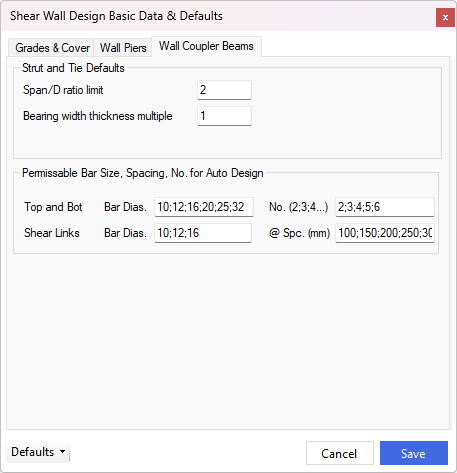
Strut and Tie Defaults
This section defines how the software handles short or deep bridging elements spanning over door and window openings:
- Span/D ratio limit: Enter the threshold span-to-depth ratio (default is 2). When a coupler beam's span-to-depth ratio exceeds this limit, the software treats it as a standard concrete beam using traditional flexural theory. When the ratio is less than or equal to this limit, the software automatically classifies it as a deep beam and attempts to design it using the strut-and-tie design method.
- Bearing width thickness multiple: Set the bearing node width at the ends of the coupler beam as a multiple of the wall thickness (default is 1, meaning the bearing width equals 1 x wall thickness).
Permissible Bar Size, Spacing, No. for Auto Design
This section establishes the allowable reinforcement bar sizes, bar counts, and spacings available to the Auto Design algorithm when sizing coupler beam rebar5:
Top and Bot (Flexural / Longitudinal Reinforcement):
- Bar Dias. (mm; mm...): Input allowed top and bottom main bar diameters separated by semicolons (e.g. 10;12;16;20;25;32)5.
- No. (2;3;4...): Input allowed number of top and bottom bars separated by semicolons (e.g. 2;3;4;5;6)5.
Shear Links (Shear Reinforcement):
- Bar Dias. (mm; mm...): Input allowed shear link bar diameters separated by semicolons (e.g. 10;12;16)5.
- @ Spc. (mm): Input allowed shear link spacings/pitches in millimetres separated by semicolons (e.g. 100;150;200;250;300)5.
Saving Your Defaults
- Click Save to apply these defaults to all coupler beams in the active file35.
- To store these preferences for all future project files, click the Defaults drop-down menu at the bottom-left of the dialog and choose Save as Default5.
- Click Reset to MasterSeries Defaults at any time if you wish to restore the original factory settings5.
Create the Wall Pier Zone
- Add Pier Zone: Ensure Pier is selected under the wall reinforcement design options, click Add (+) to create a new zone, select the parent FE surface, and draw a placement rectangle across the wall panel.
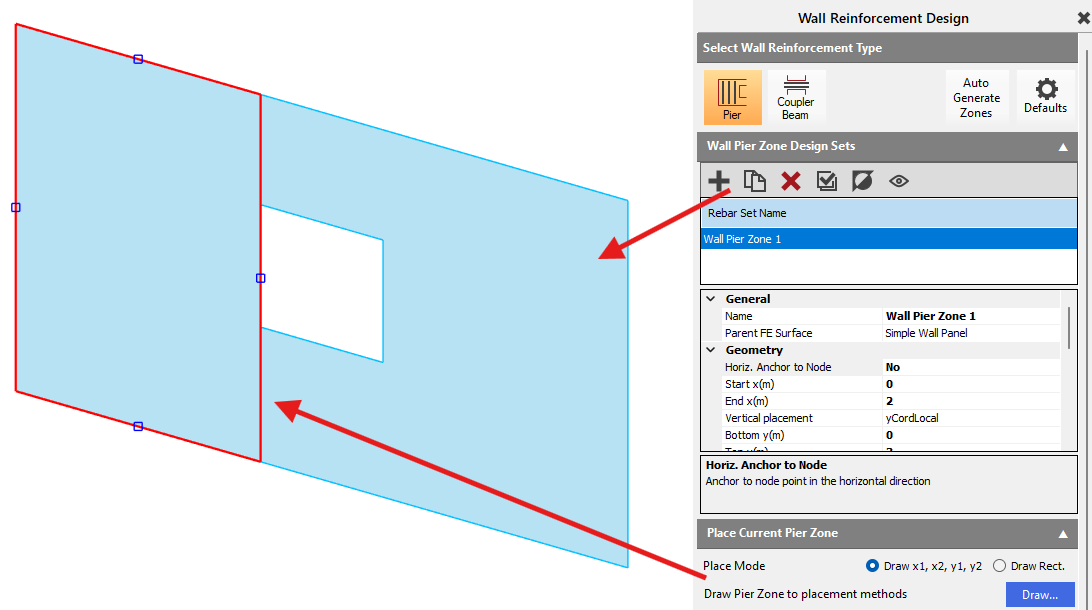
- Configure Pier Subdivision: Under Design Method, select a Pier Subdivision option (e.g., Equal strip widths (fixed) with a 1 m fixed strip width or Equal no. of strips) to divide the wall panel into individual sub-pier design strips.
- Set Edge Restraints: Under Edge Restraints, set the out-of-plane restraint conditions (e.g., Top & Bottom restrained) to establish the effective height used for slenderness and out-of-plane buckling calculations.
Create the Coupler Beam Zone
Under Select Wall Reinforcement Type in the right-hand panel, click the Coupler Beam icon.
- Click the Add (+) button to add a new Wall Beam Zone.
- Click on the parent FE surface containing the opening.
- Under Place Mode, select Draw Rect. or Draw x1, x2, y1, y2, click Draw..., and draw a placement rectangle across the bridging section over the opening.
Alternative: Auto-Generate Zones (Recommended)
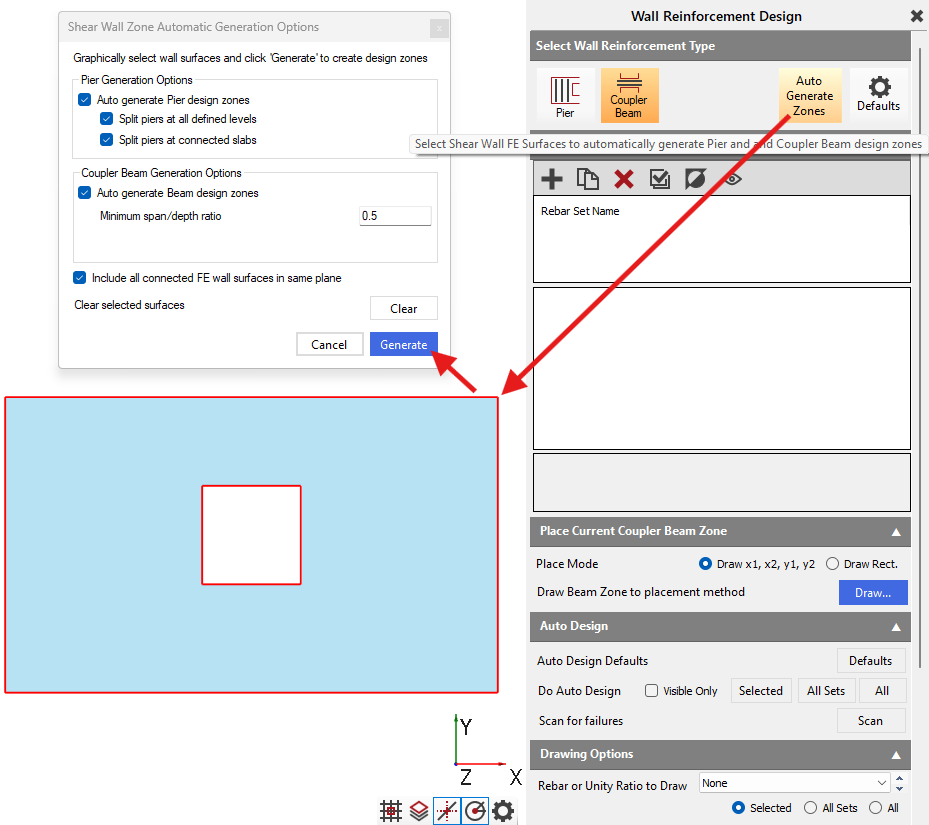
- Click Auto Generate Zones.
- Window-select the wall surfaces and click Generate to automatically detect all door/window openings and generate the wall piers and coupler beam zones.
Reinforcement Auto-Design & Verification
- Run Auto-Design: Enter preferred bar parameters (e.g., vertical T12 or T16 bars at 200 mm centers) or click Selected under Auto Design to let the software automatically optimize bar sizes and spacings.

- Review Unity Ratios: The module evaluates each sub-pier strip as an equivalent concrete column subjected to axial force (tension or compression), biaxial bending, and horizontal shear. Ensure that all graphical Unity Ratios across all sub-piers are ≤ 1.0.
Export Output
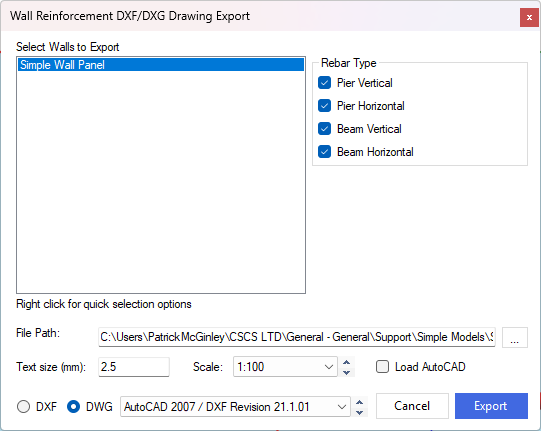
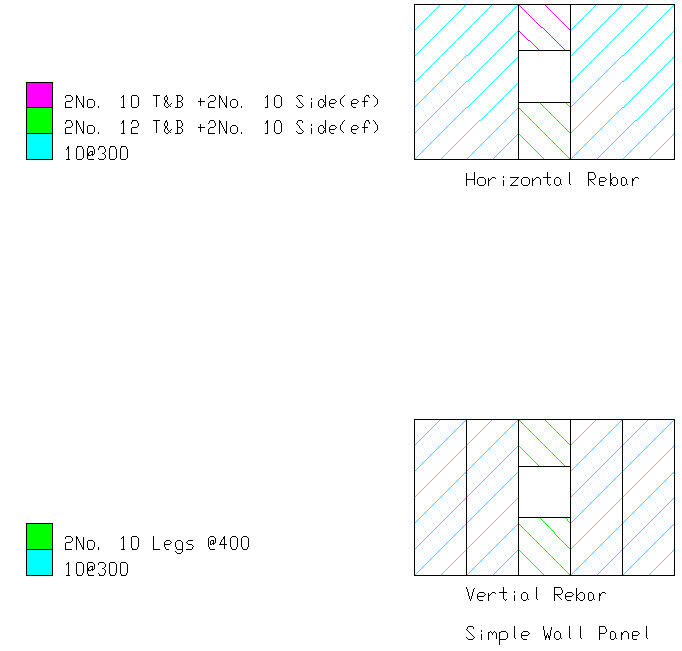
Generate comprehensive calculation reports and export design-intent rebar drawings to DXF/DWG formats.
Print / Export
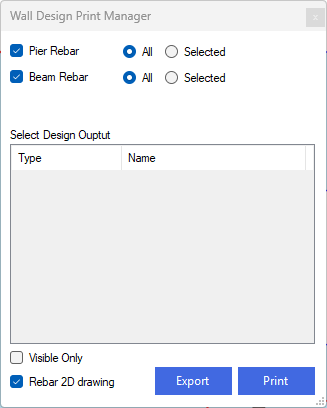
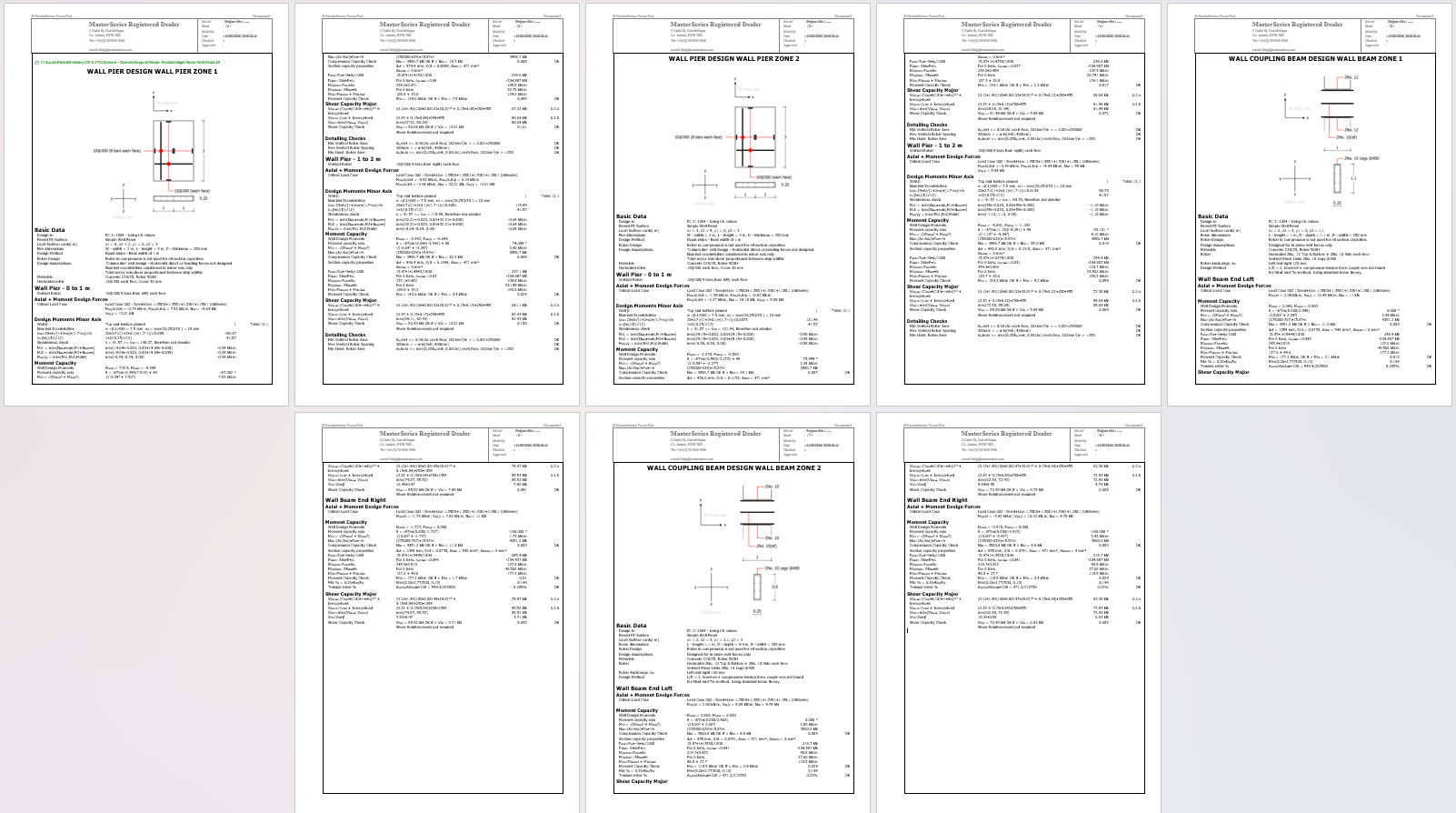
DXF/DWG Export Rebar Drawing