Main Menus
The main menus at the top of the screen will aid with the design of the steel sections and other additional checks, viewing and printing of the output, selection of design codes and some additional options as outlined below.
Edit-View
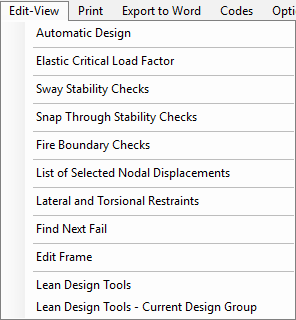
Automatic Design: Takes you to the Automatic Design tab at the bottom of the screen. See 📄 Auto Design Procedure
Elastic Critical Load Fator: Takes you to the ctitical load factor tab and results at the bottom of the screen.📄 Stability & Fire Boundary - Elastic Critical Load Factor
Sway Stability Check: Takes you to the Sway Stability check option and results at the bottom of the screen. 📄 Stability & Fire Boundary - Sway Stability, Snap Through and Fire Boundary Design Checks
Snap Through Stability Checks: Takes you to the Snap Through Stability check at the bottom of the screen. 📄 Stability & Fire Boundary - Sway Stability, Snap Through and Fire Boundary Design Checks
Fire Boundary Checks: Takes you to the Fire Boundary check at the bottom of the screen. 📄 Stability & Fire Boundary - Sway Stability, Snap Through and Fire Boundary Design Checks
List of selected Nodal Displacements Takes you to the Nodal Displacements at the bottom of the screen.
Lateral and Torsional Restraints: Takes you to the Lateral and Torsional Restraints at the bottom of the screen.
Find Next Fail: Takes you to the Scan for Failures option.
Edit Frame: Takes you to the MasterPort editing screen.
Lean Design Tools: Takes you to theMateria; Utilization report window.
Lean Design Tools: Takes you to theMateria; Utilization report window for the current design group.
.png)
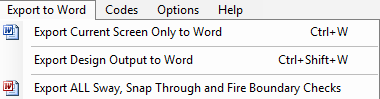
Export to Word
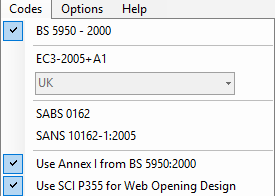
Codes
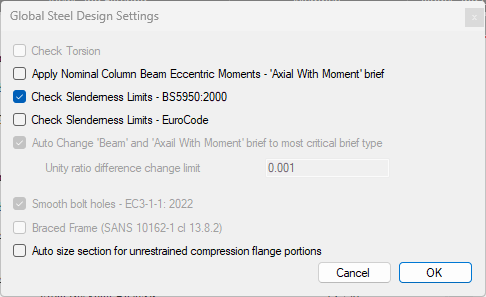
Options

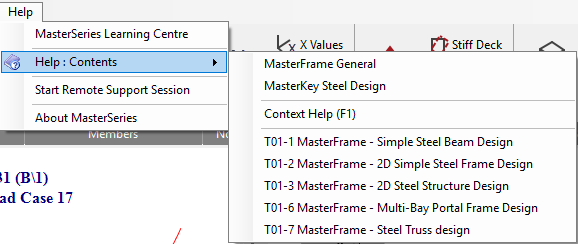
Help
Integrated Design
If you have switched off the Simplified Interface in the editing end of the program prior to going into the design end, then the Integrated Design menu will also appear in the main menus at the top of the screen. These options will allow you to add design briefs to members of the frame since the automatic application of briefs when the simplified interface is on, is no longer available with it off.
.png)
Deflection Limits
Opens up the Deflection Limits table.
Section Filter for Depth, Width and Thickness
Allows filtering of sections for depth, width and thickness.
Show critical and non-critical load case
Displays the critical and non-critical cases based on the current design briefs.
Design and deflection load cases
Allows you to differentiate between design and deflection load cases.
Adds an AutoCheck - Group Check.
Axially Loaded Members with Moments
Apply an Axially Loaded Members with Moments design brief.
Appendix-G stability check
Apply an Appendix-G stability check to a member.
Automatic Design
Takes you into the automatic design area.
Elastic Critical Load Factor
Apply an Elastic Critical Load Factor check to the frame.