How to Edit and Add Both Standard and Non-Standard User Sections to Your Masterseries Model
MasterSeries includes a large library of in-built steel sections which includes British, European, American, South African and Chinese sections.
Overview
These in-built section profiles adhere to geometric properties defined in design codes such as British Standards and Eurocodes, which allow for their design within MasterSeries. As well as the in-built libraries, MasterSeries incorporates many other section types which can be designed within the software, the full range of which can be found within our MasterKey: Steel Design feature list.
‘Standard’ User Steel Sections Database
On top of our in-built libraries in Masterseries, we can add sections which fall within these same geometric properties that allow for their design to the code, which allows for both analysis and design in the software. We will refer to these as ‘standard’ sections.
Management
📄 Management of 'Standard' User Steel Sections
These are managed under the ‘User Steel Section Database’ within MasterSeries’ Open Library found on the Utilities tab of the MasterSeries’s start-up screen.
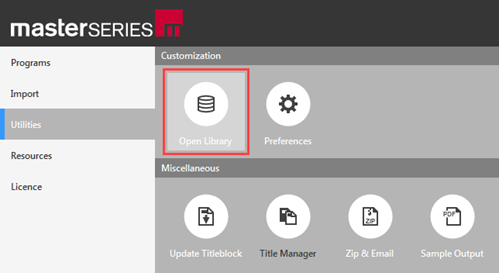 Accessing MasterSeries Open Library from the Main Menu
Creating a User Section Database, we can add one section at a time manually from the basic dimensions, or, we can import an entire library from an external file (.csv spreadsheet or comma delimited .txt file).
Optionally we can add any cross-section properties, such as area, inertia, plastic modulus etc., or allow the MasterSeries to automatically calculate them.

Commonly used cross-section properties
‘Non-Standard’ User Sections
We also have the option to add profiles which do not adhere to these code specific geometric properties, and so therefore cannot be designed to the coded standards, nor be designed within our MasterKey: Steel Design module. We will refer to these as ‘non-standard’ sections.
These ‘non-standard’ sections are typically developed and tested by manufacturers and the resulting design data are presented in terms of load/span tables or software. These sections can be specified and analysed within MasterFrame with key stresses extracted from the analytical model to allow for the verification of a proprietary section, for example based on design member moment capacities.
Management
📄 Management of 'Non-Standard' User Steel Sections

Accessing the User Sections Editor from MasterFrame -> Properties -> Member Sections Materials
To edit or amend these ‘non-standard’ sections, the User Sections option can be accessed on the MasterFrame’s Member Sections Materials dialogue and provides a general cross-section creation option. All of the cross-section properties, which are needed for analysis, can be freely entered manually or import from an external spreadsheet (.csv spreadsheet or comma delimited .txt file).
 Selecting Between Local or Open Library User Sections
This section type does not contain any information about the cross-section shape or geometry parameters, therefore it is not suitable for design, just analysis. User Sections can be used to model those structural elements which have irregular cross-section and their stiffness is used during the structural analysis to calculate deflections and internal forces.
Shared Custom Library
It is possible to use a single shared library for custom section sizes rather than each user maintaining their own separate database.
The opeblib*.db file can be stored on a shared network directory, allowing all users to access the same library. Each user will need to configure their system by selecting the “Change Database File” option within the Open Library selection area and repointing it to the shared database file.
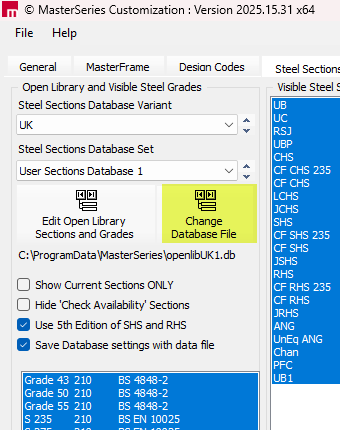
Important Considerations
-
Read-only access for general use
When using the database within the various modules of MasterSeries, access is read-only, meaning multiple users can safely use the shared library at the same time without issue. -
Editing restrictions
The database does not support simultaneous editing. If multiple users attempt to modify the file at the same time, this may result in errors such as “database file locked.” Recommended editing workflow
To avoid conflicts:
- Take a local copy of the shared opeblib*.db file.
- Make any required changes locally.
- Replace the shared database file with the updated version once edits are complete.
-
Storage location guidance
The shared database should be stored on a dedicated network drive.
It is not recommended to host the file on cloud-synced directories such as OneDrive or Dropbox.