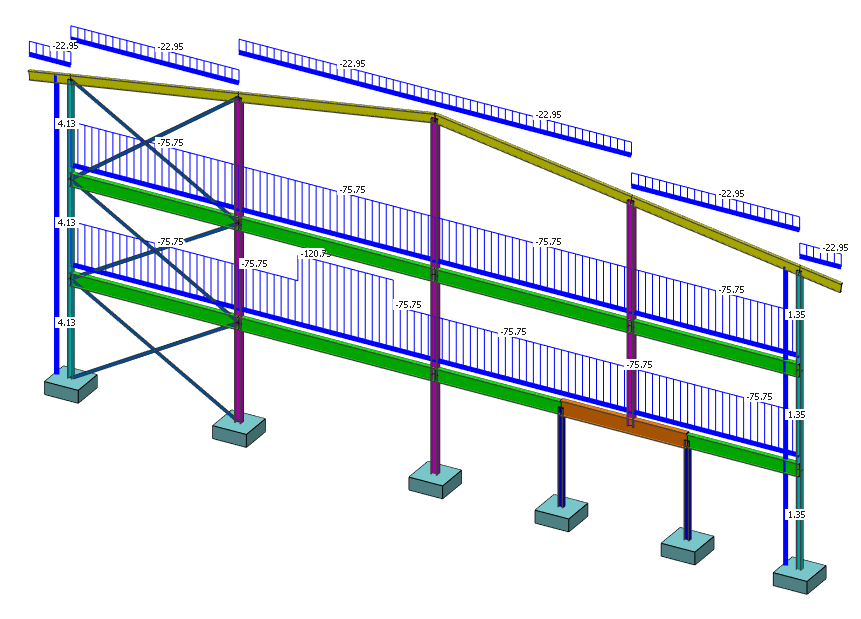
2D T01-3 2D Steel Structure
2D Steel Structure Design to Eurocode 3
📑 Introduction to MasterFrame
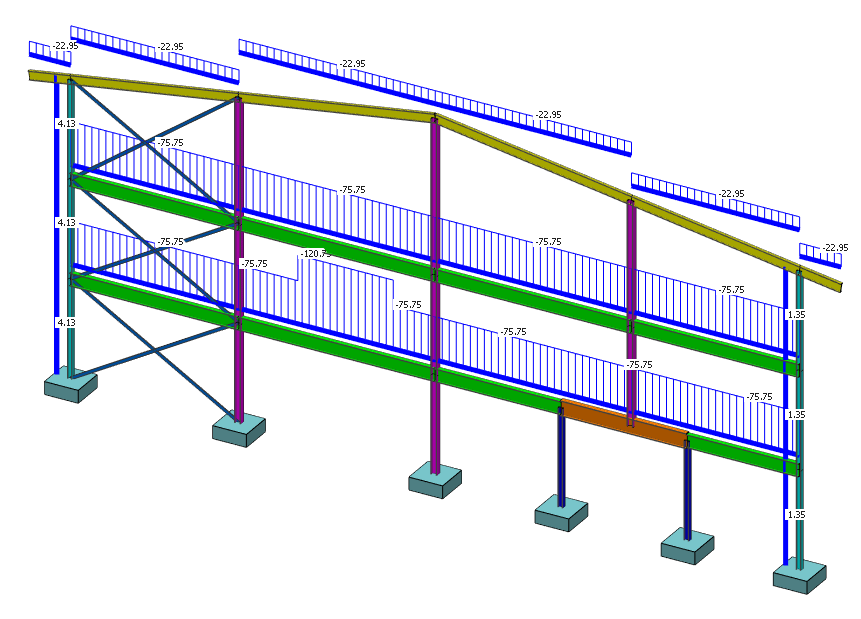
Introduction
MasterFrame is a piece of advanced structural frame analysis software that allows you to analyse everything to beams, and trusses to multi-storey frames and complex 3D models in any type of material.
MasterKey Steel Design allows for the design of members in steel structures analysed using MasterFrame, or MasterPort to the BS, Euro or SABS codes.
If you do not have access to any of this software, please contact (Support) us for a 14-day free trial to learn how it can benefit you and your business.
Overview & Outcome
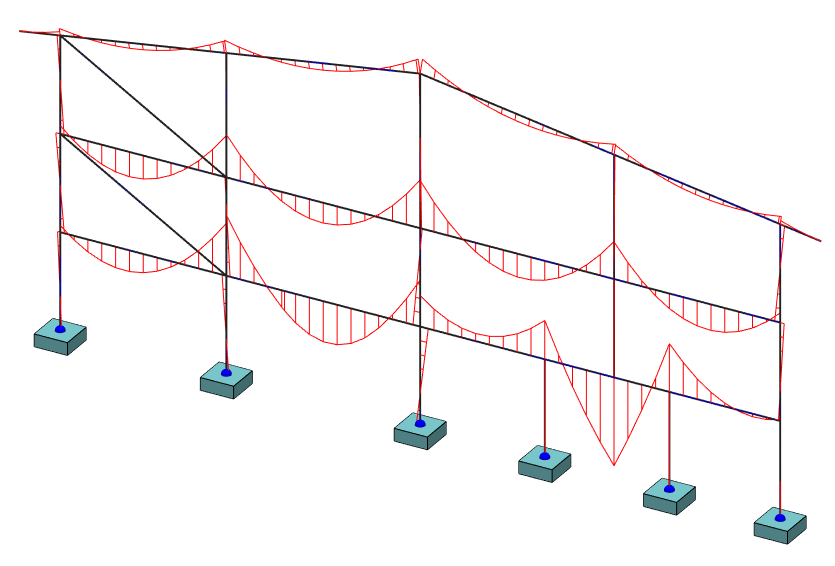
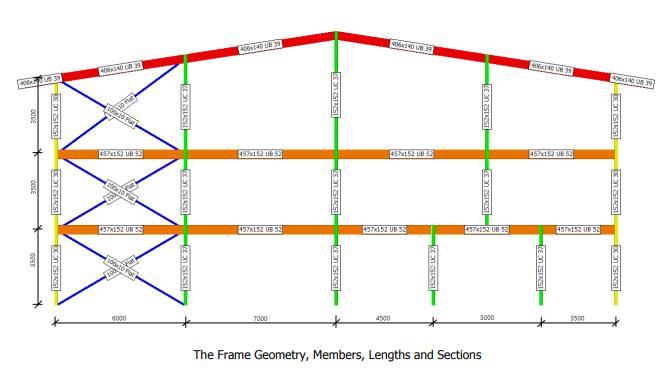
This tutorial gives you a quick tour of MasterFrame, introducing you to the most important concepts and features along the way. You will create and analyse a steel frame, as shown in the following MasterSeries Printed Output.
In general, the basic steps involved in using MasterFrame are as follows:
1. Generate the frame geometry
2. Define member properties, orientation and loading
3. Define supports and nodal loading
4. Define loading cases and combinations
5. Define job references and project title
6. Analyse the frame
7. View results
8. Design and optimize your frame & re-analyse
9. Print results
Version Information
This tutorial has been written for version 2024 of the MasterSeries software suite. Subsequent versions of the software may have additional features or changes in layout, however the general procedure will remain the same.
Contact
We strive to make our tutorials as simple as possible without compromising on the technical aspects of the analysis procedure. Should you discover any errors, omissions, or are in need of additional clarification, please contact us by emailing your comments, or corrections to help@masterseries.com
We’re social – follow us on Facebook, LinkedIn and Vimeo to keep up to date!
Loading MasterFrame
To start this tutorial, launch the main program of MasterSeries. While standing on the Programs tab, select the MasterFrame from the Integrated Analysis & Design filed.

The File Selector Dialogue

 ) button on the top of the file selector tree, we can see the saved
favourite folders. By selecting one of them, the file tree will immediately jump to there. By clicking the
Star icon at the end of the line, we can remove or add each of them.
The table, on the right of the File Selector (#3), lists all of the MasterFrame models contained in
the selected folder.
) button on the top of the file selector tree, we can see the saved
favourite folders. By selecting one of them, the file tree will immediately jump to there. By clicking the
Star icon at the end of the line, we can remove or add each of them.
The table, on the right of the File Selector (#3), lists all of the MasterFrame models contained in
the selected folder.The Frame Generation Menu
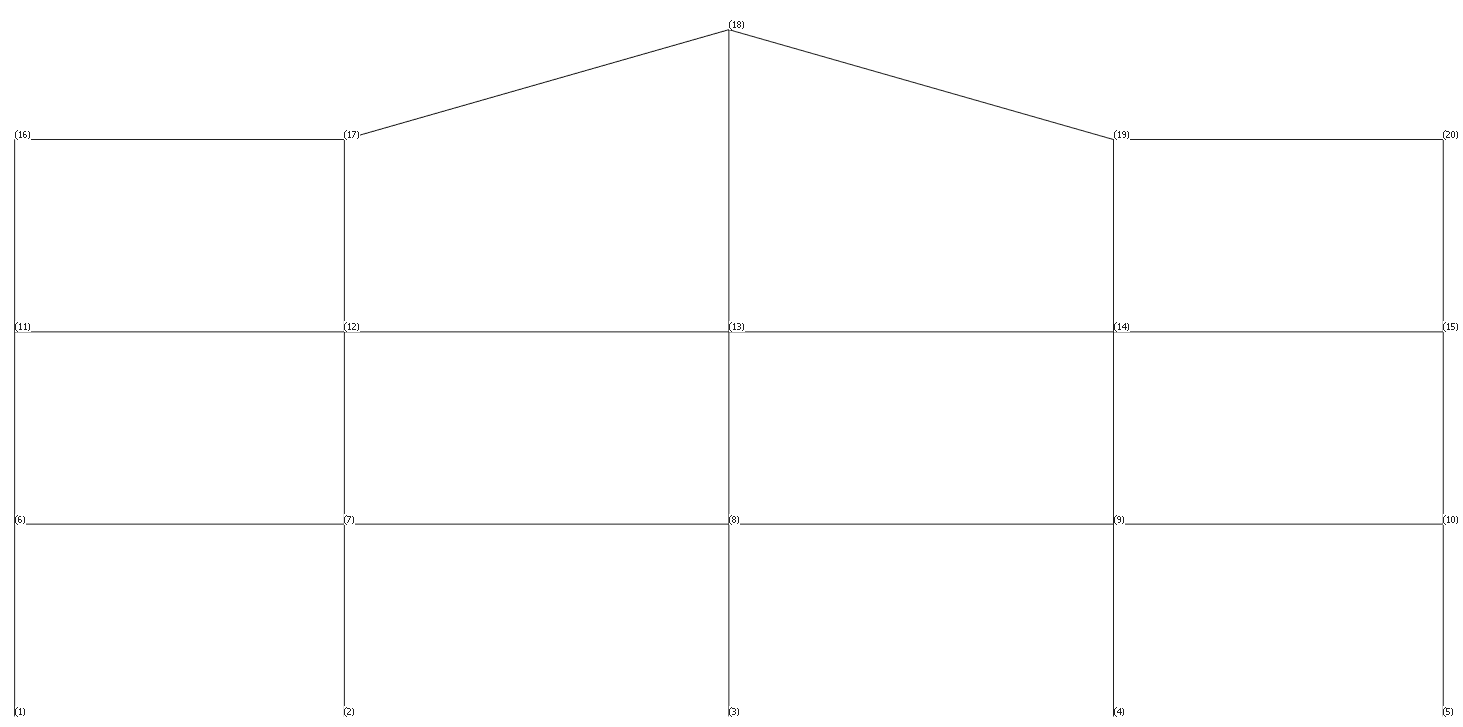
In most cases, you will be able to select a start-up frame and then tailor it to your specific requirements. In this case, we shall generate a multi-storey frame, edit the coordinates of the roof beams and then add the two parapet walls.
The Frame Generation Menu (Frame Wizard) is now displayed as shown.
To generate our start-up frame, select the Multi-Storey button.
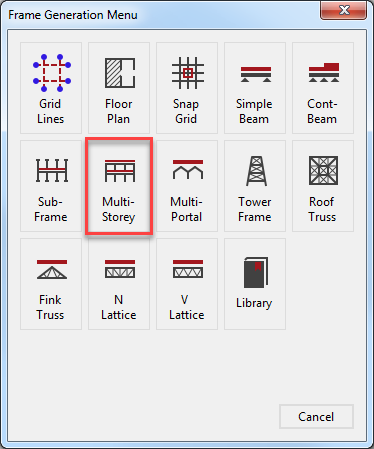
For More information click 📑 Starting a new Frame
This tutorial describes some of the basic techniques used in MasterFrame. Please take a few minutes to familiarise yourself with the various frame viewing tools; editing and data input methods and find how you can use the modify geometry area to select members.
The Start-up Frame
The multi-storey frame pre-processor is now displayed.
From the top toolbar select the Length (  ) to display the member lengths from
the Members group.
) to display the member lengths from
the Members group.
Place the frame in
front view by selecting the Front side of the viewing cube  ).
).
You can click in any text box to set the focus to it; you can also move from one box to another using the cursor up and cursor down keys.
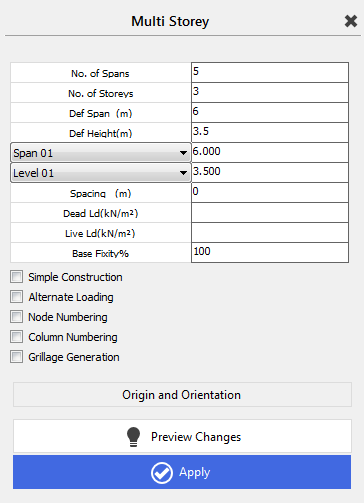
Click on No. of Spans and type 4. No. of Storeys, Def Span (m) and Def Height (m) will be left on default values (3; 6m; 3.5m).
As we change the input in the pre-processor the graphical
display is always updated. This is because the Preview
Changes  button is depressed.
As our frame has varying spanning, we now
need to change Spans 2 and 3 to 7 m.
To do this, click on the down arrow beside Span 01 and select Span 02 from the drop list.
Change the span in the text box to the right to 7 m and click apply
Repeat for Span 03 from the drop list.
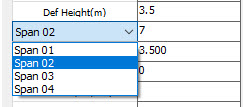
We will not use the other options of the frame generator but manually apply loads etc. for the practice. During the editing process, the frame is displayed in grey. This is because the frame has not been generated yet and you are only looking at the projected frame that will be generated if you select the Apply button.
TIP! Preview
Changes  button displays the projected frame.
Select Apply  ) to generate the frame. The frame now turns
from grey to black as it has been created.
) to generate the frame. The frame now turns
from grey to black as it has been created.
Close the Multi-Story wizard by clicking on the X beside the title Multi-Storey.
TIP! If your frame is not in black but a different colour,
then turn off the Cour by Section button in the 3D Drawing group that draws
each section type in a different colour. It is best to work with this off as it
gives better clarity during editing.
Editing the Frame Geometry
Move Members
You
can now use other options to modify the frame geometry.
From the top toolbar turn off the member Lengths in the Members group and then turn on the node Numbers in the Nodes group.
From the Modify Geometry file menu, select the Move Members, FE Surfaces, Grid Lines option.
In the Selection field select the Member ends selection mode to move only the selected member’s end.
In the Move field click in the Move All Connected Ends to move together all the member ends which are connected to the selected node.
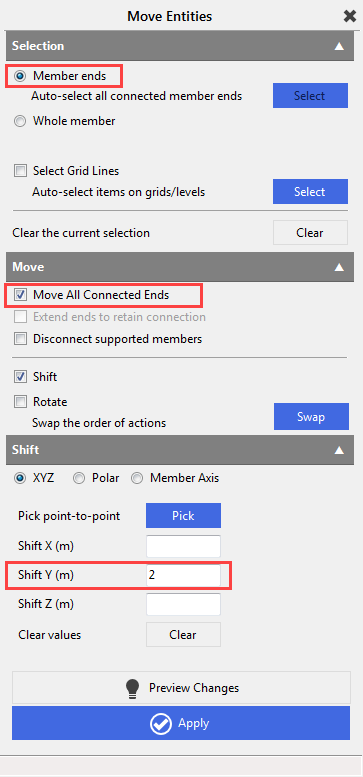
Next, select one of the members’ endpoint at Node 18 which is the top model node. A red dot will appear to confirm its selection.
Therefore, we would like to move the Node 18 vertically by 2 m, enter 2 in the Shift Y (m) box.
Click on Preview Changes to preview the frame with Node 18 raised by 2 m (frame turns grey).
Select Apply to carry out the shift (frame turns black).
Position on Straight Line (Aligning nodes)
We now need to lift node 17 and 19 up to obtain a constant slope.
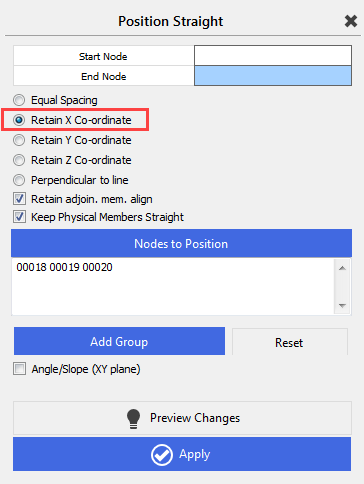
From the Modify Geometry file menu select Position Coordinates, then Position on Straight Line.
In the Nodes to Rotate box, add Nodes 16, 17 and 18 by either picking or windowing them with the mouse.
Note that no start or end node has been defined, thus the lowest and highest node numbers in the Nodes to Position box, in this case, nodes 16 and 18, will be used to define the start and end nodes respectively.
Ensure that the Retain X Co-ordinate is selected, keeping the X coordinate value of Node 17, but allowing its Y and Z coordinates to change.
Select Preview Changes to preview the frame with Node 17 raised into line with 16 and 18 (frame turns grey).
Select Apply to carry out the shift (frame turns black).
Select the Reset button to clear the Nodes to Position selection list.
Repeat the above with nodes 18, 19 and 20
Define New Member (Snap Grid)
We can now add some X diagonal bracing members into the first bay. From the Create file menu, select Add Members (General).
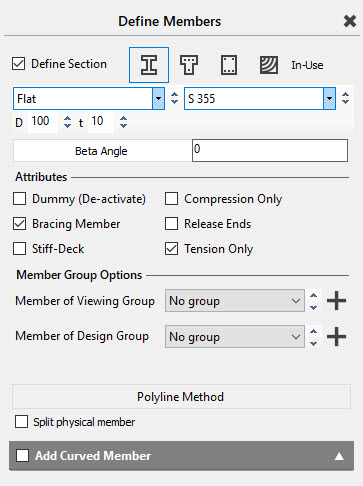
Set the steel section (  ) type to Flat
and change the size to 100x10mm and set the steel grade to S355.
) type to Flat
and change the size to 100x10mm and set the steel grade to S355.
As these will be bracing members, tick the box for Bracing Member and set them as Tension Only, so they are ignored when in compression.
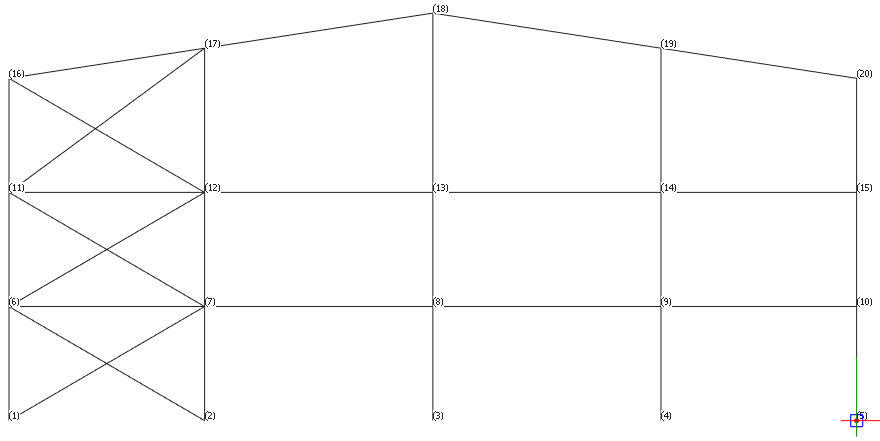
To create the new member, click on Node 1 and then Node 7. The member is now created.
Carry out the same procedure for Nodes 2-6, then 6-12, 7-11, 11-17 and finally 12-16.
Now we will add an overhanging member to each eaves position at the same slope as the rafters.
Remove the ticks from the Bracing Member and Tension Only boxes.
Because this new member is not between two existing nodes so we will be using MasterFrame’s Snap Settings.
Select the settings
cog ( ) at the bottom of the graphics area
and set the settings as follows.
) at the bottom of the graphics area
and set the settings as follows.
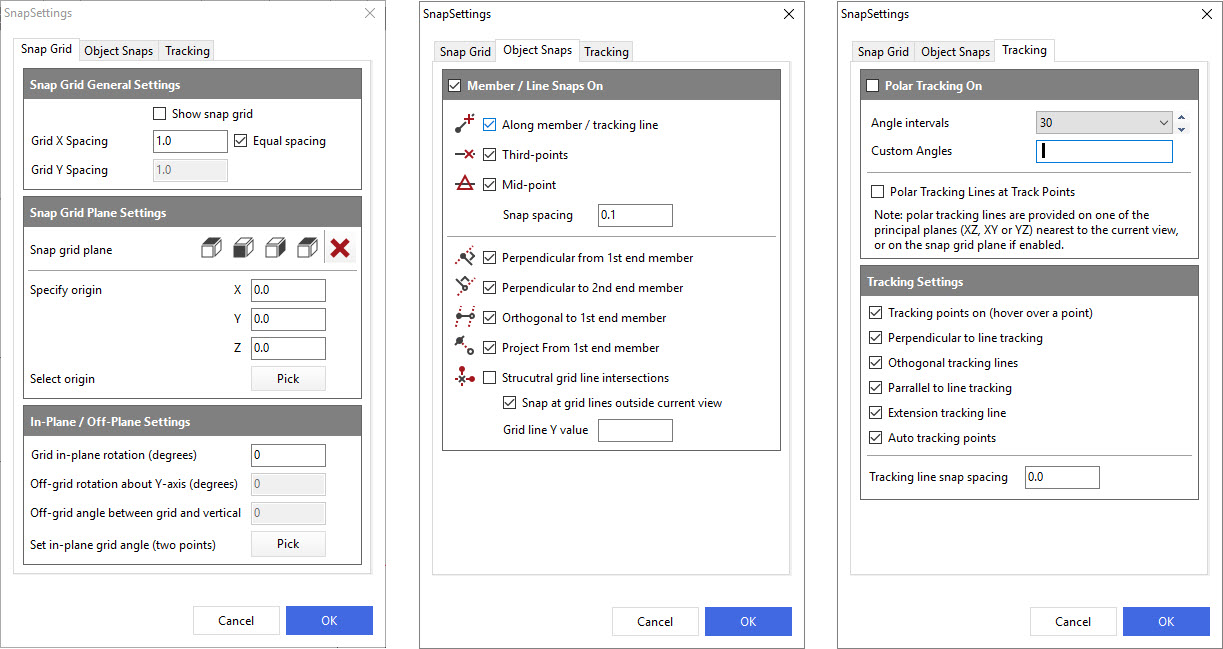
Apply the setting and close the Snap Settings dialogue by clicking on the OK button.
Click on Node 16 as the start of the new member. You will see a red X appear at this position. Move the cursor. You will now see several projected lines appear to give guidance as to which direction you want the member to project in. When the line is projecting out from the existing rafter, either click on the line when the dimension reaches 1.5 m or type in the value and press Enter and it will create a new member.
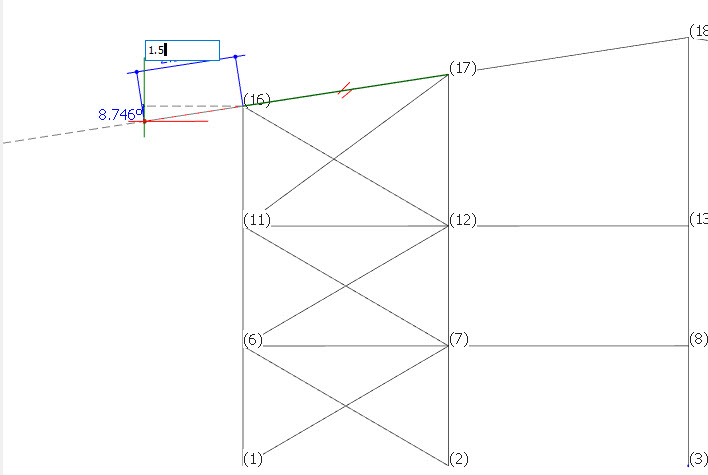
Carry out the same procedure on the other side to add an overhanging member to that side too. Note that we will add the preliminary section properties to the whole frame in the next section of the tutorial.
Also, note that the node and member numbers will automatically update themselves.
Adding Section Sizes
As we did not define the section sizes during the multi-storey frame generation processor, now we must add some preliminary section sizes to the frame.
From the
Properties file menu, select Member Sections Materials.
In the Member Section Properties, there are 2 sets of 3 options.
The first 3 options (#1) are the Attributes a member can have.
 The Section
Properties, e.g. steel, concrete or timber and section size.
The Section
Properties, e.g. steel, concrete or timber and section size.  The Member
Loading applied, e.g. uniform, point,
trapezoidal etc.
The Member
Loading applied, e.g. uniform, point,
trapezoidal etc. The Member
Orientation b (rotation) of the member.
The Member
Orientation b (rotation) of the member. - The second 3 options (#2) represent the method of editing as follows:
 Edit Member mode: Applies all changes to the currently selected
member (highlighted). This is instantaneous.
Edit Member mode: Applies all changes to the currently selected
member (highlighted). This is instantaneous.-
 Edit Global mode: Applies all changes to a group of members
(shown in red). This is a global search and replace function, e.g. change all
members that have a 457x152x52UB to a 457x191x67UB. This is instantaneous.
Edit Global mode: Applies all changes to a group of members
(shown in red). This is a global search and replace function, e.g. change all
members that have a 457x152x52UB to a 457x191x67UB. This is instantaneous.  Edit and Paste (Copy to):- This option enables you to edit a
template and then apply it to any member by clicking on that member in the
graphics area. No changes are made until you select a member.
Edit and Paste (Copy to):- This option enables you to edit a
template and then apply it to any member by clicking on that member in the
graphics area. No changes are made until you select a member. Remove all selection sizes: This
“additional” option enables you to delete all section sizes or b angles on all members.
Remove all selection sizes: This
“additional” option enables you to delete all section sizes or b angles on all members.
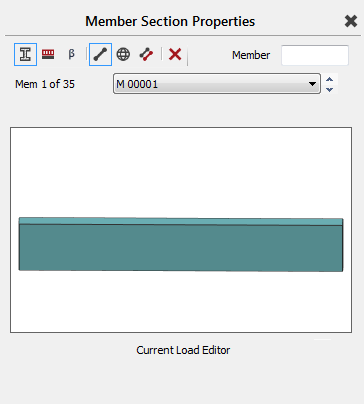
We will use the following initial steel sections with S355 material grade:
- First and second floor beams: 457x152 UB 52
- Roof beams: 406x140 UB 39
- Outer Columns: 152x152 UC 30
- Inner Columns: 152x152 UC 37
- Bracing: 100x10 Flat bar
Member Mode
From the top toolbar turn on the member Numbers from the Members group.
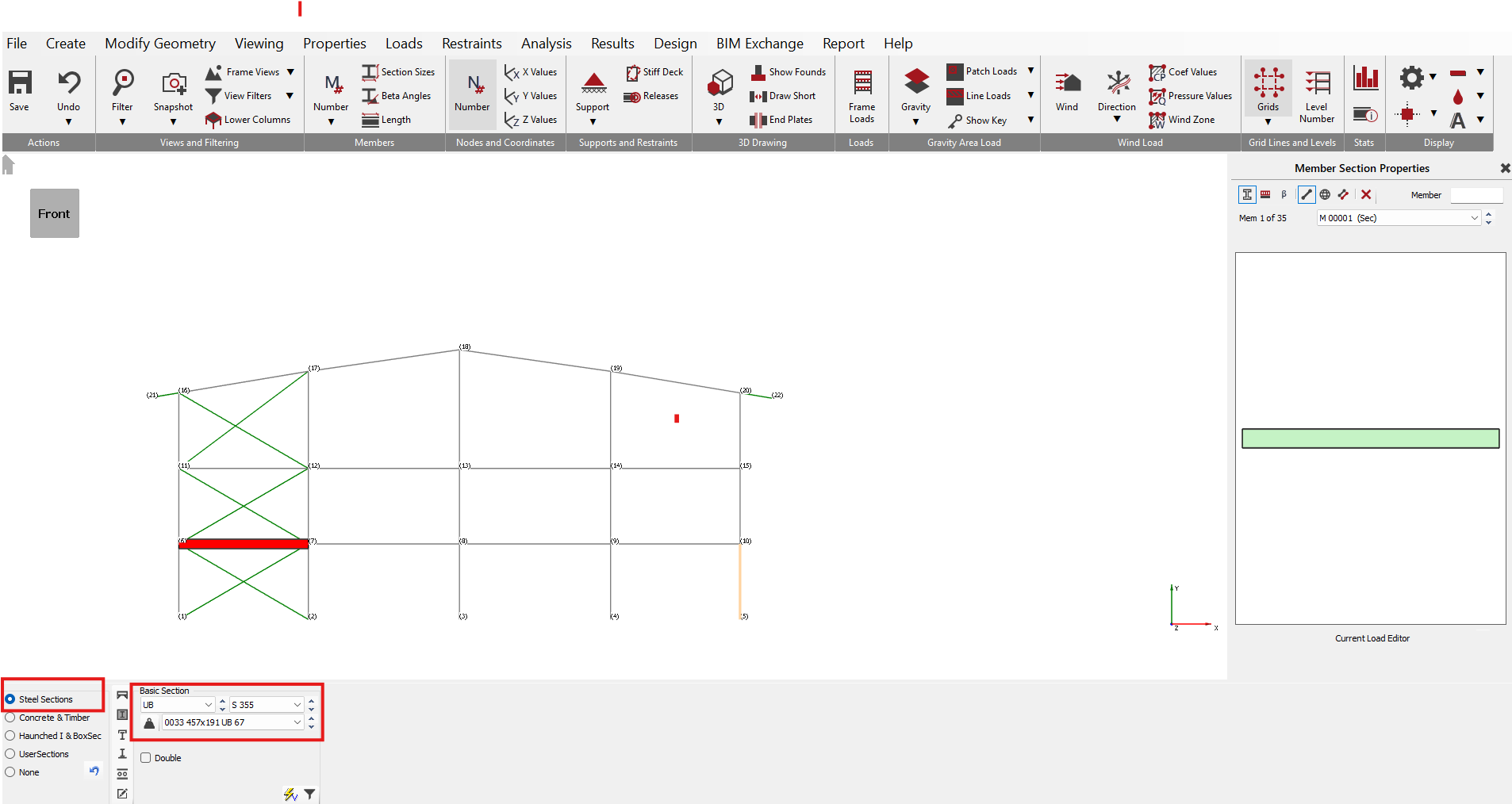
Select M1 (left first floor beam) member or from the Mem 1 of 35 dropdown menu on the Member Section Properties dialogue pick M 00001 to make it the current member.
To set the section
properties to the current member, select Section Properties ( ) and Edit Member
( ) mode.
Select Steel Sections option from the bottom dialogue.
From the three drop lists, select UB, S355 and then the 457x152 UB 52 section.
This has now been automatically applied to the selected M1 member.
Copy Mode
Change the method from Edit Member (
) mode to Edit and
Paste (
) mode.
In copy mode, you can either click on an individual member or window a group of members to paste the current section property onto them.
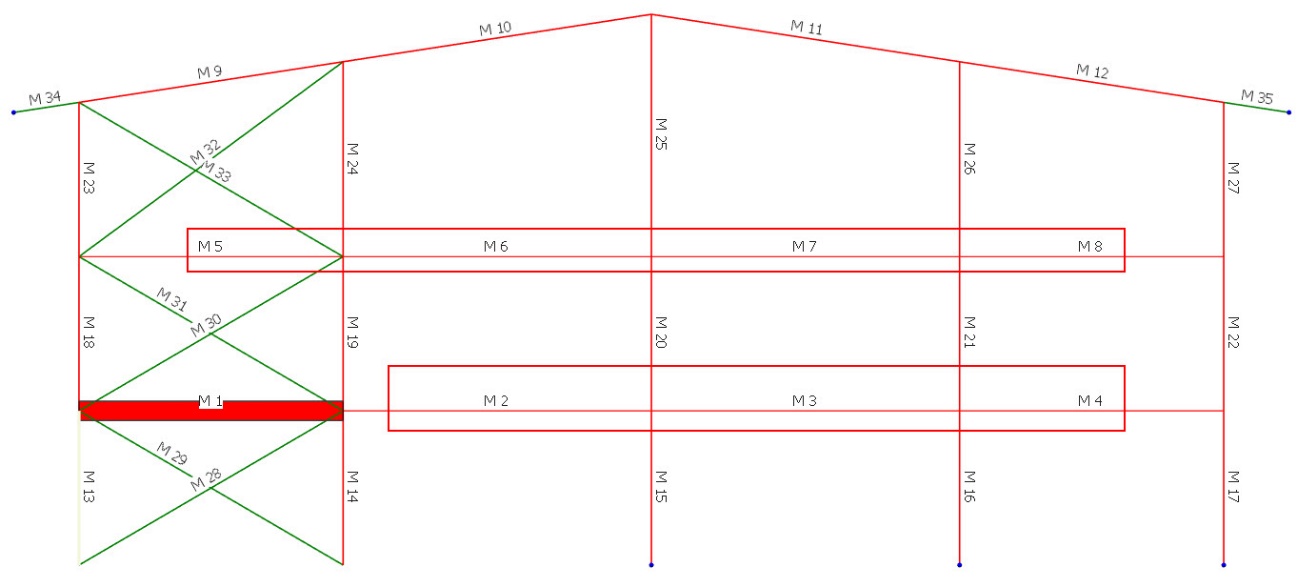
Window members M2, M3 and M4 to paste the section property to them
Window members M5, M6, M7 and M8, to paste the section property to them.
These members should now be highlighted in a thicker red line.
Rafters
Remaining in Edit and Paste (
) mode, change the section in the template to a 406x140 UB 39. This does not affect the already defined section properties as we
are in copy mode. We are simply changing
the section in the copy template.
Window members M34, M9-12 and M35, to paste the section property onto the rafters.
If you get the message asking you if you wish to replace the section sizes, select ‘Yes’. This may occur on the 2 overhang members since we already added a section size to these when creating them.
Outer Columns
Remaining in Edit and Paste (
) mode, change the
main list to UC and then select section 152x152 UC 30.
Apply this section to the outer left-hand columns, Members 13, 18 and 23 by picking or windowing them.
Apply this section to the outer right-hand columns, Members 17, 22 and 27 in the same manner.
Inner Columns
Change the section to a 152x152 UC 37.
Apply this section to the inner columns at each level, Members 14-16, 19-21 and 24-26.
TIP! While in Edit and Paste
(
) mode any member that has the same section as the section in
the template is shown in red. If you select any member that already has the
section property, the then the section property is removed from the member.
The bracing is already a 100x10mm Flat, so does not need to be changed.
Change back to Edit Member (
) mode using the button at the top right of the screen, hence turning
off the Edit and Paste (
) mode.
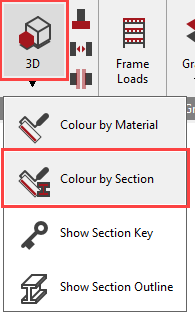
You can also show the sections 3D profile and Colour by Section size.
For More info click here;
Adding the Loads
Turn Off the 3D Profile & Colour by Section.
It is now time to add the frame loading for Dead, Live, Wind & Density loading to the frame. This tutorial will assume the Eurocode loading patterns.
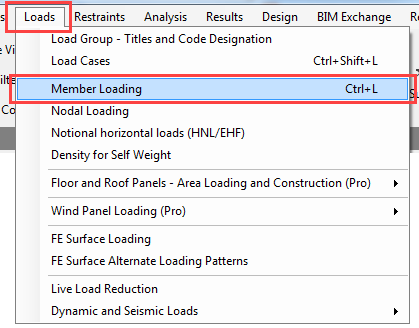
From the Loads file menu select Member Loading.
Change the top drop list of Load Case to the first item, All Loading Cases by going to Frame Loads tab to show all of the applied loads with default values (without safety factors).
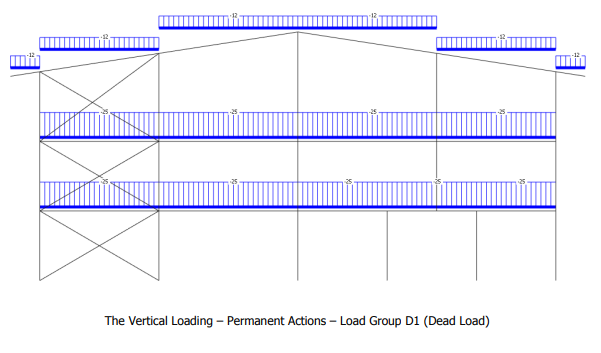
Set all the values as above. Only the self-weight
button (
 ) is turned off by turning on frame loads.
The frame Load Diagram controls are on a floating form. Click on the minimise button -, to hide it, but keep it active.
Applying multiple loads to multiple members
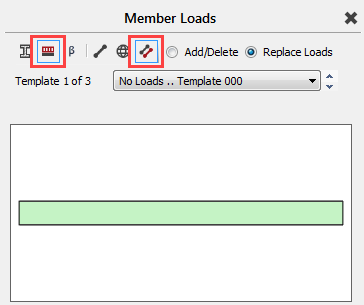
Select Edit and Paste
(
) editing mode and the Replace Loads option.
Click on the UDLY (
 ) button (bottom
left of the screen) twice to add two uniform distributed load
definitions.
) button (bottom
left of the screen) twice to add two uniform distributed load
definitions.
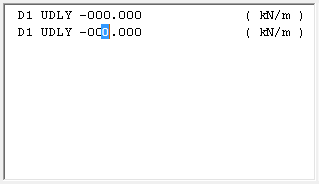
The list of loads editbox now has two loads in it. Both loads are D1 UDLY -000.000 which means both of them assigned to the D1 dead load group, both of them uniform distributed load in the Y-Axis and acting downward.
We now need to edit these loads.
Pick the upper of the two loads to set the cursor focus to it and change the load to D1 UDLY -025.000 (kN/m) by overtyping the - 000.000 value.
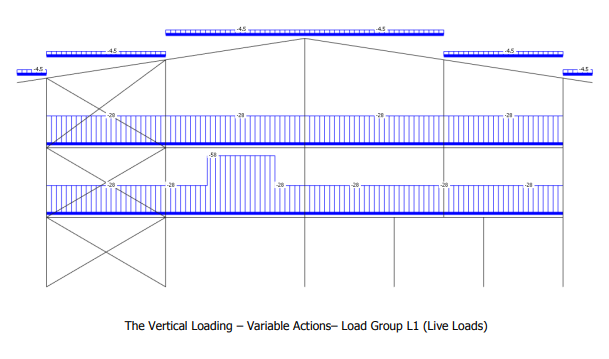
Next, pick the second load or move your cursor along to it and change the load to L1 UDLY -028.000 (kN/m) by overtyping D1 with L1 to assign the load to the L1 live load group and overtyping -000.000 value with -028.000.
As we are in Edit and Paste (
) editing mode these
loads are not applied to any member.
Select Members 1 to 8 to place these loads onto these members.
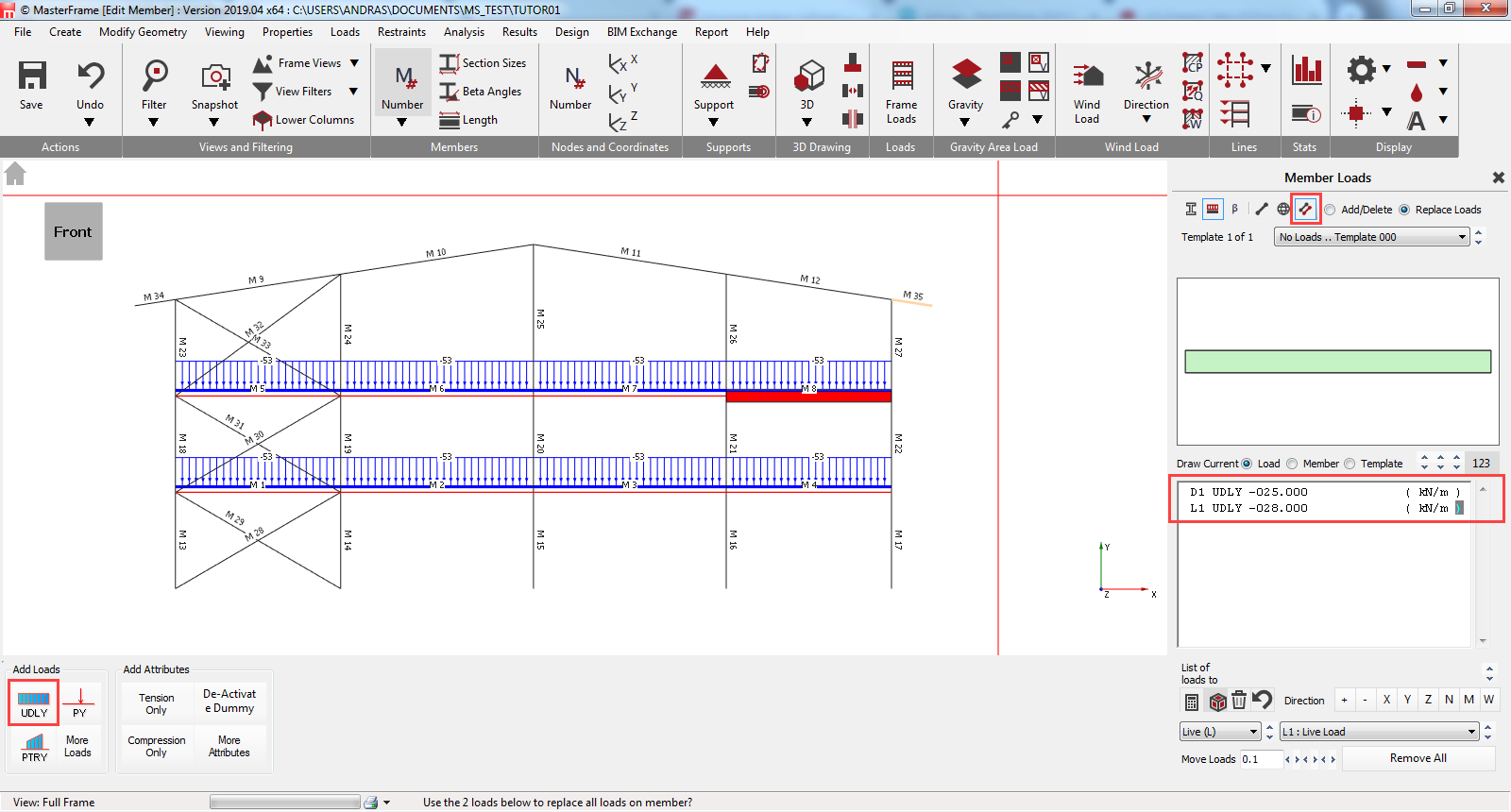
While we are still in Edit and Paste (
) editing mode, edit the
loads in the list (palette) to D1
UDLY -012.000 (kN/m) and L1 UDLY -004.500 (kN/m).
Now apply these loads onto the 6 roof members.
Applying individual isolated loads
Return to Edit Member (
) mode and then select Member 2.
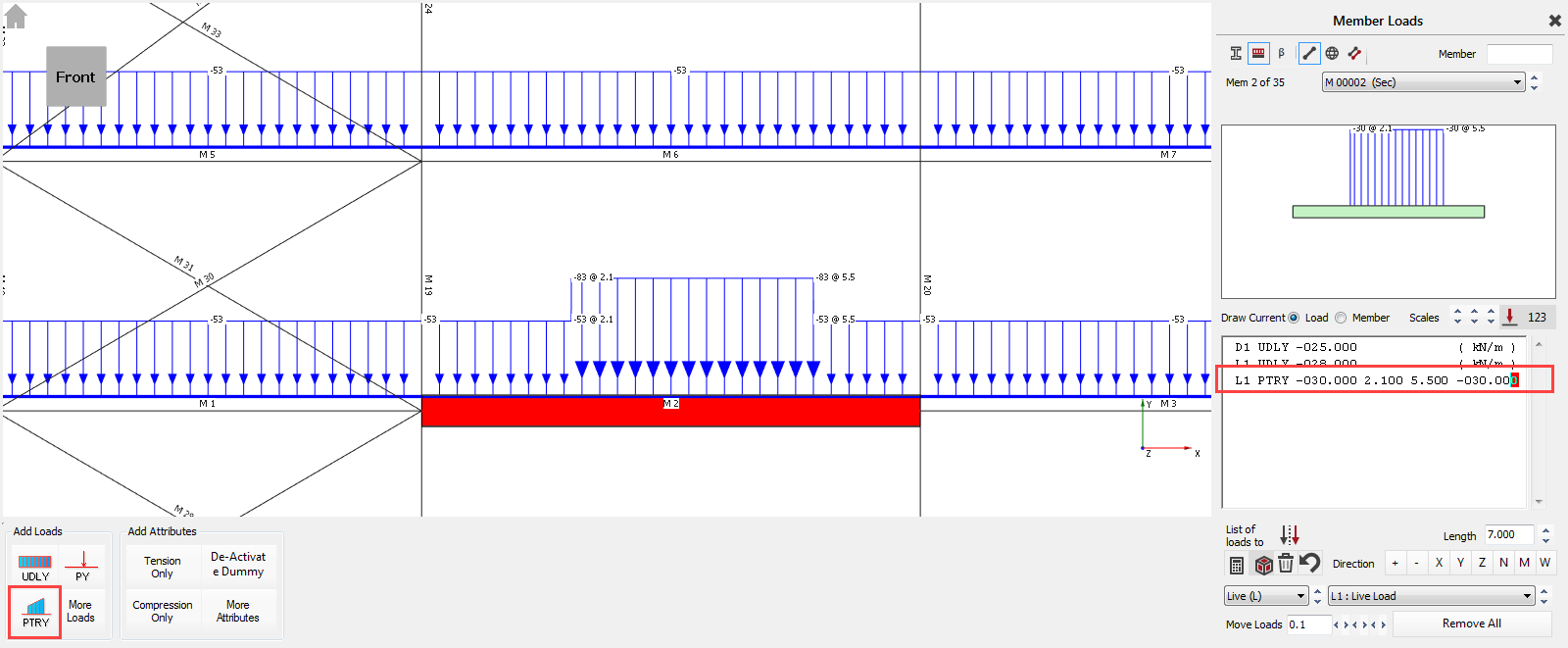
Click PTRY (
 ) button to add a new load partial
trapezoidal load to the list.
) button to add a new load partial
trapezoidal load to the list.
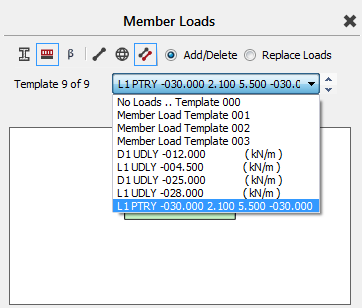
Place the cursor on the new PTRY load and change the load to L1 PTRY -030.000 2.100 5.500 -030.000 to assign to load to the L1 live load group and set the intensity and the positions.
The units for this load are as follows:
- Load value at the start of load (kN/m)
- Distance to start of load (m) from the End 1.
- Distance to end of load (m) from the End 2.
- Load value at end of load (kN/m)
Change back to Edit and Paste (
) editing mode and
select the Add/Delete option.
Drop the template list above the member loading diagram. You can view the various loads that have already been applied to the members in the frame and if required, select one to copy to another member.
Applying the Wind Load (Variable Actions)
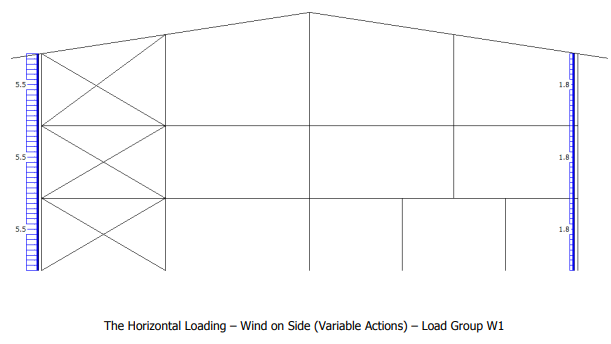
The wind loads are given on page 6. In MasterFrame you can view the loads as you apply them, therefore there is no need to be concerned about conventions, simply view the loads and change the values to get the load in the right direction.
Switch back to Edit Member
(
) mode and then select member M13.
Click the UDLY (
) button twice
to add two new loads to the list.
Edit the first load to W1 UDLX +005.500 (kN/m).
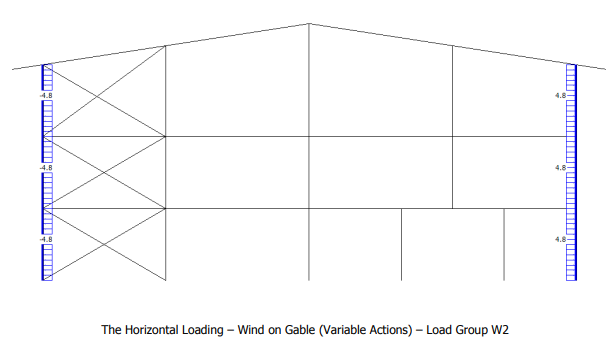
Edit the second load to W2 UDLX +004.800 (kN/m).
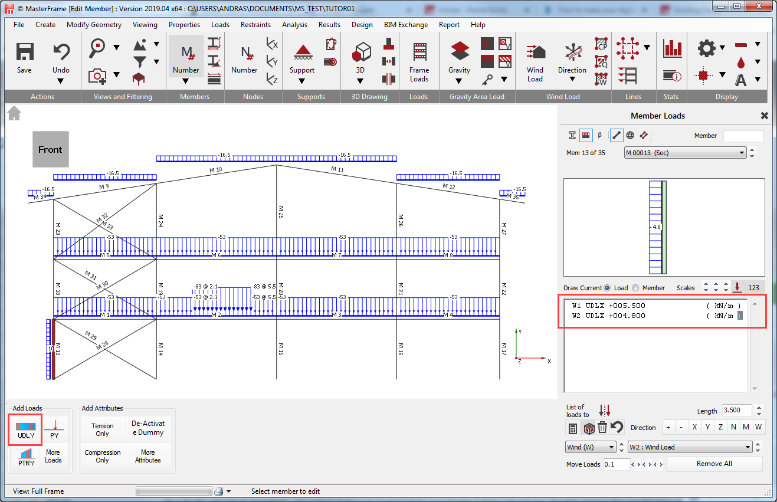
Copy these loads on to members M18 and M23 using
Edit and Paste ( ) editing mode.
Remaining in Edit and Paste (
) editing mode, edit the
loads in the list of loads to W1 UDLX +001.800 (kN/m) and W2 UDLX
+004.800 (kN/m).
Click on members M17, M22 and M27 in the graphical area to apply the loads to these members.
Change to Edit Member (
) mode (turning off Copy to mode)
as a safety measure to avoid accidentally copy loads.
At the top left of the frame
graphics window click on the Save
( ) button.
Applying Density (self-weight)
Self-weight of structural members is automatically included as a default set up.
The loadings due to self-weight
can be viewed in the Frame Loads tab, by turning off all other
loads except the Draw Density Load
(Selfweight) (
 ) button.
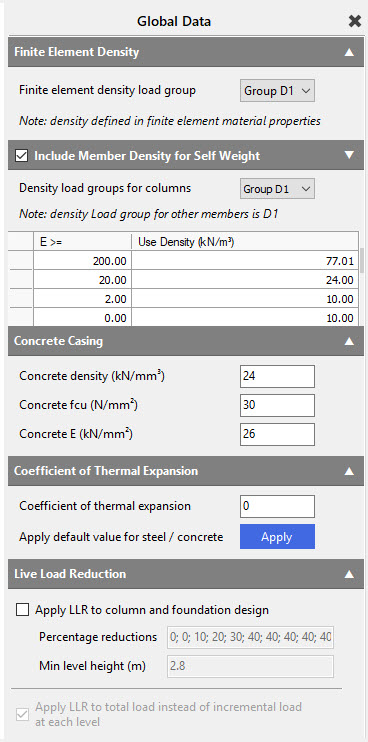
The values for self-weight can be checked by going to Loads > Density for Self Weight. To ensure that the self-weight is included, make sure the Include Member Density for Self Weight checkbox is ticked. The default load group of the self-weight is the D1, but using the drop-down menu we can modify it.
Loading Cases and Load Groups
Design Code
We need to make sure we are designing to Eurocode.
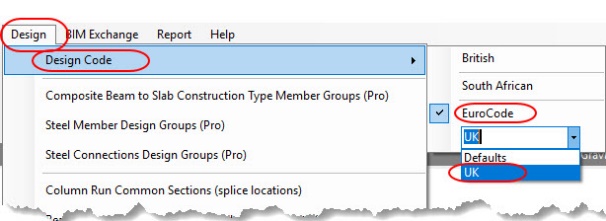
On the top menu, go to Design > Design Code and check the selected code which should be Eurocode. If not, please select it
.
If you are asked “Do you wish to change the Loading Cases in accordance with the design code change” select Yes.
Go again to the Design > Design Code and check the national annex which should be the UK. If not, please select it.
If you are asked “Do you wish to change the Loading Cases in accordance with the design code change” select Yes.
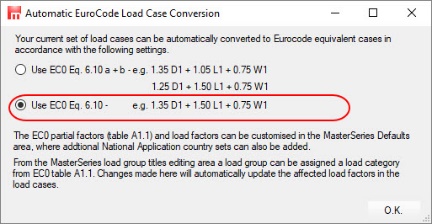
If you are asked which EC0 Eq. 6.10 set to use, choose the lower option 6.10.
Load Groups
Each action on the frame is assigned to a load group (e.g., Dead, Live, Wind, Notional etc.). MasterFrame allows 140 different load groups to be used; the most regularly used being groups D0 to D9, L0 to L9, W0 to W9 and N0 to N9.
A load group (e.g., D1) is a group of loads that are always applied together with the same load factor. These loads may be of different types (e.g., UDL, PY, and TY1) and have different values. However, since they are always applied together with a common load factor, they are in the one load group.
A typical example of a load group is a wind load (blowing onto the side of a building) that has different load intensities on each face of the building, but are grouped into one group (e.g., W1).
In most cases, you may only need to use 3 or 4 load groups but sometimes you may wish to use more. For example, in a frame with a crane beam, you can separate the vertical and horizontal crane loads from the general live load by using groups L1, L2 and L3.
In this tutorial, we will use 4 load groups as follows:
- D1 - Permanent Actions (Dead Loads)
- L1 - Variable Actions (Live Loads)
- W1 - Wind Load due to wind on Side (Variable Actions)
- W2 - Wind Load due to wind on Gable (Variable Actions)
To allow easier checking of our data we will label our load groups.
From the Loads file menu select Load Group - Titles.
The D1 and L1 load group titles are set automatically to Dead Load (D1) and Live Load (L1) so we do not need to change them. We now need to set the Wind Loads W1 and W2.
Edit Load Group W1 to read Wind Load On Side.
For the W2 load group, change the Load Group drop list from Load Group 1 to Load Group 2 and now change the title to Wind Load On Gable
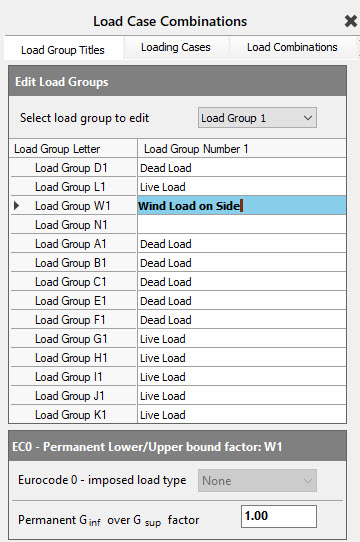
Select Load Group 1 Dead Load and set the Ginf/Gsup factor below to 1 as we will assume no inaccuracy in the calculated Dead/Permanent Loads.
Finally, select Load Group 1 and Live Load again, and set the Eurocode 0 imposed load type below to Cat B: Office.
Load Case Titles
Select the Loading Cases tab on the top of the Load Case Combinations dialogue.
In MasterFrame you create and analyse Combinations of Actions. We do not create basic cases and then add them together post analysis. The reason for this is, if you form plastic hinges, do p-delta analysis or have tension or compression only members then you cannot use the “Superposition Principle” to add results from different basic cases together.
By default, there are already two (or three in case of using EC0 Eq. 6.10 a+b by default) combinations of actions and case titles generated.
- Load Case 001: Dead plus Live (Ultimate) (Permanent Plus Variable)
- Load Case 002: Live Only (Serviceability) (Variable Only)
We wish to generate three more loading cases as follows:
- Load Case 003: Dead plus Live plus Wind on Side (Ultimate)
(Permanent plus Variable plus Wind On Side (Variable))
- Load Case 004: Dead plus Live plus Wind on Gable (Ultimate)
(Permanent plus Variable plus Wind On Gable (Variable))
- Load Case 005: Dead plus Live (Serviceability)
(Permanent plus Variable (Serviceability))
Click on the Add load
case ( ) button and type Dead
plus Live plus Wind on Side (Ultimate) or cheat and click on quick type
button (
) button and type Dead
plus Live plus Wind on Side (Ultimate) or cheat and click on quick type
button ( ) and then use the quick type buttons to generate the load
case title.
) and then use the quick type buttons to generate the load
case title.
Click again on the Add load case (
) button and then type Dead
plus Live plus Wind on Gable (Ultimate).
Finally, repeat for the Dead plus Live (Serviceability) loading case.
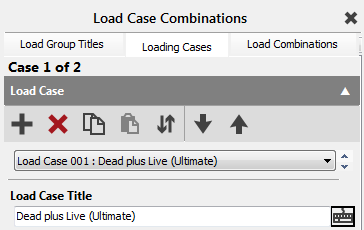
It would be helpful if the two serviceability loading cases were together as the last two cases. To move, select the load case by dropping the list or using the arrow buttons beside the list.
Select Live Only
(Serviceability) and then using the Order move
load case down/up… (
 ) button, move the selected load case to the bottom of the list, i.e. to Load Case 005.
Loading Combinations
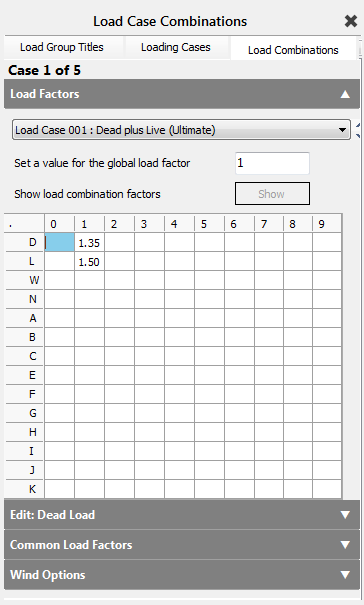
Select the Load Combinations tab.
We are going to use the following loading combinations:
- Case 1: Dead plus Live (Ultimate): 1.35 x D1 + 1.5 x L1
- Case 2: Dead plus Live plus Wind on Side (Ultimate) 1.35 x D1 + 1.5x L1 + 0.75x W1
- Case 3: Dead plus Live plus Wind on Gable (Ultimate) 1.35 x D1 + 1.5x L1 + 0.75 x W2
- Case 4: Dead plus Live (Serviceability) 1.0 x D1 + 1.0 x L1
- Case 5: Live Only (Serviceability) 1.0 x L1
Loading Cases 1 and 5 (originally 1 & 2) are already set-up by default.
Select Load Case 002.
Highlight the cell corresponding to D and 1 for group D1, then type a load factor of 1.35.
Now highlight the cell for L-1 for Group L1 and then type 1.50 for the load factor.
Highlight W-1 for Group W1, and type 0.75 for the load factor.
Select Load Case 003 and set the load group factors to: 1.35 x D1 + 1.5 x L1 + 0.75 x W2.
Select Load Case 004 and set the load gbroup factors to:1.0 x D1 + 1.0 x L1.
Close the Load Case Combinations using the X button at the top right of the pane.
From the toolbar select
Save (
) to save our work so far.
Checking the Loads and Load Cases
The frame load diagram can be used to view the loading associated with each load cases.
From the top toolbar turn off the member Numbers.
The Frame Loads diagram may still be displayed from the previous member loading exercise. Otherwise, click on Frame Load button on the top toolbar.
If the Frame Load Diagram window is minimised expand it.
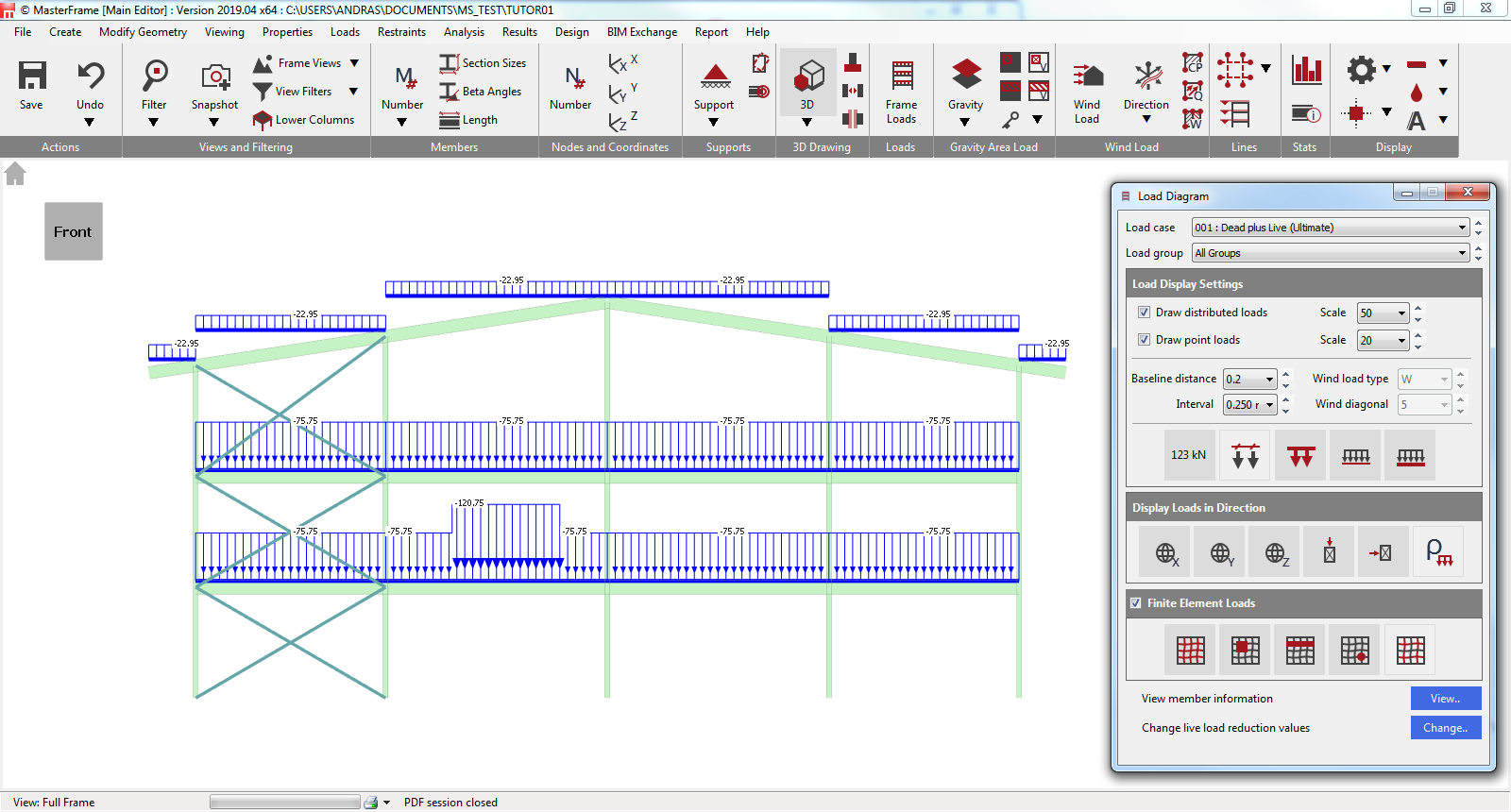
The two principle drop lists, on the top of the Load Diagram dialogue, enable you to filter the loads that are drawn.

The first drop list selects the loading case to be displayed. All loads will be factored up by the load factors for the current case. For example, the Dead plus Live load case will not display wind loads as their load factor will be zero.
The second drop list then selects the load groups drawn. Therefore, if you pick the W1: Wind Load on Side while Dead plus Live load case is selected, no load will be drawn.
If All Loading Cases is selected, then all load groups are displayed with basic, unfactored values.
Choose Dead plus Live (Ultimate) & All Groups.
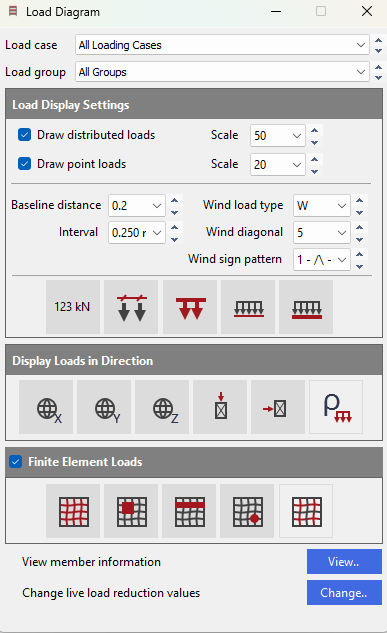
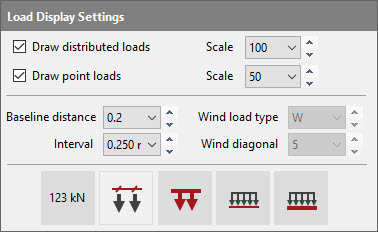
Experiment with the Load Display Settings and then set them as shown below.
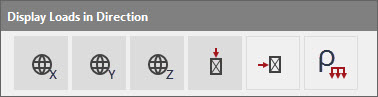
The Display Loads in Direction buttons allow you to further filter your view.
The first three are your global load directions. The fourth & fifth is your Normal to major axis & Normal to Minor axis loads. The last button is density/self-weight of member (“ρ” or rho).
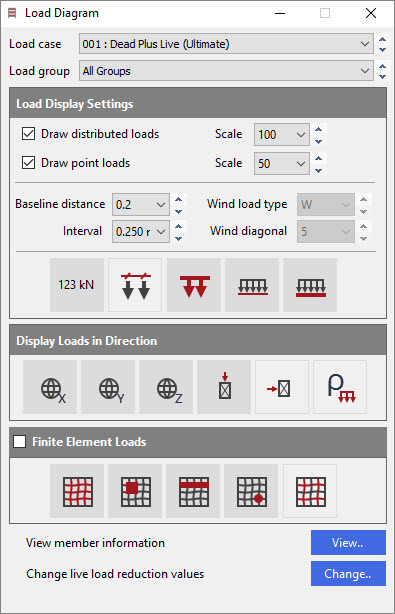
We will now check our loads. Ensure the load diagram is set up as the opposite.
Change Load case to All Loading Cases.
Change Load Group to Load Group D1: Dead Loads.
These look OK.
Change Load Group to Load Group L1: Live Loads
These look OK.
Change Load Group to Load Group W1: Wind Loads on Side.
Change the Distributed loads Scale to 5.
These look OK as both blow left to right.
Change Load Group to Load Group W2: Wind Loads on Gable.
You will notice that W2 loads on the left-hand columns are going the wrong direction.
Minimise the Load Diagram and return to the Member Loads editor by selecting Member Loading from the Loads file menu.
Select one of the outer left-hand columns and change to the Edit Global (
) to modify at the same time all of the members’ loading which
exactly the same as the selected one. All the left-hand
outer columns are now highlighted as they all have exactly the same load.
Change the W2 UDLX load from +004.800 to -004.800 in the list of loads.
The screen will update showing the wind load blowing the correct way.
Close both Member Loads and Load Diagram dialogues by clicking on the X.
Nodal Supports
Turn off all options so you have a simple wire frame with no values.
From the Restraints file menu, select Nodal Static Supports.
Nodes 1 to 5 are already defined as either Pinned or Fixed Supports depending on your choice at startup time.
Each support is graphically represented as follows:
 Horizontal roller (dy
restraint only)
Horizontal roller (dy
restraint only)
 Pinned support (dx, dy,
and dz
restraints)
Pinned support (dx, dy,
and dz
restraints)
 Fixed support (dx, dy, dz, fx, fy and
fz
restraints)
Fixed support (dx, dy, dz, fx, fy and
fz
restraints)
Other support conditions are graphically represented as a set of 6 restraint boxes that are either active (red) or inactive (white). These 6 boxes represent the 6 degrees of freedom of the support. The order of the boxes is the directional restraints dx, dy, and dz followed by the rotational restraints fx, fy and fz.
For example:
 Other support (Top
line directional dy,
bottom line rotational fx
and fz
active)
Other support (Top
line directional dy,
bottom line rotational fx
and fz
active)
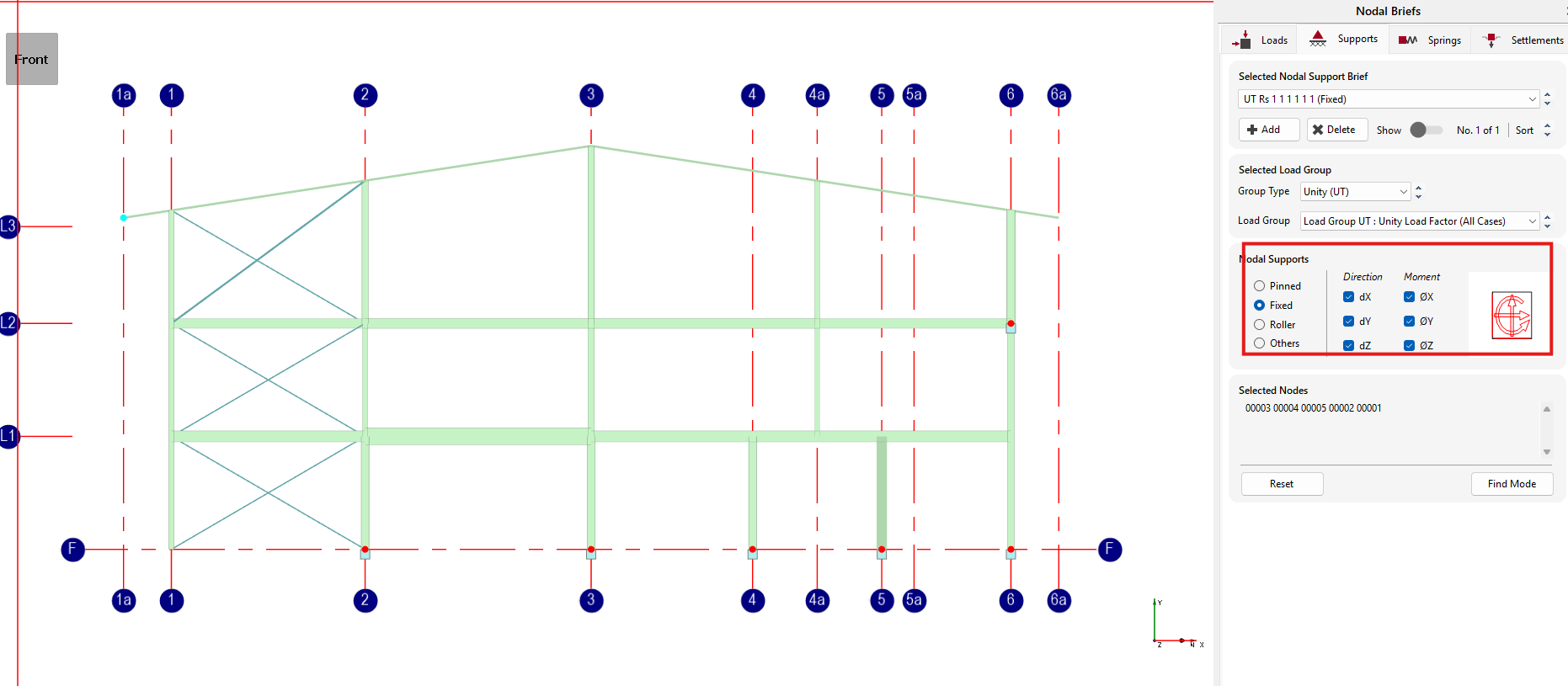
For the purpose of this tutorial, we will design the frame assuming the supports to the columns are fixed. Therefore, amend the bases of the frame to make all the bases fixed supports.
Pick the Fixed option to change them all to Fixed.
Close the Nodal Static
Supports dialogue with the Close
( ) button.
Analysing the frame
From the top menu select Analysis, then Static Analysis.
The file will be saved automatically and the Analysis Type and License toolbar will now appear.
There are 5 possible types of analysis. Any analysis types that are not applicable to your frame will be deactivated. Any analysis types that do not match your licence will also be deactivated. Your licence limit for each analysis type is listed below each button.
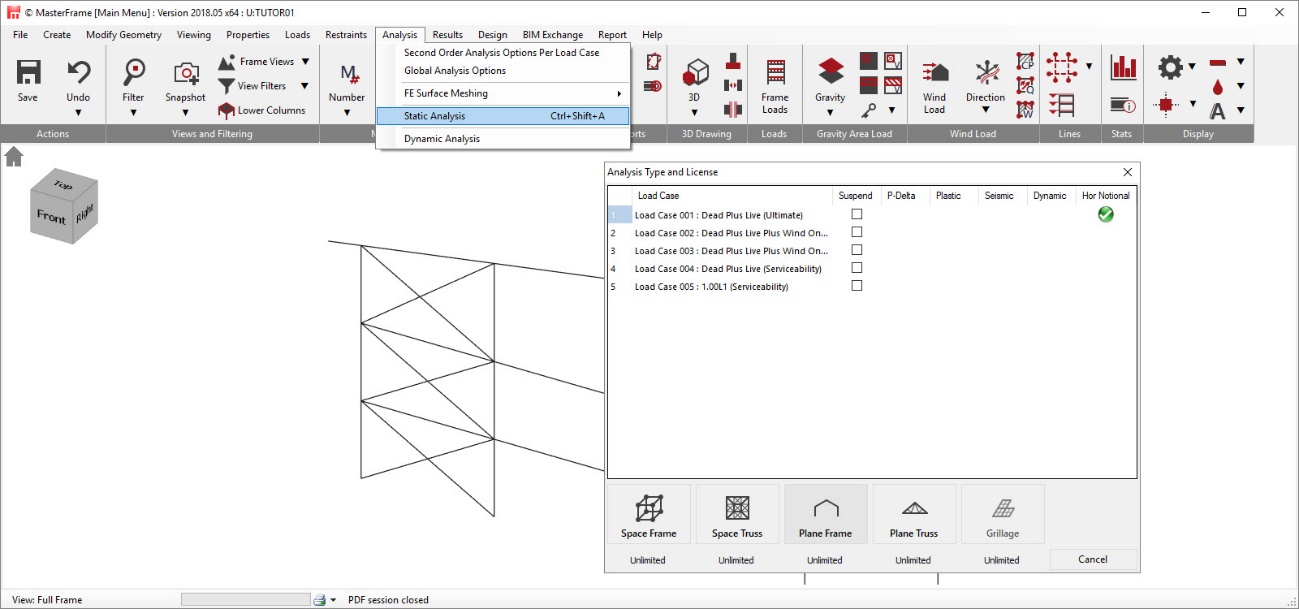
Select Plane Frame
( ) and the frame will be
analysed.
) and the frame will be
analysed.
Viewing and Printing the Graphical Results
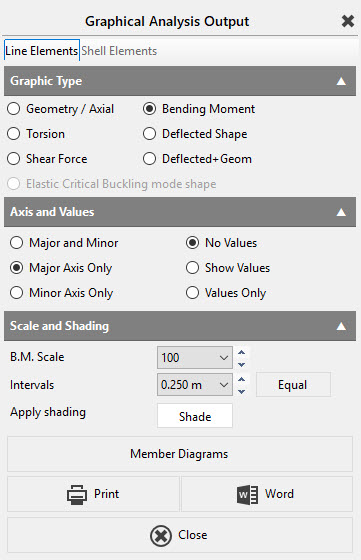
From the Results file menu select Graphical Analysis Results.
Place the frame in Front View with no annotation.
Select Bending Moment. We have no members bending about the Minor axis so select Major Axis Only on the right-hand panel.
Select Show Values. Change the B.M. scale from 50 to 100.
From the drop list, at the bottom of the screen, select and view each of the Load Cases including the envelopes.
Select Load Case 001: Dead plus Live (Ultimate)
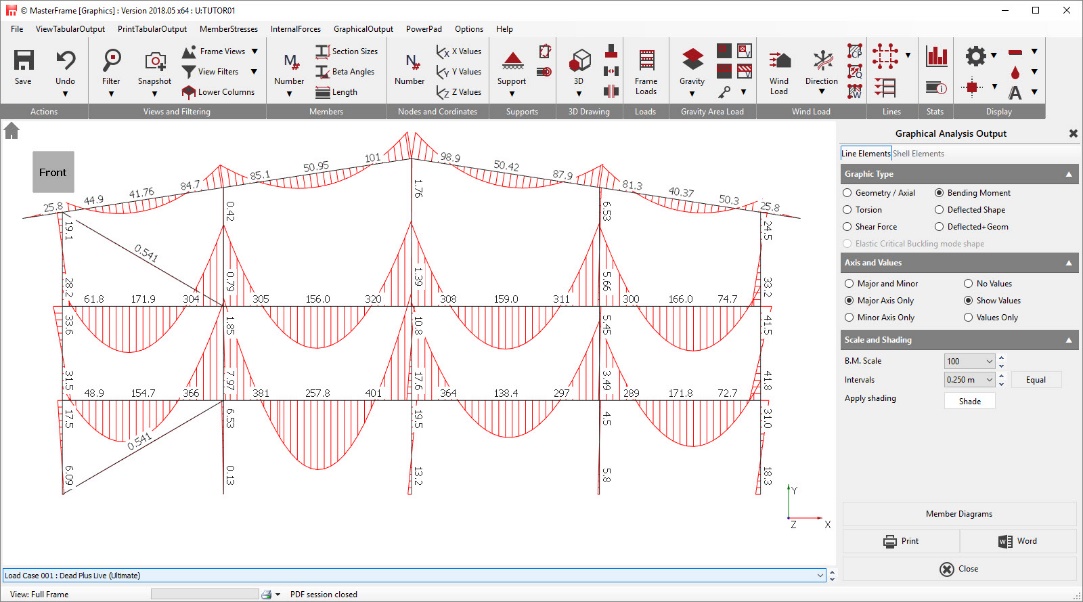
While viewing the diagrams the user is free to change the view using any of the top Toolbar options, including zooming, panning, scales and font sizes.
Printing the results
Select the Printer (
 ) button.
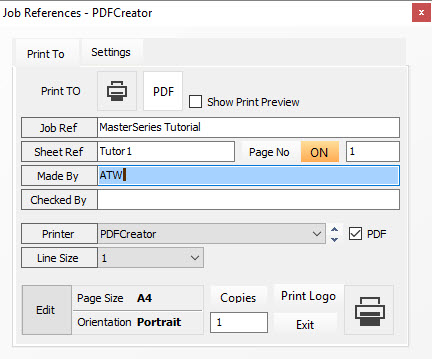
A mock-up of the printed page is displayed on the screen together with the Job References dialogue.
The Job References dialogue enables you to edit the job reference details that will appear in the printout.
While viewing the mock-up, you can use all the tools on the top toolbar and the side menu, including zooming, panning, scaling and font sizes.
Use the top toolbar as you wish to modify the view in the viewing panel.
You can change the printer, page size and orientation from the Job References dialogue.
Select the Print ( ) button on the Job
Reference dialogue to print the graphics.
) button on the Job
Reference dialogue to print the graphics.
The Job Reference dialogue remains on the screen to enable you to print other diagrams, using exactly the same layout.
Select the Exit (
 ) button to exit
the printing mode.
) button to exit
the printing mode.
Select the Close button to exit the Graphical Analysis Output window.
Viewing the Text Results
From the Results file menu select Tabular Analysis Results. This will take you into the Nodal Deflections table.
The options in the lower part of the screen enable you to control the results being displayed and are very easy to use. When there is a large amount of data the vertical scroll bar controls the view.
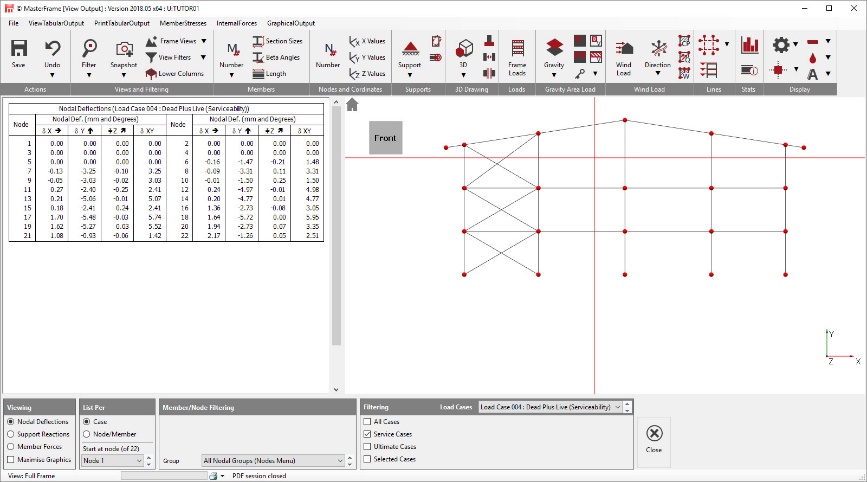
The standard method of viewing results is List per Case. This only display results in one loading case at a time. The other method is to List per Node/Member. This is useful to compare results for different loading cases for the same node or member as shown here.
Experiment with the various options to display the results.
To close Tabular Analysis Results select the Close (
 ) button.
Modifying the generated Frame
We will now modify the frame geometry.
If necessary, turn on the Member Numbers.
Modifying the Frame/Adding Columns
From the Create menu, select to Add Columns.
We want to add columns of the same section size as one of those already being used, click on the ‘In-Use’ button and select the section size required – 152x152 UC 37.
There are numerous additional properties that we can add to the column from this screen. Familiarise yourself with some of these options, eg, Release Ends or Tension Only.
Set the Column height (m) of the column to 3.5m and the Column position to Below. Since this column will be at the bottom of the frame, add a Base Support as Pinned. (Yes Pinned. We will fix it later).
To actually add the column, set the cursor on beam member M3, moving it from the right-hand end until it is 2.5m along. Click on this point and the column will be created. Note that the beam above has been automatically split into 2 members making up the physical beam.
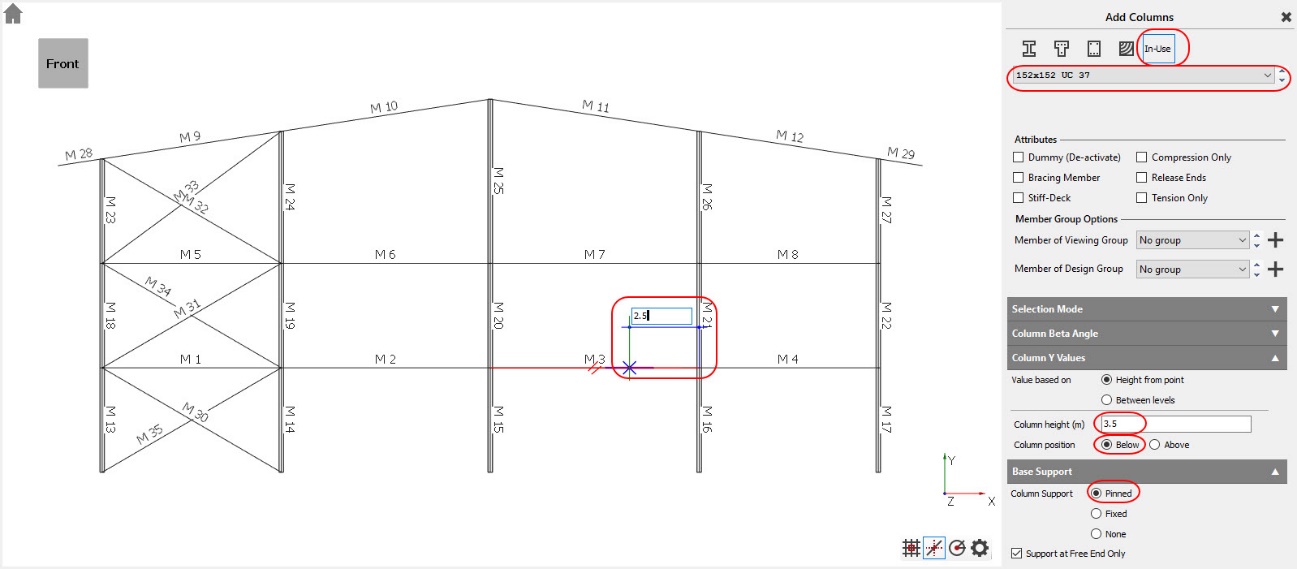
Carry out the same procedure for the new column to the right of existing column M6. As you move the cursor across beam M4 you can type in the dimension of 2.0 (metres) and hit the Enter button to complete the addition of the second column.
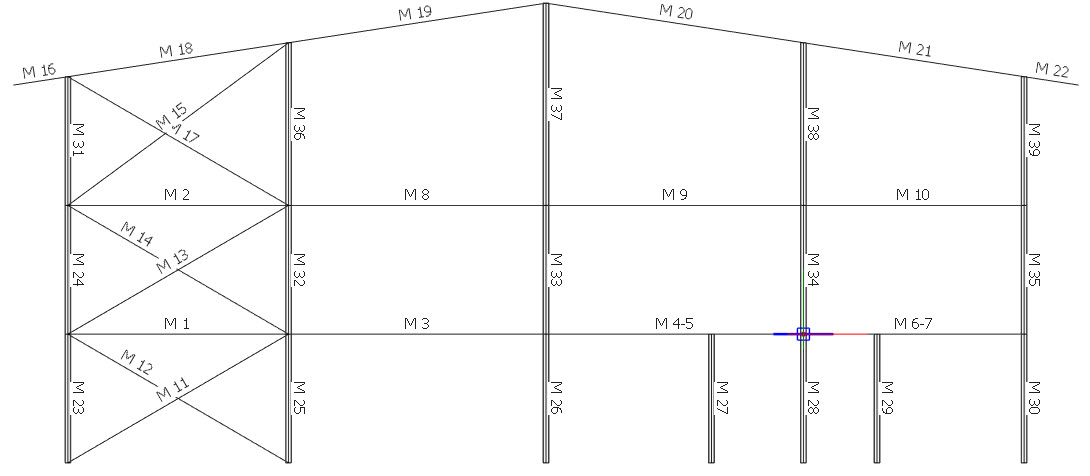
Deleting a member
To remove the existing column, go to the Modify Geometry menu and select Delete Members, FE Surfaces, Grid Lines.
Select the column that is to be deleted – member M28. It will be highlighted in red. Click on the Apply button to complete the action. The column will be removed.
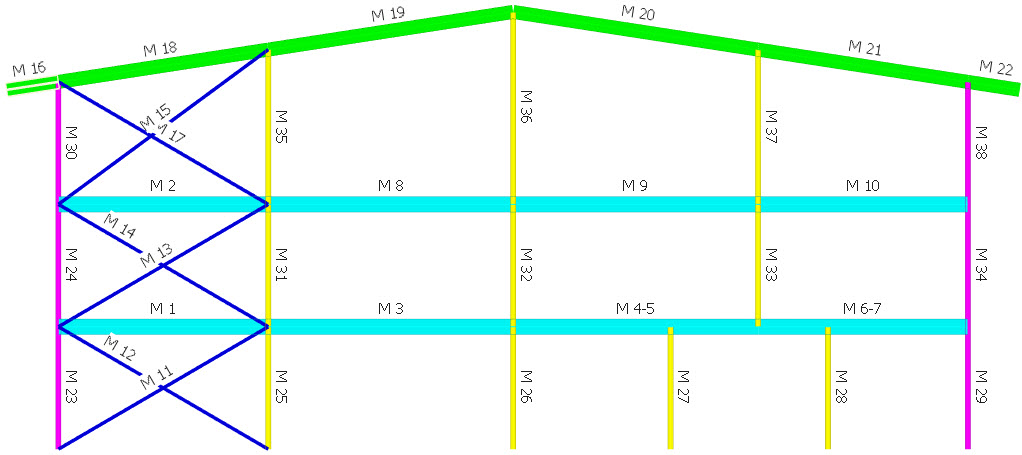
Structural Members - Exploding a structural member
Turn on the Draw Short ( ) option from the top toolbar’s 3D Drawing group.
After adding the new columns and removing the redundant one, the beams above are still seen as structural members running between columns M32, M33 and M34. We would prefer to have them as structural members running between the lower columns M26-M27, M27-M28 and M28-M29.
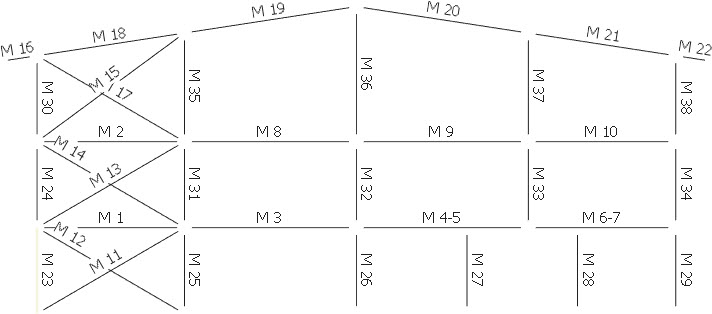
To do this we will first explode members M4-6 and M6-7. From the Modify Geometry menu select the Split Member option.
Select members M4-5 and M6-7. These will highlight in red. Under the Split Settings, select the Explode option and Apply.
Structural Members - Merging a structural member
We now want to make members M5 & M6 into a structural member between the columns M27 and M28.
From the Modify Geometry menu select the Merge Members option.
Select members M5 and M6 and Apply.
Editing the New Columns
We will now alter the static supports to these 2 new columns.
Go to the Restraints menu and select Nodal Static Supports.
The two new columns were inserted with pinned bases. Drop the list of restraints, and select the lower pinned one.
Select the Delete (
 )button and the second restraint group will disappear.
Now, add fixed supports to the bottom of the 2 new columns by clicking on the bottom nodes of the columns.
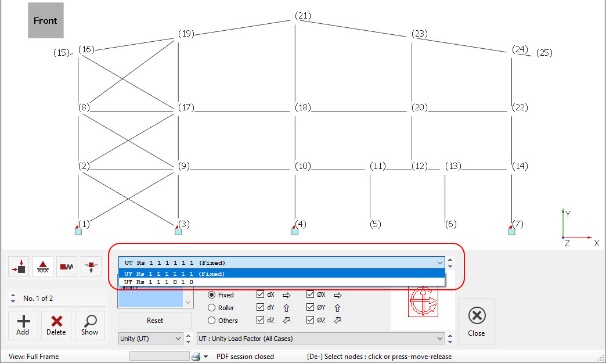
From the toolbar select
Save ( ) to save our work so far.
Steel design with MasterKey Steel Design module – part 2
Welcome to MasterFrame and MasterKey Steel Sections steel designer add-on module. This tutorial follows on from the frame generation in part 1 above, where you generated a 3-storey steel frame.
You are provided with methods for designing members manually or alternatively, automatically, and as groups of members with each group having the same section size.
In this tutorial, you will look at some additional frame utility tools before going on to design the steel sections in the frame.
Open the frame generated in the previous part.
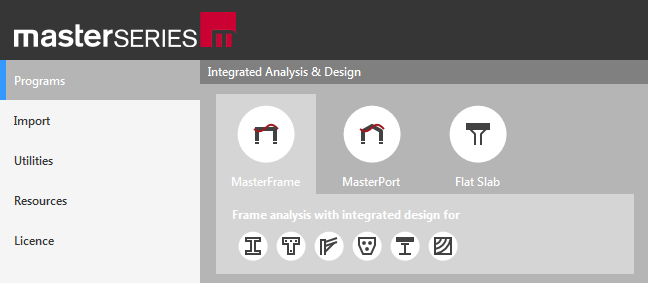
Select MasterFrame from the Programs tab and in the appropriate directory in the File Selector, select your model file (Tutor01.$5) from the list.
Click on the Open button to load the file.
Vertical Imperfection Loads
We will introduce 2 load cases which will be used to determine the sway mode elastic critical load factor αcr of the frame, and show how to carry out a second-order elastic analysis (P-delta) on the frame, when required.
From the Loads menu, select Notional Horizontal Loads (HNL/EHF).
In the Generate Horizontal Notional Loads field, ensure the load directions on the plan are set as 0 and 180 degrees (since this is a plane frame).
Click on the ‘Generate’ button to generate these cases automatically
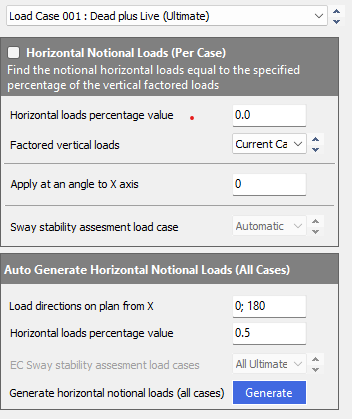
This action will find the Notional Horizontal Loads equal to 0.5% of the vertical factored dead plus live loads at each floor level (from the first load case).
Two additional load cases have been created:
- Load Case 006: Dead plus Live (Ultimate) + Notional @ 0° and
- Load Case 007: Dead plus Live (Ultimate) + Notional @ 180°
The Notional Horizontal Loads will be added at each floor level in load cases 006 and 007.
Close the Horizontal Notional Loads dialogue.
Later, in the design checks, we will look at the value of αcr to determine if a second-order analysis is necessary.
Member Releases
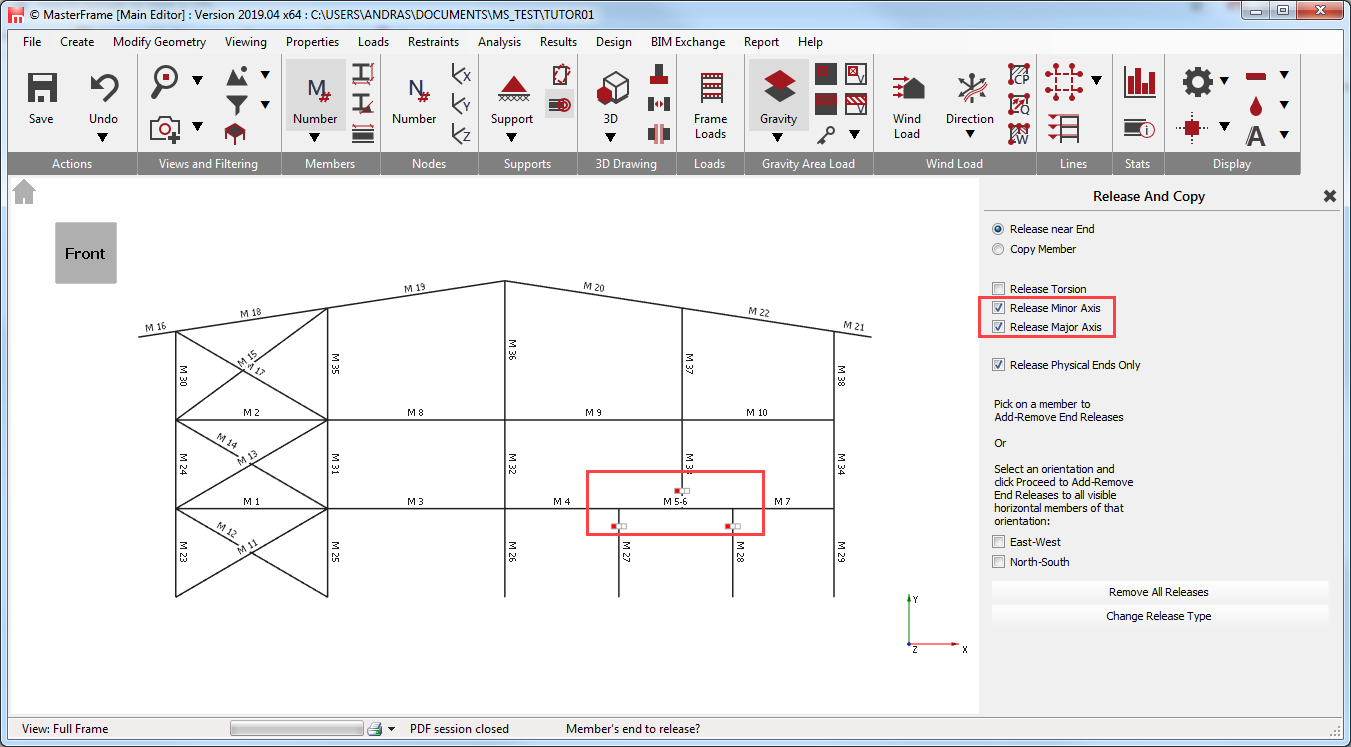
The frame currently has continuity at all the joints. We may wish to pin the tops of the 2 columns only going to first-floor level (members 27 & 28), and the bottom of the column starting at this level (member 33).
Turn on the Member Numbers button.
From the Restraints file menu, select Member End Releases.
Select to the Minor and Major Axes only.
Click on the top of members M27 & M28, and the bottom of member M33 to apply the releases.
Therefore, no moments will occur at these positions when we analyse the frame.
Member Groups
In MasterFrame you can group a number of members together to make your life easier. There are 2 different types of groups
Member Viewing Groups & Member Design Groups
Member Design Groups, groups together members that have the same design parameters, so that when you come to design, these members can be designed for the worst loading case for the whole group, hence all members of the group will be the same section size. Note that this is a ‘Pro’ feature and isn’t shown in this tutorial.
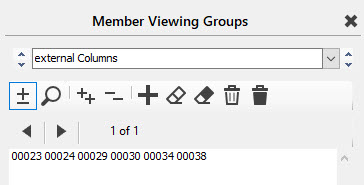
Member Viewing Groups allow you to filter the members displayed. We will use these.
Select Member Viewing Groups from the Viewing menu.
We will give each group a title. Click in the title box.
Type in External Columns for the first group.
Select the Add/Remove items ( )button and then select the outer columns.
Add a new group using the Add New Group ( ) button.
Click in the title box and give the group the title Internal Columns.
Select all the internal columns except for the 2 single storey columns going from ground floor to the first floor.
Add a new group, give it the title Single storey columns and place the remaining 2 columns in this group.
Add another group entitled Outer Beams and select outer beams (members M1, M2, M7 and M10).
Add another group entitled Inner Beams and select inner beams (members M3, M4, M8 and M9).
Add a group for the Transfer beam (members M5-6).
Add a group for the Bracing (members M11-15 and M17).
Finally add a group for the Rafters (members M16, 18-22).
Re-analysis
Having introduced sway load cases and released the ends of some members, we will re-analyse the frame and briefly examine the bending moment results, before carrying on to design the frame.
Select Static Analysis from the Analysis menu and choose Plane Frame analysis.
Select to Graphical Analysis Results from the Results menu.
Select Bending Moments, reducing the B.M. Scale to 200 from the drop list of scales.
Click on Major Axis Only
Click on Show Values
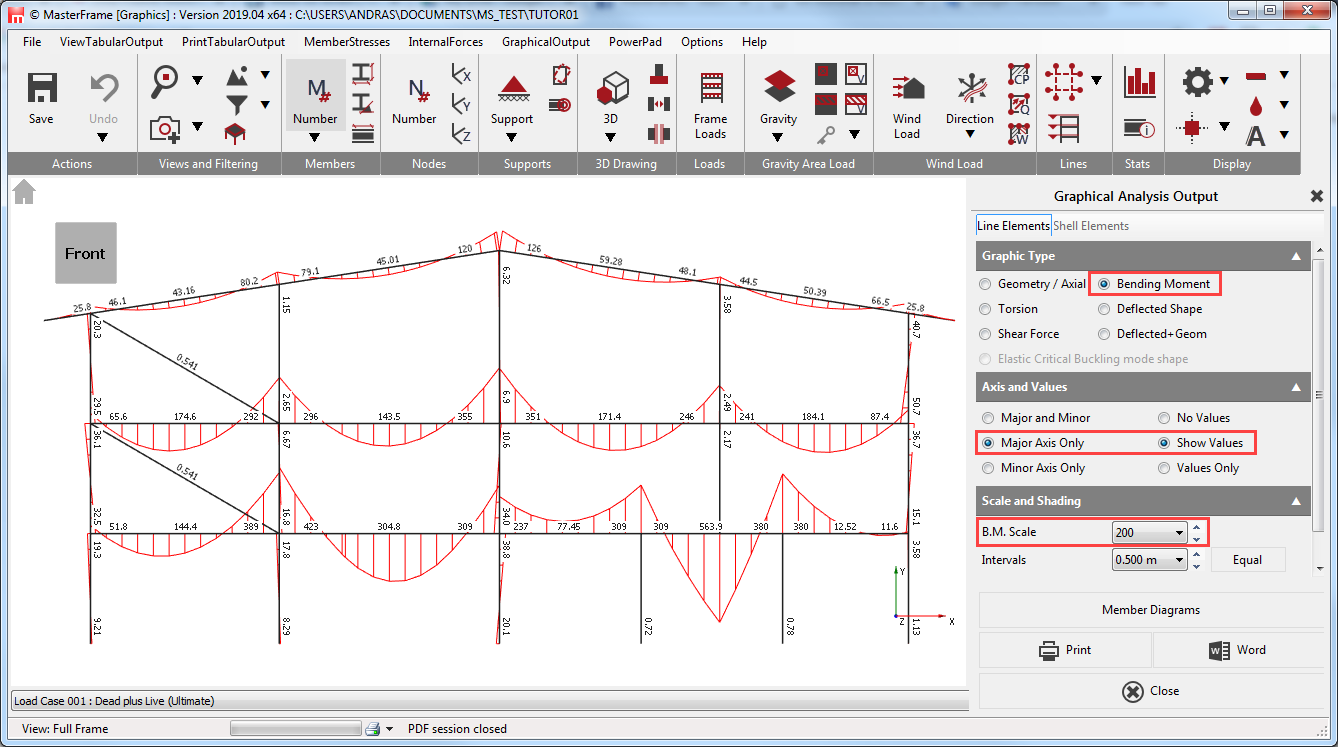
We can see that the 2 short ground floor columns have no moments since we pinned the tops of these members.
Click on Deflected+Geom.
Turn on Show in span deflection values and set the Magnification to 20.
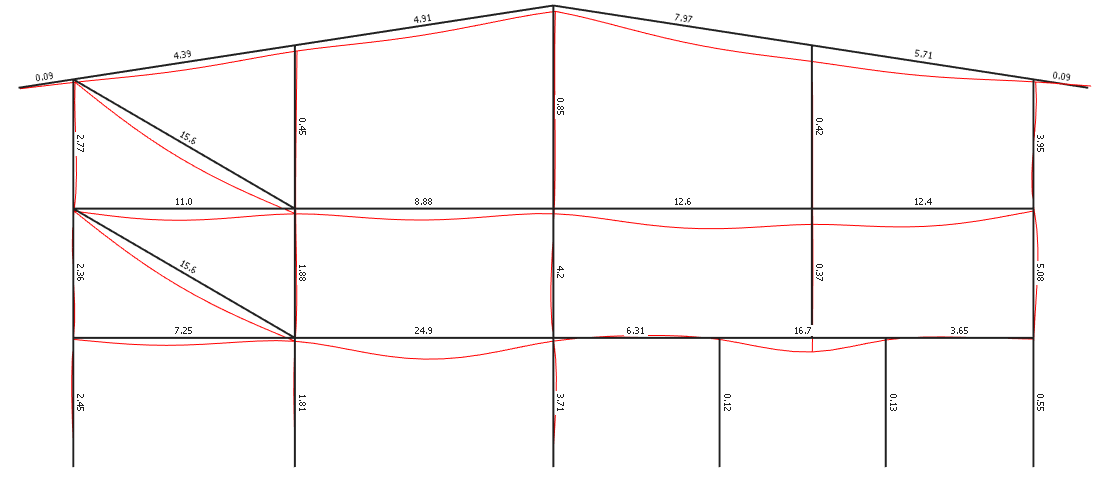
The frame is behaving as expected.
Steel Design
Now we will design the various groups of members.
Close the Graphics Analysis Output screen.
From the Design file menu, select the Steel Member Design option from the drop-down menu.
You will see that there are initially two design options on the top menu – Integrated Design and Automatic Design, located on the top menu bar.
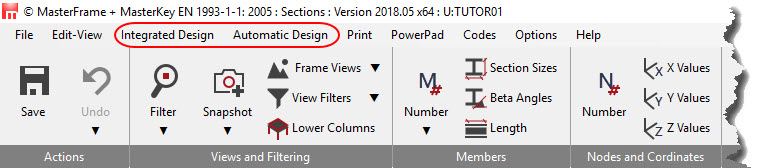
We will briefly examine how to design members manually, and then go on to the quicker automatic mode.
Using the Integrated Design Menu
From the Integrated Design menu, select the Auto Check–Group Check option.
Select all the members in the frame, by Windowing them using a click-drag-release action.
The Auto Check – Group Check will carry out quick local and overall capacity design checks on all the members selected, assuming their effective lengths to be the full length of each member. This will give you an indication as to which members are already satisfactorily sized and which need further attention.
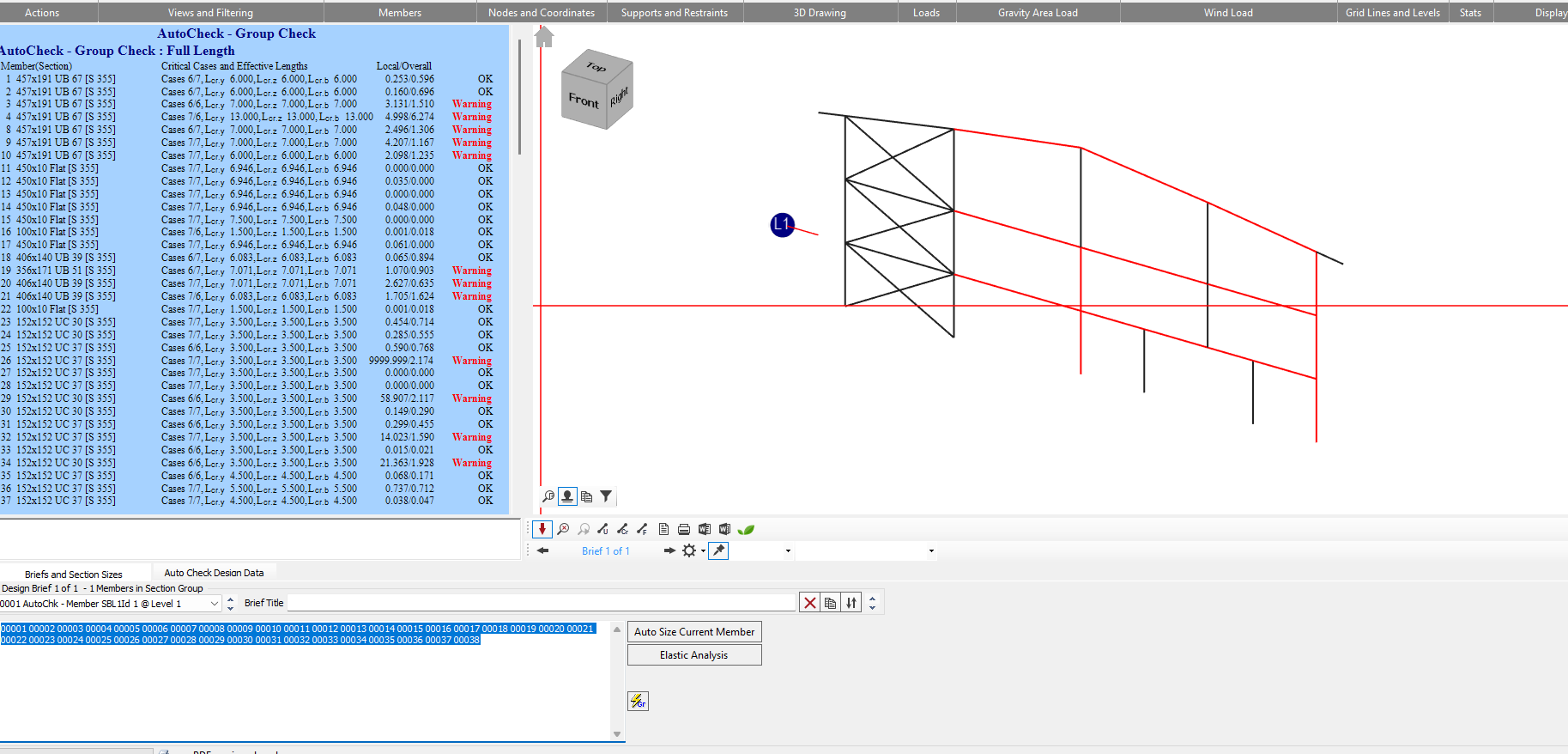
The results of the Auto Check are colour coded as follows:
- Red members are locally overstressed
- Cyan members require additional lateral restraints
- Black members pass the local and buckling checks
- Grey members are not checked (e.g. concrete or sections not licensed)
The above results indicate that some members are under-sized. We will use the Axially Loaded Members with Moments check to select suitable sections.
Select Axially Loaded Members with Moments from the Integrated Design menu.
The Apply-to mode (
 ) (bottom left
of frame graphics window) should be automatically selected. If not, select this
mode.
) (bottom left
of frame graphics window) should be automatically selected. If not, select this
mode.
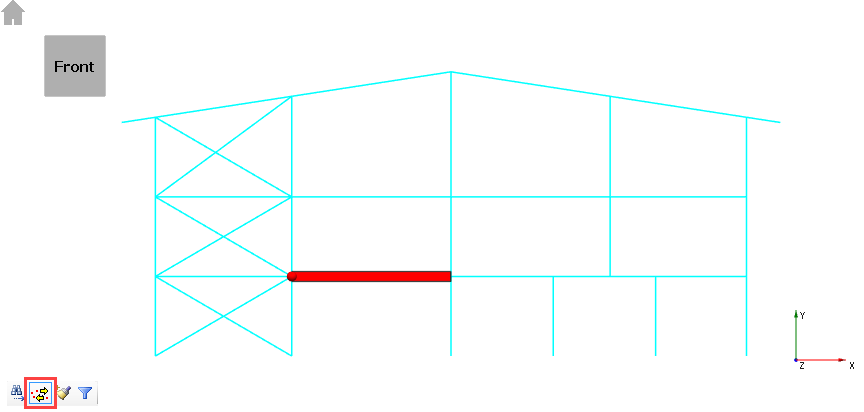
Apply the brief to member M3 (first floor, second beam) by clicking on it
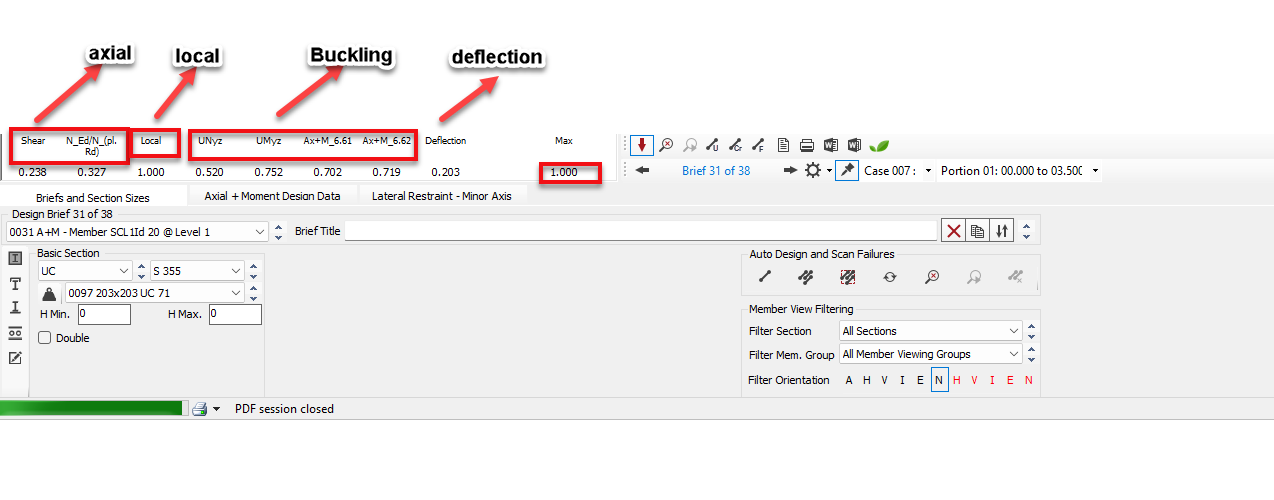
The window below the results display us all the summaries of design checks expressed as a series of Utilisation values. Any values greater than 1.000 are failures and are highlighted in red. The results are also on a blue background to indicate failure.
We have both local & buckling failures:
- Local Failure requires a larger section.
- Buckling Failure requires either a larger section or more restraint.
- Deflection Failure requires either a stronger section or a change in the deflection limits.
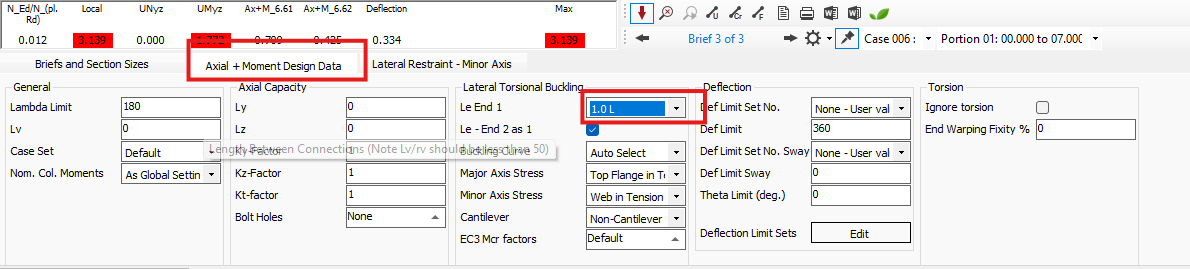
Move to the below the results summary.
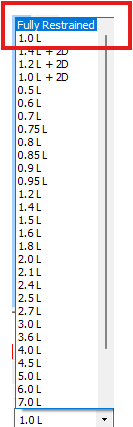
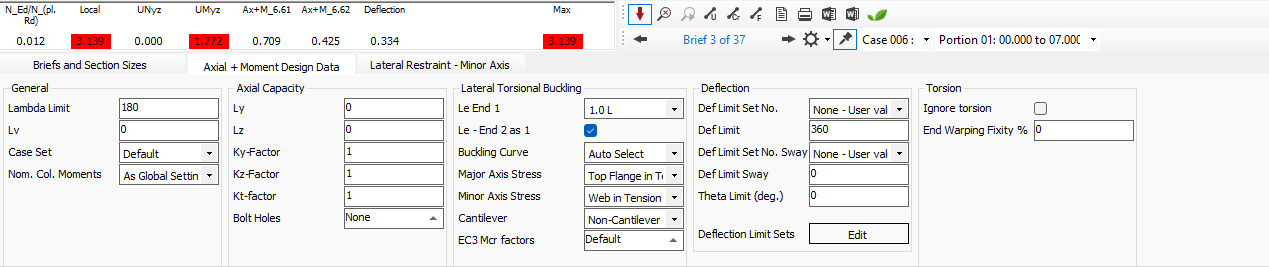
Change the bending effective length from 1.00 L to fully restrained Full Rest. This improves the capacity of the section as it is now assumed the beam is restrained by the slab
Return to the Brief and Section Sizes Tab.
Change from a 457x152 UB 52 to a 457x152 UB 60 and the beam now works. You can use the drop list, or the wee spin buttons at the end of the drop list to change section quickly.
The drop list is, by default, ordered by serial depth. Eg 203 then 254 then 305 sections. This results in the shallowest but not necessarily the lightest. Change the list to list by weight by selecting the Sort by weight ( ) button when it has a border it is on.
Now drop the Section List, select the 127x76x13 UB bottom section. Now scroll up one at a time until you find a section that works. The 457x152x60 UB is the lightest section.
Alternatively, we can opt to design the section automatically.
Reset the section size to 457x152x52 UB
Click on the Auto Size the Selected Member
( ) button at the bottom
of the Brief and Section Sizes
and MasterKey will size
the member for you. It automatically starts at the bottom section and runs up
the list, so we don’t have to worry about
the initial section size.
) button at the bottom
of the Brief and Section Sizes
and MasterKey will size
the member for you. It automatically starts at the bottom section and runs up
the list, so we don’t have to worry about
the initial section size.
Design briefs
We currently have 2 design checks called Briefs. The first is the
Auto Check – Group Check and the second
is the Axially Loaded Members with Moments
check for member M3. If we applied this check to member M4 using Apply-to mode (
 ). Then we would lose the design check on member M3 and
still only have 2 design checks.
). Then we would lose the design check on member M3 and
still only have 2 design checks.
For More information Click here
Using the Automatic Design Menu
Placing of Design Briefs – rather than place design briefs on all members manually, we will now do this automatically. This option is very useful, particularly for larger frames.
First delete the 2 design checks applied manually a few moments ago, using the Delete all design checks option in the Automatic Design menu.
From the Automatic Design menu, select the Add Multi-Storey Continuous Construction (Current View)
MasterKey will apply an Axially Loaded Members with Moments check to all the currently visible members of the frame. Therefore, we end up with 37 individual design checks.
Earlier in the tutorial, we created a design member out of members M5 & M7.
Select the search icon ( ) from the bottom of the graphics screen and click on member M5-6. You
will see that both members are highlighted
together. MasterKey Steel Design
sees them as 1 member of length 4.5m
(member 5 being 2.5m and member 6, 2.0m),
and will design them accordingly.
) from the bottom of the graphics screen and click on member M5-6. You
will see that both members are highlighted
together. MasterKey Steel Design
sees them as 1 member of length 4.5m
(member 5 being 2.5m and member 6, 2.0m),
and will design them accordingly.
Member Viewing Groups
Now we shall design each group of members in turn, with each group having the same section size.
This introduces another set of 7 buttons which allow us to view the member groups which were set up earlier in the tutorial and we shall use these groups to design all the members which belong to each group.
Automatic Design utilities
The auto-size toolbar located at the bottom of the Brief and Section Sizes tab and has the following features.
Ensure
Sort by weight (
 ) function is on.
Design the External Columns
Change the Member Viewing Group to External Columns from the drop list – All Member Groups (Members Menu) at the bottom of the screen.

We now want to automatically design the 6 outer column sections.
The 3 Auto Size ( ) buttons on the bottom left of the screen give different 3 methods as follows:
- Auto size the selected member
- Auto size all visible members independently
- Auto size all visible members to use the same section so that they all use one section size
Select to Auto size all visible members to use the same section (
 ).
).
Confirm that you wish to use the UC sections and steel grade shown. The columns are automatically sized for the lightest section that satisfies all 6 members.
Design the Internal Column
Select the Internal Columns from the drop list at the bottom of the screen.
Again, select to Auto size all visible members to use the same section
(
).
Similarly, auto design the remaining member groups –
- Single storey columns
- Outer beams
- Inner beams
- Transfer beam.
The beams are considered to be fully restrained. Again, this can be altered in the Axial with Moments tab to whatever effective length you wish to consider.
Design the Rafters
Finally, consider the roof rafters. These will be restrained by the purlins, so we will set up the lateral restraints to the rafter in the Lateral Restraint tab.
Select the rafters from the Member groups drop list and highlight any one of the rafters by clicking on it in the graphics panel.
In the Axial with Moment tab, change the effective length from fully restrained to 1.0L.
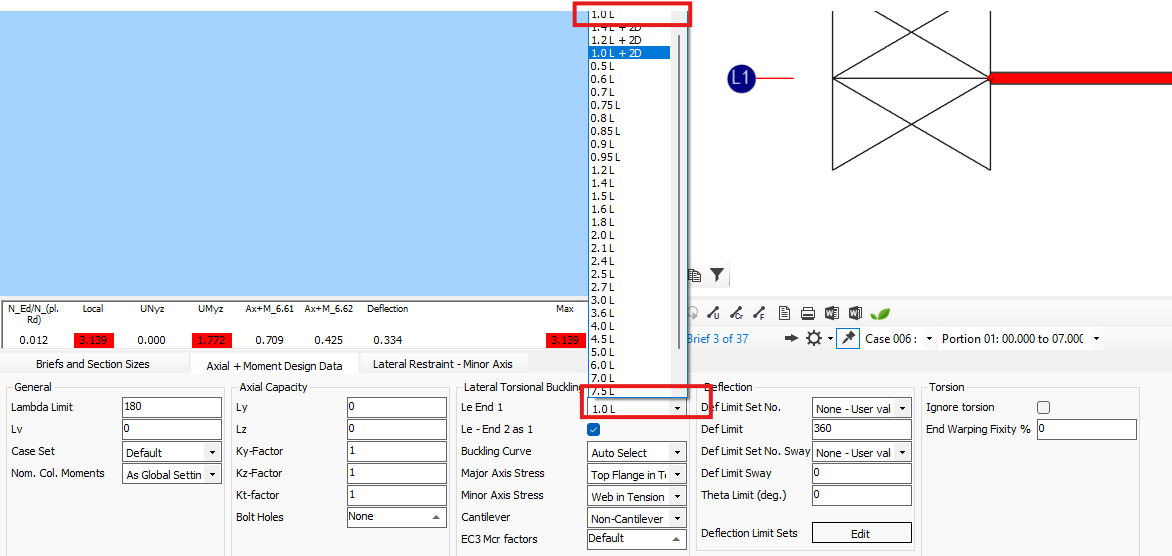
In the Lateral Restraints tab, deselect Auto Restrain at Connected Members.
Change the value in Portion 1 to 1.8m.

For the purposes of design, this will assume the rafters are restrained by purlins at the 1.8m centres.
After setting up the first rafter, change to copy mode in the main graphics window.

Now click the paintbrush cursor on each of the rafters (or window them all). This will update their settings with the new restraint conditions.
Return to the Search icon (
 ) from the bottom of the graphics screen to be
safe.
) from the bottom of the graphics screen to be
safe.
Return to the Brief and Section Sizes tab and Auto Size ( )the rafters
Finally, select the Bracing viewing group.
Change the effective lengths to 1.0 L and Auto Size the Bracing.
Set the member groups back to All Member Groups in the drop list showing the whole frame. Since the section sizes have been altered, we will need to re-analyse the frame and carry out a final check on all members.
Click on the Re-Analyse ( ) button next to the Auto Size
buttons.
) button next to the Auto Size
buttons.
The frame is quickly re-analysed.
Click on the Scan for failures (
 ) button. This will check all the design briefs already set up, and
highlight any briefs which may fail after re-analysis.
) button. This will check all the design briefs already set up, and
highlight any briefs which may fail after re-analysis.
This will report that 1 brief fail and member M5-6 (the transfer beam) will be highlighted.
With the transfer beam highlighted, click on the Auto size the selected member ( ) to re-design the selected transfer beam.
Click on Scan for failures (
 ) button to find the next brief which is failing.
The check for failures will report that no briefs will fail. Therefore, with the redesign of the transfer beam, the design of the frame is now complete.
Second Order Analysis (Elastic Critical Load Factor αcr)
At this stage, with realistic section sizes, we can check the Elastic Critical Load Factor for the sway stability cases we created earlier.
From the Integrated Design menu select the Elastic Critical Load Factor design check.
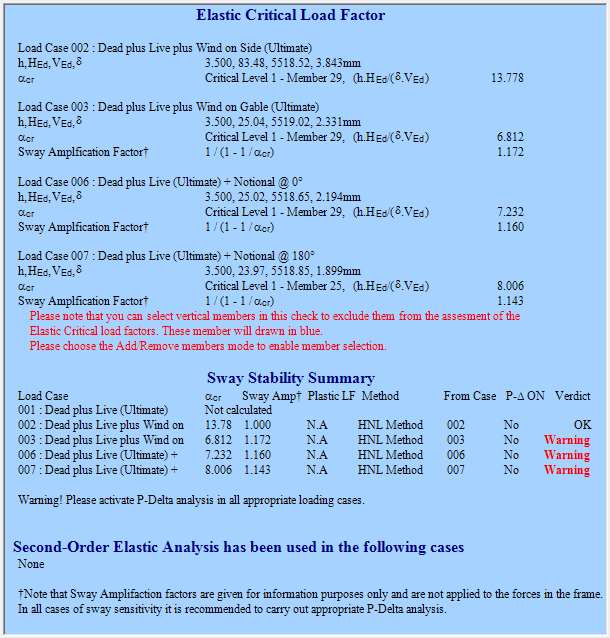
An Elastic Critical Load Factor check is added to the design brief drop list.
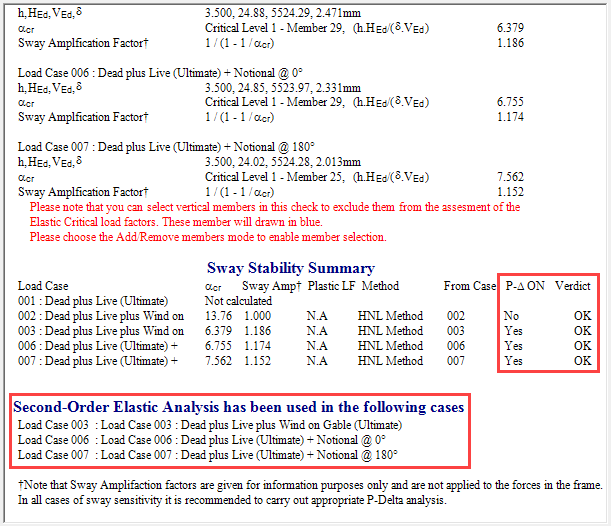
From the report, a warning is given against load cases 003, 006 and 007. These load cases have an αcr value of just less than 10, and hence they require a Second-Order Elastic Analysis to be carried out on them.
Select Edit Frame from the Edit-View menu and save the file when requested.
From the Analysis menu, select Second Order Analysis Options Per Load Case.
Select Load Case 003 from the load case drop list and in click on the Include P-Delta Analysis and select the Geometric Stiffness method.
Repeat this for Load Case 006 and 007.
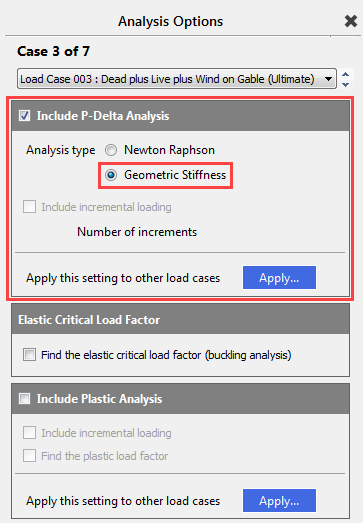
Close the Analysis Options screen and re-analyse the frame.
When the analysis panel opens, green ticks indicate which analysis options are selected for which load case. In this instance, both P-Delta AND Notional Loading should be applied to load cases 003, 006, and 007.
If during P-Delta Analysis the frame is unstable, a message will be displayed stating that the frame is too flexible. If the frame is stable, no message appears.
Select the Plane Frame analysis option from the menu. The frame will analyse without generating any warnings.
Select Steel Member Design from the Design menu.
Select the Elastic Critical Load Factor design brief from the design brief list.
This confirms that a Second Order Analysis has been carried out successfully in the load cases shown.
Select any member in the graphical
area to switch back to the member design view and click on the Scan for failures (
) button.
The scan for failures will not reveal any failures, indicating that the members of the frame are passing all relevant design checks as set up in the design briefs. Thus, the design of the frame is complete.
End of Tutorial