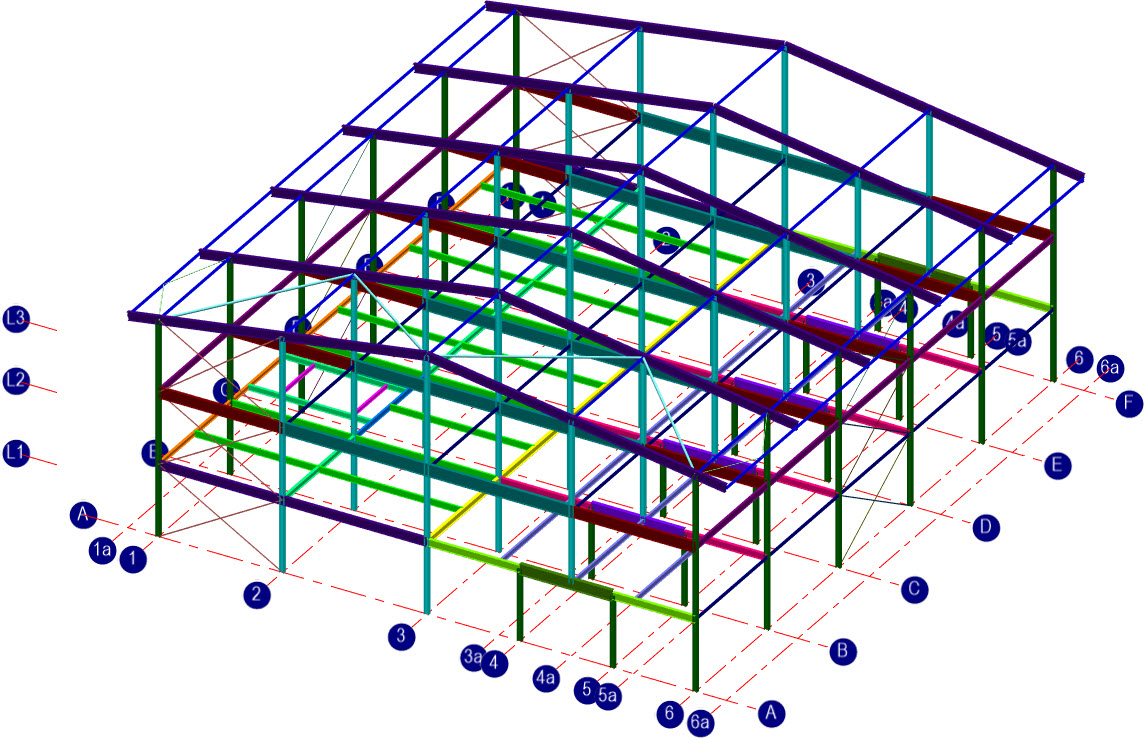
T01-5 3D Steel Structure
3D Steel and composite Design to Eurocode 3 & 4
Introduction
This tutorial will require you to have access to the following MasterSeries modules:
· MasterFrame Pro
· MasterKey: Wind Analysis
· MasterBeam: Composite **
· MasterKey Steel Design **
If you don’t have a licence for composite design, assume the 1st floor is solid with steel beams.
If you do not have access to any of this software, please contact us for a 14-day free trial to learn how it can benefit you and your business.
Overview & Outcome
This tutorial follows on from the frame generation in part T01-3 where you generated a 3 storey steel frame. This tutorial will be using this frame and will show users how to use the MasterFrame tools to generate a 3D frame structure.
Version Information
This tutorial has been written for version 2024 of the MasterSeries software suite. Subsequent versions of the software may have additional features, or changes in layout, however the general procedure will remain the same.
Contact
We strive to make our tutorials as simple as possible without compromising on the technical aspects of the analysis procedure. Should you discover any errors, omissions, or are in need of additional clarification, please contact us by emailing your comments, or corrections to help@masterseries.com
We’re social – follow us on Facebook, LinkedIn Vimeo and to keep up to date
Loading the Start-up Frame
To start this tutorial, open the frame generated in T01-3 tutorial – for example Tutor01-3.$5. To do this, while standing on the Programs tab, select the MasterFrame from the Integrated Analysis & Design filed.
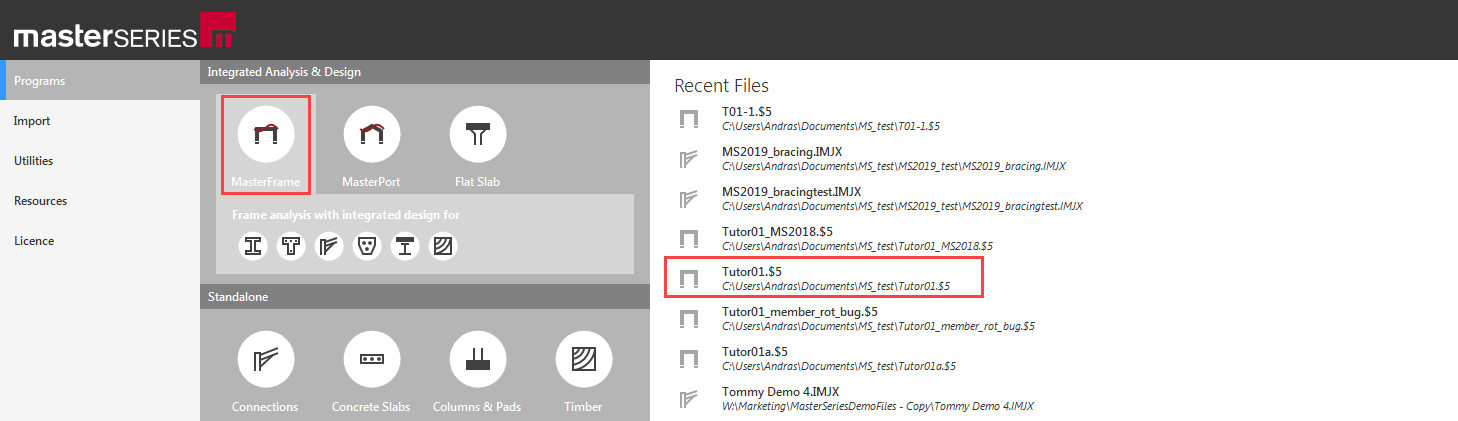
The File Selector dialogue will now be displayed.
Using the folder tree, navigate to your actual folder and select the T01-3 tutorial (Tutor01-3.$5) model file.
To open the model, click on the Open button.
Deleting the Old Loading
We will be using Area Loading to apply member loading. This is much faster for 3D structures. Therefore, at first need to delete all the existing loadings.
From the Loads menu select Member Loading.
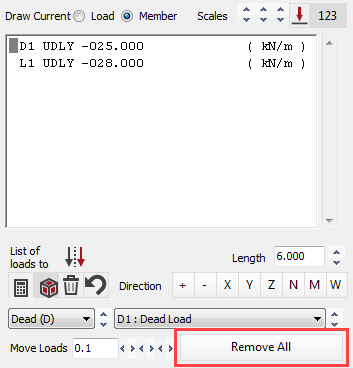
Select Remove
All button at the very bottom right
of the screen. Select Apply and confirm Yes.
Because some member attributes are handled, e.g. Tension Only, as a load, the previous step has also deleted our Tension Only attribute on our bracing.
We need to reapply these. From the Loads menu select Member Loading again.
Change the method from Edit Member (  ) mode to Edit
and Paste (
) mode to Edit
and Paste (  ) mode.
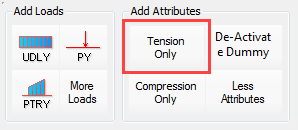
Click on the Tension
Only (
 ) button (bottom left of the
screen) to add a tension only attributes to the list of loads.
) button (bottom left of the
screen) to add a tension only attributes to the list of loads.
Using the View
Filter on the top toolbar to display
the bracing members only. We can use for example our previously defined Member Viewing Groups or
the Materials for filtering.
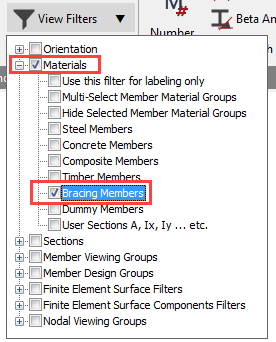
Window all the bracing members to apply the tension only attribute to them. Then turn off the View Filter.
Simple Construction
In this tutorial, we will go for simple construction. To do this, we need to pin the beams on the 1st & 2nd Floor. The roof will remain portalised, but the internal columns will be pinned at their tops.
Turn on the Member End Releases ( ) in the Supports group.
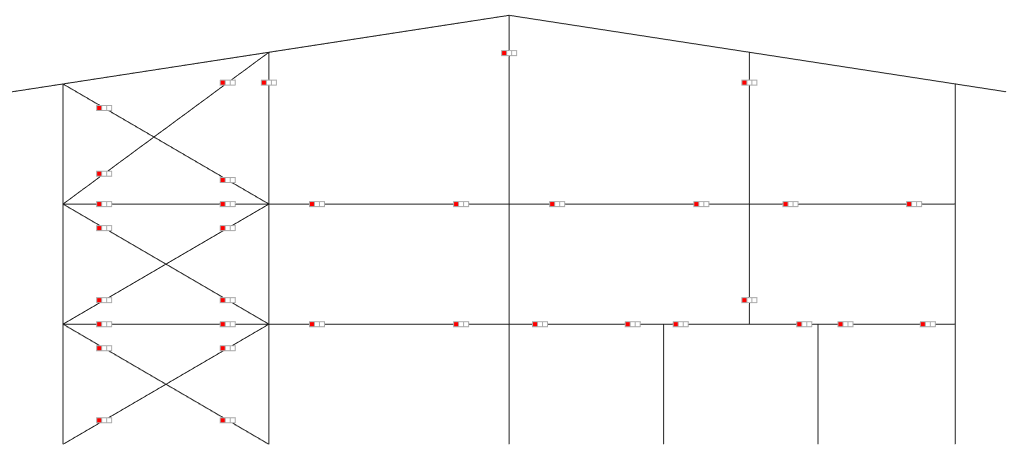
The bracing does not show any pins. However, it was defined as tension only and therefore is automatically pinned.
From the Restraints menu, select Member End Releases.
The default is Major & Minor axis free but torsionally rigid. We recommend this option as it stops you getting member instabilities. Only where you are attracting torsion would you consider releasing torsion.
Pin all the members as shown below, by clicking on the member ends.
Note:
- The two short columns are no longer pinned.
- We have pinned the bracing, so it looks correct to a checking engineer.
- The roof Rafters have NO pins
- The eaves & Apex are not pinned
Duplicating the frame
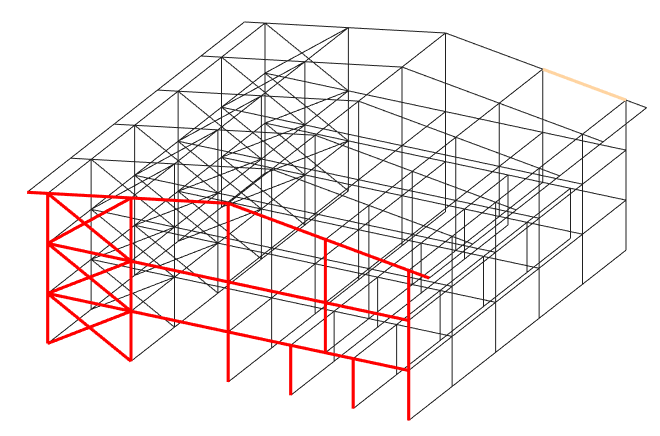
From the original frame, we will duplicate all the nodes and members multiple times spanning the z-axis to create a 3D frame.
Click the Home (
 ) button to place the frame into 3D isometric
view.
) button to place the frame into 3D isometric
view.
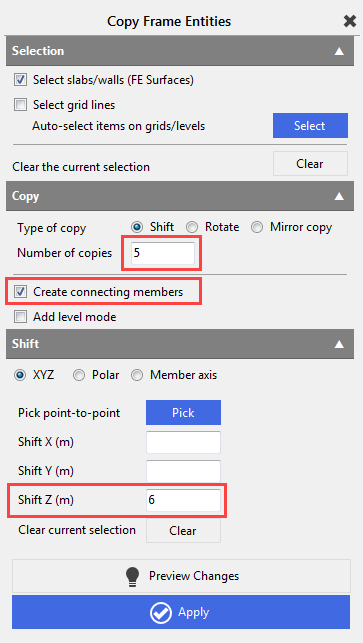
From the Create file menu, select the Copy Add Members, FE Surfaces, Grid lines option.
Window the whole frame, to select it.
Set the Number of copies to 5 and check in the Create Connecting Members checkbox.
Set the Shift Z (m) to 6 m and then select the Apply button.
Close the Copy Frame Entities dialogue with the X.
Editing the Tie Members
Pinning the tie members
We now need to pin all the tie members in the Z axis.
On the top toolbar, from the View Filters, select Orientation, Horizontal and then North-South to display only the horizontal members (our ties) in the Z direction.
To set multiply the release conditions, from the Properties Menu select View Member Properties Editor and then window select all the tie members.
Edit the End Releases to release the Major & Minor Axis at End 1 & End 2.
Setting the Section Size of the tie Members
While we are viewing only the tie members, from the Properties file menu select Member Sections Materials.
Place the frame in top view by
selecting the Top side of the viewing
cube ( ).
).
Change the method from Edit Member ( ) mode to Edit
and Paste ( ) mode.
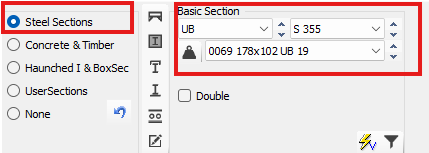
Select Steel Sections option from the bottom dialogue and choose the 178 x 102 UB 19 of grade S 355.
Now window select all members except the first and last lines.
Remaining in Edit
and Paste ( ) mode, change the section in the
template to a 125 x 65 PFC 15 of grade S 355 and window select
the first and the last lines.
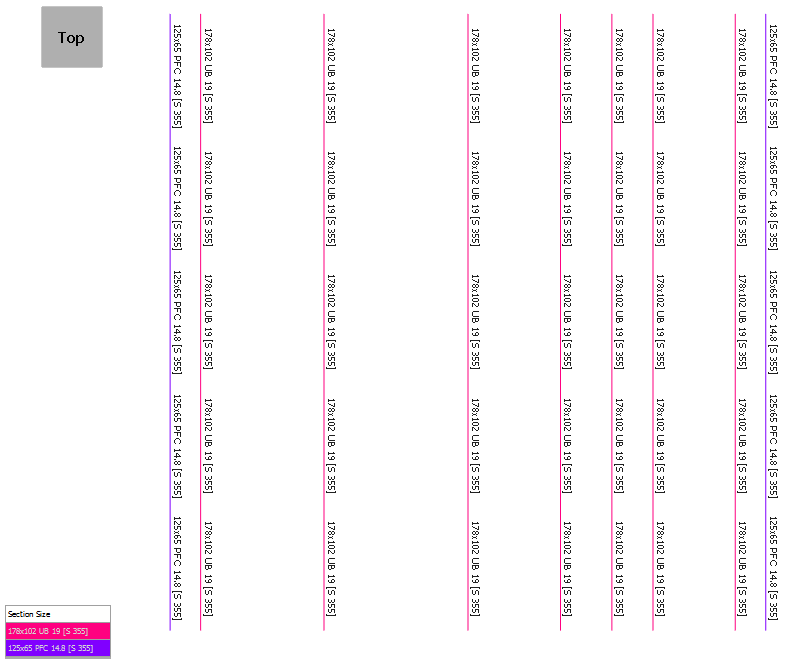
Close the Member Section Properties editor and turn off the View Filters.
Deleting Members
Now delete the extra ground beams
Place the frame in front view by
selecting the Front side of the viewing
cube ).
From the Modify Geometry file menu select the Delete Members, FE Surfaces, Grid Lines option.
Window the column bases like so. Don’t window too high or you will include the columns.
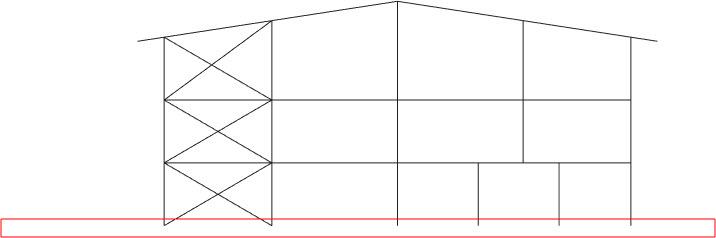
Click the Home ( ) button to place the frame into 3D isometric
view and ensure you have selected only the ground beams.
Select the Apply button to delete the selected beams. Close the dialogue with the X.
Creating Grid Lines
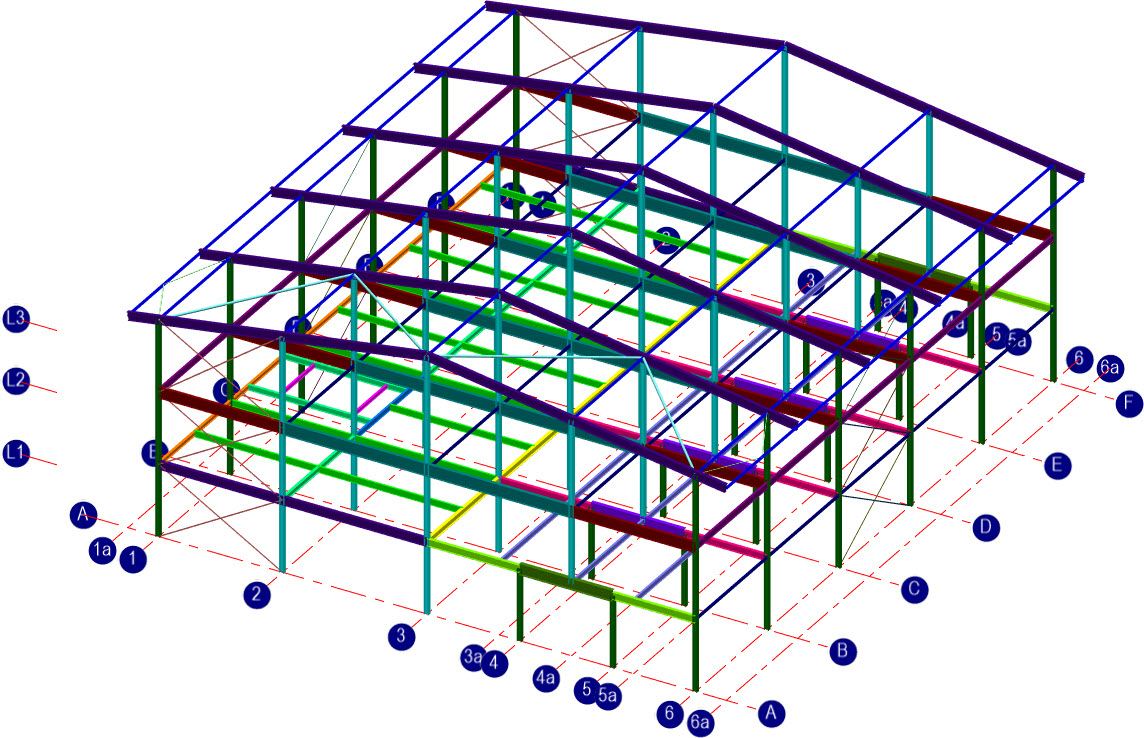
Let’s create some Grid lines for ease of reference.
From the Create menu, select the Add/Edit Grid Lines option.
Place the frame in top view by selecting
the Top side of the viewing cube ().
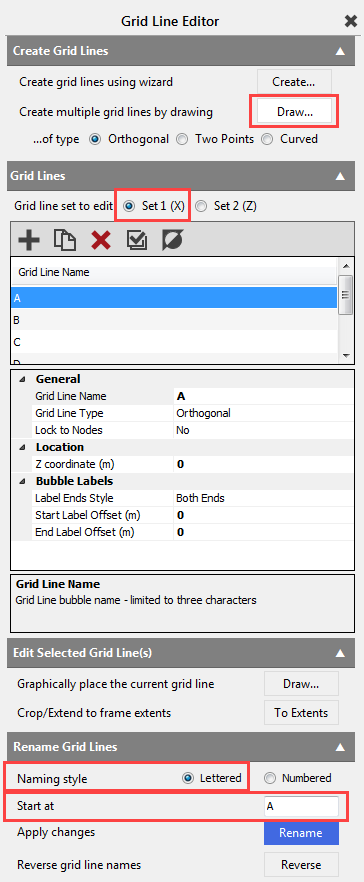
In the Create Grid Lines field, select Create multiple grid lines by drawing by clicking on the Draw… button.
Select Set 1 (X) to edit the grid lines in the X direction.
Set the Naming style to Lettered and start at A.
Now from the bottom and moving up frame-by-frame select each frame.
This will give you 6 Grid lines A-F
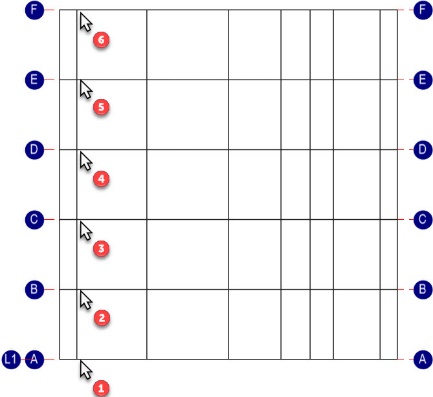
Remaining in Draw… mode, select Set 2 (Z) to edit the grid lines in the Z direction and draw the vertical (vertical in our current top view) grid lines.
Set the Naming style to Numbered and start at 1.
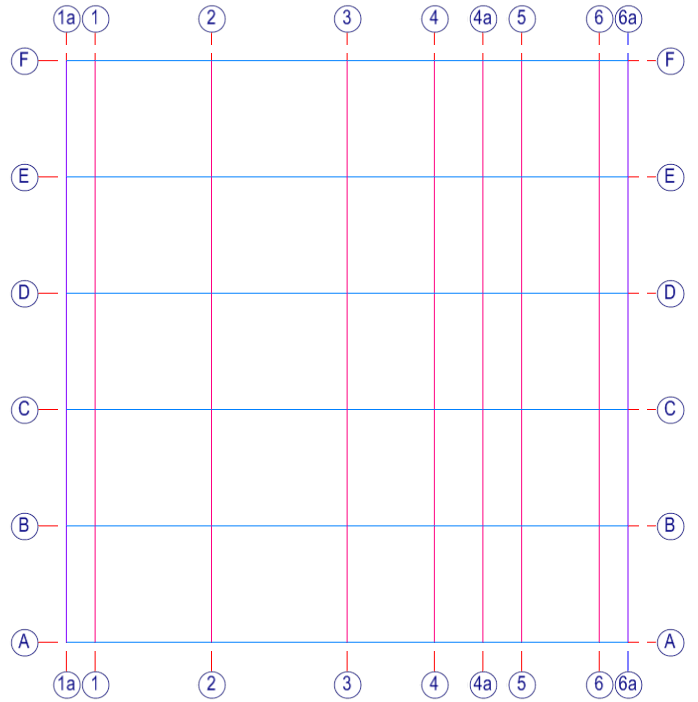
Pick the main column locations from left to right,

Then pick the remaining 3 points.

Press Esc key or click again on the Draw… button to escape from the drawing function.
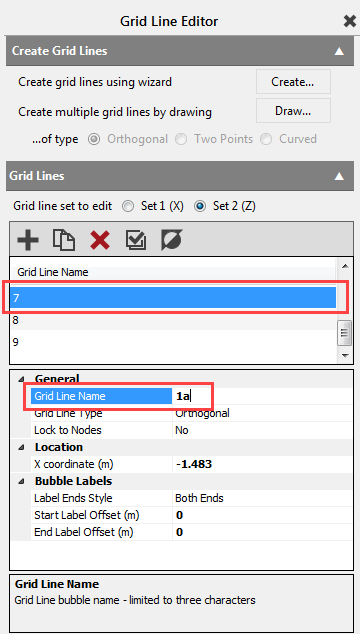
We will now edit the name of Grids 7, 8
and 9.
Select Grid 7 in the Grid Line Name table. In the Properties edit the Grid Line Name to 1a.
Repeat and rename Grid Line 8 into 4a and Grid Line 9 into 6a.
Creating Levels
Let’s create some Levels for ease of reference.
From the Create menu, select the Add/Edit Levels and their global data option.
Place the frame in front view by selecting the
Front side of the viewing cube( ).
MasterFrame
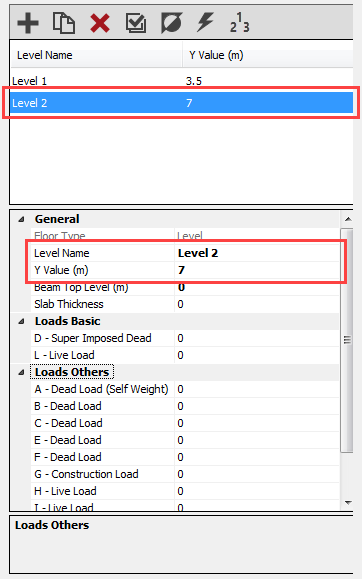
has created Level 1 at 3.5 m yet during the startup frame
generation.
Create a 2nd level using
the Add New Item  button.
In the Properties, change the Level Name to Level 2 and set the Y Value (m) to 7 m.
Create a 3rd level using
the Add New Item button.
In the Properties, change the Level Name to Roof and set the Y Value (m) to 10 m (this is just below the bottom of the cantilevers).
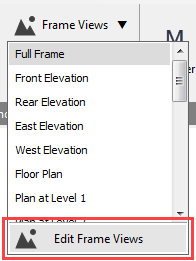
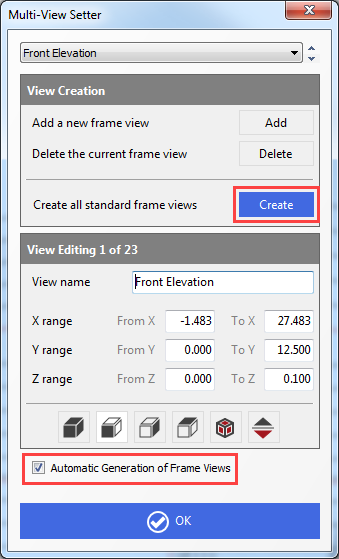
MasterFrame automatically generates the Frame Views for each of the grid lines and levels. If not, on the top toolbar select Frame Views and then Edit Frame Views.
On the
bottom of the dialogue, check in the Automatic
Generation of Frame Views option and
click on the Create button to regenerate
the frame views.
To save, click on OK button.
Editing the Bracing
Adding Vertical Wall Bracing on GL 1 & 6
Place the frame in top view by selecting
the Top side of the viewing cube( ).
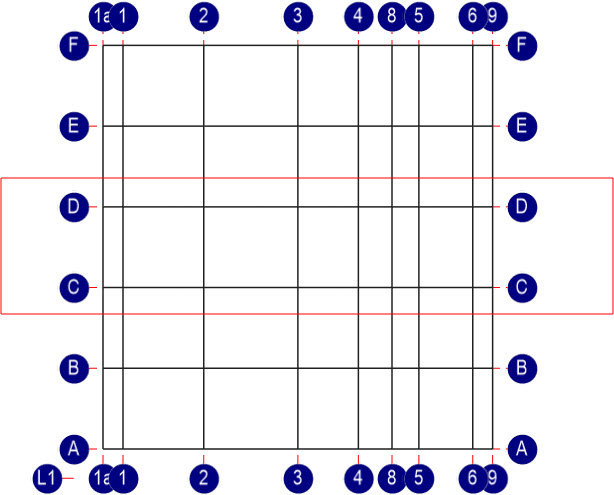
On the top toolbar, select the Filter (
 ) tool to view only the bays on Grid
Lines C & D by windowing them with a left mouse button drag
action.
) tool to view only the bays on Grid
Lines C & D by windowing them with a left mouse button drag
action.
Place the frame in isometric view by selecting
the bottom-right corner of the viewing cube(
).
Note: Do NOT use the Home ( ) button to place the isometric view because
it resets all of the other viewing and filtering settings as well.
From the Create file menu, select Add Vertical Bracing option.
Choose X
Bracing ( ) type and set the section to Steel (
  ), Flat,
100 x 10, grade S 275.
), Flat,
100 x 10, grade S 275.
Set the Attributes to Bracing Member, Release Ends, Tension Only.
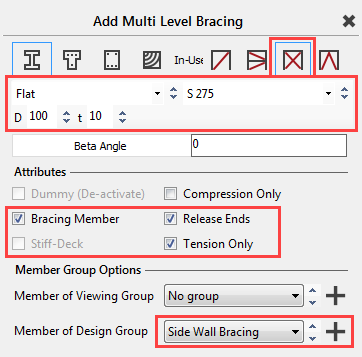
Finally, add another Member of Design Group, by clicking on the Add new member design group  button and name it Side Wall Bracing.
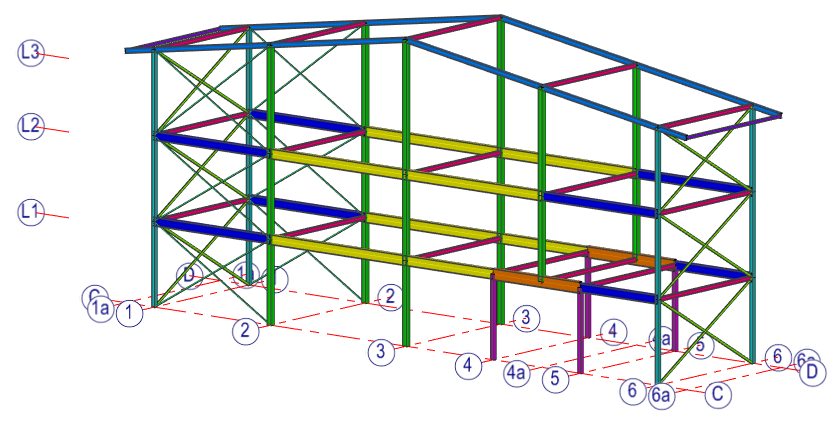
Now select the base node at C1 and then the eaves node at D1.
Then select the base node at C6 and then the eaves node at D6.
Deleting Internal Bracing Members
We now need to delete the internal bracing.
Click the Home () button to reset the viewing and the
filtering settings and then place the frame in top view by selecting the Top side of the viewing cube ( ).
On the top toolbar, select the Filter ( ) tool to view only the bays on Grid Lines B to E by
windowing them with a left mouse button drag action.

Change to Front view using the
bottom middle edge of the viewing cube 
From the Modify Geometry file menu select the Delete Members, FE Surfaces, Grid Lines option.
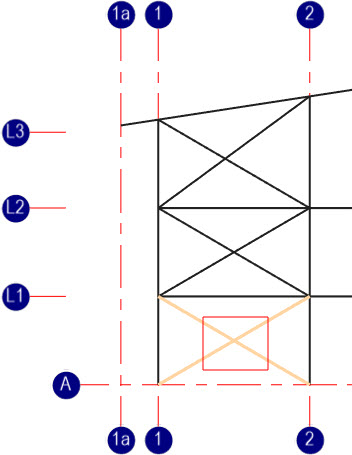
Window the bracing at each level by windowing
the centre of each member as shown opposite. By doing this for each floor
separately, we don't grab the beams.
Click the Home ) button to place the frame into 3D
isometric view and ensure you have selected only the internal Bracing.
Select the button to delete the selected members. Close the dialogue with the X.
Adding Roof Bracing
As the roof is portalised, we only need to brace in the Z-Axis. We will brace between Grid Lines A & B using CHS tubbing in compression.
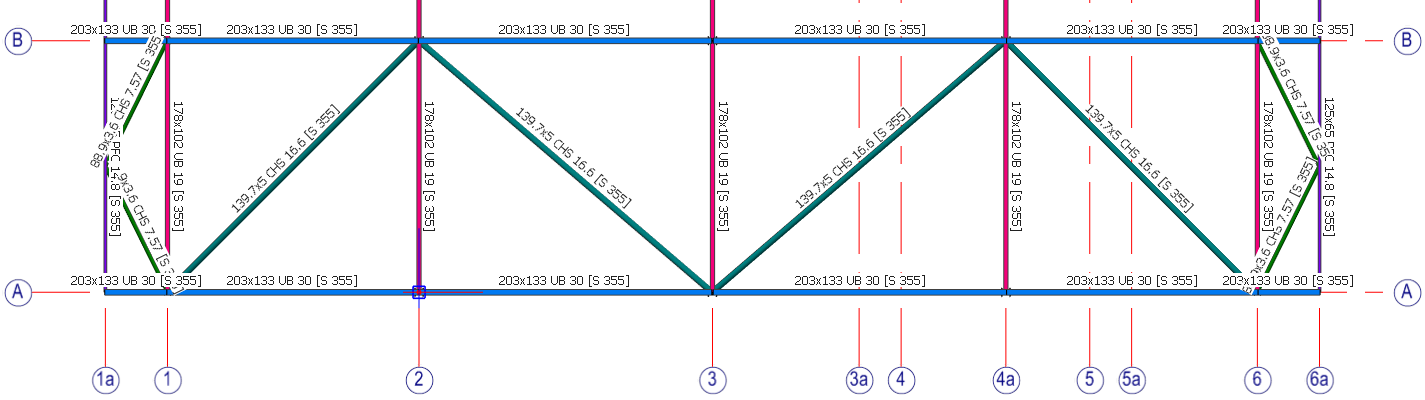
Select Roof Plan view from the Frame Views.
From the Create file menu choose Add Members (General) and select the 139.7x5 CHS S355 steel ( ) section.
From the Attributes, select Bracing Member and Release Ends option and draw the 4 inner members between the Gride Lines 1 & 2.
Next, select the 88.9x3.6 CHS S355 section to draw the canopy bracings.
Draw the 4 outer canopy bracing members as shown above.
Moving the Beams on GL 4 & 5
Notice the beams on Grid Line 4, 4a & 5 are quite close together. We will move the beams on Gride Line 4 to the left and on Gride Line 5 to the right. This will give us 4 reasonably pitched spans for our composite beams.
On the top toolbar select Frame Views and select Plan at Level 1.
From the Modify Geometry file menu select the Move Members, FE Surfaces, Grid Lines option.
Select Whole Member selection method and select the 5 beams on Grid Line 4.
Input -1.0 in the Shift X (m) edit box and click on the Apply button.
Now, select the 5 beams on Grid Line 5, input +1.0 in the Shift X (m) edit box and click on the Apply button.
By clicking on the X button, close the dialogue.
Adding Additional Gridlines
Let's create two new grid lines for these moved beams and call them 3a and 5a.
From the file menu, select the Add/Edit Grid Lines option.
In
the Create Grid Lines field, select Create multiple
grid lines by drawing by clicking on
the Draw… button.
Select Set 2 (X) to edit the grid lines in the Z direction.
Now click anywhere on the beams near GL 4 and then click again anywhere on the beams near GL 5.
Press Esc key or click again on the Draw… button to escape from the drawing function.
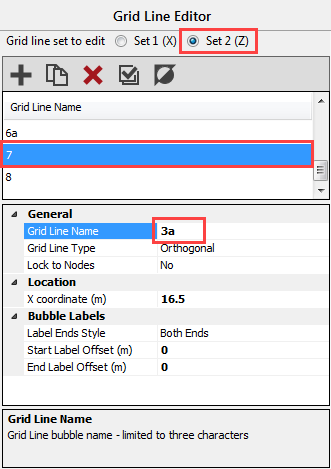
We will now edit the name of Grids 7 and 8.
Select Grid 7 in the Grid Line Name table. In the Properties edit the Grid Line Name to 3a.
Repeat and rename Grid Line 8 into 5a.

Adding Secondary Members
The first floor is going to be composite, so let's add some secondary members.
Return to Plan at Level 1 view.
Select Add Members (General) from the Create file menu.
Choose Steel
 ) option and choose the 406x140 UB 39 of grade S
355.
) option and choose the 406x140 UB 39 of grade S
355.
Set the Attributes to Release Ends.
Draw 2 members horizontally from the midpoints of members E1-F1; E2-F2 and E3-F3.
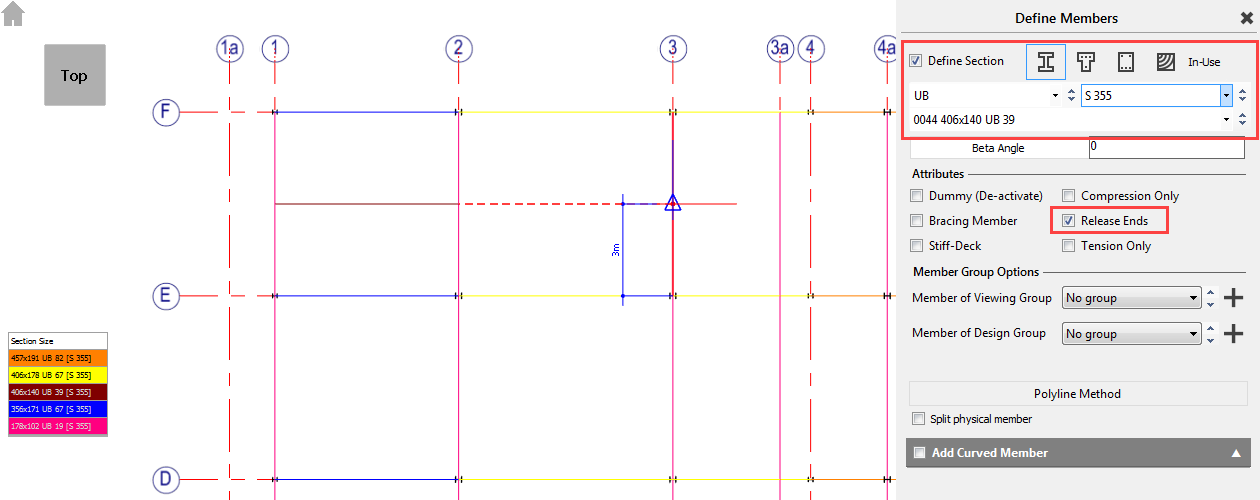
As we have a regular 6-metre grid from A to F, we can quickly duplicate these members the two members we just created.
Close the Define Members dialogue and select Copy Add Members, ... from the Create file menu.
Select the two members you have just created.
Set the Number of copies to 4 and set Shift Z (m) value to -6.
Select Apply to carry out the copy.
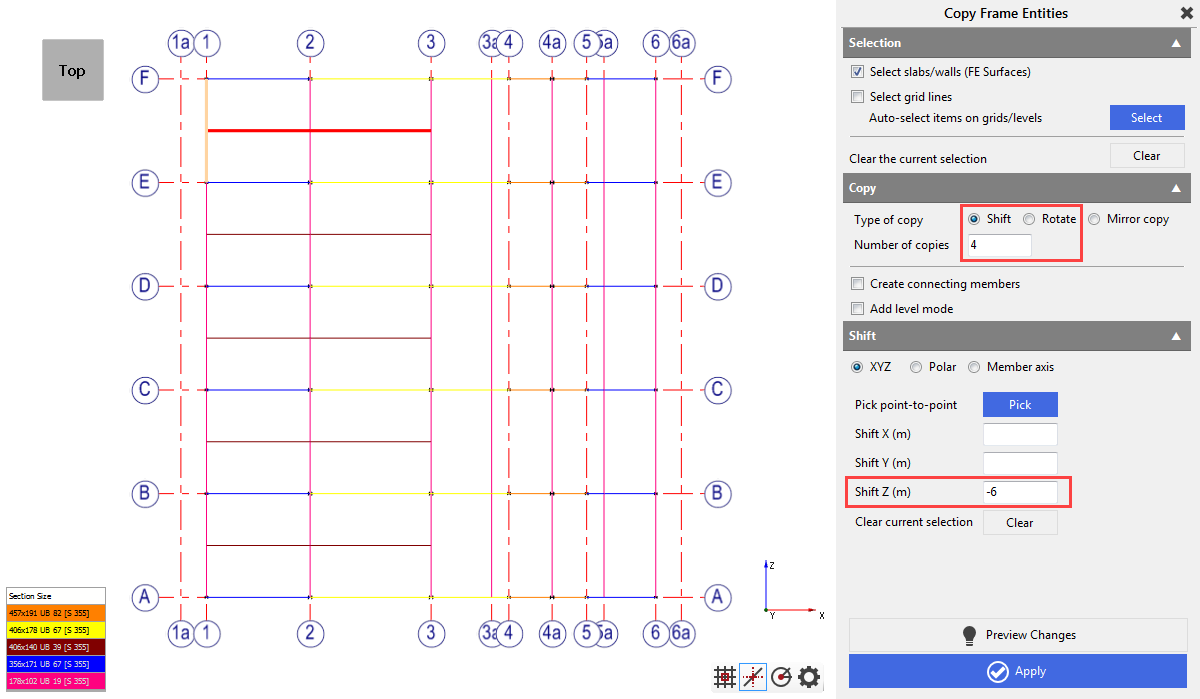
At the top left of the frame
graphics window click on the Save ( ) button.
Area Loading
We are now ready to apply area loading to our structure.
1st Floor
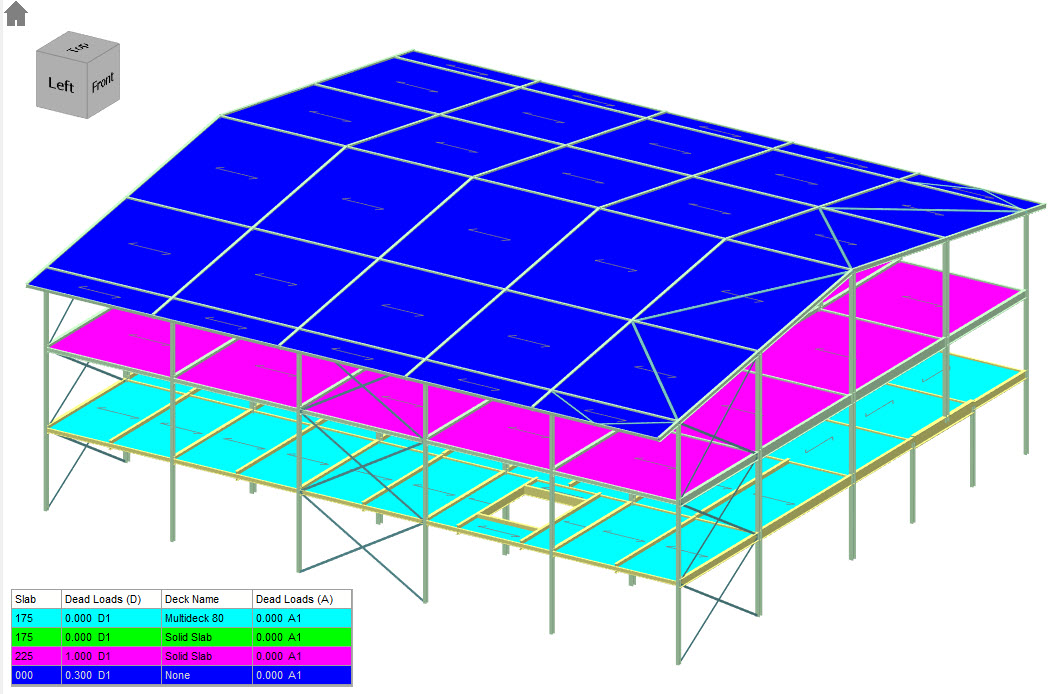
- 175mm thick Composite Floor
- 1 kN/m2 Screed & Finishes
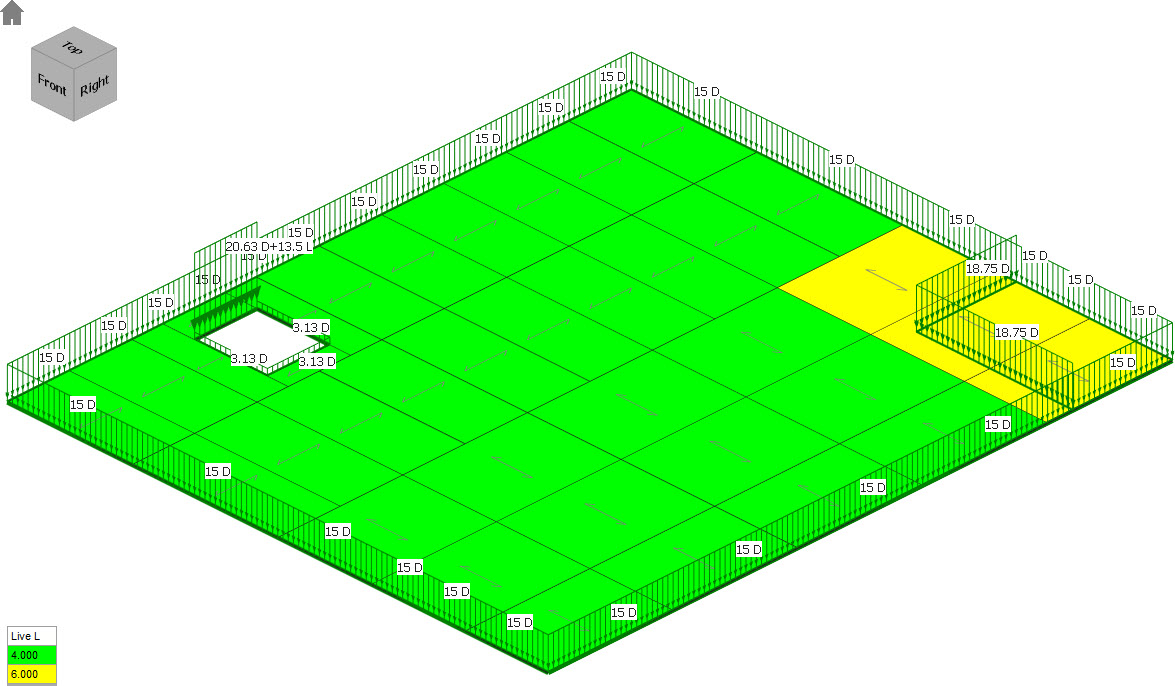
- 4 kN/m2 Live · 6 kN/m2 Live E3 to F6
- 12 kN/m Dead Perimeter Load
- 15 kN/m Deadline Load close to F4-E4-E6
15 kN/m Deadline Load 1m right of GL4 & 1.2m above GL E
2nd Floor
- 225mm thick Concrete Floor (non-composite)
- 1 kN/m2 Screed & Finishes
- 2.5 kN/m2 Live
- 6 kN/m Perimeter Load
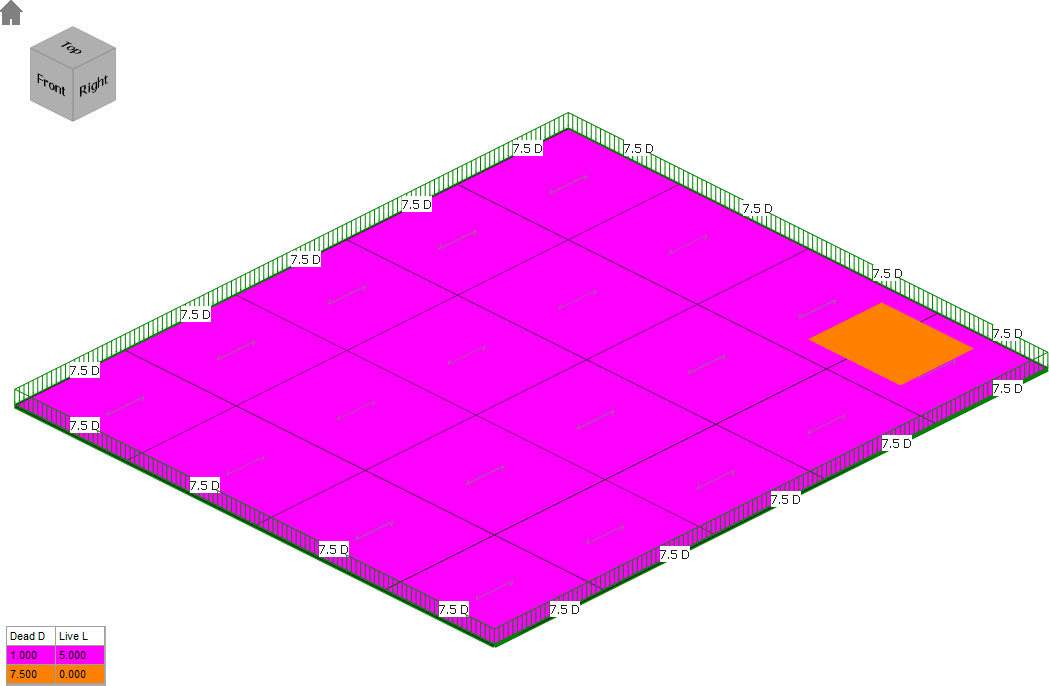
- 7,5 kN/m2 4mx5m in area Centred on beam F8-E8 (2m left, 3m right)
Roof
- Lightweight insulated panels on purlins at 1.8m c/c
- 0.3 kN/m2 Dead
- 0.6 kN/m2 Live – no access Page 19 of 48 MasterFrame 2020 3D Structure Tutorial Version 2020.01
Gravity Area Loading Defaults
In MasterFrame we can easily apply default construction type and area loadings for each level
From the Loads file menu, select Floors & Roof Panels ... and then Default Loading and Construction Per Level.
In
the Area Loading (Pro) field, leave Local gravity
area loading adds to level default values checkbox unchecked and
check in Apply dead Loads on slope length option.
Check in Composite (Pro) option, as Level 1 is a
composite floor, and then confirm to add cases question by clicking on Yes. This is a global setting and turns on the
composite option for all the levels.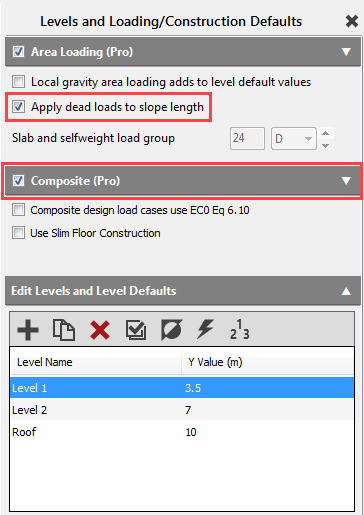
For Level 1 set
General
- *Slab Thickness to 175mm
Loads Basic
- *Expand > Loads if required
- *D - Superimposed Dead to 0 kN/m2 (automatically included below)
- *L Live Load to 4 kN/m2
Composite Properties
- *Expand > Composite Properties if required
- *From the MetalDeck Profile drop-down list select Multideck 80
- *Note the Partitions (L1) is already 1 kN/m2
For Level 2 set
General
- Slab Thickness to 225 mm
Loads Basic
- *D - Superimposed Dead to 0 kN/m2 (automatically included below)
- *L Live Load to 2.5 kN/m2
Composite Properties
- Set Profiled to False, as Level 2 is a solid concrete slab
- Set Composite to False, as Level 2 is a non-composite solid concrete slab
- As Composite is turned off Partitions are ignored
For Roof set
General
- Slab Thickness to 0 mm
Loads Basic
- D - Superimposed Dead to 0.3 kN/m2
- L Live Load to 0.6 kN/m2
Close Levels & Loading/Construction Defaults dialogue with X.
Applying Gravity Area Loading Areas
We are now ready to apply the load panels and the set default area loadings and construction to our levels.
From the Loads menu, select Floors & Roof Panels ... and then Add/Edit Panels.
Level 1
Ensure you are viewing Plan at Level 1.
If not, select it from the Frame Views.
Label the group First Floor.
Change to Add/remove items ( ) mode.
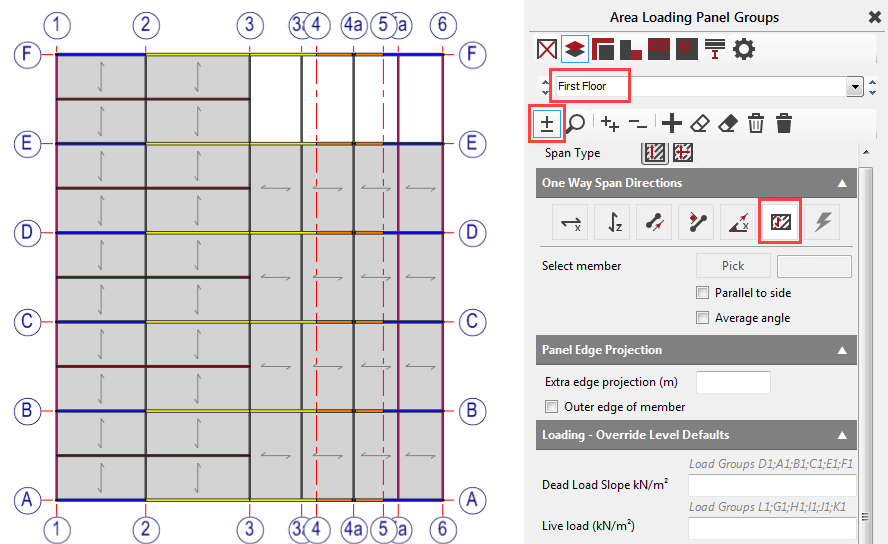
Window whole floor and then remove the 4 panels from E3-F6 by clicking on the middle of the panels.
Change One Way
Span Directions to Shortest direction (  )
)
Add a second
group using the Add new group button and label it First Floor – Storage.
Pick 4 panels from E3-F6 by clicking
in the middle of these.
Change span to X-direction  or Shortest
as before.
or Shortest
as before.
Override the default live load to 6 kN/m2.
Turn on Draw All and Draw per Intensity  from the bottom
of the screen to see the whole level together.
from the bottom
of the screen to see the whole level together.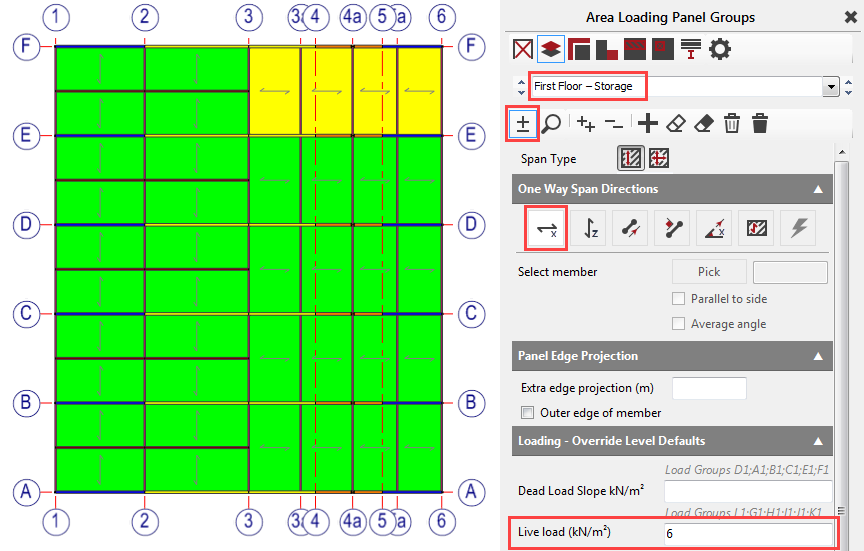
Level 2
Change your view to Plan at Level 2 in the Frame Views drop-down list.
Add a new group using the Add new group button and label it Second Floor.
Window whole floor and change the Span direction to
Z-direction (
 )
)
The loads are all default.
Roof
Change your view to Roof Plan.
Add a new group using the Add new group button and label it Roof.
Window whole floor and change the Span direction to Z-direction
( )
The loads are all default.
Adding Line Loads to the Loading Areas
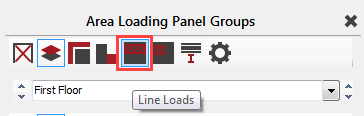
From the top toolbar of the Area Loading Panel Groups dialogue,
select the Line Load
 ).
).
Level 1
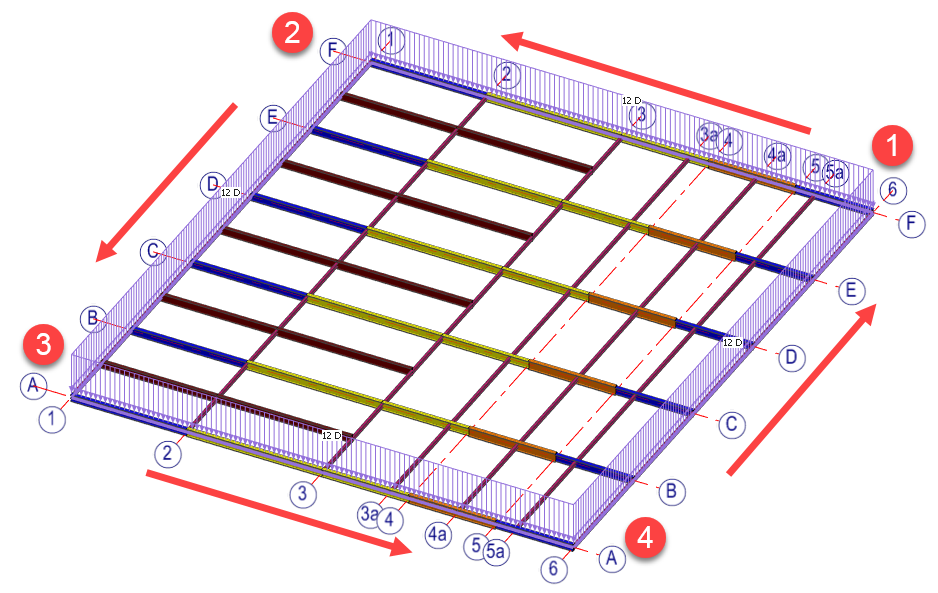
Let’s add our Perimeter Dead Loads.
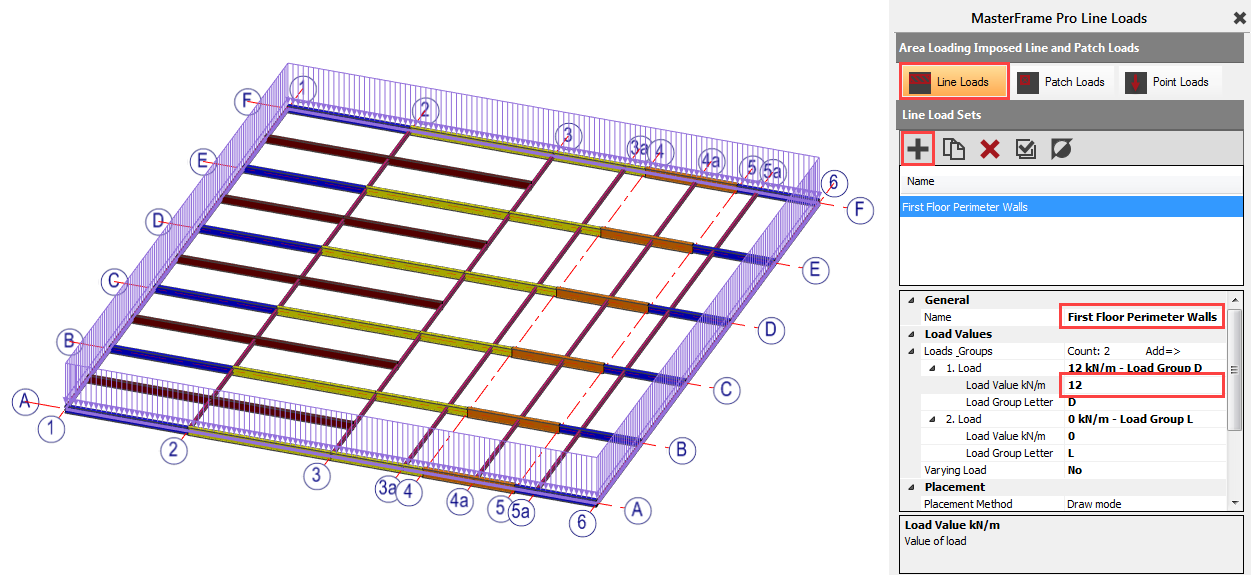
Add a new line load group using the Add new item  button and label it First Floor Perimeter
Walls in the property area.
button and label it First Floor Perimeter
Walls in the property area.
In the Load Values field, expand Loads Groups and 1. Load if required. Set the load intensity to 12 kN/m and the Load Group Letter to D, as it is dead load.
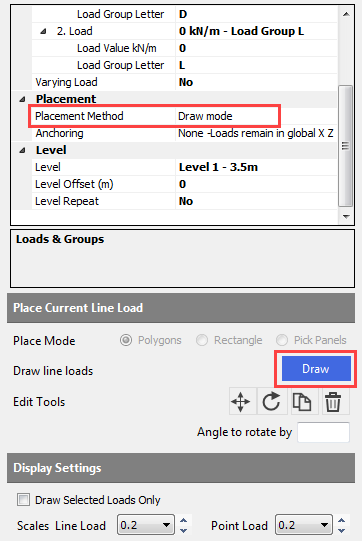
Set Draw mode as the Placement Method in the Placement field and ensure that Level 1 is selected as Level.
To draw the loads, click on the Draw button in the Place Current Line Load field and pick the first outer corner point of the level in the graphical area, then the next corner point along the edge and so on. Finally click again on the first point, as we are drawing polygons, and press Esc key or click again on the Draw button to escape from the drawing mode.
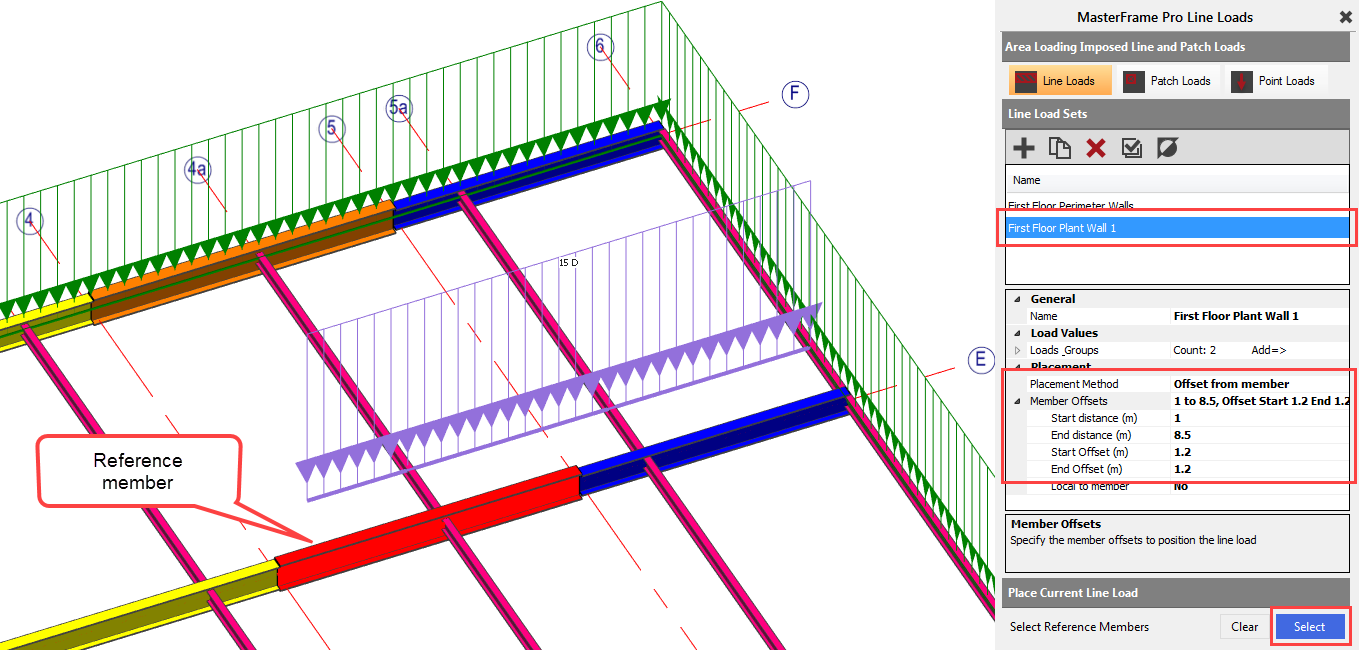
Add another line load group using
the ( ) button and label it First
Floor Plant Wall 1 in the property area.
In the Load Values field, expand Loads Groups and 1. Load if required. Set the load intensity to 15 kN/m and the Load Group Letter to D, as it is dead load.
Set Offset from member mode as the Placement Method in the Placement field. Using this placement mode, we must select a reference member and set the positions of the start and the end point of the line lode.
To place the loading, we at first, we should define the offset parameters in the Member Offsets field:
- Start distance (m): 1m; from the start point of the member
- End distance (m): 8.5m; end point of the load from the start points of the member
- Start offset (m): 1.2m; offset of the start point of the load from the member
- End offset (m): 1.2m; offset of the end point of the load from the member
In the Place Current Line Load field, click on the Select button and select the transfer beam (GL E4 – E5) on the Grid Line E as a reference member.
Add another line load group using the Add new item ( ) button and label it First Floor Plant Wall 2 in the property area.
In the Load Values field, set the same load intensity to 15 kN/m and the Load Group Letter to D, as it is dead load.
Select Offset from member mode as the Placement Method in the Placement field.
Set the offset parameters as below:
§ Start distance (m): 1 m; from the start point of the member
§ End distance (m): 1 m; end point of the load from the start point of the member
§ Start offset (m): 6 m; offset of the start point of the load from the member
§ End offset (m): 1.2m; offset of the end point of the load from the member
With the Select button, select the same transfer beam as above for reference member.

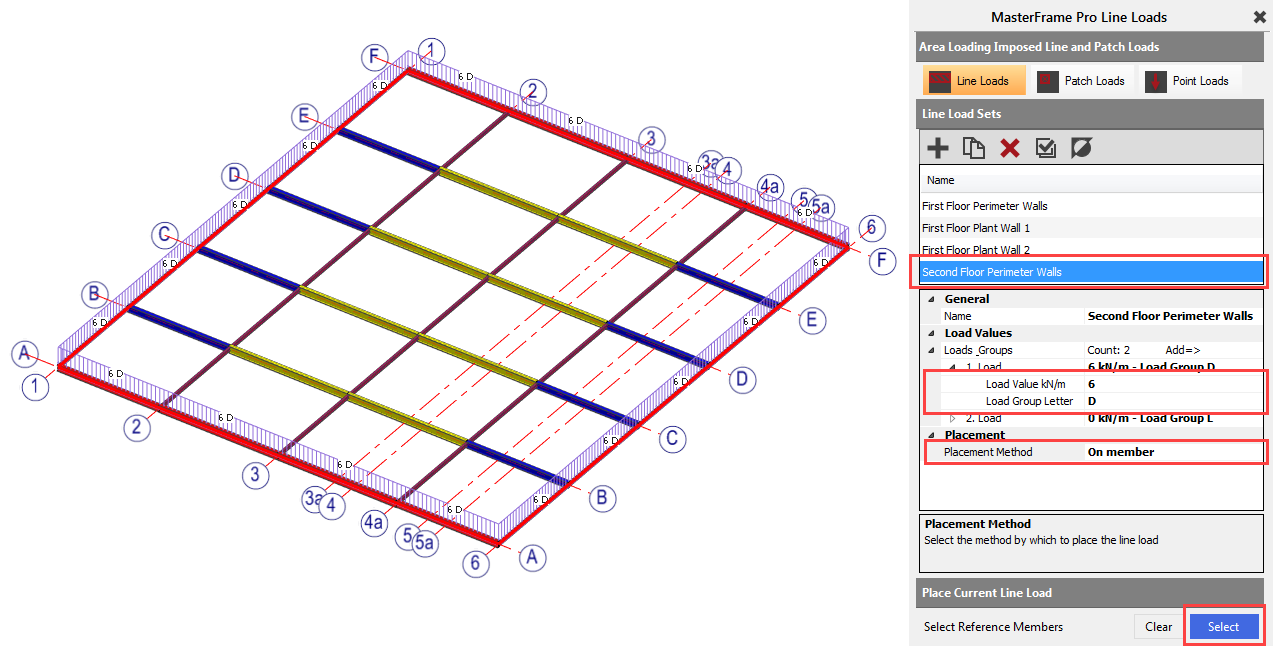
Level 2
Add a new line load group using
the Add new item ( ) button and label it Second Floor Perimeter Walls in the property area.
In the Load Values
field, set the same load intensity to 6 kN/m and the Load Group Letter to D, as it is dead load.
Now, select the on member mode as the Placement Method in the Placement field.
With the Select button, select or window all the members on the edges
Adding Patch Load to the Loading Areas
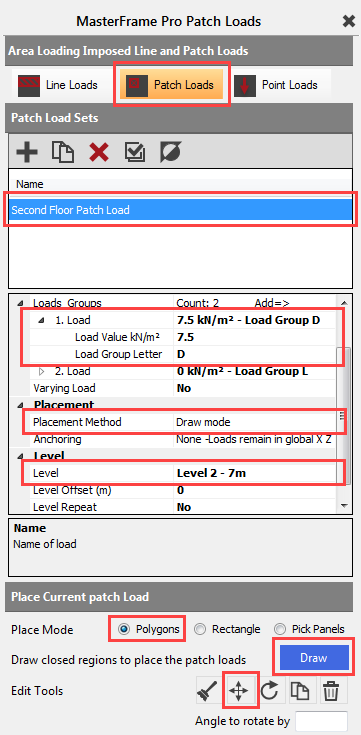
To place the 2nd level patch
load, from the top toolbar, select Patch Loads (  ).
).
Add a new line load group using
the Add new item (
) button and label it Second Floor Patch Load in the property area.
In the Load Values field, set the same load intensity to 7.5 kN/m2 and the Load Group Letter to D, as it is dead load.
To place the patch load, we will use the Draw mode, so please select it from the drop-down
list and ensure that the Level 2 is selected as the level of the patch
load in the Level field.
To draw the patch load, select Polygons as Place Mode and then click on the Draw button in the Place Current Line Load field.
Now we can start drawing our patch load on the graphical area. We will do it in two steps: at first, will draw the patch load with the correct size and alignment and then we will move to the proper position.
To start drawing hover over the start point (GL F4a) of the beam on Grid Line F and using snaping option move to the right along the beam and set the distance to 3 m and click. It will be our top-right corner point. To pick the top-left corner as a second point, move to the left along the beam, hover again over the start point of the previous beam and set the distance to 2 m and click. Next, move down 4 m and click. Next, move right 5 m and click, and finally to close the rectangle click again the first point.
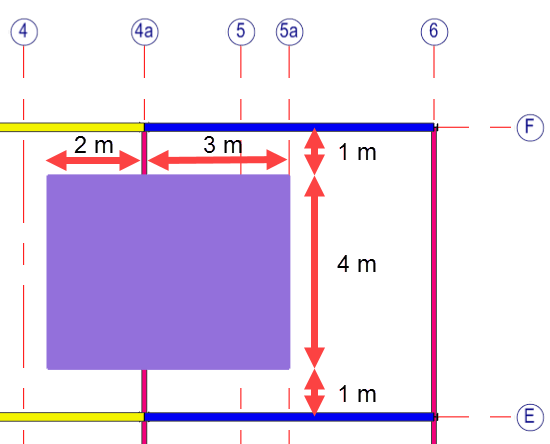
Press Esc key or click again on the Draw button to escape from the drawing mode.
Make sure the load is closed
As a next step, we will move down with 1m our
patch load. To do this, select the edge the rectangle on the graphical area and
then select the Move  function in the Place
Current Line Load field. Select one of the points of the patch load
and move down with 1 m and click.
function in the Place
Current Line Load field. Select one of the points of the patch load
and move down with 1 m and click.
Save your work so far.
Floor Diaphragm Action
If we analyse the frame as it stands, the internal bays will move sideways, as we don’t have internal bracing.
We will rely on the floor slabs on the 1st & 2nd level. To do that, we will add semi-rigid stiff-decks.
View Plan at Level 1.
From the Create file menu, select Add Stiff-Deck, Semi-Rigid.
Label the group First Floor.
Set the Stiff-deck Thickness to 175 mm and E kN/mm2 to 26 kN/mm2 .
Switch to Add/remove
items ( ) mode, check in Auto Select Main Border Members checkbox and then window the whole floor.
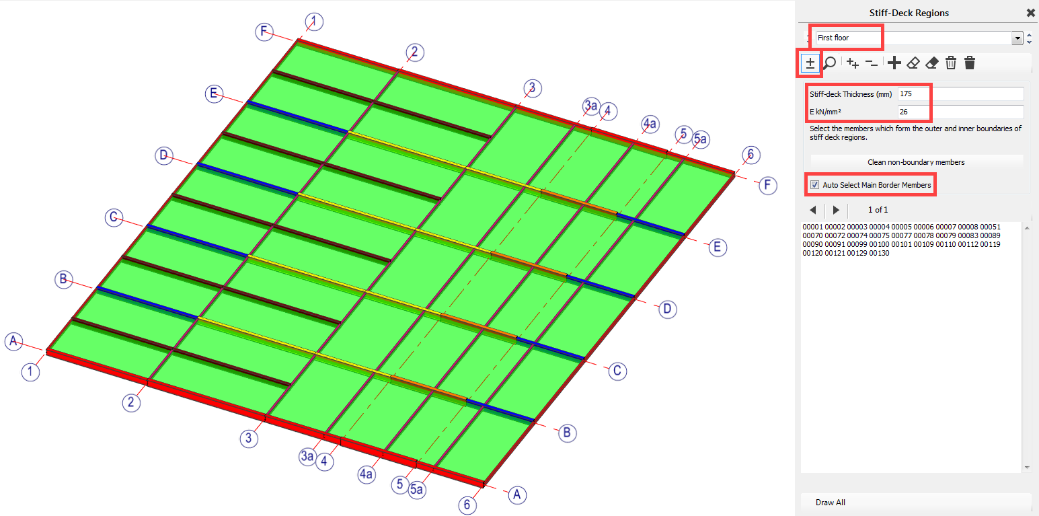
Repeat the same for Level 2.
Set the view to Plan at Level 2.
Add a new group using the Add New Group button and label the group Second Floor. Set
the Stiff-deck Thickness to 225 mm and E
kN/mm2 to 26
kN/mm2 .
Switch to Add/remove items ( ) mode and window the whole floor.
Wind Loading
Our wind loading parameters will be the followings:
Wind Loads
- Location UK, Post Code BT38 7BE
- Z axis is West by SW
- Wind returns 1 in 120 Years
- Eurocode Standard Method
- Standard internal Pressure & Suction, No dominant openings
Click the Home button to return to the full frame view.
From the Loads file menu, select Wind Panel Loading (Pro) and then Wind Directions and Settings.
Check the option Use MasterKey Wind Loading to generate the wind loading based on the site-specific parameters which will be defined later with MasterKey Wind Analysis module.
Set
the Method to Standard and then set Angle to
north to -30 deg (relative to
the Z-axis, anti-Clockwise +ve). Notice the N on the co-ordinate axis symbol.
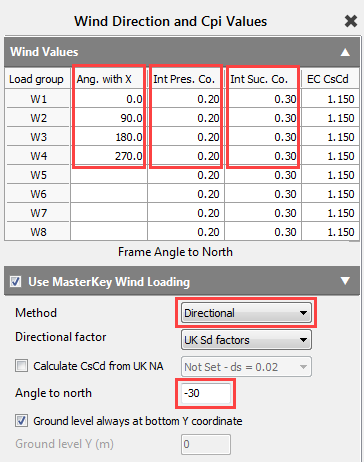
In the Wind Values filed, double click on Ang. with X header twice to automatically add the default 4 wind directions.
To add default internal and external pressure coefficients, double click on both Int Pres. Co. and Int Suc. Co. header as well.
You can manually alter any of these values to allow for dominant openings.
Site Data
From the Loads file menu, select Wind Panel Loading (Pro) and then Site Data Wind Analysis.
MasterKey Wind Analysis module will be opened in a new window.
Site location can be selected by
- using the
maps to pick the a location, followed by the
 button to update, or
 - using one of the manual 'Type and Value' inputs in the Site Data tab, or
- using the Town Selection drop-down list on the Site Data tab.
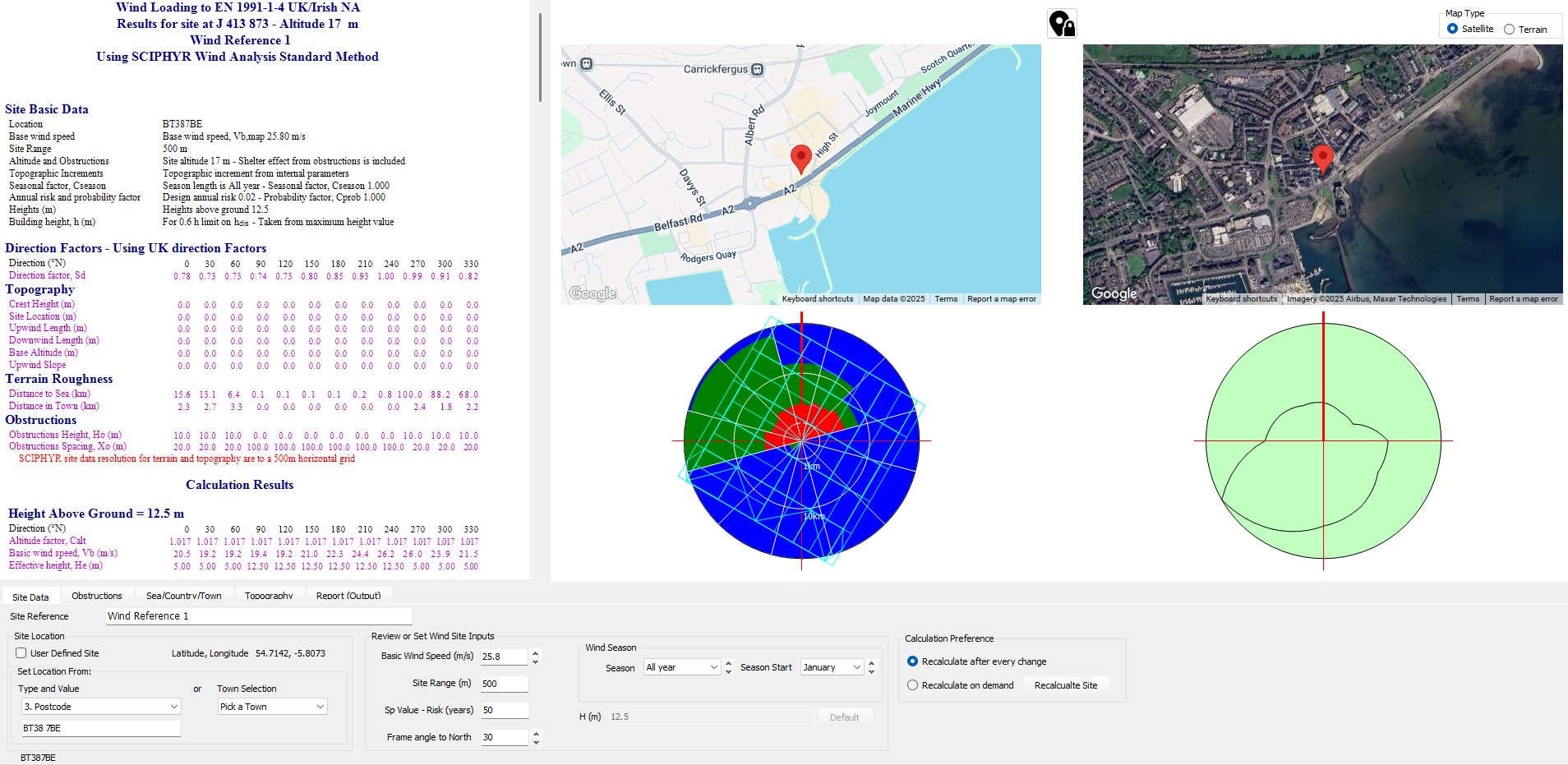
Here we will use a Post Code type search for the the value BT38 7BE. Enter the value and press the Enter key to complete the search.
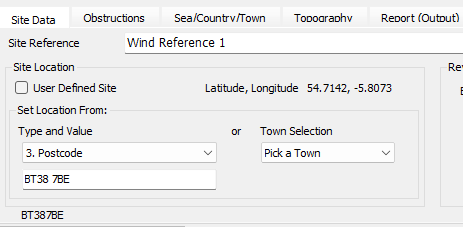
From the file menu, select File and Exit MasterKey Wind.
Defining the wind loading panels
From the Loads menu, select Wind Panel Loading (pro) and then Wind Panels - Wall and Roof.
To automatically
generate all the external wind loading panels, select Auto All (  ) option.
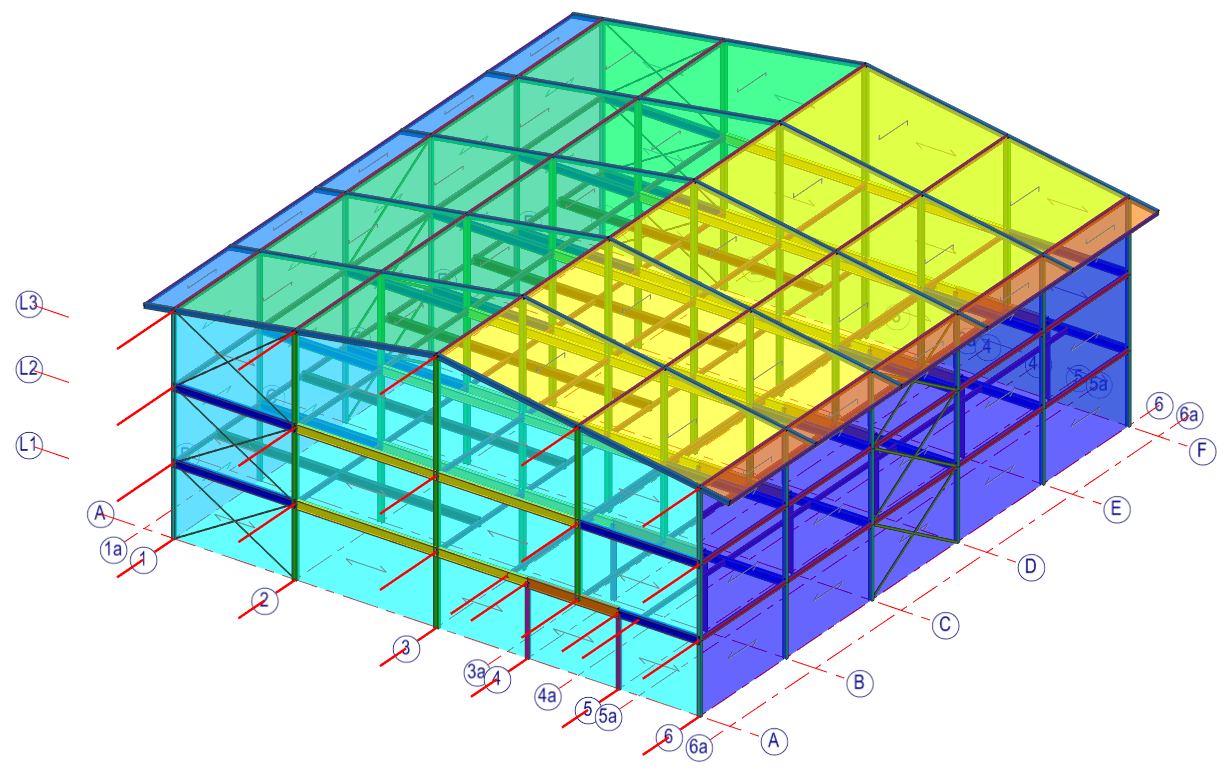
Turn off Draw
All ) mode on the bottom of the screen to see only
just the selected wind panel and in Find item (
 ) mode select the panel on Grid Line 6.
Change the Span Direction to Vertical ( ).
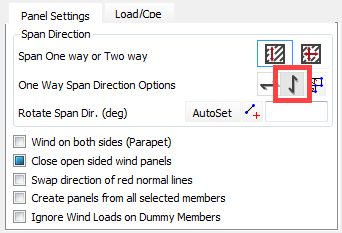
Complex Wall Spans
For experience, we will change the wall on Gride Line 1 to have 3 different span directions:
- A-C will be Horizontally spanning
- C-D will be two-way spanning
- D-F will be vertically spanning
From Frame Views on the top toolbar, select Grid Line: 1-1. As we are in Find item ( ) mode, click anywhere on the frame, and the panel on Gride Line 1 will be displayed.
Change to Add/remove items ( ) mode and now, remove the panels from Grid Line C-F as they
don’t span horizontally. This is done by selecting each one, working from Gird
Line F towards Gird Line C.
) mode and now, remove the panels from Grid Line C-F as they
don’t span horizontally. This is done by selecting each one, working from Gird
Line F towards Gird Line C.
Add a new wind
panel group using the Add new group button, and add the panels between Grid
Line C&D. Next, change the Span direction to Two-Way ( ).
Add a new wind panel group using the Add new group button, and add the panels between Grid Line
D&F.
Next change the Span direction to One-Way ( ) and Vertical (
 ).
).
Combining Panels
We now need to tell the software to consider these three previously created sub-panels on Grid Line 1 as one for wind load calculations.
Turn on the Select Panels to Combine With option in the Panel Interactions field.
Select graphically the two other wind panel groups by selecting a panel on it. If your selected wind panel group is still the one between Grid Line D&F, then you must select the groups between Grid Line C&D and Grid Line A&C.
Click the Home  ) button to return to full frame view and on
the bottom turn on Draw All ( ).
) button to return to full frame view and on
the bottom turn on Draw All ( ).
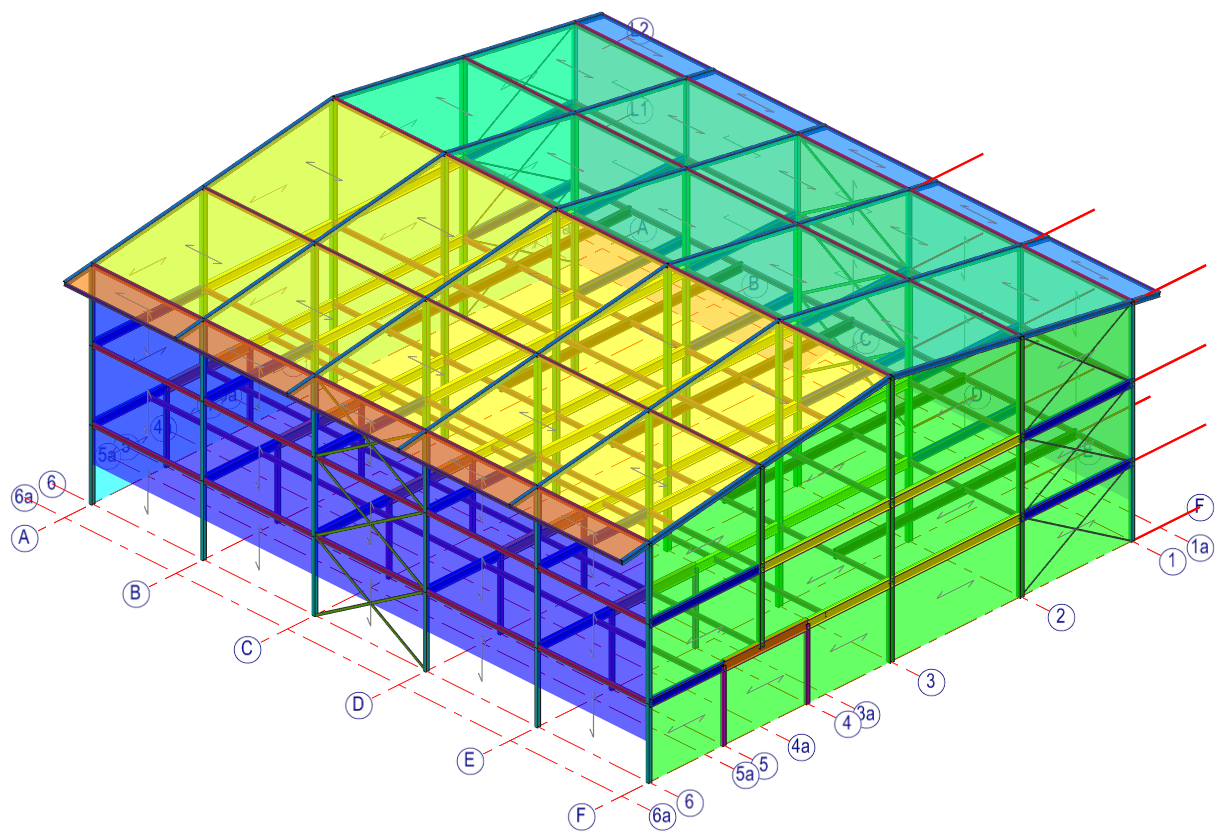
The red lines projecting perpendicular to a panel represent the outside of the surface, for canopies they should be above the surface.
Close the Wind Panels - Wall and Roof dialogue with the X.
Viewing the Wind Loads
Turn on the Wind
( ) button in the Wind
Load group to display all the wind panels
) button in the Wind
Load group to display all the wind panels
Select W1
direction from the Direction (
 ) drop-down list. When we set up wind
loading, we choose 4 wind directions, 0, 90, 180 & 270 degrees to
the X-Axis. W1 refers to the first direction, 0 deg.
) drop-down list. When we set up wind
loading, we choose 4 wind directions, 0, 90, 180 & 270 degrees to
the X-Axis. W1 refers to the first direction, 0 deg.
Green is suction/uplift, and yellow is pressure. If you rotate the frame, you will see the windward face on Grid Line 1 is yellow.
The darker colour indicates a higher intensity
Turn on Coef Values (  ) to see the coefficients on each
surface. Notice the highest values are at the leading corners and on the
canopy.
) to see the coefficients on each
surface. Notice the highest values are at the leading corners and on the
canopy.
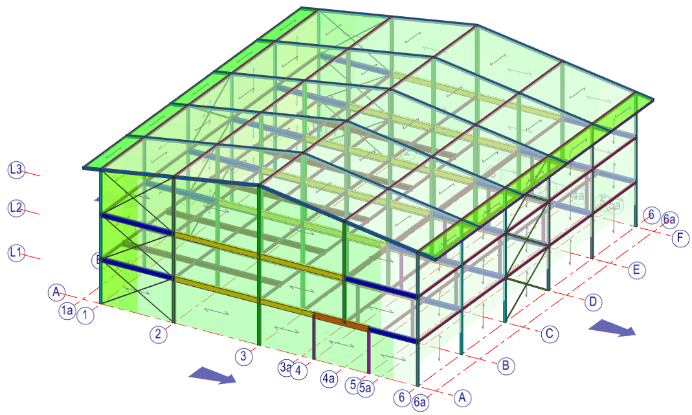
Now turn on the Pressure (  ) values. These are the values with
no internal suction or pressure.
) values. These are the values with
no internal suction or pressure.
- Scroll through directions W1 to W4. W5-W8 is blank as we only set up four wind directions.
- Return to Direction W1 and note some of the wall values.
- Select direction P1. The values change as P1, is W1, with internal Pressure added.
- Select direction S1. The values change as S1, is W1, with internal Suction added.
- Direction Max / Min shows the maximum Pressures (down/inward) and Suctions (up/outward) on each of the panels. Max & Min are very useful for cladding design.
Finally, return to W1 and select Wind Zone ( ). This gives you all the zones
used in calculating the wind coefficients.
). This gives you all the zones
used in calculating the wind coefficients.
Updating the Load Combinations
We now have to apply all the calculated wind loads into loading cases.
Select Loads and then Load Cases from the file menu.
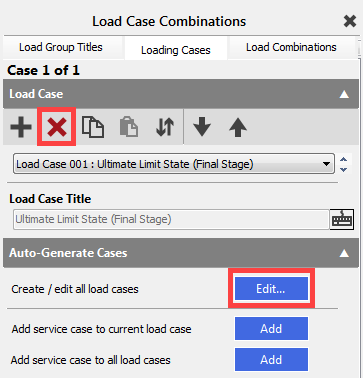
At first, we will delete all of the existing Load Cases, which were created in the T01-1 tutorial, and then auto-generate again all of them.
Select the (  ) button on the top of the Load Case Combinations dialogue.
Highlight all except the first Load case using the range selection (select the first item with the mouse and while pressing the Shift key, select the last one).
On the
bottom, press the Delete button.
In the Auto-Generate Cases field, select Create/edit all load cases by pressing the Edit… button.
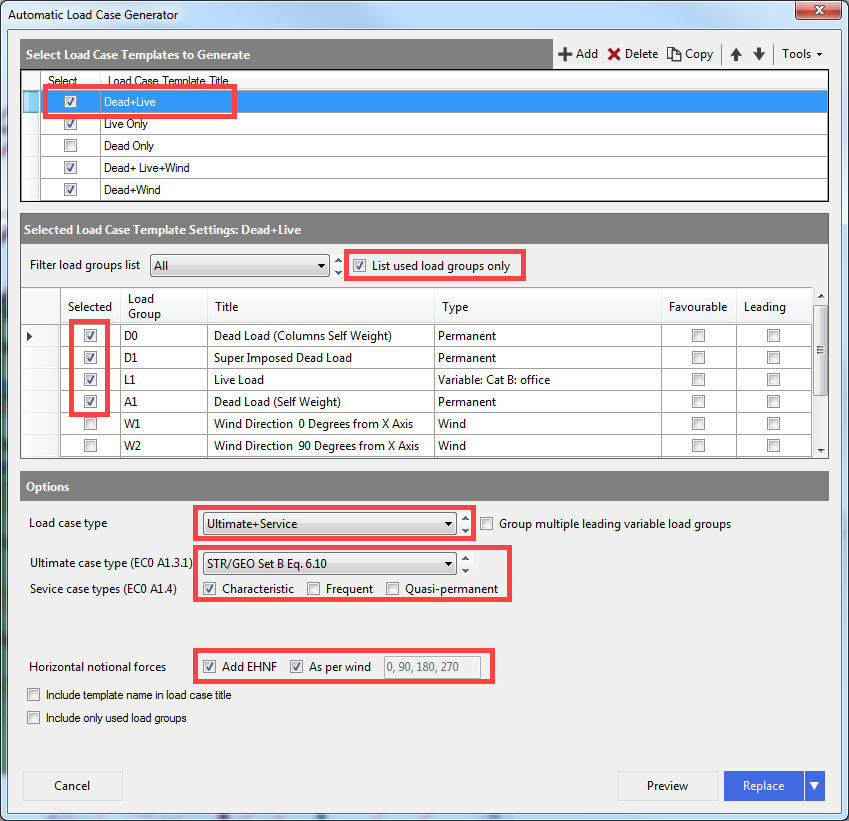
Select the Dead+Live template and edit as follows.
Check in List used load groups only checkbox to hide all the load groups we are not using.
D0, D1, L1 & A1 are all selected. A1 is the composite slab’s self-weight.
G1 is ignored as it is a composite Construction Stage load. G1 is only used in the composite loading cases, and these are set up automatically By Master Frame.
Select the Live Only template and edit as follows.
Only L1 is selected.
In this case, we neglect the Dead Only template, so uncheck the selection check box of it in the first column.
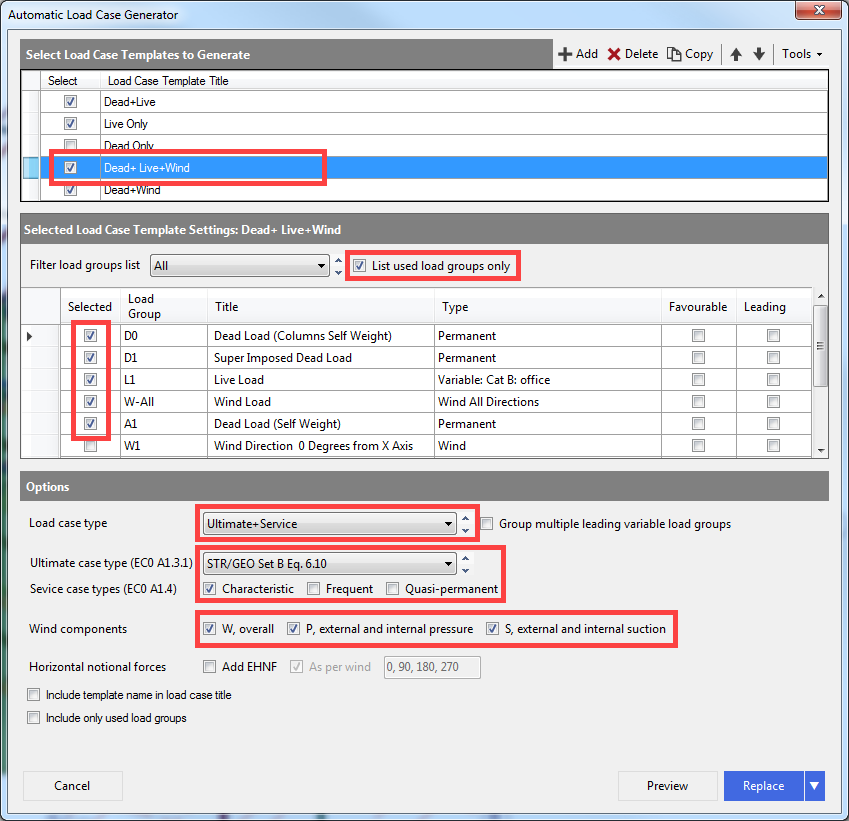
Select the Dead+Live+Wind template and edit as follows.
D0, D1, L1, W-All & A1 are all selected. W-All contains all the different wind direction load cases..
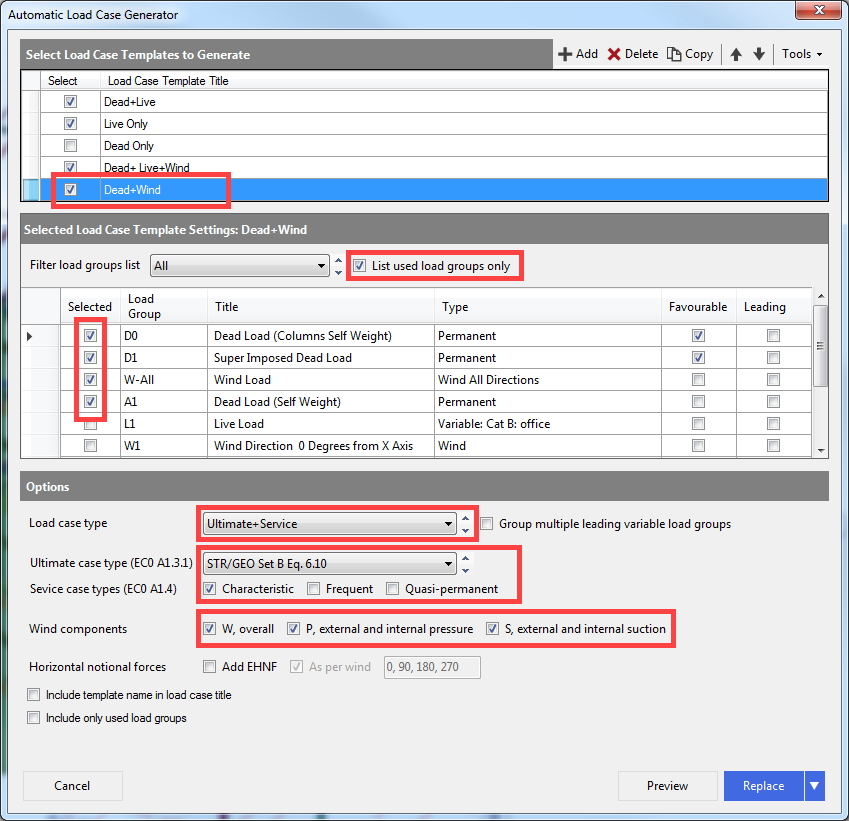
Select the Dead + Wind template and edit as follows.
D0, D1, W-All & A1 are all selected.
L1 is neglected at this time.
- Select the Preview button, and you will see all the loading cases plus the 5 standard ones for composite design.
- Close the Preview window and select the Replace button to generate the load cases.
You now have 60 loading cases.
Adding Opening to the 1st Floor Stairs
We haven't allowed for any stairs on the 1st & 2nd Floors. We will insert now an opening at the 1 st floor between Grid Line B1 & C2 as shown below.
Note: It would have been smarter & quicker to add the
opening before all the area loading, but this way you learn how to modify the
structure.
We need to do the following steps:
- Trim the Opening
- Modify the area loading
- Add Stairs Load
- Add any wall or Partition loads
- Modify the Diaphragm floor.
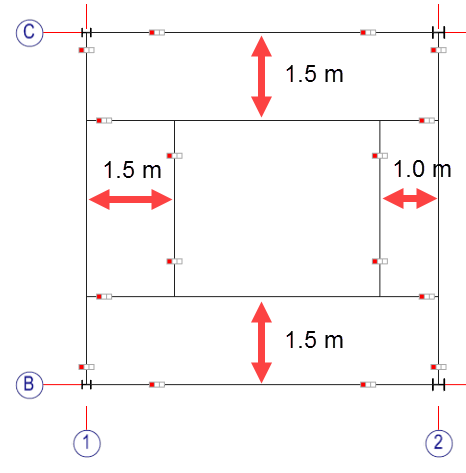
Step 1 Trim the Opening
View Plan at Level 1.
Using the Modify Geometry > Delete Members, FE Surfaces, Grid Lines function deletes the secondary beam between Grid Line B&C.
Next, draw the 4 new beams in the order shown above using the Create > Add Members
(General) function.
Select the 406x140 UB 39 S355 steel ( ) section and check in the Released Ends option
in the Attributes
filed.
) section and check in the Released Ends option
in the Attributes
filed.
Step 2 Modify the Area Loading Panels
from
the Loads file menu, select Floor and Roof Panels... and
then Add/Edit Panels option.
Select First Floor panel group from the drop-down
list or just pick it in the graphical area as we are in Find item ) mode.
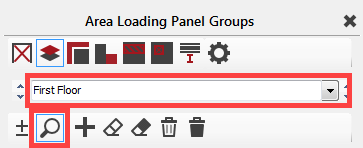
Switch to Add/remove items ( ) mode and add the missing panels
around the opening to the First-Floor panel group.
The 2 new marked panels span left to right as this is the shortest direction and is the setting for the whole area.
We will now change the direction of span for these new panels. To do that, select the Make Local Panel Changes button on the bottom of the dialogue and select panel 1.
It highlights with a
red border (turn off the 3D view if it is
on to see the selection). Check in Change Span checkbox
and set to span in Z axis ( ).
).
Repeat this for panel 2 and then turn off Make Local Panel Changes option.
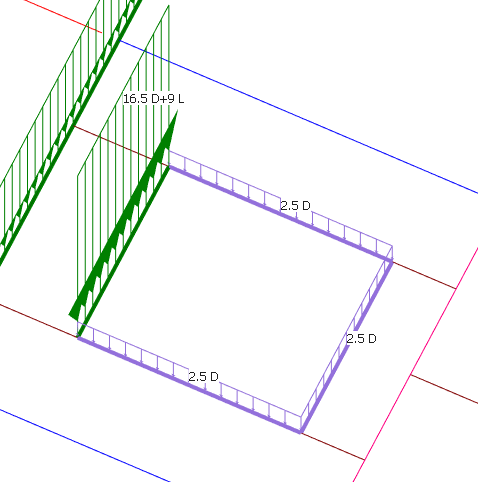
Step 3: Add Stairs Load
The easiest way to add the stair loading is as a pair of line loads.
Assume the stairs are:
- 4.5m on plan &
- 5.7m on slope.
- 200 mm ave waist & tread (4.8 kN/m) & 1 kN finishes
Dead is 5.7 m/2 x (4.8+1) kN/m2 = 16.5 kN/m
Live is 4.5 m/2 x 4 kN/m2 = 9 kN/m run
As this is Level 1, we will only apply the load on the beam nearest Grid Line 1 over the full length. At Level 2, you would only load half of the beam near Grid Line 2.
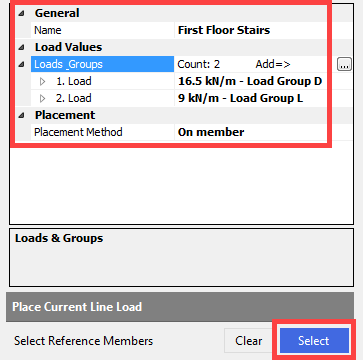
Switch to Line Loads ( ) and add a new Load Group and label it First Floor Stairs.
In the Load Values field, expand Loads Groups if required.
For 1. Load set the load intensity to 16.5 kN/m and the Load Group Letter to D, as it is dead load.
For 2. Load set the load intensity to 9.0 kN/m and the Load Group Letter to L.
Set On member mode as the Placement Method in the Placement field, click on the Select button and then select the opening beam near Grid Line 1.
Step 4: Add any wall or Partition loads
We will add a 1.2 m wall around the other 3
sides of the opening. Say 2.5 kN/m. Add a new Load
Group
and label it First Floor Stair
Walls.
In the Load Values field, for 1. Load set the load intensity to 2.5 kN/m and the Load Group Letter to D, as it is dead load.
Set Draw mode as the Placement Method in the Placement field and ensure that Level 1 is selected as Level.
Click on the Draw button and draw the wall loading around the opening. Press Esc key to escape from the draw mode.
Step 5: Modify the diaphragm floor.
Lastly, we need to insert the opening into the semi-rigid stiff deck.
From the Properties file menu, select Stiff-Deck Semi-Rigid option and select the First Floor from the drop-down list.
Switch to Add/remove items ( ) mode and unselect the four
bounding members for the stairs opening.
Close the Stiff-Deck Semi-Rigid dialogue and save your work so far.
Spilt ?
Setting Up the Design Groups
We finally need to update our Member Design Groups and set up some design parameters to make the steel design quick and smart.
From the Design file menu, select Steel and Composite Member Design Groups (Pro).
Of course, our previously created design groups are still there and all the duplicated frame members are assigned to the proper design group:
- External and internal columns (created in T01-1)
- External and internal beams (created in T01-1)
- Transfer beams (created in T01-1)
- Rafters (created in T01-1)
- Bracing (created in T01-1)
- Side Wall Bracing
We need to create additional Member Design Groups for:
- Ties on Grid Lines 1a to 6a
- Roof and canopy bracing
- Stair Beams
- Composite Floor Beams
Steel Ties and Bracing Design Groups
Change your view to Plan at Level 2 in the Frame Views drop-down list.
Add new Member Design Group ( ) and title it Second Floor Edge Ties.
In Add/remove items (  ) mode and select the ties on Grid Line 1 &
6.
) mode and select the ties on Grid Line 1 &
6.
Change the design check from Axial with Moment to Strut and Tie from the drop-down list and set Slenderness Limit to 250.
Select Change Data for Whole Group.
Select Change Section for Whole Group.
Add new ( ) and title it Second Floor Internal Ties.
In Add/remove items ( ) mode and select the ties on Grid Line
2, 3 & 4a.
Change the design check from Axial with Moment to Strut and Tie from the drop-down list and set Slenderness Limit to 250.
Select Change Data for Whole Group.
Select Change Section for Whole Group.
Move to view Roof Plan and while
standing on the previous member design group, copy the settings by pressing the
Copy ( ) button.
Add new Member Design Group and title it Roof Ties and then paste
the previously copied parameters using the Paste
( ) button.
Now pick the ties between Grid Line 1a to 6a.
Add new Member Design Group ()
and title it Roof Bracing and then paste the previously copied strut & tie
settings using the Paste ( ) button.
Now pick the diagonals between Grid Line 1 to 6.
Add new Member Design Group and title it Canopy Bracing and then
paste the previously copied strut & tie settings using the Paste ( ) button.
Now pick the parapet diagonals between Grid Line 1a & 1 and 6 & 6a.
Click the Home ) button to return to full frame
view and scroll to the Side Wall Bracing design
group which was created during the member adding.
Paste the strut & tie settings and check the assigned side bracing members.
Composite Beam Design Groups
Change your view to Plan at Level 1.
North-South Beams on GL 1 to 6
Add new Member Design
Group and title it Composite NS1 – GL
6 Secondary Edge Beams.
- Choose Composite from the Drop Down
- Check Change Data for Whole Group
- Check Change Section for Whole Group
- Now pick the beams (1) on GL 6
Select the Copy ( ) button at the bottom of the
screen to copy the settings.
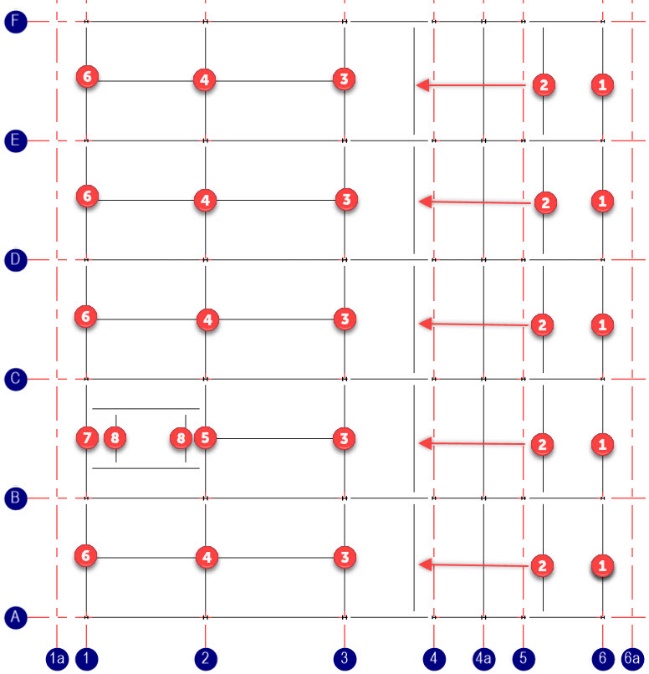
Now using the layout above, create 7 more composite design groups:
- Composite NS2 – GL 3a, 4a, 5a Secondary Beams, paste (
 ) and select beams 2
 - Composite NS3 – GL 3 Mixed
Primary/Secondary Beams, paste ( ) and select beams 3
- Composite NS4 – GL 2 Primary
Beams, paste ( ) and select beams 4
- Composite NS5 – GL 2 Primary
Beam B2-C2, paste ( ) and select beams 5
- Composite NS6 – GL 1 Mixed
Primary Edge Beams, paste ( ) and select beams 6
- Composite NS7 – GL 1 Primary
Edge Beam B1-C1, paste ( ) and select beams 7
- Composite NS8 – Stair Secondary Beams, paste ( ) and select beams 8
East-West Beams on GL A to F
Add new Member Design Group and title it Composite
EW1 – GL A&F Secondary Edge Beams
- Choose Composite from the Drop Down
- Check Change Data for Whole Group
- Check Change Section for Whole Group
- Now pick the 4 beams (1) as shown opposite
Select the Copy (  ) button at the bottom of the
screen to copy the settings.
) button at the bottom of the
screen to copy the settings.
Now using the layout above, create 6 more composite groups:
- Composite EW2 – GL A & F Secondary
Transfer Beams, paste ( ) and select beams 2
- Composite EW3 – GL A & F Secondary Edge Beams,
paste ( ) and select beams 3
- Composite EW4 – GL B-E Tie
Beams, paste ( ) and select beams 4
- Composite EW5 – GL B-E Transfer
Beams, paste ( ) and select beams 5
- Composite EW6 – GL B-E
Secondary Beams, paste ( ) and select beams 6
- Composite EW7 – GL B-C Stair
Secondary Edge, paste ( ) and select beams 7
Analysing the frame
From the top menu select Analysis, then Static Analysis.
Select Space Frame (  ) and the frame will be analysed.
Composite Design
We will do our composite beams first as these are all statically determinate.
From the Design menu, select Composite Deck Steel Beam Member Design.
From the MasterFrame menu, select Delete all Briefs and confirm Yes.
From the MasterFrame menu, select Create all Composite Design Briefs to create all the design checks for the composite members.
Change your view to Plan at Level 1.
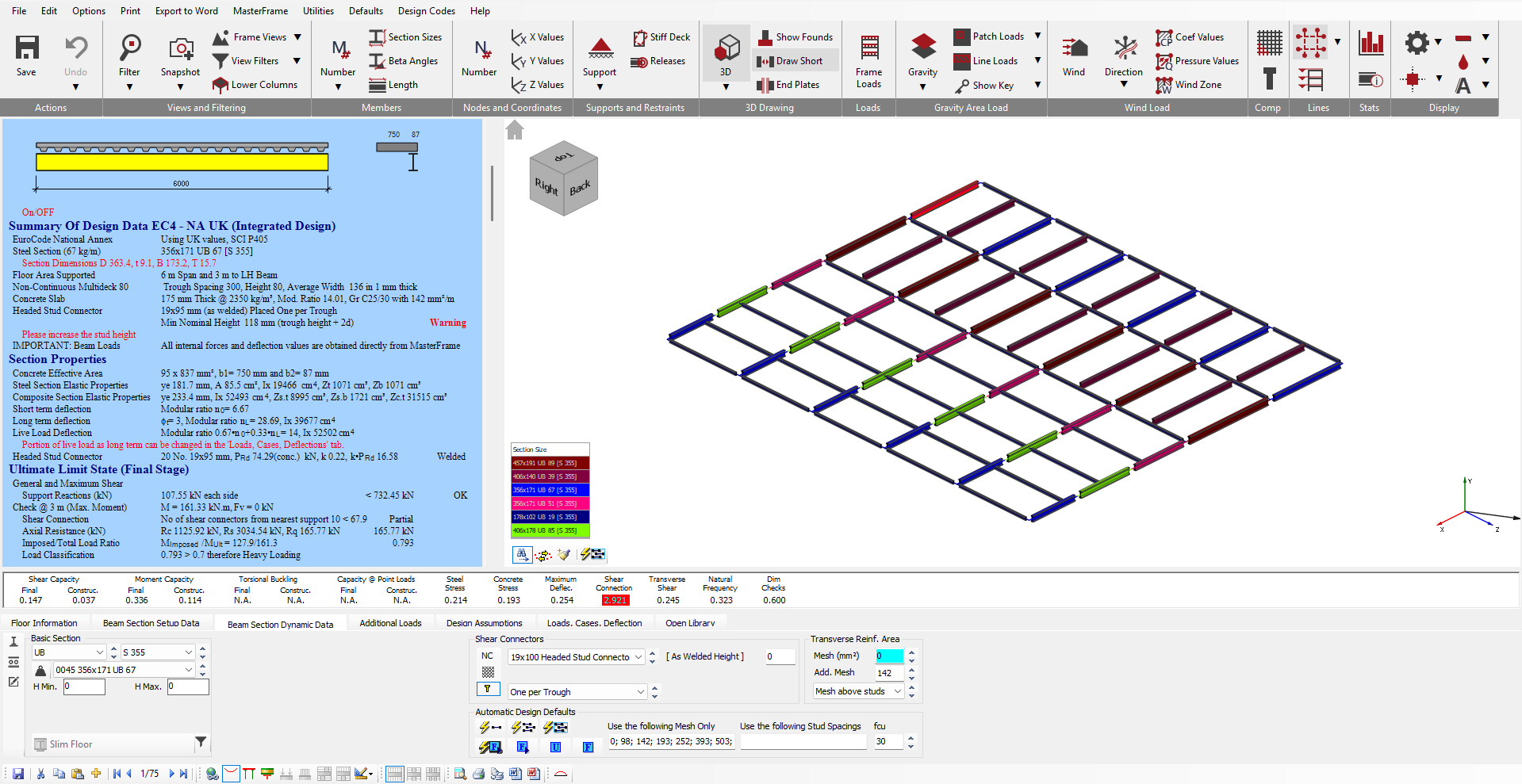
You will find it easier to view in an
isometric view so click the very bottom right corner of the viewing cube

From the 3D Drawing toolbar, turn ON 3D profile, Colour by Section and Draw Short options. This gives us a clear view of our Composite Beams.
Global Editing
In composite design, there are a lot of settings and assumptions. Using the global editing feature, we will set some to be global constants.
On the bottom toolbar, turn on the Global Editing Mode ( ) mode.

The list of potential global options appears. While the global list is displayed, you can edit any of the items by
Checking the option in the list
- Editing the value on the proper beam setting tab below
As the input value is blue, it is a global option and can only be edited in global mode.
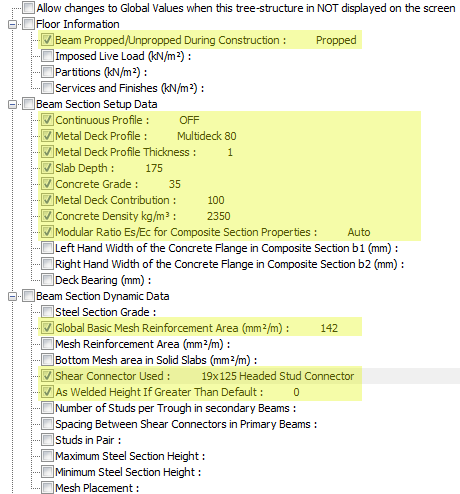
Set the options as highlighted opposite:
- Floor Information/ Beam Propped
- Beam Section Setup Data o Continuous Profile: OFF
- Metal Deck Profile: Multideck 80
- Metal Deck Profile Thickness: 1 mm
- Concrete Grade (cube strength): 35 N/mm2
- Metal Deck Contribution %: 100
- Concrete Density kg/m3 : 2350
- Modular Ration Es/Ec: Auto
- Beam Section Dynamic Data
- Global Basic Mesh Reinforcement Area (mm2/m): 142
- Shear Connector Used: 19x125 Headed Stud Connector
- As Welded Height If Greater Than Default: 0
Close the Global Editor mode using the button again.
AutoDesign the Members
Ensure the Brief and section sizes tab is selected.
Change the section
list to list by weight by selecting the Sort by
weight (  ) button (when it has a border it is
on) and then click on the Auto Design ALL (
) button (when it has a border it is
on) and then click on the Auto Design ALL ( ) button in the Automatic Design Defaults filed and MasterKey will
size all of the composite members for you.
) button in the Automatic Design Defaults filed and MasterKey will
size all of the composite members for you.
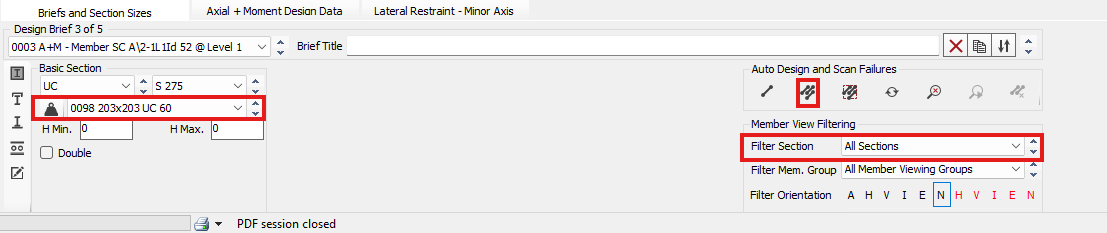
Click on the Scan for failures ( ) button. This will check all the
design briefs already set up and highlight any briefs which may fail.
) button. This will check all the
design briefs already set up and highlight any briefs which may fail.
Turn on Display Failing Members Maximum Unity Ratio ( ) to see only the failing members.
The beams on Grid Line 3a, 4a & 5a are constant except the three beams between Grid Line E and F. These are carrying the extra load from the plant floor.
Let’s put these three beams in their own design group.
From the MasterFrame menu select Change Member Groups and select one of the members between E3a-F5a to highlight that Design Group.
Now copy the group
details using the Copy Current Brief ( ) button on the bottom.
Add another Member Design Group and paste the copied settings ( ).
Label it Composite NS9 – GL 4 & 5 Secondary Beams at Plant Room and finally, in
Add/remove items ( ) mode, select the three members
between E3a-F5a. With the X button close the Member
Design Groups dialogue.
Auto Design ALL ) members again and Scan for Failures ( ) and turn Display Failing Members Maximum Unity Ratio ( ) to see any failing members. You can
then fine-tune any failing members.
The three secondary beams between E3a-F5a are failing as a composite beam due to the high loads and shear connection. Auto design automatically sets them as a non-composite beam.
Let’s separate and design them as steel members.
Exit Composite Design using the X button on the top right corner.
Setting Beams to Steel in a Composite Level
From the Design menu, select Composite Beam to Slab Construction Type Member groups (Pro).
Switch to Add/remove items ( ) mode and select the three beams
between Grid Line E3a-F5a.
) mode and select the three beams
between Grid Line E3a-F5a.
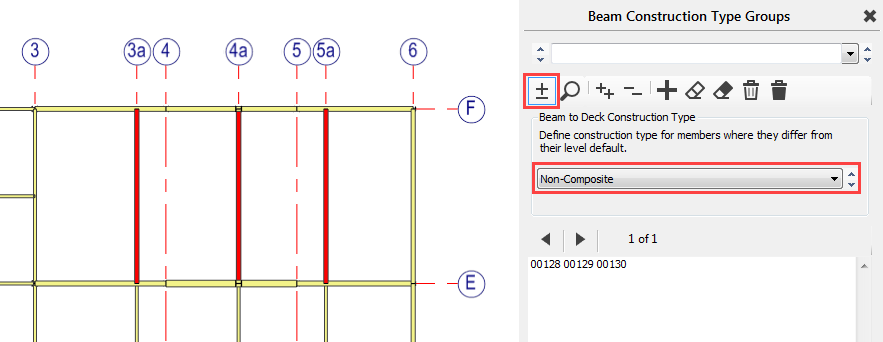
From the Beam to Deck Construction Type drop-down list, select non-composite.
Return to Steel and Composite Member Design Groups in the Design menu.
Using the Find item ( ) option, select one of the members
between E3a-F5a to highlight that Design Group.
) option, select one of the members
between E3a-F5a to highlight that Design Group.
From the drop-down list, select Axial with Moments option as a design method and set Leb for End 1 option to Full Rest.
Steel Design
Analyse your frame
again with Space Frame( ) analysis.
With the View Filter option on the top toolbar, filter down the steel members, selecting the Materials and then the Steel Members and the Bracing Members (to do that, at first you have to select the Multi-Select Member Material Group option on the top of the tree). This hides the composite beams.
From the Design menu, select Steel Member Design.
From the Automatic Design menu, select Delete All Design Checks and confirm Yes.
Now, re-create all the design checks by choosing either of the Add options from the Automatic Design menu.
Ensure Sort by weight ( ) function is on.
From the Auto Design toolbar,
select the Auto size all visible members
independently ( ) option and NOT the Auto size all visible members to use the same section ( ) option.
Re-analyse (  ) and using the Auto size all visible members independently ( ) option auto-design all of your
steel members again.
) and using the Auto size all visible members independently ( ) option auto-design all of your
steel members again.
Re-analyse ( ) and Scan
for failures ( ) to find the failing members.
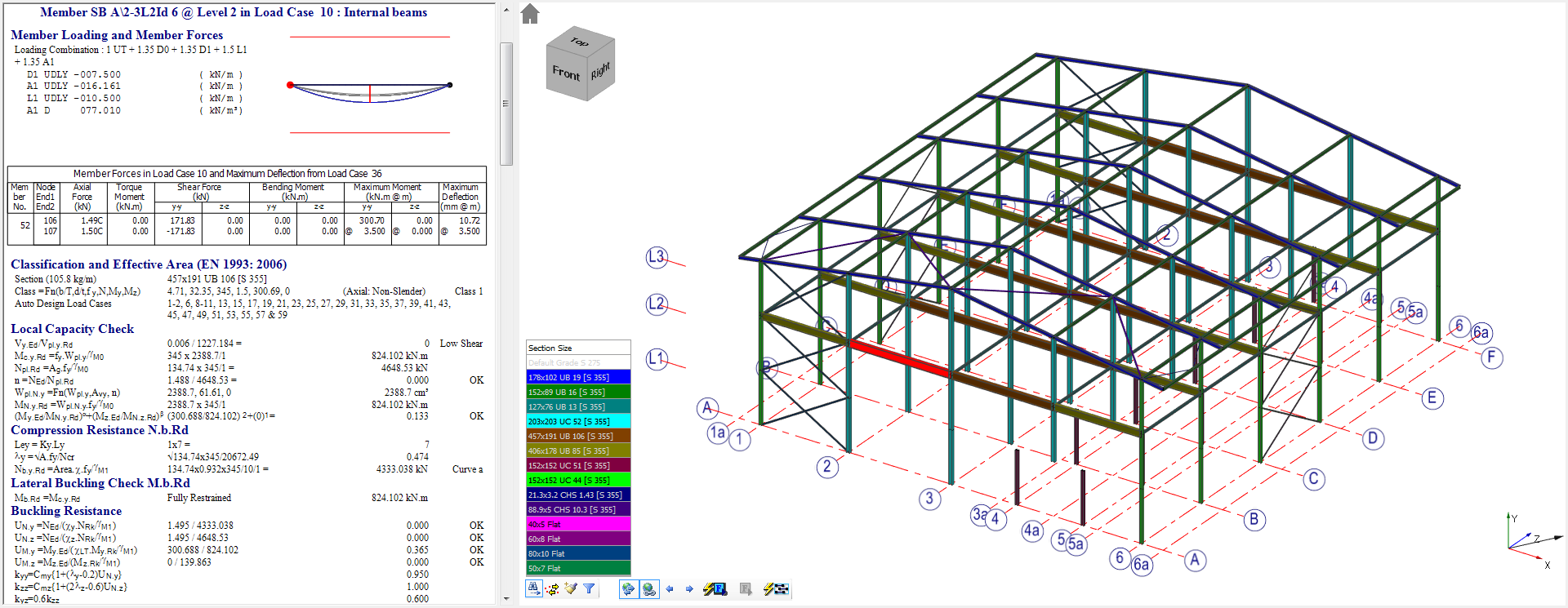
Elastic Critical Load Factor αcr
Now we have suitable section sizes, we need to check our Sway Stability.
From the Integrated Design menu, select Elastic Critical Load Factor.
An Elastic Critical Load Factor check is added to the design brief drop list.
From the report, a warning is given against some load cases. These load cases have an αcr value of just less than 10, and hence they require a Second-Order Elastic Analysis to be carried out on them.
Select Edit
Frame from the Edit-View menu and
save the file when requested.
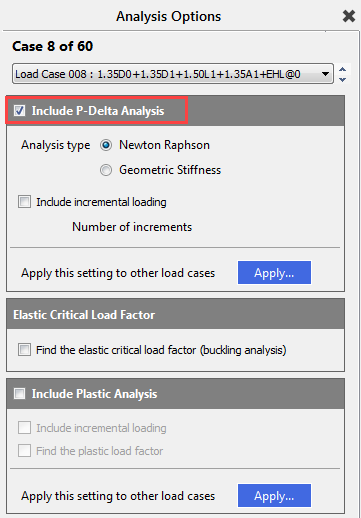
From the Analysis menu, select Second Order Analysis Options Per Load Case.
Select the warned load cases from the load case drop list and click in the Include P-Delta Analysis.
Re-analyse your frame.
From the Design menu,
select Steel Member Design Select Scan for Failures
As this is a braced frame all should still be OK.
End of Tutorial