2D T01-4 MasterFrame Tutorial
2D Concrete Structure Design to Eurocode 2
📑 Introduction to MasterFrame
Introduction
MasterFrame is a piece of advanced structural frame analysis software that allows you to analyse everything to beams, and trusses to multi-storey frames and complex 3D models in any type of material.
MasterKey Steel Design allows for the design of members in steel structures analysed using MasterFrame, to the BS, Euro or SABS codes.
If you do not have access to any of this software, please contact (Support) us for a 14-day free trial to learn how it can benefit you and your business.
Overview & Outcome
This tutorial provides an introductory tutorial on the use of MasterFrame to generate & design a Concrete Frame. The tutorial gives you a quick tour of MasterFrame, introducing you to the most important concepts and features along the way.
In general, the basic steps involved in using MasterFrame are as follows:
1. Generate the frame geometry
2. Define member properties, orientation and loading
3. Define supports and nodal loading
4. Define loading cases and combinations
5. Define job references and project title
6. Analyse the frame
7. View results
8. Design the concrete members
9. Refine your frame & re-analyse
10. Print results
We recommend working your way through the matching T01-3 MasterFrame Tutorial/Steel Structure Design to Eurocode 3 first. This is because not all functions are covered here but in the steel tutorial.
Version Information
This tutorial has been written for version 2024 of the MasterSeries software suite. Subsequent versions of the software may have additional features or changes in layout, however the general procedure will remain the same.
Contact
We strive to make our tutorials as simple as possible without compromising on the technical aspects of the analysis procedure. Should you discover any errors, omissions, or are in need of additional clarification, please contact us by emailing your comments, or corrections to help@masterseries.com
We’re social – follow us on Facebook, LinkedIn and Vimeo to keep up to date!
Loading MasterFrame
To start this tutorial, launch the main program of MasterSeries. While standing on the Programs tab, select the MasterFrame from the Integrated Analysis & Design filed.

The File Selector Dialogue

 ) button on the top of the file selector tree, we can see the saved
favourite folders. By selecting one of them, the file tree will immediately jump to there. By clicking the
Star icon at the end of the line, we can remove or add each of them.
The table, on the right of the File Selector (#3), lists all of the MasterFrame models contained in
the selected folder.
) button on the top of the file selector tree, we can see the saved
favourite folders. By selecting one of them, the file tree will immediately jump to there. By clicking the
Star icon at the end of the line, we can remove or add each of them.
The table, on the right of the File Selector (#3), lists all of the MasterFrame models contained in
the selected folder.The Frame Generation Menu
In most cases, you will be able to select a start-up frame and then tailor it to your specific requirements. In this case, we shall generate a multi-storey frame, edit the coordinates of the roof beams and then add the two parapet walls.
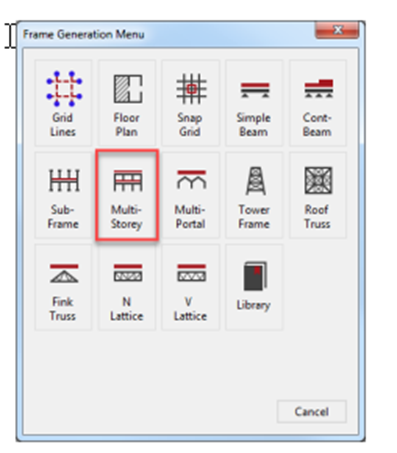
The Frame Generation Menu (Frame Wizard) is now displayed as shown.
To generate our start-up frame, select the Multi-Storey button.
For More information click 📑 Introduction to MasterFrame
Chapter 3 MasterFrame - 3.3.1 Frame Generation Procedures and Templates
This tutorial describes some of the basic techniques used in MasterFrame. Please take a few minutes to familiarise yourself with the various frame viewing tools; editing and data input methods and find how you can use the modify geometry area to select members.
The Start-up Frame
The multi-storey frame pre-processor is now displayed.
From the top toolbar select the Length
( ) to display the member lengths from
the Members group.
) to display the member lengths from
the Members group.
Place the frame in front view by selecting the Front side of
the viewing cube  ).
).
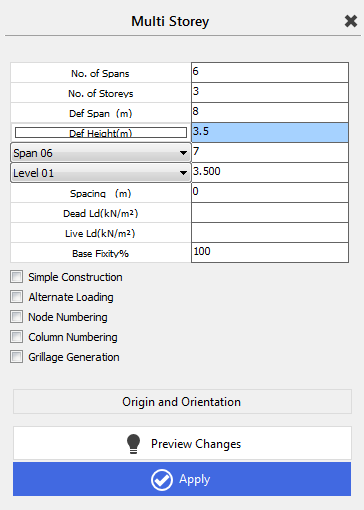
You can click in any text box to set the focus to it; you can also move from one box to another using the cursor up and cursor down keys.
Click on No. of Spans and type 6. No. of Storeys and Def Height (m) will be left on default values (3 and 3.5m).
As we change the input in the pre-processor the graphical
display is always updated. This is because the Preview
Changes ( ) button is depressed.
Click on Default Span (m) and input 8m. This is the default spacing. As our frame has varying spanning, we now need to change Spans 2, 3, 4 and 6.
To do this, click on the down arrow beside Span 01 and select Span 02 from the drop list.
Change the span in the text box to the right of Span 02 to 5 m. Change Span 03 to 5 m; change Span 04 to 7 m and finally change Span 06 to 7 m.
We will not use the other options of the frame generator but manually apply loads etc. for the practice.
During the editing process, the frame is displayed in grey. This is because the frame has not been generated yet and you are only looking at the projected frame that will be generated if you select the Apply button.
TIP! Preview Changes ( ) button
displays the projected frame.
) button
displays the projected frame.
Select Apply ( ) to generate the frame. The frame
now turns from grey to black as it has been created.
) to generate the frame. The frame
now turns from grey to black as it has been created.
Close the Multi-Story wizard by clicking on the X beside the title Multi-Storey.
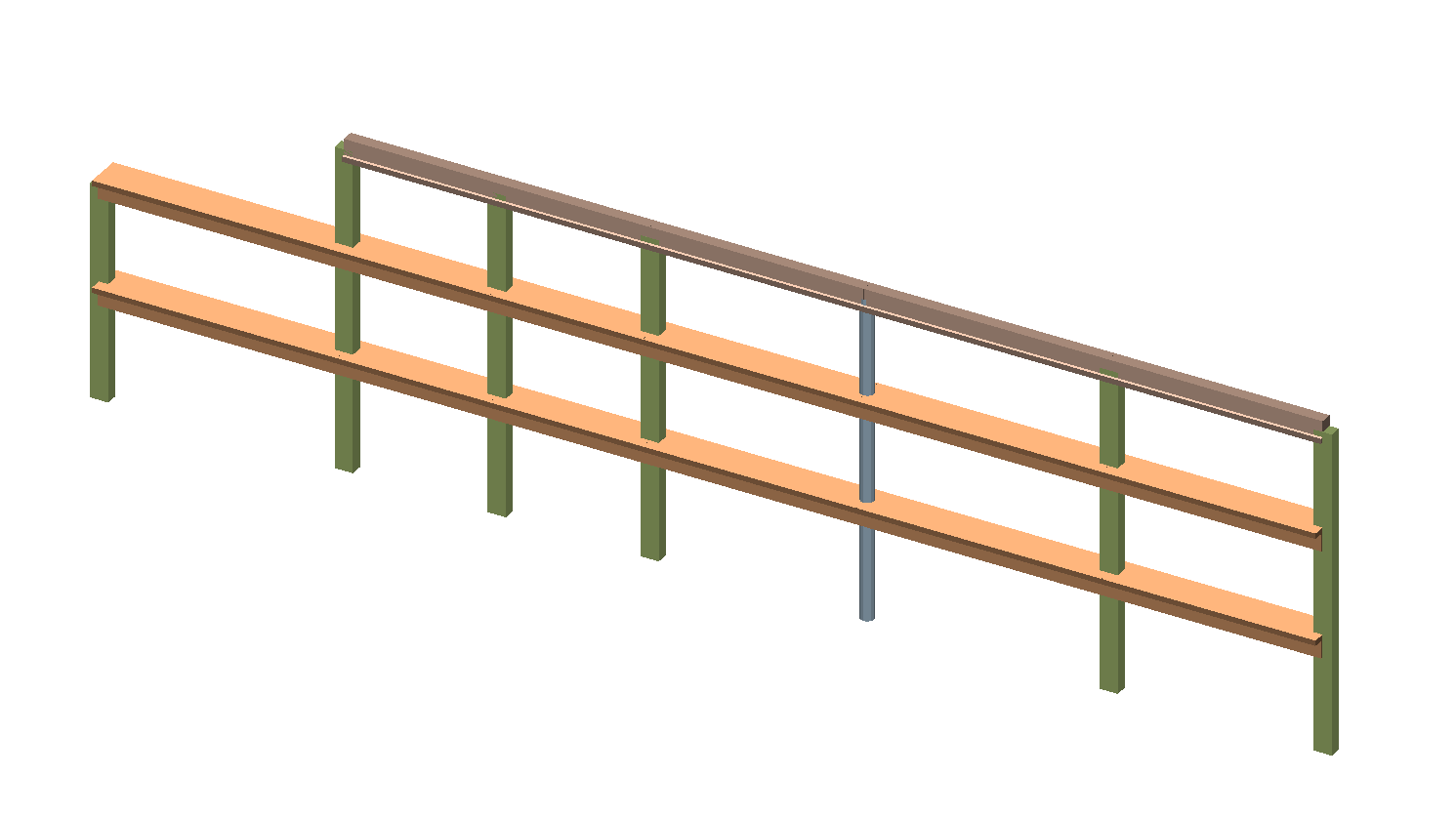
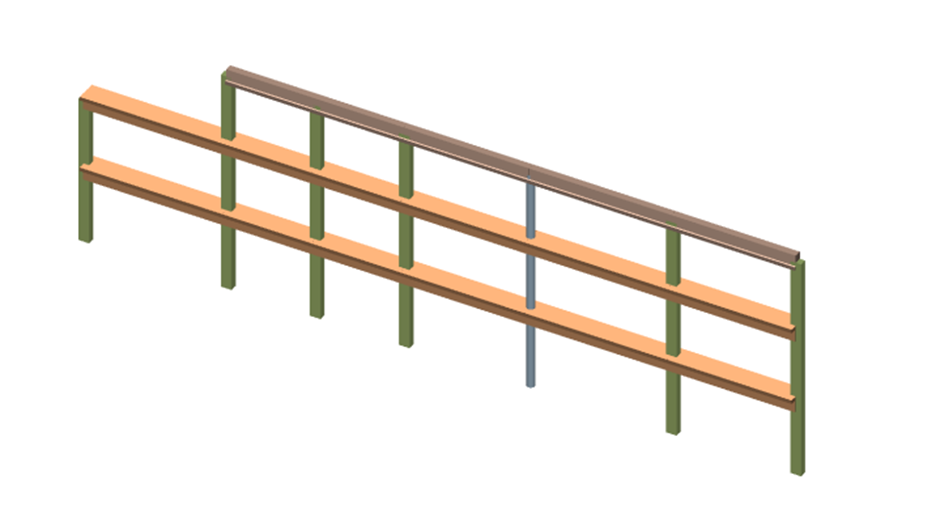
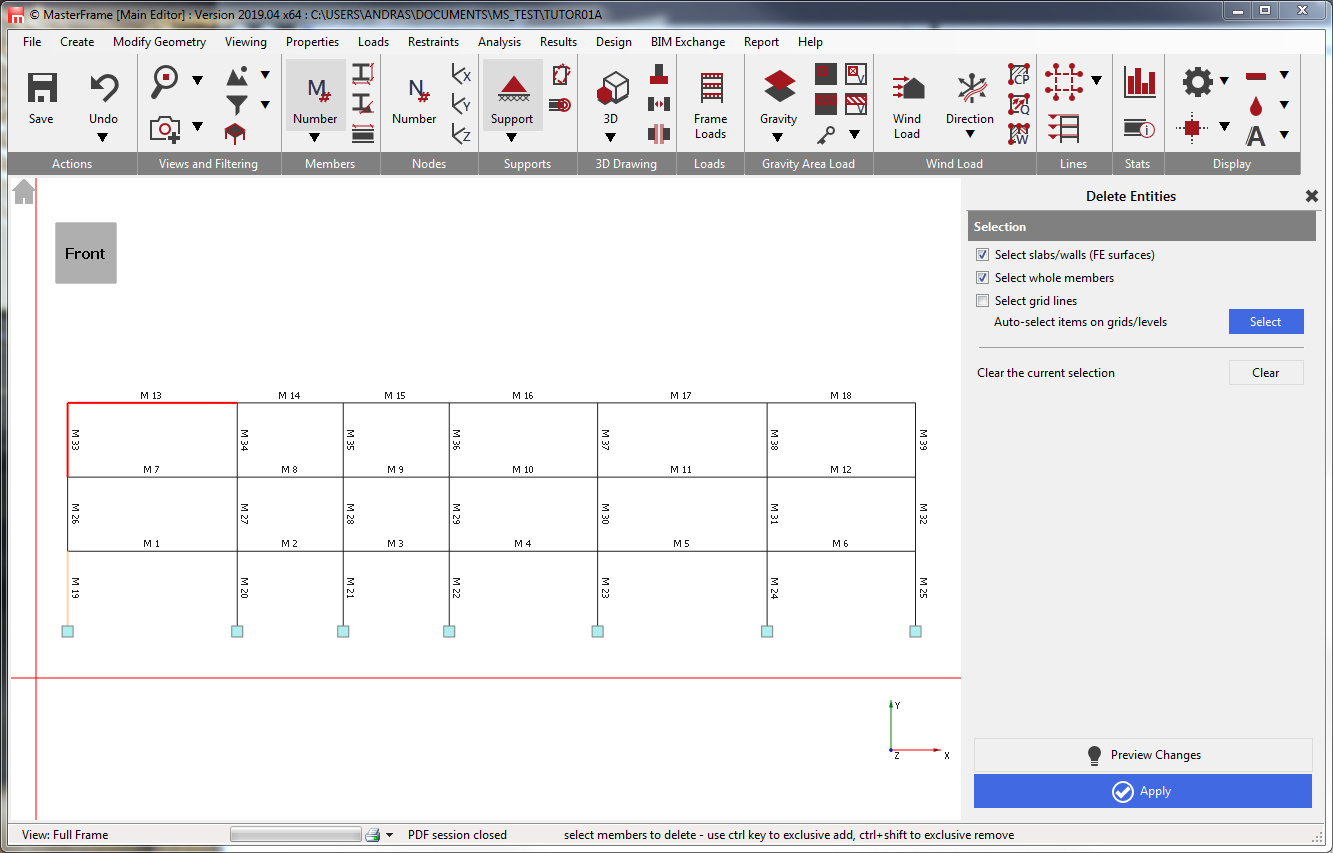
Remove the two members at the upper left of the frame shown in the photo above by going to Modify Geometry and Delete Members, FE Surfaces, Gridlines.
Click on the two upper left members and press on Preview Changes to preview the frame with 2 members removed (frame turns grey). Select Apply to carry out the deletion (frame turns black).
Undo & Redo
The Undo button on the top toolbar works “one” step at
a time. Redo is accessed from the drop
button below the undo button.
button on the top toolbar works “one” step at
a time. Redo is accessed from the drop
button below the undo button.
Adding Section Sizes
As we did not define the section sizes during the multi-storey frame generation processor, now we must add some preliminary section sizes to the frame.
From the Properties file menu, select Member Sections Materials.
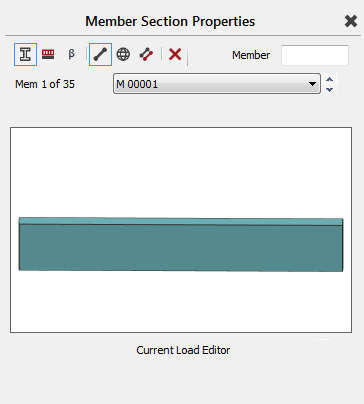
In the Member Section Properties, there are 2 sets of 3 options.
The first 3 options (#1) are the Attributes a member can have.
The Section Properties, e.g. steel, concrete or timber and section size.
 The Member
Loading applied, e.g. uniform, point,
trapezoidal etc.
The Member
Loading applied, e.g. uniform, point,
trapezoidal etc.
 The Member
Orientation b (rotation) of the member.
The Member
Orientation b (rotation) of the member.
The second 3 options (#2) represent the method of editing as follows:
 Edit Member mode: Applies all changes to the currently selected
member (highlighted). This is instantaneous.
Edit Member mode: Applies all changes to the currently selected
member (highlighted). This is instantaneous.
 Edit Global mode: Applies all changes to a group of members
(shown in red). This is a global search and replace function, e.g. change all
members that have a 457x152x52UB to a 457x191x67UB. This is instantaneous.
Edit Global mode: Applies all changes to a group of members
(shown in red). This is a global search and replace function, e.g. change all
members that have a 457x152x52UB to a 457x191x67UB. This is instantaneous.
 Edit and Paste (Copy to):- This option enables you to edit a
template and then apply it to any member by clicking on that member in the
graphics area. No changes are made until you select a member.
Edit and Paste (Copy to):- This option enables you to edit a
template and then apply it to any member by clicking on that member in the
graphics area. No changes are made until you select a member.
 Remove
all selection sizes: This
“additional” option enables you to delete all section sizes or b angles on all members.
Remove
all selection sizes: This
“additional” option enables you to delete all section sizes or b angles on all members.
Member Mode
From the top toolbar turn on the member Numbers from the Members group.
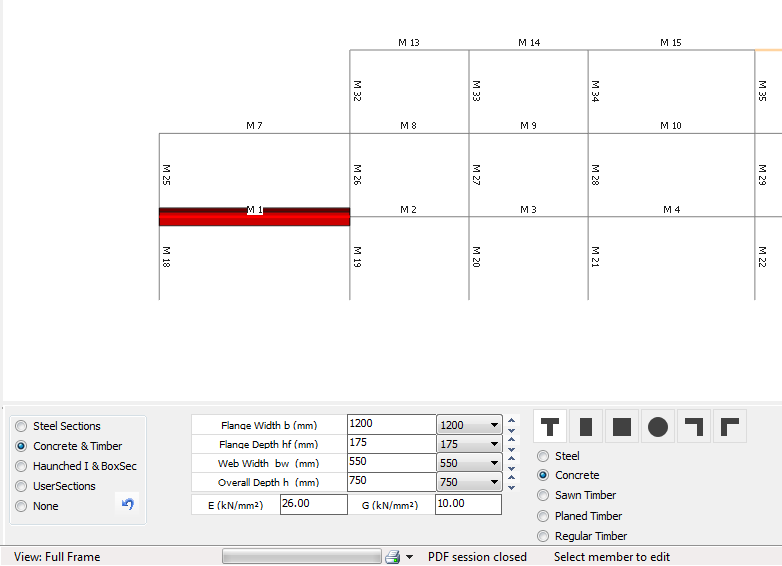
Select M1 (left first floor beam) member or from the Mem 1 of 37 dropdown menu on the Member Section Properties dialogue pick M 00001 to make it the current member.
To set the section properties to the current member, select Section Properties ( ) and Edit
Member (
) and Edit
Member ( ) mode.
Select Concrete & Timber option from the bottom dialogue.

Select Tee Section ( ) type and from the four text boxes
or drop lists set the followings dimensions:
) type and from the four text boxes
or drop lists set the followings dimensions:
Flange Width b (mm) 1200
- Flange Depth hf (mm) 175
- Web Width bw (mm) 550, and
- Overall Depth h (mm) 750
This information can be typed or filled in quickly using the drop-down boxes
This has now been automatically applied to the selected M1 member.
Copy Mode
Change the method from Edit
Member ( ) mode to Edit
and Paste ( ) mode.
In copy mode, you can either click on an individual member or window a group of members to paste the current section property onto them.
Window members M2 to M6 and M7 to M12 to paste the section property to them.
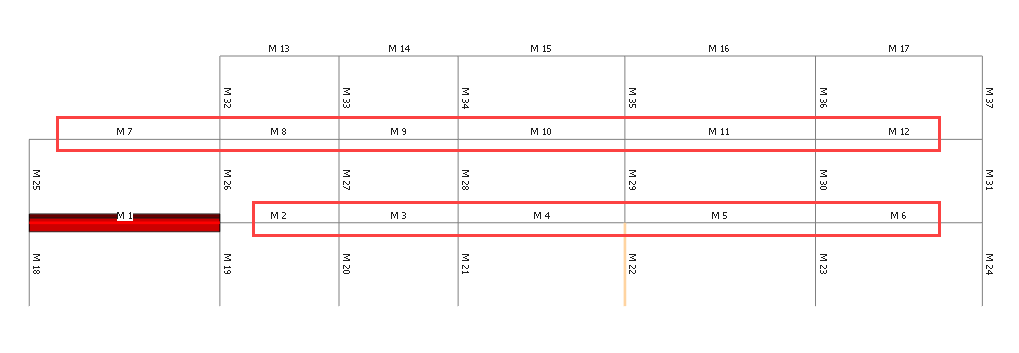
These members should now be highlighted in a thicker red line.
Roof Beams
For the roof of the structure, the Tee Beam will be inverted.
Remaining in Edit and Paste ( ) mode, change the section dimension
in the template to the following. This does not affect the already defined
section properties as we are in copy mode. We are simply changing the section
in the copy template.
) mode, change the section dimension
in the template to the following. This does not affect the already defined
section properties as we are in copy mode. We are simply changing the section
in the copy template.
Flange Width b (mm) 600
Flange Depth hf (mm) 175
Web Width bw (mm) 400, and
Overall Depth h (mm) 700
Window members M13 to M17 to paste the section property onto the roof beams.
Columns
Remaining in Edit and Paste ( ) mode, change the section type to Square Section (  ) and set the Section Width b (mm) to
400.
) and set the Section Width b (mm) to
400.
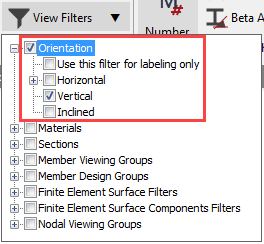
Apply this section to the columns.
To do this, on the top toolbar drop the Viewing Filters, select Orientation, and then select
Vertical.
Now window all the columns to apply the section size to them.
Remaining in Edit and Paste ( ) mode, change the section type to Rectangular Section ( ) and set the Section Width b (mm) to
400 and Depth h (mm) to 600.
) and set the Section Width b (mm) to
400 and Depth h (mm) to 600.
Paste the new section on members M19-21 If you get the message asking you if you wish to replace the section sizes, select ‘Yes’. Turn off the Vertical Filter.
Member Orientation – Beta Angles
We now need to invert the roof beams.
Change back to Edit Member ( ) mode using the button at the top
right of the screen and switch to Member Orientation
b ( ) from Section
Properties( ).
) from Section
Properties( ).
To see your member orientations, place the
frame into an Isometric view by selecting the top right corner of the
viewing cube (
 )
)
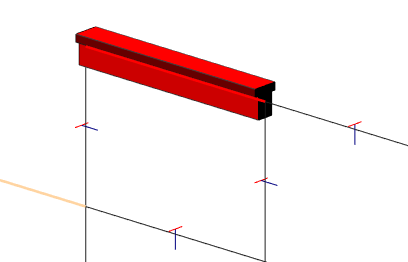
The Red line on each member represents the top Flange. The Blue line the Web.
Select member M13 (top left roof beam) and at the bottom left of the screen, change Selected Member Current β angle to 180 degrees.
Change the method
from Edit Member
() mode to Edit
and Paste ( ) mode. Window members M14 to M17
to apply the rotation to them.
Change to Edit Member ( ) mode (turning off Copy to mode)
as a safety measure to avoid accidentally copy.
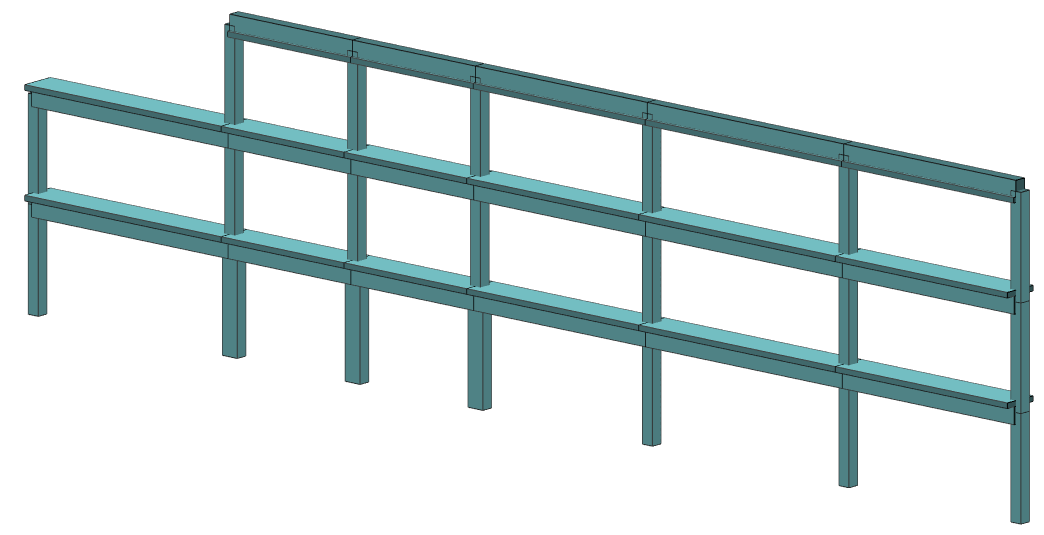
Turn on the 3D in the 3D Drawing group on the top toolbar to see the inverted members
Nodal Supports
Turn off all options so you have a simple wire frame with no values.
From the Restraints file menu, select Nodal Static Supports.
Nodes 1 to 5 are already defined as either Pinned or Fixed Supports depending on your choice at startup time.
Each support is graphically represented as
follows:
 Horizontal roller (dy restraint only)
 Pinned support (dx, dy, and dz restraints)
 Fixed
support (dx, dy, dz, fx, fy and fz restraints)
Fixed
support (dx, dy, dz, fx, fy and fz restraints)
Other support conditions are graphically represented as a set of 6 restraint boxes that are either active (red) or inactive (white). These 6 boxes represent the 6 degrees of freedom of the support. The order of the boxes is the directional restraints dx, dy, and dz followed by the rotational restraints fx, fy and fz.
For example:
Other support (Top line
directional dy, bottom line rotational fx and fz active)
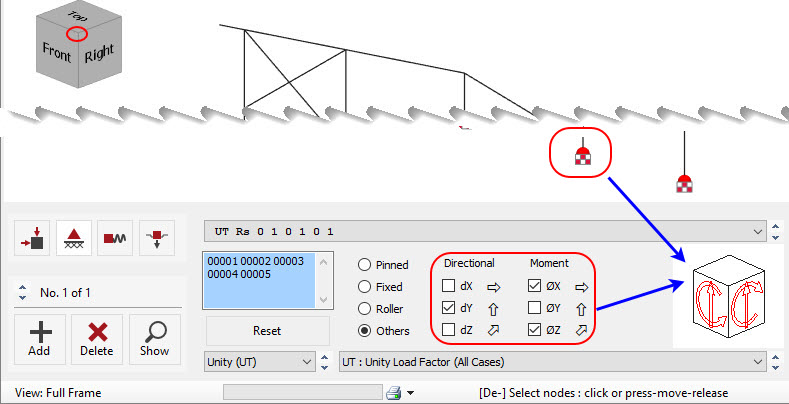
For the purpose of this tutorial, we will design the frame assuming the supports to the columns are fixed. Therefore, amend the bases of the frame to make all the bases fixed supports.
Pick the Fixed option to change them all to Fixed.
Close the Nodal Static Supports dialogue with the Close(  ) button.
Load Groups
Each action on the frame is assigned to a load group (e.g., Dead, Live, Wind, Notional etc.). MasterFrame allows 140 different load groups to be used; the most regularly used being groups D0 to D9, L0 to L9, W0 to W9 and N0 to N9.
A load group (e.g., D1) is a group of loads that are always applied together with the same load factor. These loads may be of different types (e.g., UDL, PY, and TY1) and have different values. However, since they are always applied together with a common load factor, they are in the one load group.
A typical example of a load group is a wind load (blowing onto the side of a building) that has different load intensities on each face of the building, but are grouped into one group (e.g., W1).
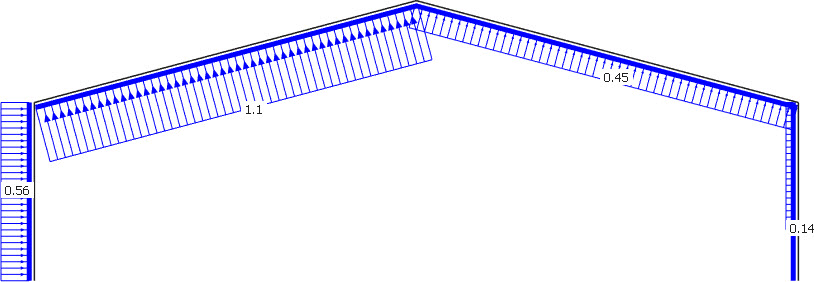
In most cases, you may only need to use 3 or 4 load groups but sometimes you may wish to use more. For example, in a frame with a crane beam, you can separate the vertical and horizontal crane loads from the general live load by using groups L1, L2 and L3.
In this tutorial, we will use 5 load groups as follows:
- D1- Permanent Actions (Dead Loads)
- L1- Variable Actions on Odd Spans (Live Loads)
- L2- Variable Actions on Even Spans (Live Loads)
- W1- Wind Load due to wind on Side (Variable Actions)
- W2 - Wind Load due to wind on Gable (Variable Actions)
By using 2 live load groups we can pattern the loading combinations for dead and live, (e.g. Max, Min, Max, Min on alternating spans).
To allow easier checking of our data we will label our load groups.
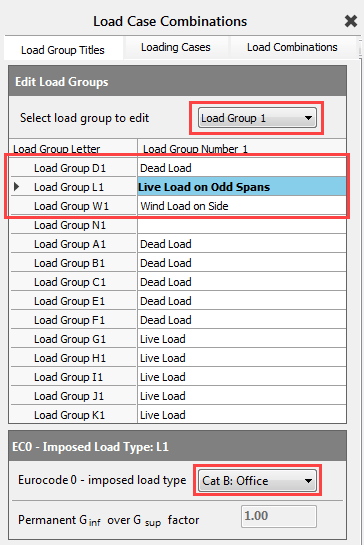
From the Loads file menu, select Load Group - Titles.
Select Load Group 1 from the drop list.
Select Dead Load. The title is correct but set the Ginf/Gsup factor below, to 1 as we will assume no inaccuracy in the calculated Dead/Permanent Loads.
Select Live Load. Change the title to Live Load on Odd Spans and then set the Eurocode 0 - imposed load type below to Cat B: Office.
Finally, select Wind Load and change the title to Wind Load on Side.
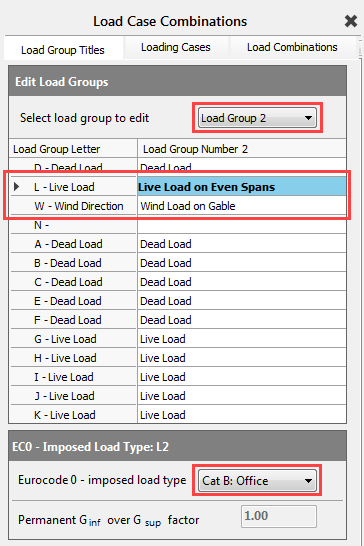
Select Load Group 2 from the drop list.
Select Live Load. Change the title to Live Load on Even Spans and then set the Eurocode 0 - imposed load type below to Cat B: Office.
And select Wind Load and change the title to Wind Load on Gable.
Load Case Titles
Select the Loading Cases tab on the top of the Load Case Combinations dialogue.
In MasterFrame you create and analyse Combinations of Actions. We do not create basic cases and then add them together post analysis. The reason for this is, if you form plastic hinges, do p-delta analysis or have tension or compression only members then you cannot use the “Superposition Principle” to add results from different basic cases together
By default, there are already two (or three in case of using EC0 Eq. 6.10 a+b by default) combinations of actions and case titles generated.
- Load Case 001: Dead plus Live (Ultimate) (Permanent Plus Variable)
- Load Case 002: Live Only (Serviceability) (Variable Only)
- We wish to re-title and generate more loading cases to obtain the following:
- Load Case 001: Dead plus Live on All Spans (Ultimate)
- Load Case 002: Dead plus Live on Odd Spans (Ultimate)
- Load Case 003: Dead plus Live on Even Spans (Ultimate)
- Load Case 004: Dead plus Live plus Wind on Side (Ultimate)
- Load Case 005: Dead plus Live plus Wind on Gable (Ultimate)
- Load Case 006: Dead plus Live on All Spans (Serviceability)
- Load Case 007: Dead plus Live on Odd Spans (Serviceability)
- Load Case 008: Dead plus Live on Even Spans (Serviceability)
- Load Case 009: Dead plus Live plus Wind on Side (Serviceability)
- Load Case 010: Dead plus Live plus Wind on Gable (Serviceability)
Modify the title of Load Case 1 to read Dead plus Live on All Spans (Ultimate) using the buttons and by typing.
Use the drop list to select Loading Case 2. Now
modify the title of Load Case 2 to read Dead plus
Live on Odd Spans (Ultimate) or cheat and click on quick type button
( ) and then use the quick type buttons
to generate the load case title.
) and then use the quick type buttons
to generate the load case title.
- Click on the Add load case (
 ) button and set Load Case 3
to read Dead plus Live on Even Spans (Ultimate).
) button and set Load Case 3
to read Dead plus Live on Even Spans (Ultimate). - Click on the Add load case (
 ) button and set Load Case 4
to read Dead plus Live plus Wind on Side (Ultimate).
) button and set Load Case 4
to read Dead plus Live plus Wind on Side (Ultimate). - Click on the Add load case ( ) button and set Load Case 5
to read Dead plus Live plus Wind on Gable
(Ultimate).
We will create the five Service loading combinations later.
From the toolbar select Save ( ) to save our work so far.
Loading Combinations
Select the Load Combinations tab.
In MasterFrame we do not create basic loading cases, analyse them and then create combinations of the basic loading cases. We create the loading combinations directly as our loading cases. One of the reasons for this is that MasterFrame can create Plastic Hinges, carry out a P-delta analysis and analyse both tension and compression only members. These features do not work well on basic loading cases as they cannot be linearly combined to create these more complex analyses.
Our loading combinations will be as follows:
Select Load Case 001.
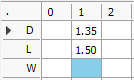
Highlight the cell corresponding to D and 1 for group D1, then using the Common Load Factors buttons to add a load factor of 1.35 (or you could just type in the value).
Now highlight the cell for L and 1 for group L1 and then choose 1.50 for the load factor.
For Group L2 highlight the cell for L and 2 and then choose 1.50 for the load factor.
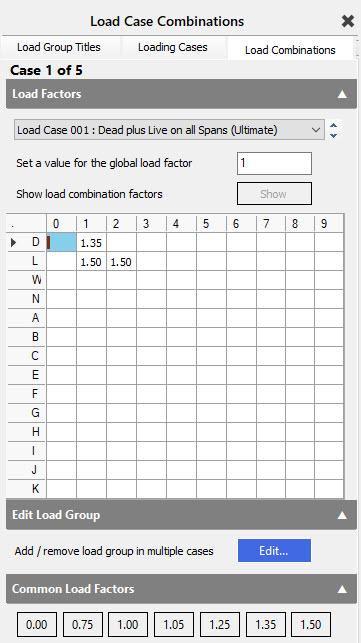
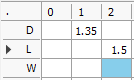
Select Load Case 002 and set the load group factors to: 1.35 x D1 + 1.5 x L1 (Max, Min, Max, Min thus L2=0).
Select Load Case 003 and set the load group factors to: 1.35 x D1 + 1.5 x L2 (Min, Max, Min, Max thus L1=0).
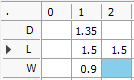
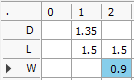
- Select Load Case 004 and set the load group factors to: 1.35 x D1 + 1.5 x L1 + 1.5 x L2 + 0.9 x W1.
Select Load Case 005 and set the load group factors to: 1.35 x D1 + 1.5 x L1 + 1.5 x L2 + 0.9 x W2.
Now that we have the 5 Ultimate limit state loading cases generated, we can quickly generate the 5 service cases.
Choose the Loading cases tab and in the Auto-Generate Cases field select the Add service case to all load cases function by pushing the Add button.
You now have 10 loading cases.
Close the Load Case Combinations using the X button at the top right of the pane.
From the toolbar
select Save (  ) to save our work so far.
Adding the Loads
It is now time to add the frame loading for Dead, Live, Wind & Density loading to the frame. This tutorial will assume the Eurocode loading patterns.
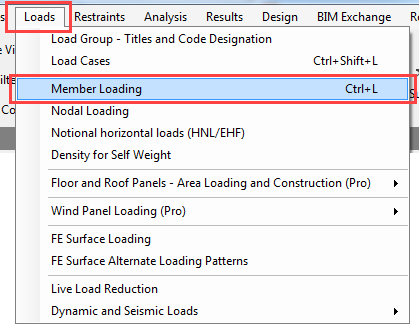
From the Loads file menu select Member Loading.
From the top toolbar select the Frame
Loads (  ) button to display the frame loading on the
graphical area and the Load Diagram control panel.
) button to display the frame loading on the
graphical area and the Load Diagram control panel.
Change the top drop list of Load Case to the
first item, All Loading Cases to show all the applied loads with default values
(without safety factors).
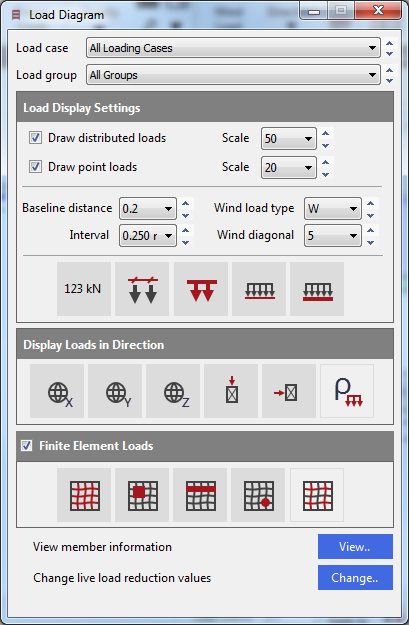
Set all the values as above. Only the self-weight button (
 )is turned off.
The frame Load Diagram controls are on a floating form. Click on the minimise button -, to hide it, but keep it active.
Applying multiple loads to multiple members
Select Edit and Paste () editing mode and the Replace Loads option.
.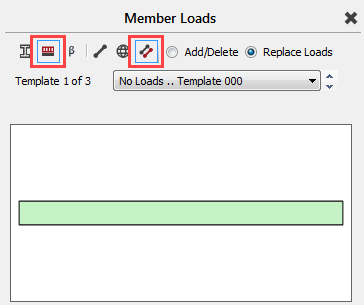
Click on the UDLY ( )
button (bottom left of the screen) twice to add two uniform
distributed load definitions.
)
button (bottom left of the screen) twice to add two uniform
distributed load definitions.
The list of loads edit box now has two loads in it. Both loads are D1 UDLY -000.000 which means both assigned to the D1 dead load group, both of them uniform distributed load in the Y-Axis and acting downward.
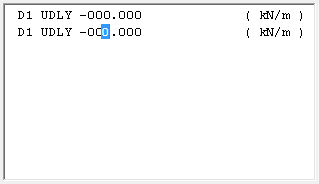
We now need to edit these loads.
Pick the upper of the two loads to set the cursor focus to it and change the load to D1 UDLY -004.000 (kN/m) by overtyping the - 000.000 value.
Next, pick the second load or move your cursor along to it and change the load to L1 UDLY -005.000 (kN/m) by overtyping D1 with L1 to assign the load to the L1 live load group and overtyping -000.000 value with -005.000.
As we are in Edit and Paste ( ) editing mode these loads are not
applied to any member.
This loading is only to be applied to alternate spans. Apply the loads to M1, M7, M3, M9, M14, M5, M11 and M16 as shown below.
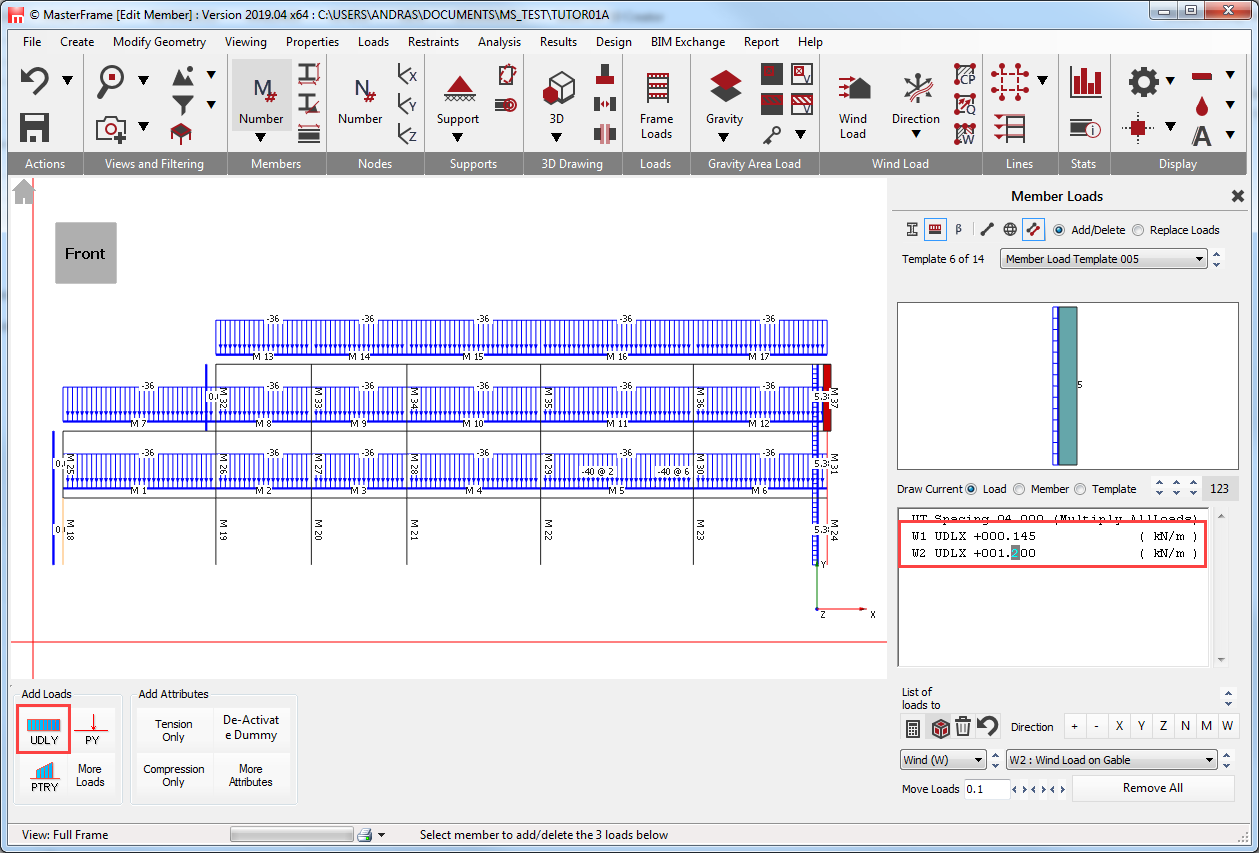
While we are still in Edit and
Paste ( ) editing mode, change the second
Load group from L1 with L2 (D1 remains D1, as only the Live load is
patterned in the Eurocode). Apply the loads to the remaining horizontal members
(M2, M8, M13, M4, M10, M15, M6, M12, M17).
All the loads which were applied above are in kN/m2, but we have used them as line loads in kN/m. Thus, we have to multiply them to get the correct values.
To do that, we can use the Frame Spacing option.
Remaining in Edit and Paste ( ) mode, select More Loads on the
bottom and then the Frame Spacing (
) mode, select More Loads on the
bottom and then the Frame Spacing (  ).
).
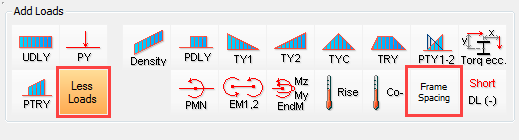
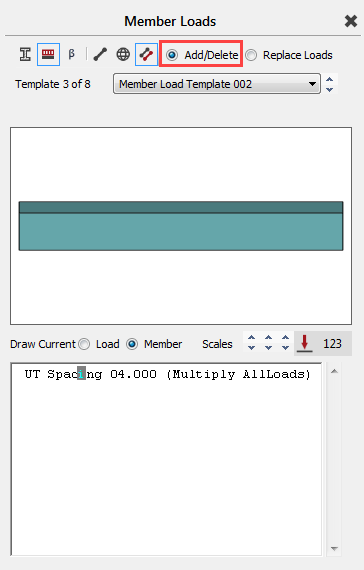
In the list of loads edit box, pick UT Spacing 01.000 (Multiply AllLoads) and overwrite the 01.000 value with 04.000.
Frame Spacing multiplies up ALL loads on a member by the
spacing and allows for easier input of area loads.
Select the two UDLY’s and delete them from the
template using the Delete Current Load (
 )button below the editor.
Click on Edit and
Paste ( ) select Add/Delete mode, window all members to add the Frame Spacing to
the members.
) select Add/Delete mode, window all members to add the Frame Spacing to
the members.
Applying individual point loads
Change back to Edit Member ( ) mode and select member M5.
Click on the Point Load ( ) button twice, to add two-point
loads to the member’s list of loads.
) button twice, to add two-point
loads to the member’s list of loads.
Select one of the point loads in the list and edit it to be D1 PY -010.000 2.000.
Select the second point load and edit it to be D1 PY - 010.000 6.000.
The units for the point load are as follows:
1. Load value (kN)
2. The distance of the load (m) from the member End 1.
TIP! You can use D for D1, L for L1, W for W1, N for N1 or U
for UT as these are valid load groups. Never use M loads as this is for mass
loads.
Applying the Wind Load (Variable Actions)
In Edit Member ( ) mode and then select member M18.
Click the UDLY ( ) button twice to add two new
loads to the list.
) button twice to add two new
loads to the list.
- Edit the first load to W1 UDLX +001.350 (kN/m).
- Edit the second load to W2 UDLX -001.200 (kN/m).
Copy these loads on to members M25 and M32
using Edit and Paste ( ) editing mode.
Remaining in Edit and Paste ( ) editing mode, edit the loads in
the list of loads to W1 UDLX +000.145 (kN/m) and W2 UDLX +001.200
(kN/m).
Click on members M24, M31 and M37 in the graphical area to apply the loads to these members.
Change to Edit Member ( ) mode (turning off Copy to mode)
as a safety measure to avoid accidentally copy loads.
At the top left of the frame graphics window click on the Save button.
Applying Density (self-weight)
Self-weight of structural members is automatically included as a default set up.
The loadings due to self-weight can be viewed in the frame Load Diagram, by turning off all other loads except
the Draw Density Load (Self weight) ( )
button.
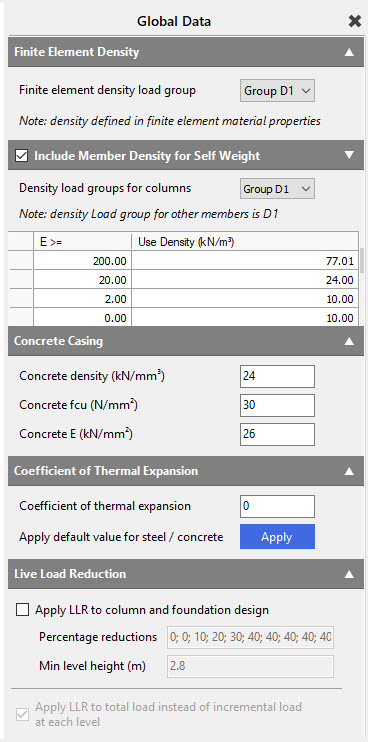
The values for self-weight can be checked by going to Loads > Density for Self-Weight. To ensure that the self-weight is included, make sure they Include Member Density for Self-Weight checkbox is ticked. The default load group of the self-weight is the D1 but using the drop-down menu we can modify it.
Checking the Loads and Load Cases
The frame load diagram can be used to view the loading associated with each load cases.
From the top toolbar turn off the member Numbers.
The Frame Loads diagram may still be displayed from the previous member loading exercise. Otherwise, click on Frame Load button on the top toolbar.
If the
Load Diagram window
is minimised expand it.
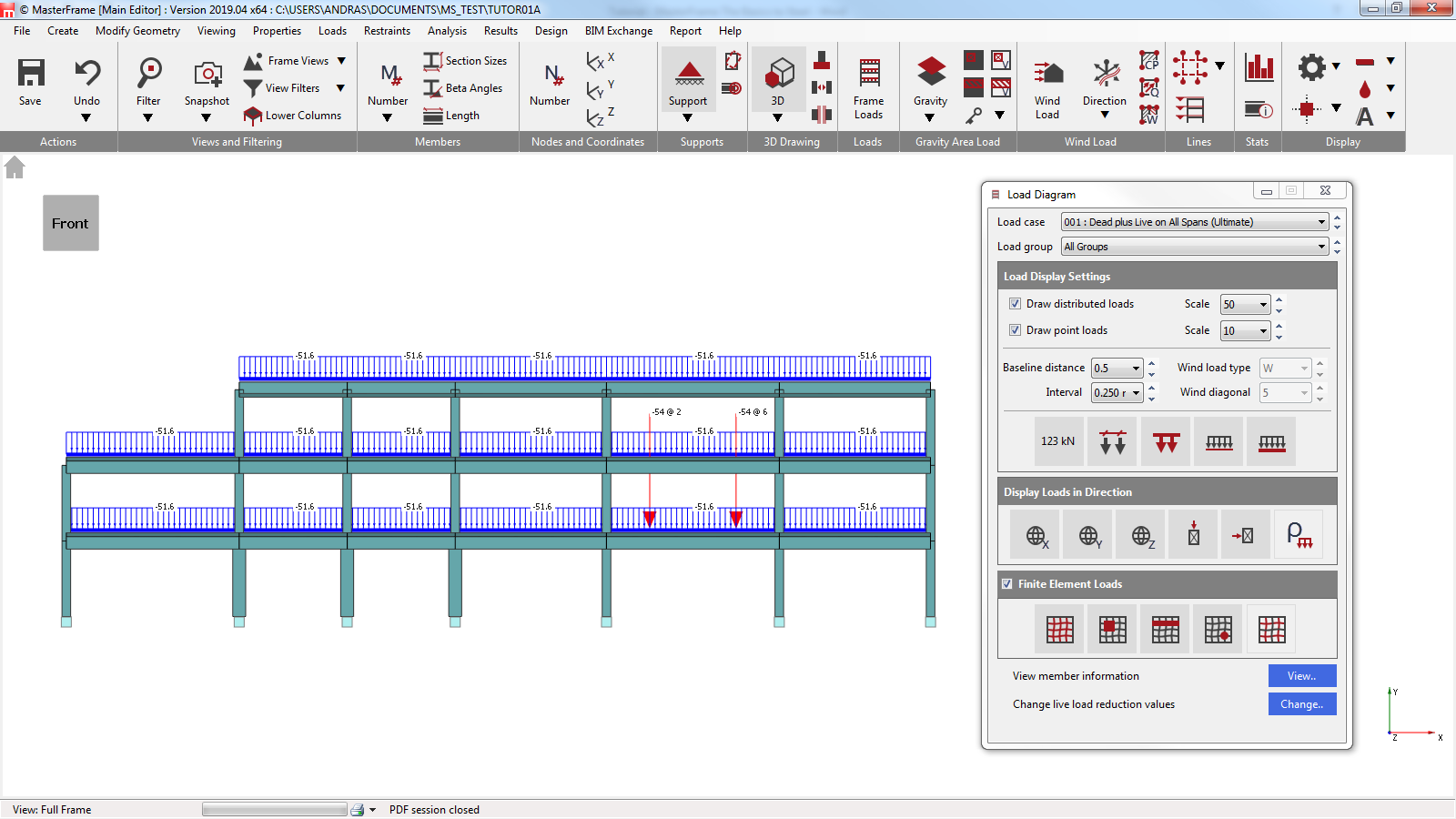
The two principle drop lists, on the top of
the dialogue,
enable you to filter the loads that are drawn.

The first drop list selects the loading case to be displayed. All loads will be factored up by the load factors for the current case. For example, the Dead plus Live load case will not display wind loads as their load factor will be zero.
The second drop list then selects the load groups drawn. Therefore, if you pick the W1: Wind Load on Side while Dead plus Live load case is selected, no load will be drawn.
If All Loading Cases is selected, then all load groups are displayed with basic, unfactored values.
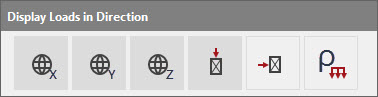
The Display Loads in Direction buttons allow you to further filter your view.
The first three are your global load directions. The fourth & fifth is your Normal to major axis & Normal to Minor axis loads. The last button is density/self-weight of member (“ρ” or rho).
Close the Load Diagram dialogues by clicking on the X.
Horizontal Notional Loading
To allow for the effects of geometric imperfections in a frame, Eurocode 2 requires that additional forces be included in the Ultimate Design cases for members. The code allows for two approaches to be included in the design of elements; including an additional eccentricity or including an additional transverse force. In MasterFrame, the additional force approach is used by means of applying Notional Horizontal Loads.
Notional Horizontal Loads can be automatically applied using the Automatic Generation of Horizontal Notional Loads function. This will add a notional load to all Ultimate Load cases and generate a number of additional load cases to ensure all the required NHL load cases are covered. Alternatively, NHL loading can be added manually to each load cases.
Two new cases need to be added to the load cases and then the Notional Loads added to the required cases. From the Loads menu, select Load Cases.
Select Load Case
01... and click on the Copy (  ) button.
Click on the Add load case  button and Paste (
 ) the copied values from Load Case
01.
) the copied values from Load Case
01.
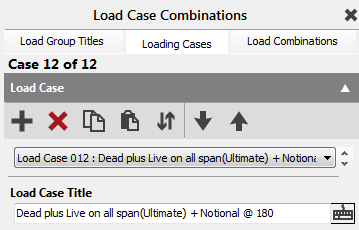
Edit the title to read:
Load Case 011: Dead plus Live on all span (Ultimate) + Notional @ 0.
By clicking on the Add load case button, add another loading case and Paste ( ) the copied values from Load Case 01.
Edit the title to read:
Load Case 012: Dead plus Live on all span (Ultimate) + Notional @ 180
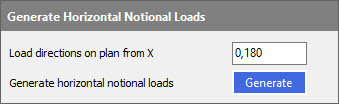
To add the Notional Horizontal Loading, select Notional Horizontal Loads (HNL/EHF) from the Loads menu.
Select Load Case 011 from the drop-down list
and click in the check box to activate the Horizontal
Notional Loads.
Set the percentage in the Horizontal loads percentage value edit box to 0.5.
From the Factored vertical loads drop-down list, select Load Case 001 and set the Angle to X axis value to 0.
A Notional Horizontal Load equal to 0.5% of the factored Deal and Live loads form Load Case 001 has now been added to Load Case 011.
Repeat the process for Load Case 012, with the angle set to 180 degrees.
Notional Horizontal Loads do not appear on the Frame Load Diagram but are included automatically as part of the frame analysis.
Analysing the frame
From the top menu select Analysis, then Static Analysis.
The file will be saved automatically, and the Analysis Type and License toolbar will now appear.
There are 5 possible types of analysis. Any analysis types that are not applicable to your frame will be deactivated. Any analysis types that do not match your licence will also be deactivated. Your licence limit for each analysis type is listed below each button.

Select Plane Frame  ) and the frame will be analysed.
Viewing and Printing the Graphical Results
From the Results file menu, select Graphical Analysis Results. Place the frame in Front View with no annotation.
Select Bending Moment. We have no members bending about the Minor axis so select Major Axis Only on the right-hand panel.
Select Show Values. Change the B.M. scale from 50 to 100.
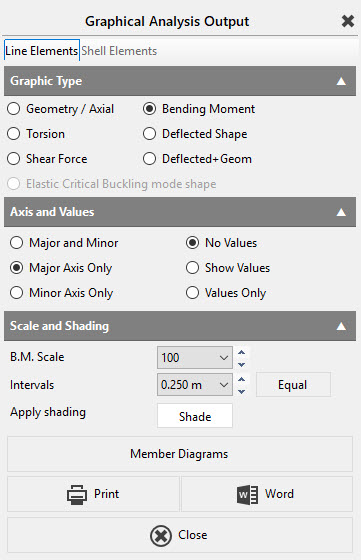
From the drop list, at the bottom of the screen, select and view each of the Load Cases including the envelopes. Select Load Case 003: Dead plus Live on even Spans (Ultimate)
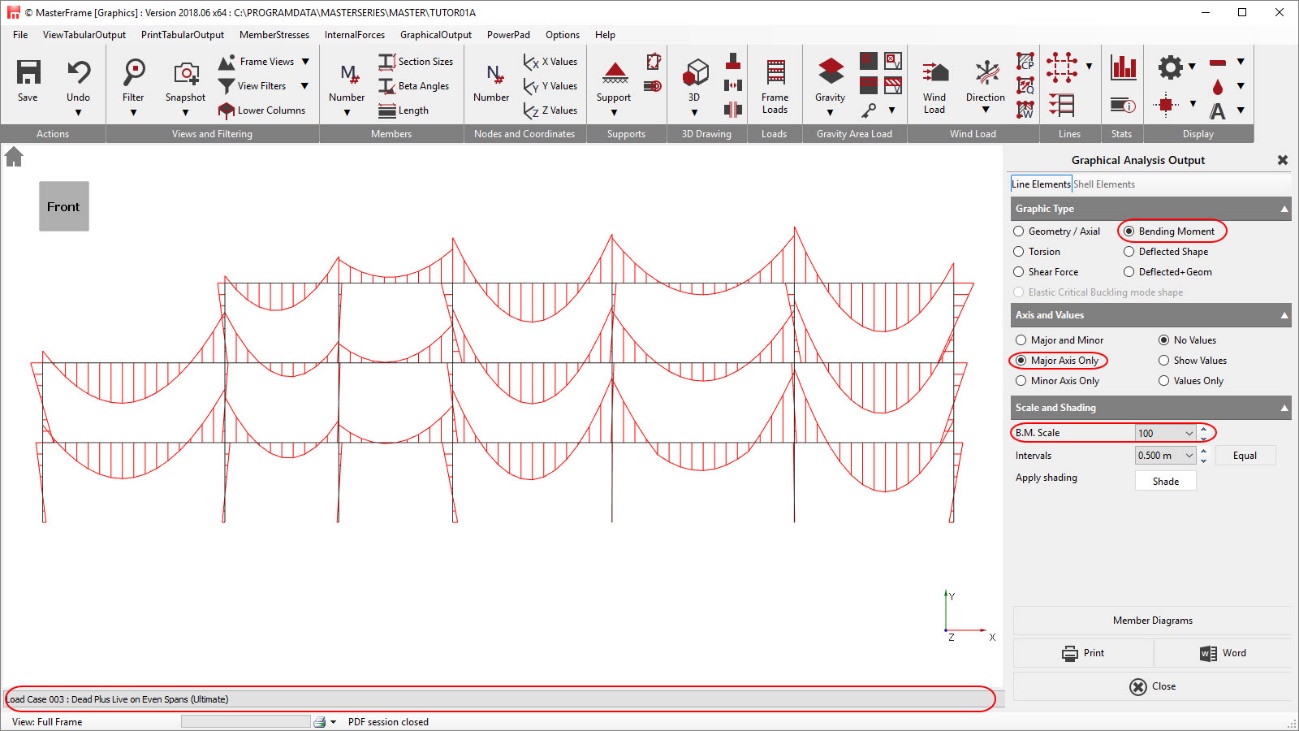
While viewing the diagrams the user is free to change the view using any of the top Toolbar options, including zooming, panning, scales and font sizes.
Select the Close button to exit the Graphical Analysis Output window.
Viewing the Text Results
From the Results file menu, select Tabular Analysis Results. This will take you into the Nodal Deflections table.
The options in the lower part of the screen enable you to control the results being displayed and are very easy to use. When there is a large amount of data the vertical scroll bar controls the view.
The standard method of viewing results is List per Case. This only display results in one loading case at a time. The other method is to List per Node/Member. This is useful to compare results for different loading cases for the same node or member as shown here.
Experiment with the various options to display the results.
To close Tabular Analysis
Results, select the Close ( ) button.
Split from here?
Concrete design with MasterKey Concrete Design integrated module
Welcome to MasterFrame and MasterKey Concrete Design add-on module. This tutorial follows on from the frame generation above, where you generated a 3-storey concrete frame
From the Design file menu, select the Concrete Beam Column Pad Design option from the drop-down menu.
You will see that there are initially two design options on the top menu – Integrated Design and Automatic Design, located on the top menu bar.
Note: The outline method of the concrete design described here will help you design and manipulate the reinforcement in this beam. For more in-depth information on the wider capabilities of the MasterKey Concrete design module see MasterSeries Manual MasterKey Concrete Design.
Basic Data and Defaults
Before designing the concrete for the first time, the basic default information used for this particular concrete design must be set up. Set up all pages as follows.
In the Steel Data & Beam Design tab, beam design items that can be set include the concrete grade, support width, etc. Change the settings as shown opposite
Ensure that EC2:2004 is selected as the required concrete design code.
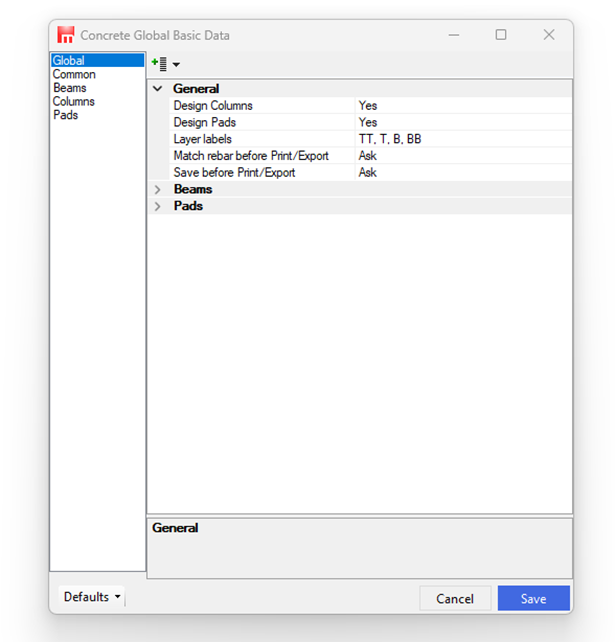
In the Col & Pad Design tab, all the column and pad foundation design items can be set. Using the header buttons either Column or Pad design can be turned on/off.
For column design, we can set the concrete grade, restraints conditions etc.
For pad design, concrete material grade, soil data and extra loading and load factor etc. can be set.
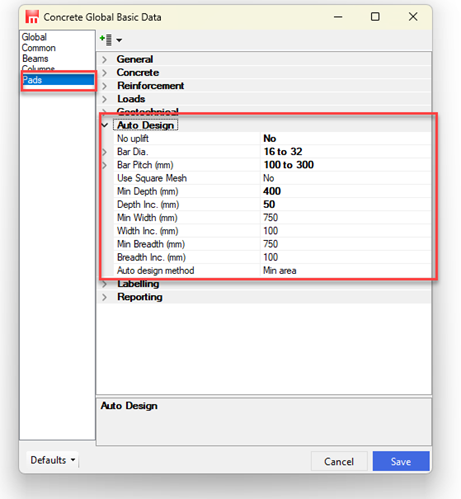
In the Auto Design tab, the minimum and maximum bar diameters and link spacing to be used can be set. These values will be used for auto-designing the beam. Change the values to match below.


In the Common tab, the Aggregates and the bar
covers and aggregate size are set.
The Beam
Curtailment method to be employed is
set as Detailed. This will curtail the
reinforcement to the bending moment envelope and then check that the bars are
satisfying the simplified curtailment rules.
Other methods of curtailment are available – see manual MasterKey Concrete Design for a fuller description.
The Beam Detailing can also be controlled in the Beam Detailing field by ticking the desired options.
On the right side of the tab are the detailing options for the beam links and the end of the beam.
Once we have set the detailing parameters to our satisfaction, we can apply these options, by clicking on the Save button
Concrete Beam Design
Click on the Auto Design All
Visible Members in Current Frame ( ) button to carry out an automatic design.

You can switch between the detailed results and the detailed
RC beam graphic by clicking on the Toggle (
button. Turn on the beam drawings if they are not already displayed. 
The beam elevation and section are displayed for each beam by clicking on the beam in the graphic area, showing the numbers, sizes and positions of the main reinforcement and links. Below the beam elevation is the bending moment/moment capacity diagram for the selected beam. Beams, columns and pad foundation can be selected by clicking on the required member in the right-hand panel, which shows the geometry of the frame.
MasterKey Concrete Design will design and detail the concrete beams in accordance with the basic set up. In certain cases, this means that after designing the beams, a number of detailing errors can be present, and the engineer needs to review the output and modify as necessary. Often it can be helpful to set up the basic data allowing as wide a range as possible of bar numbers and/or diameters, reviewing the reinforcement and then refining the basic data to suit.
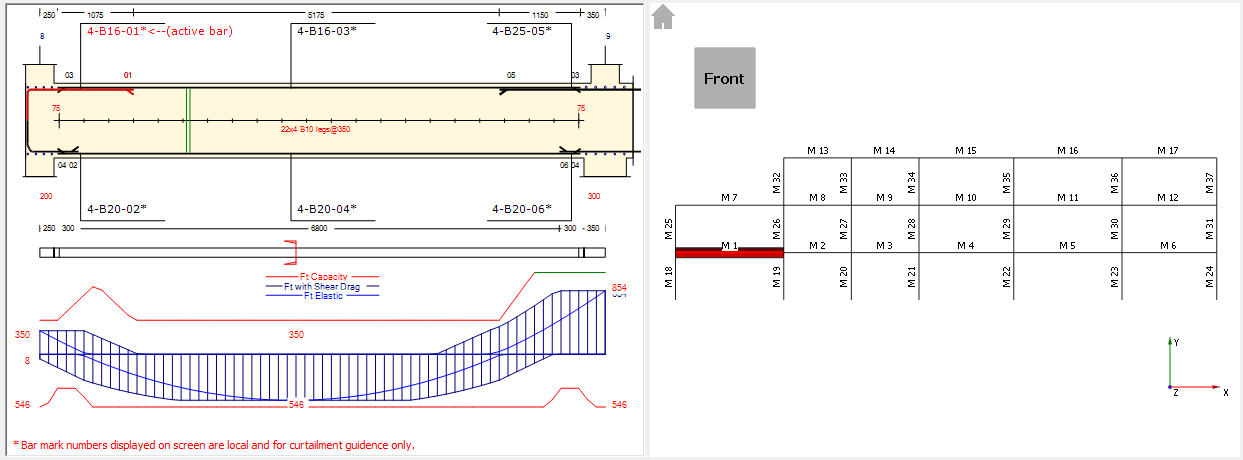
Double click on the bending moment diagram to change it to the shear force/capacity diagram.
Double click on the shear force diagram to return to the bending moment diagram for the selected beam.
Basic Bar Manipulation
Select member M1 from the right-hand pane. The reinforcement of the beam is as shown below.
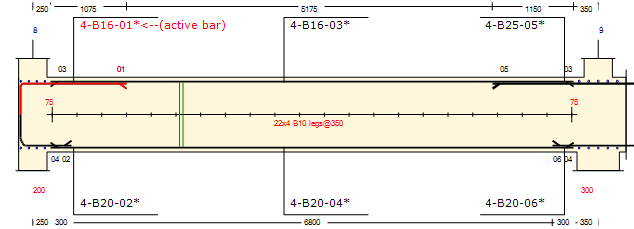
The number of bars and the diameter of the bars can be changed in two ways, using either the bottom left dialogue or by using the left and right mouse buttons directly on the reinforcement graphic. To make any changes to a set of bars, select the bars by clicking on the relevant bar mark on the graphic.
Select the bottom left-hand support bars by clicking on 4-B20-02*.
Hover the mouse over the highlighted bar mark (B20) and click with the right mouse button.
The bottom support bars have been changed to 16mm diameter bars. The screen and indicator bar remains white, and the beam remains passing all design checks.
Manipulating with the mouse buttons:
- Left Click – Increase Size, Number, Pitch
- Right Click – Decrease Size, Number, Pitch
Next, we will change the main bottom bars using the lower panel controls.
Click on 4-B20-04* to select the 04* main bottom reinforcement, so the label turns red. Select the Beam Data tab on the bottom dialogue.
On the bottom pane, under Current Bar, change the
Diameter to 16
The diameter of the bottom bars’ changes in the main reinforcement graphic to reflect the change made. The indicator bar will now have turned blue, indicating beam failures. The highlighted red areas also indicate where the beam is failing in moment capacity due to insufficient reinforcement.
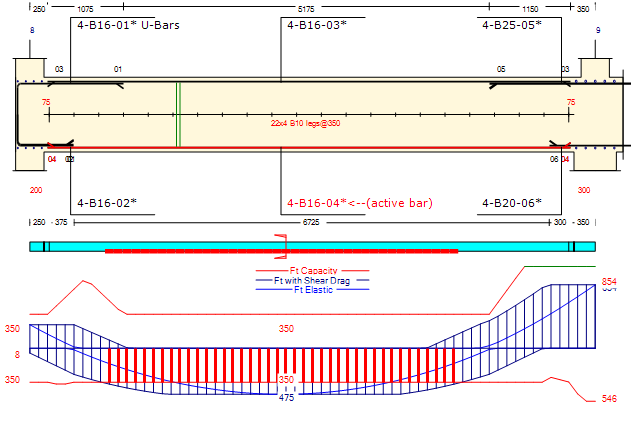
Switch to the detailed result, by clicking on the Toggle button.
A warning is showing under the Bending Moments section, indicating that the beam reinforcement is inadequate for bending.
Changing the bottom bars back to 20mm diameter bars will update the display and the warnings will disappear showing the beam now passes the design checks.
Switch back to the graphic, by clicking on the Toggle ( button.
In the bottom pane, select the Links & Nibs tab to display the shear link reinforcement tab. The current link reinforcement is set up by the “Nom” design.
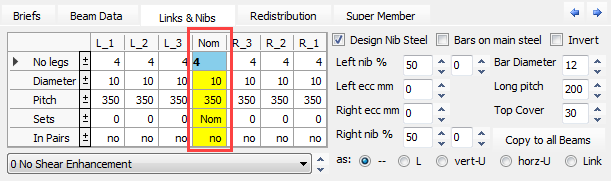
Click on the 4 below Nom to highlight this column of data.
Click on the No legs ( ) button twice on the left side using
the right mouse button to change the number of link legs to 2 (you
can also over type the value).
) button twice on the left side using
the right mouse button to change the number of link legs to 2 (you
can also over type the value).
Right click on the Diameter ( ) button to change the diameter of
the links to 8mm (it also acts on the Nom value as Nom is the column
highlighted).
The indicator bar will now have turned light blue, with dark blue strips indicating the areas where the shear design is inadequate. The shear diagram will also highlight areas of design failure in red.
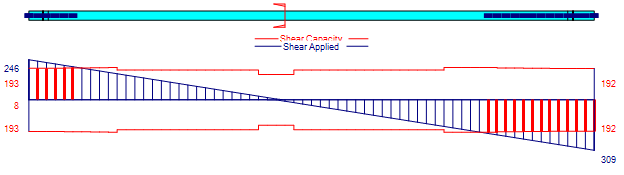
Select any cell under L_1 to activate the column and change the number of Sets of links to 5. Repeat the same for R_1 column.
This introduces 5 sets of links comprising 4 legs of 10mm diameter bars, spaced at 350mm at each end of the beam. The capacity of the shear design is now adequate, but the indicator bar is still light blue, indicating a detailing failure.
Switch to the detailed result, by clicking on the Toggle ( ) button and scroll down to Dimensional Checks of Links.
In the Links – Nominal Shear Zone a warning is shown against the Asv/sv indicating that in the nominal shear zone there are insufficient shear links.
Activate the Nom column and change the No legs to 4 in the nominal zone.
The beam now passes all design and dimensional checks.
Click on the Toggle
()button to show the beam reinforcement
arrangement graphic.
Concrete Column Design
The Auto Design All Visible Members in Current Frame ( ) function carry out not just the
beam, but the concrete column and pad foundation design as well at the same
time.
) function carry out not just the
beam, but the concrete column and pad foundation design as well at the same
time.
MasterKey Concrete Design and detail the concrete columns in accordance with the basic set up.
The detailed design and section are displayed for each column by clicking on the column in the graphic area, showing the numbers, sizes and positions of the main reinforcement and links.
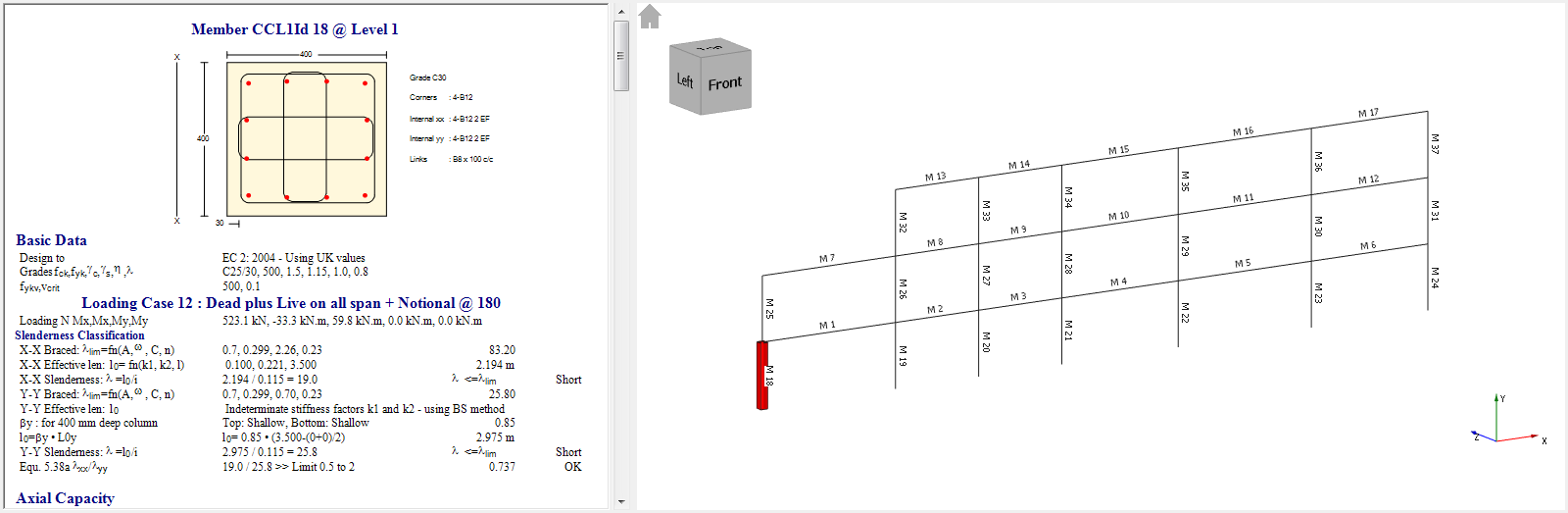
Bar Manipulation
Select member M18 from the right-hand pane. The detailed design and section of the column are shown on the left-hand side of the screen.
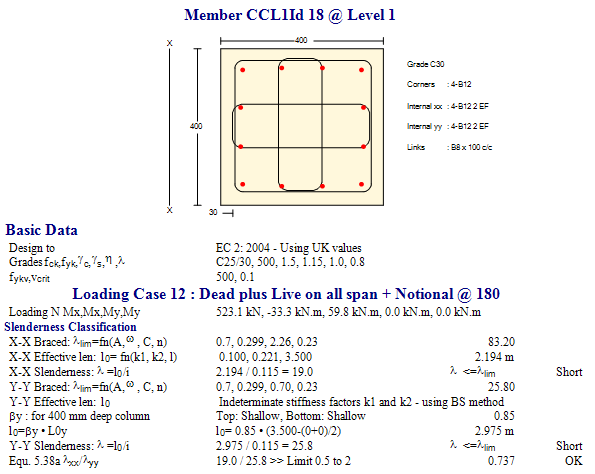
We can change the reinforcement properties and the default design settings on the Column Data tab at the bottom.
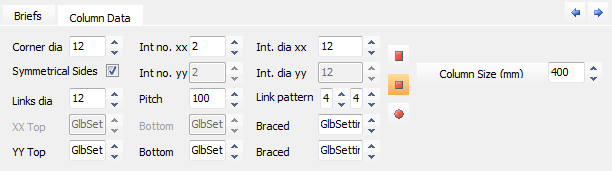
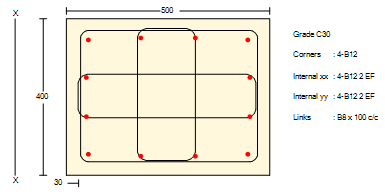
We can adjust the main corner rebar diameter, the number of the side rebars and its diameter and the diameter of the link, number of the link legs and the pitch as well.
On the bottom of the tab, we can modify the bracing conditions and the restraint setting on the top and the bottom around both xx and yy axis or we can leave on default settings.
Changing the Column Cross Sectional Shape
Even at the design stage, the section type and cross section dimensions can be altered on the Column Data tab.
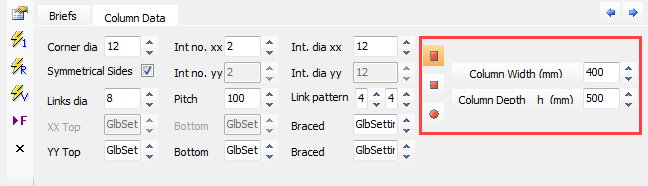
The design calculation will immediately reflect the change in the shape and size of the cross-section.
Concrete Pad Design
MasterKey Concrete Design and detail the concrete pads in accordance with the basic set up.
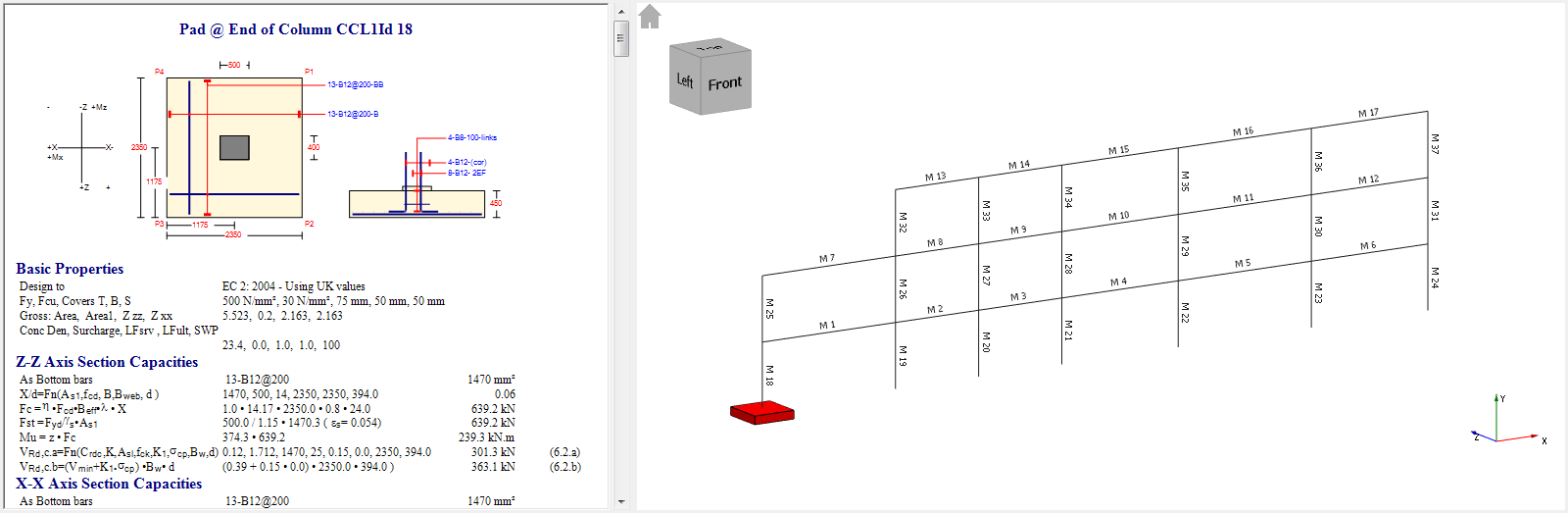
The detailed design and dimensions are displayed for each pad by clicking on the bottom of the column in the graphic area, showing the numbers, sizes and positions of the main reinforcement and links.
Manipulating the Pad Design
Select the pad at the bottom of the member M18 from the right-hand pane. The detailed design and dimension of the pad are shown on the left-hand side of the screen.
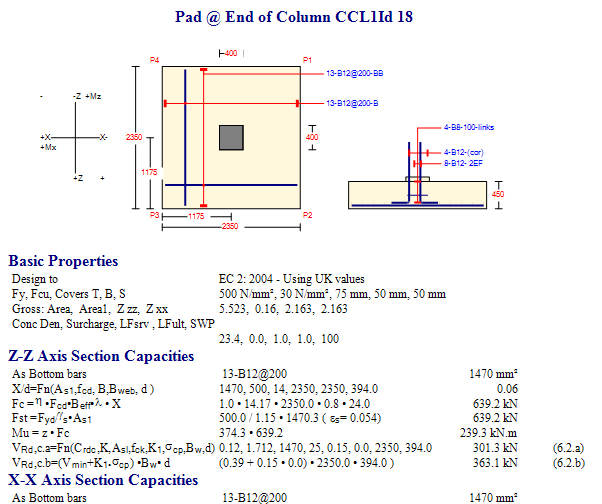
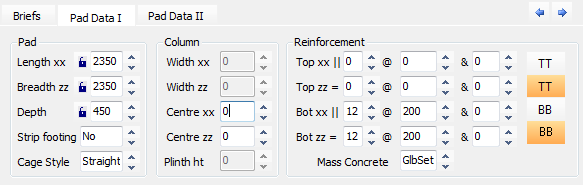
Pad Data I tab, we can modify the dimension of the pad, set column eccentricities if it is needed. In the Reinforcement field, the bottom and top reinforcement diameter and pitch can be set and adjust.
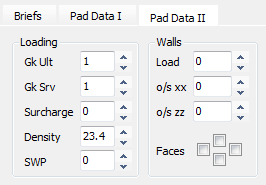
On the Pad Data II tab, we can add additional loadings, such as surcharge or wall loading, or loading factor.
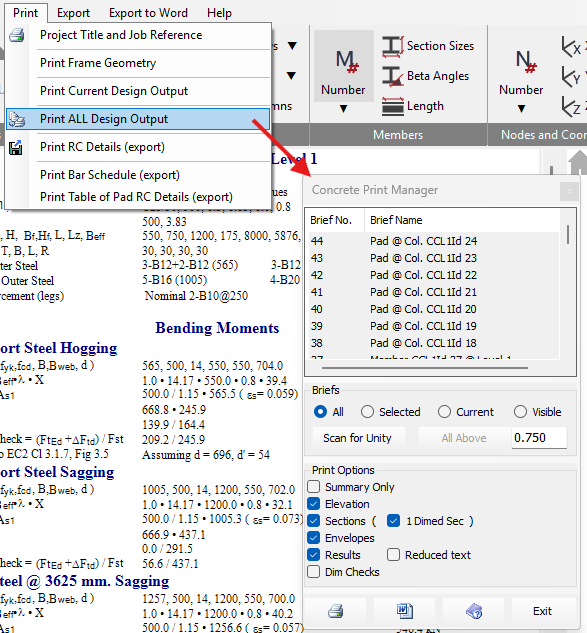
The design calculations and beam elevation and sections detailing the reinforcement can be printed out. From the Print file menu select Print Current Design Output. The calculations, elevation & sections as seen on screen will be printed.
The Concrete Print Manager dialogue
appears. By default, your current member is highlighted. If there were more
than one beam in the file, you could select which member(s) to print.
In the Print Options filed, most checkboxes are ticked by default. Again, you can choose what to print or leave out.
Click in the Dim Checks box to add these lines to the printout.
When you have
finished selecting the desired output options, click on the Print (  ) button
Scheduling the Reinforcement
Once the reinforcement has been detailed automatically and manually altered, if desired, the bar bending schedule can be generated and printed.
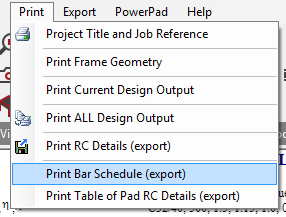
From the Print file menu select Print Bar Schedule (export).
The Schedule Details dialogue now appears.
From the drop list of codes select BS8666.
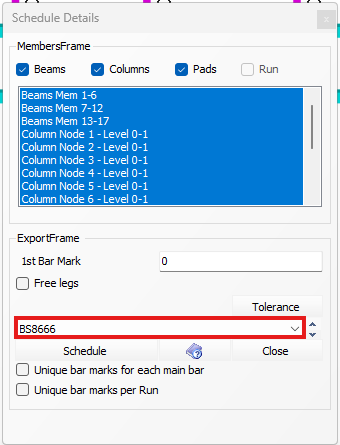
Click on the Schedule button to generate the bar bending schedule.
The MasterRC Bar Scheduler appears. This is an accurate schedule based on the elevation details. The schedule can be edited as described in the MasterKey Concrete Design Manual section 11.11, if desired.
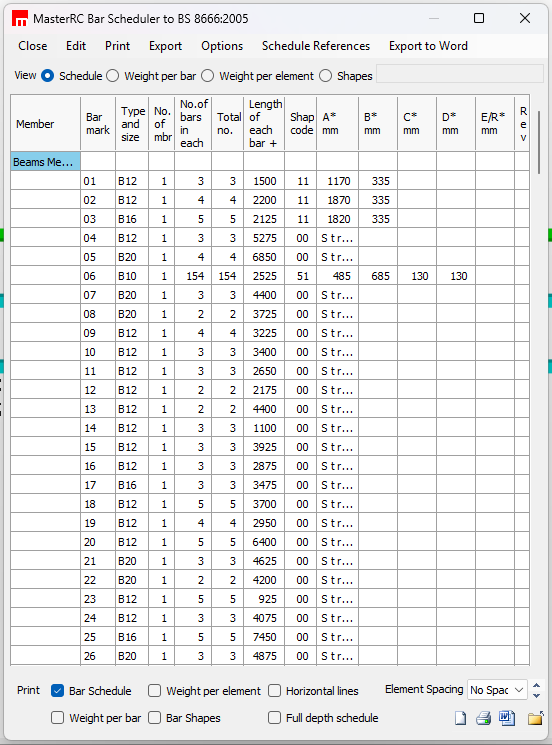
Finally, click Print Selected Items from the Print menu.
Click Yes to the following prompts
This will open the Job References form again. The various text boxes will still be filled in from before.
Click on the Printer button to print the schedule.
The analysis and design of the concrete frame are now complete, and the full frame has been detailed and scheduled.
End of Tutorial