
Uni-Directional Links
Exporting a Uni-Directional File from MasterSeries
- With your MasterSeries model open, go to BIM Exchange > Revit Exchange > MasterSeries Revit Link Manager on the top toolbar.
Select the Uni-Directional Exchange tab.
Click Export to Stand-Alone Exchange File.
In the dialog, click Browse and navigate to the folder where you want to save the file.
Enter a file name and click Save.
Click Export to generate the uni-directional exchange file.
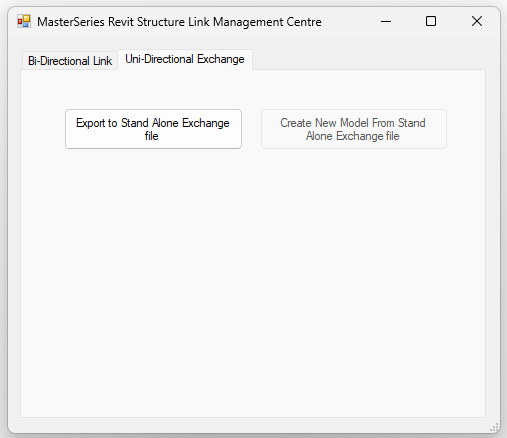
The uni-directional exchange options of the MasterSeries Revit Link Manager
Importing a Uni-Directional File into Revit
- Open Revit and create a new project.Save the project file.
From the ribbon, select Add-ins.
Click MasterSeries Revit Link Manager.
Select the Uni-Directional Exchange tab.
Click Import Model.
Browse to your uni-directional MSR file, select it, and click Open.

Opening the MasterSeries-Revit Link Manager in Revit 2026
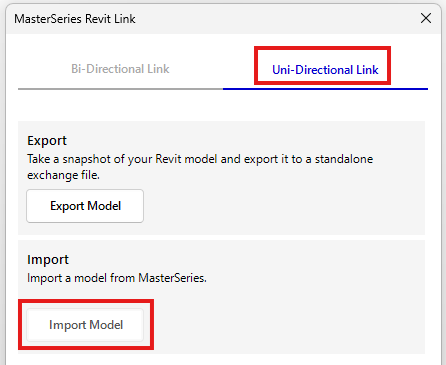
Creating a model from a uni-directional import in Revit 2026
Exporting a Uni-Directional File from Revit
- In your Revit project, go to the Add-ins tab.
Follow steps 2–5 from Exporting a Uni-Directional File from MasterSeries.
Click Send to export the uni-directional file.
Importing a Uni-Directional File into MasterSeries
- Start MasterSeries.
From the start-up screen, select Frames from the top menu.
From the dropdown, choose Import a File, then click Import from MasterSeries Revit Link Manager.
Follow steps 5–7 from Importing a Uni-Directional File to Revit, but this time select an RMS file.
Click Extract.
After the nodes and members have been extracted, click Load to open the frame in MasterFrame.
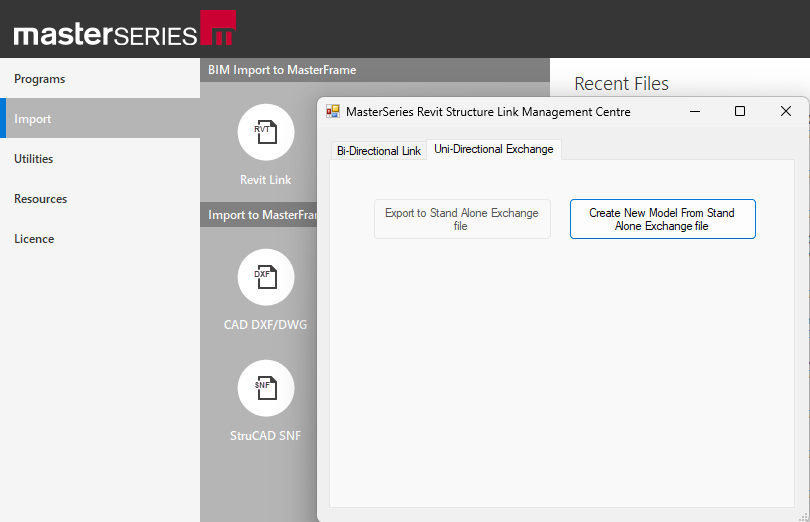
Extracting and loading a uni-directional export file to MasterFrame
Uni-Directional Link Notes
Uni-directional links can only be created with new projects, or a project which has all the elements deleted from it.