
Bi-Directional Links
Exporting a Bi-Directional File from MasterSeries
- With your MasterSeries model open, go to BIM Exchange > Revit Exchange > MasterSeries Revit Link Manager on the top toolbar.
Select the Bi-Directional Link tab.
Click Create New Link.
In the dialog, click Browse and choose the folder where you want to save the link file.
Enter a file name and click Save.
Click Submit Changes to Link to generate the bi-directional link file.
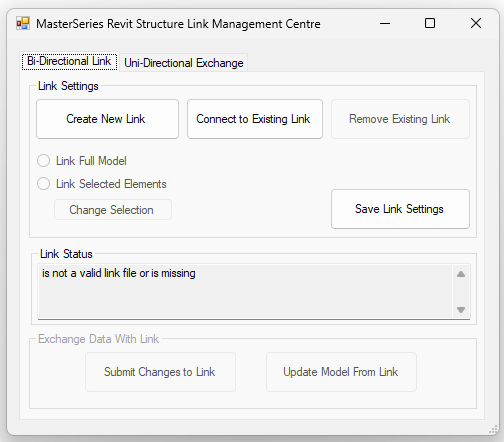
Creating a bi-directional link from the MasterSeries Revit Link Manager
Importing a Bi-Directional File into Revit
- Open Revit and create a new project.
Save the project file.
From the ribbon, select Add-ins.
Click MasterSeries Revit Link Manager.
Select the Bi-Directional Link tab.
Click Connect to Existing Link.
Browse to the MRLnK bi-directional link file, select it, and click Open.
Click Create New Model from Link to build the Revit model from the linked data.
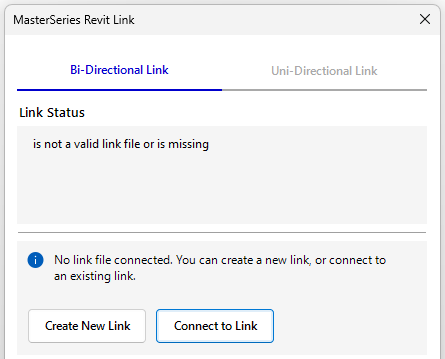
Connecting to an existing bi-directional link
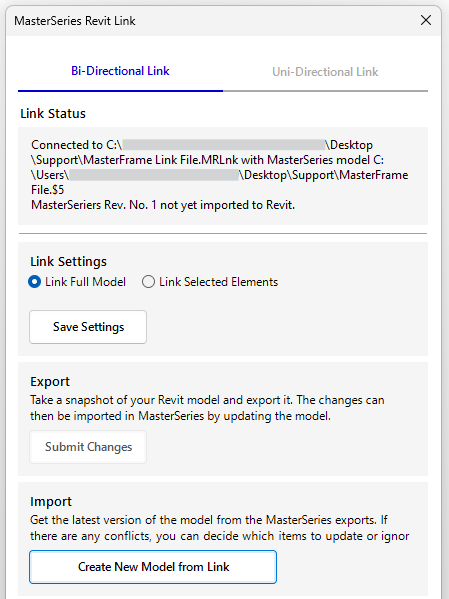
Creating a new model from a bi-directional link
Submitting Changes to a Bi-Directional Link
- Open the Revit Link Manager in either MasterSeries or Revit.
From the Bi-Directional Link tab, click Submit Changes to Link.
Updating a Model from a Bi-Directional Link
- Open the Revit Link Manager in either MasterSeries or Revit.
From the Bi-Directional Link tab, click Update Model from Link.
Review the proposed changes and choose which ones to import.
When you are satisfied, click OK to update the model.
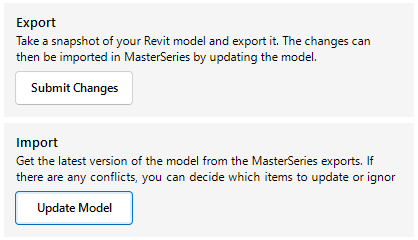
Updating a bi-directional link model from the Link Manager
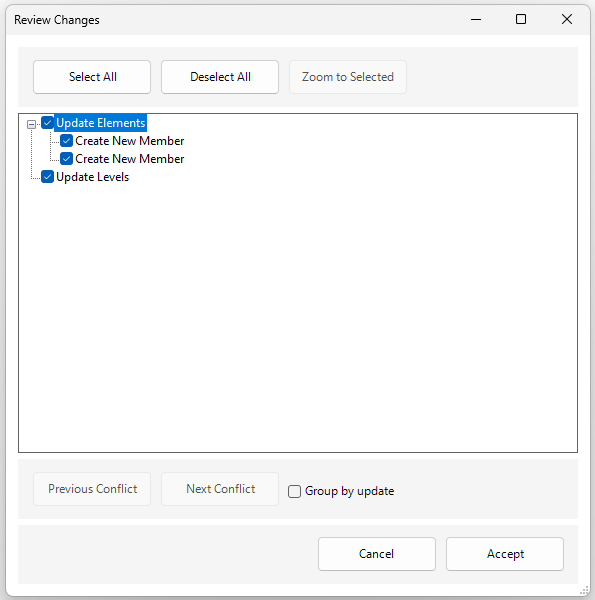
Reviewing changes to the linked model
Notes on Bi-Directional Links
- Bi-directional links can be easily broken. For example, renaming a file and attempting to reconnect it will fail because the MRLnK file does not maintain a version history for the renamed file and therefore cannot map members correctly.
To ensure consistent mapping between Revit and MasterSeries, we strongly recommend submitting changes to the link frequently. This helps prevent the two models from drifting apart over time.