
Section Mapping Database
The Section Mapping Database enables interoperability between MasterSeries and Revit sections by mapping based on the following criteria:
Element type: Column or framing element
Material: Steel, concrete, or timber
Section type: Examples include UB, UC, IPN, IPE, etc.
Section form: Examples include I-sections, CHS, RHS, ASB, etc.
Databases for Section Mapping
The MasterSeries Revit Link Manager comes with two databases for section mapping:
User Sections Database: Stores details of custom Revit families (editable).
MasterSeries Sections Database: Stores details of Revit's default families (read-only).
Accessing the Revit Link Manager
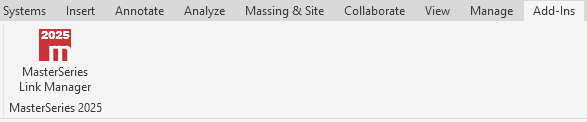
- With your Revit project open, go to the Add-ins tab in the ribbon.
- Click the MasterSeries Revit Link Manager icon.
Opening the Revit Section Mapping Database
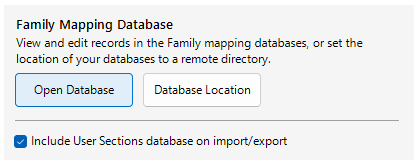
- Launch the Revit Link Manager.
- At the bottom of the dialog, click the Open Database button.
Switching Between Databases
To switch between the User Sections Database and MasterSeries Sections Database:
Open the Revit Section Mapping Database.
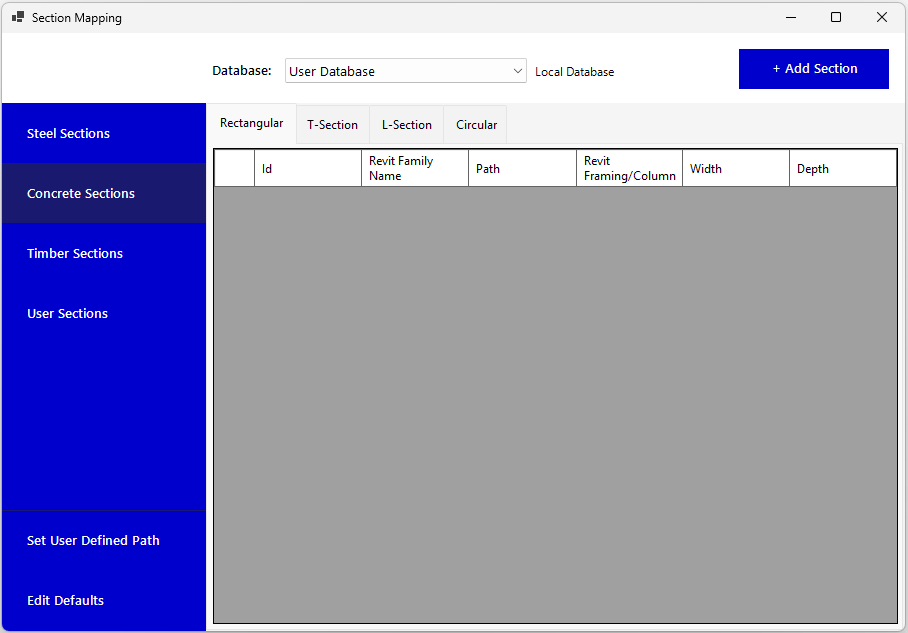
Use the dropdown at the top of the window to select the desired database.
Note: To edit the User Sections database, select the User Sections database from the dropdown.
Adding Support for Custom Revit Families
To export or import custom Revit families, add a record for each family in the Revit Section Mapping Database:
Open the Revit Section Mapping Database.
Ensure the database is set to User Database (use the dropdown at the top).
Select the tab corresponding to your custom Revit family’s material.
Select the appropriate section form tab.
Click the Add button in the toolbar.
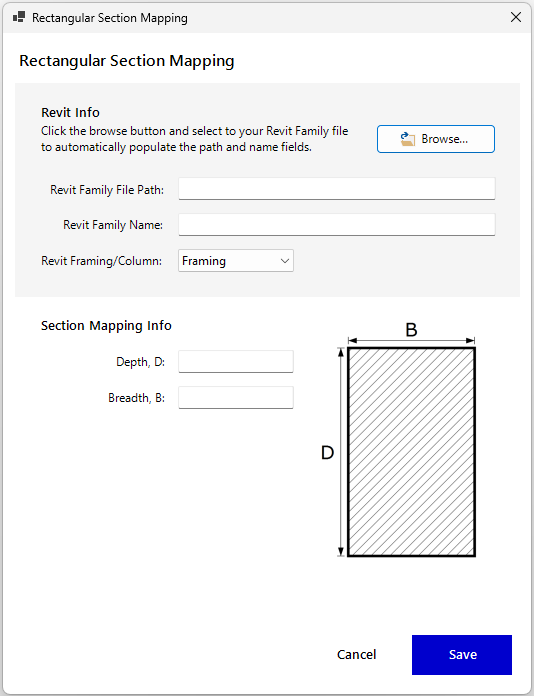
- Enter the Revit Family Path, Revit Family Name, and corresponding parameter values.
- Click Save.
Specifying a Custom Revit Family Library Location
If you are using a non-default location for your custom Revit families, follow these steps:
Open the Revit Section Mapping Database.
In the left menu, click Set User-Defined Path.
Navigate to the folder where your custom Revit family files are stored.
Click OK.
Once set, you can reference the custom location in family records using the [UDP] shortcode.
Referencing a Custom Revit Family Library Location in the Database
If you’ve specified a non-default library location for your custom Revit families:
Open the Revit Section Mapping Database.
Ensure the database is set to User Database using the dropdown at the top.
In the record referring to a custom Revit family, set the Path value to [UDP].
Note: [UDP] stands for User Defined Path.
Click Save.