T04-2 Simple Concrete Beam
Introduction
This tutorial will require you to have access to Masterbeam Concrete Beam design
MasterBeam Concrete Beam Designer is specialist structural software providing analysis, design, detailing and scheduling of concrete beams. The software designs simply supported & continuous beams, cantilevers and sub frames with up to 16 spans to EuroCode 2, BS 8110 and BS 4466 or BS 8666.
If you do not have access to any of this software, please contact us for a 14-day free trial to learn how it can benefit you and your business. 📑 MasterBeam Introduction
Overview & Outcome
In this tutorial we will aim to create, analyse and design a steel beam using MasterBeam. The aim of this tutorial is to provide you with a solid understanding of:
- Defining the member span, properties and loadings
- Setting the support conditions
- Design and modify the concrete beam
- Change section type and schedule the reinforcement
- Printing the bar schedule, design and analysis results
Version Information
This tutorial has been written for version 2024 of the MasterSeries software suite. Subsequent versions of the software may have additional features or changes in layout, however, the general procedure will remain the same.
Contact
We strive to make our tutorials as simple as possible without compromising on the technical aspects of the analysis procedure. Should you discover any errors, omissions, or are in need of additional clarification, please contact us by emailing your comments, or corrections to help@masterseries.com
We’re social – follow us on Facebook LinkedIn and Vimeo to keep up to date!
Loading MasterBeam
To start this tutorial, launch the main program of MasterSeries.
While standing on the Programs tab, select the Concrete Beams from the Beam Designers filed.
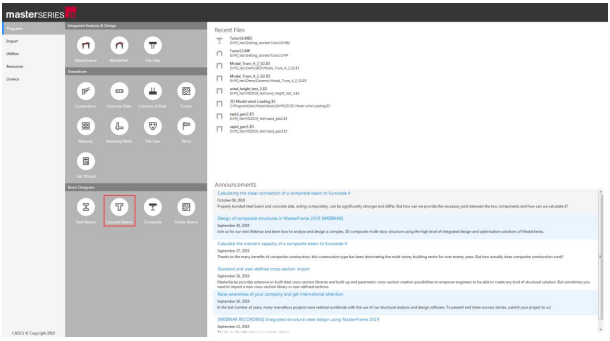
The File Selector Dialogue

 ) button on the top of the file selector tree, we can see the saved
favourite folders. By selecting one of them, the file tree will immediately jump to there. By clicking the
Star icon at the end of the line, we can remove or add each of them.
The table, on the right of the File Selector (#3), lists all of the MasterFrame models contained in
the selected folder.
) button on the top of the file selector tree, we can see the saved
favourite folders. By selecting one of them, the file tree will immediately jump to there. By clicking the
Star icon at the end of the line, we can remove or add each of them.
The table, on the right of the File Selector (#3), lists all of the MasterFrame models contained in
the selected folder.Beam Spans and Section Sizes
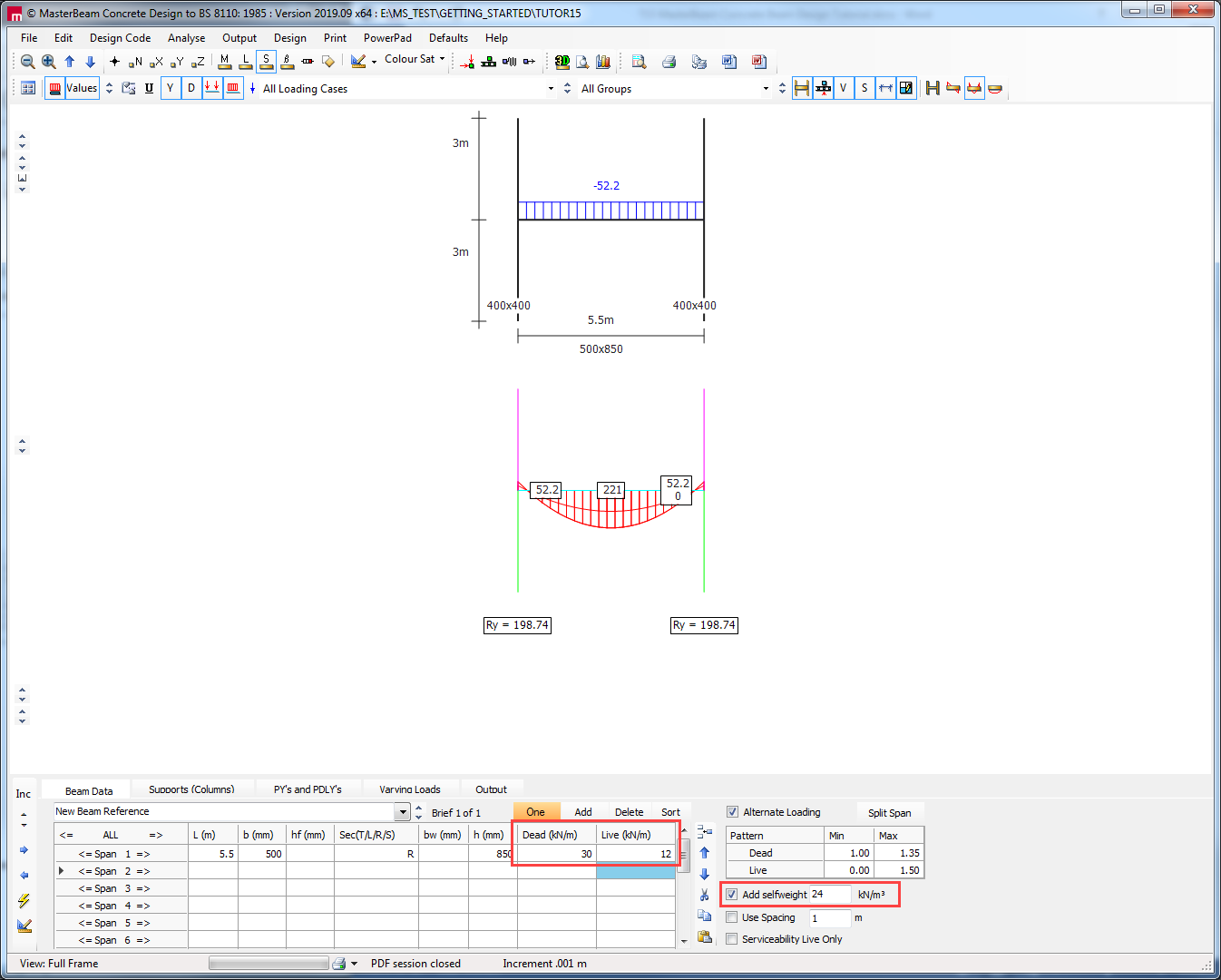
The Beam Data tab along the bottom of the window allows the user to select, edit and delete spans for their required beam. In this case a single span is required and therefore we will remove spans 2 and 3.
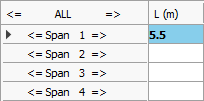
Click into the L (m) cell on the line Span 2 and delete the span length. This will remove spans 2 and 3 from the sub-frame.
Click into the L (m) cell on line Span 1 and change the span length to 5.5 meters.
Move to the Sec (T/L/R/S) cell and change the T to an R. This will change the beam cross-section from T-section to rectangular. The concrete beam designer can deal with several cross section shapes – rectangular (R), square (S), upright and inverted T and L beams.
For a rectangular beam we don’t require a flange height (hf) or a web width (bw). Remove the values from the hf (mm) and bw (mm) cells.
Change the values for the beam width to 500 mm in the b (mm) cell and the beam height to 850 mm in the h (mm) cell.

Basic Loadings
Before we adding the loadings we should ensure that the selected design standard is the Eurocode. Go to the Design Code menu on the top main menu and ensure that EC 3 with UK annex is the selected one. If not, select it.
We will now add a basic dead and live UDL to the beam.
Still standing on the Beam Data tab, click into the Dead (kN/m) cell on the line Span 1 and overwrite the dead UDL as 30 kN/m.
Move to the Live (kN/m) cell and set the live UDL value to 12 kN/m.
Check in the Add self weight checkbox to add the beam weight to the dead UDL load group, if it is not checked already.
Support Columns and End Supports
Initially the beam is part of a sub-frame with columns above and below. If you wish to consider a sub-frame analysis, the column heights and section sizes can be altered to suit your situation, after which the beam is designed.
In this tutorial we will consider a simply supported beam that is not part of a sub-frame arrangement.
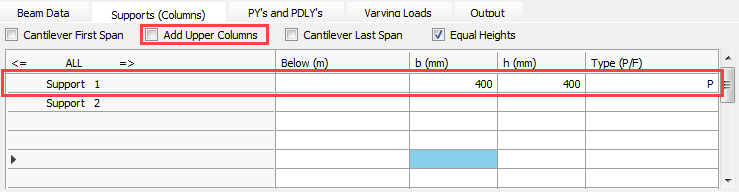
Move to the Support (Columns) tab.
Uncheck the Add Upper Columns checkbox and delete the dimension in the Below (m) cell to remove the lower columns.
And then change the Type (P/F) from F (fixed) to P (pinned).
Adjusting Graphics
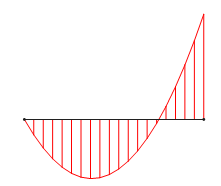
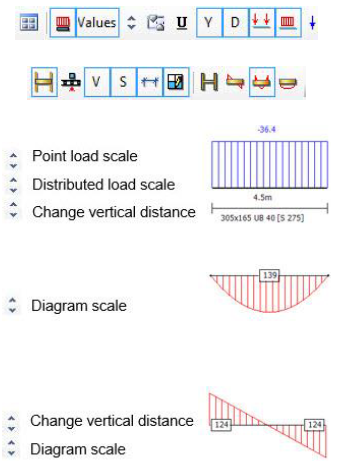
Each of the diagrams can be moved vertically up or down the screen. The loading and diagram scales can also be adjusted.
Whatever is displayed on the screen is also what will be printed, and so the clearer the diagram layout and scales are, the better the print out.
1. Adjust the different display options using the top toolbar buttons shown on the right
2. Manipulate the positions and scales of the diagrams using the arrows
Point, Partially Distributed and Variable Loads
Move to the PY’s and PDLY’s tab to have access the additional point and partial distributed loads editing area.
Adding point loads:
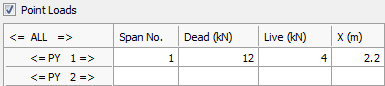
Click into the Span No. cell on the line PY 1 and enter 1. Move to the Dead (kN) cell and type 12 kN then move to the Live (kN) cell and type 4 kN and then move to the X(m) and set the point load distance from the start point of the beam to 2.2 meters.
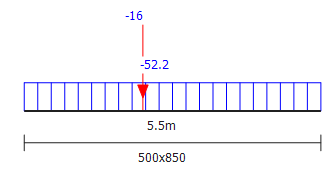
Adding a Partial UDL:
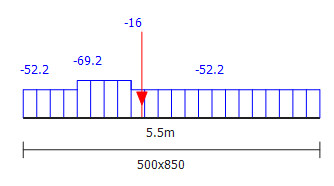
Click into the Span No. cell on the line PDLY 1 and enter 1. In the Dead (kN/m) cell type 12 kN/m and in the Live (kN/m) cell type 5 kN/m.
Provide a start distance of 1 meter in the X1 (m) cell and 2 meters in the X2 (m) cell.

Adding a Variable Distributed Load:
Move to the Varying Loads tab.
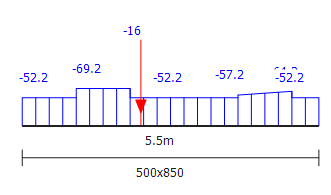
In the PTRY 1 row, enter a value of 1 for the Span No.
For the start distance enter 4 meters under the X1 (m) column and a starting load of 5 kN/m under the Dead (kN/m) load column.
Move to the X2 (m) cell and set the end distance to 5 meters and a ending load of 12 kN/m under the Dead (kN/m) load column.

Moving or Rolling Loads:
These various loads can be moved across the beam either individually, or as a group using the <= and => arrows before and after the load type.
The amount the loads move can be set using the Inc arrows on the LHS of the toolbar.
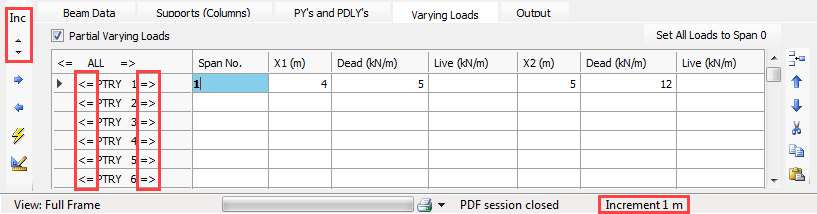
Using the up increment arrow, set the increments to 1 meter.
Click on the forward arrow <= after PRTY 1 and the variable load will move along the beam. Using the => button, move back the loading to the original position.
Graphics, Data & Analysis Output Options
Click on the Output tab.
The Graphics, Data and Analysis Output fields allow you to choose the number of diagrams and their size, the selection of input data, and the preferred analysis output to be printed.
Click in the Draw Four Diagrams checkbox in the Graphics field to show the loading, deflection, bending moment and shear force diagrams side-by-side.
Alternatively, the Draw Four Diagrams option can be turned on using the Draw Four Diagrams (
 ) button on the top
toolbar.
) button on the top
toolbar.
Loading Cases & Load Groups
Select the All Loading Cases dropdown list from the top toolbar.

By default there are already four loading cases and case titles generated.
As you move from one load case to the next the loading diagram will change to reflect the loads being considered in that particular load case.
Load Groups
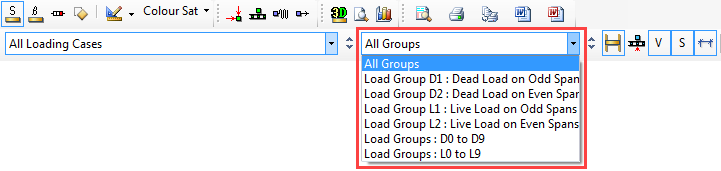
Select the All Groups dropdown list from the toolbar.
Again as you move from one load group to the next the loading diagram will change to display the loads in the selected group.
Designing the Concrete Beam
From the Design main menu, select Concrete Design option.
Basic Data and Defaults
Before designing the beam, basic information used for this particular concrete design must be set up.
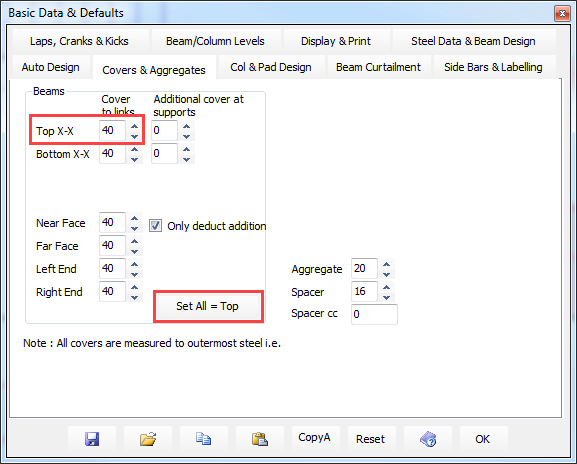
Move to the Covers & Aggregates tab and ensure the Top X-X cover is set to 40 mm and then click on the Set All = Top button to change all the other side covers to the same value as the top cover.
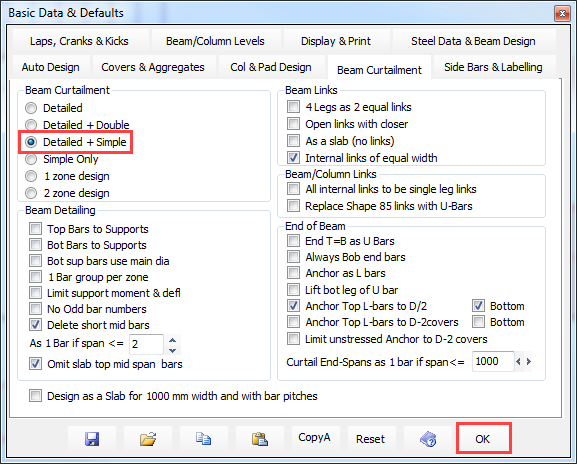
Move to the Beam Curtailment tab. Ensure that the Beam Curtailment is set to Detailed + Simple.
Click the OK button to apply the chosen defaults.
Auto Design
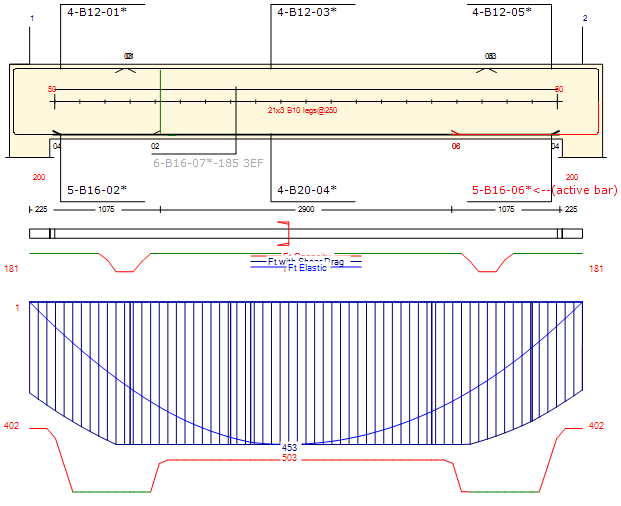
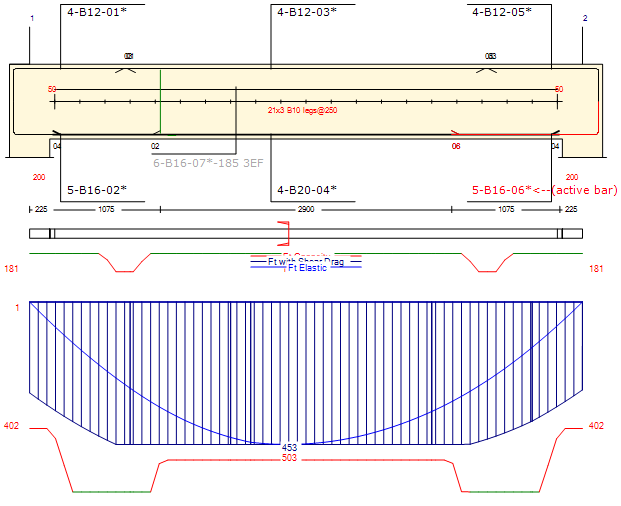
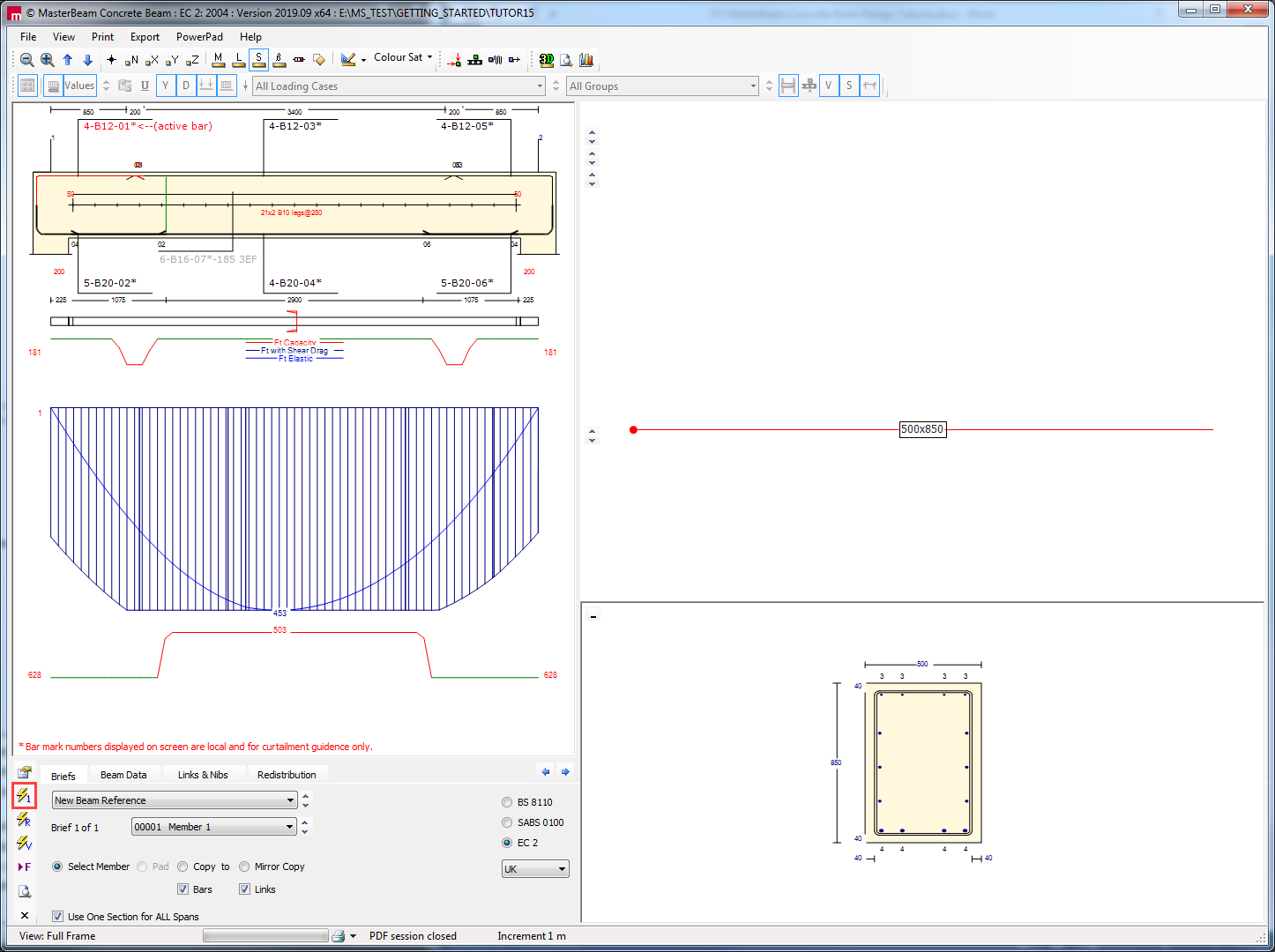
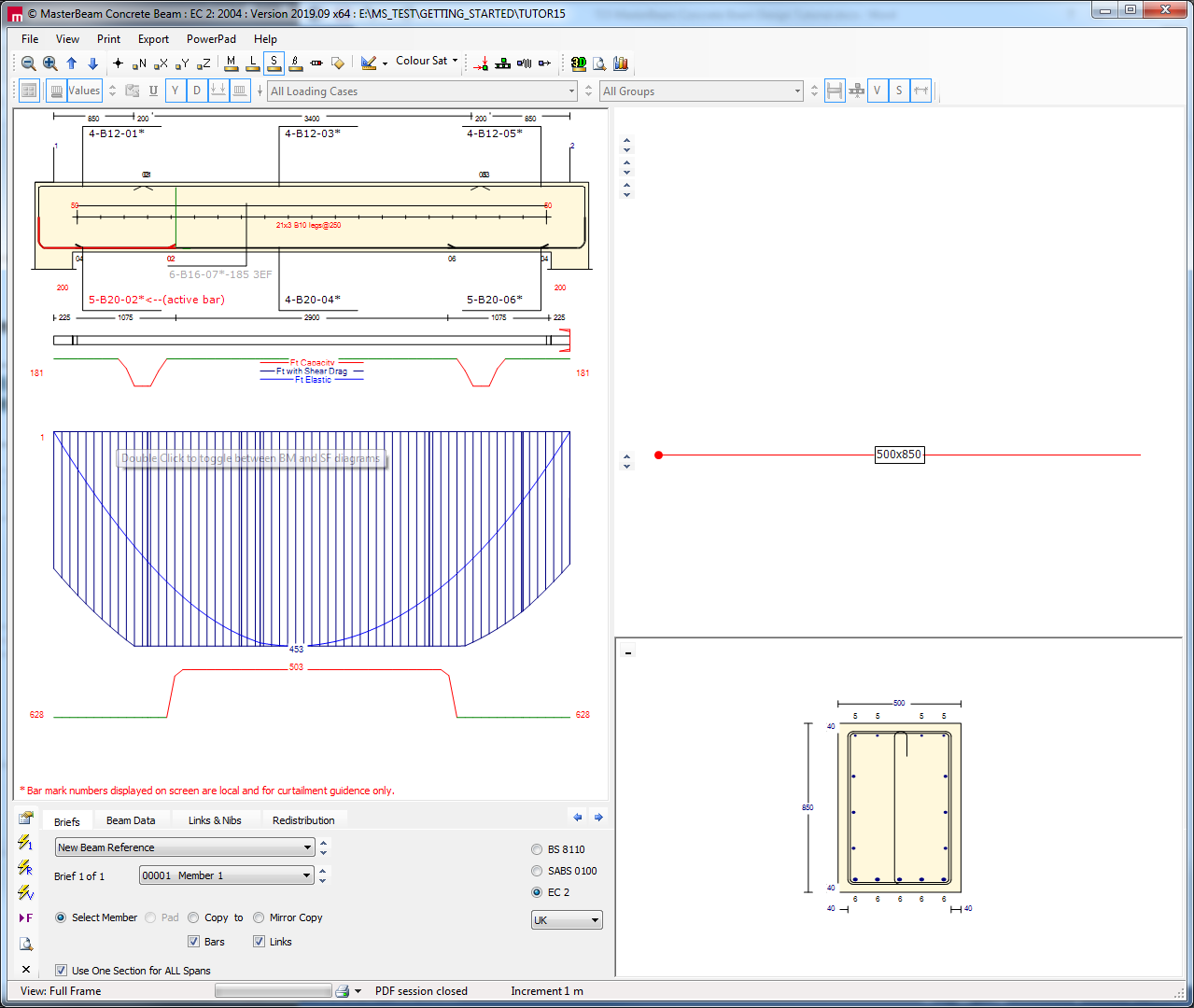
Click on the Auto Design Current Member ( ) button to auto design the beam.
Double click on the bending moment/capacity diagram to change it to the shear force/capacity diagram.
Double click the diagram again to bring it back to the bending moment diagram.
Modifying the Reinforcement
Click on the label of the bars you which to alter.
Using the left mouse button, click once on the number of the bars to increase the amount used.
Using the right mouse button, click on the number of the bars to return it to its original value.
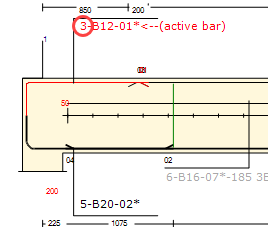
The bar diameter can be changed in the same fashion by clicking on the T. The bending moment capacity diagram will automatically update with each change in reinforcement.
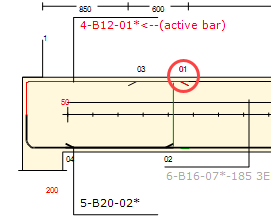
Select the label of the bars to be altered, in this case 4-B12-01.
Click on the right hand bar tag, and holding the mouse button down, drag the tag to the right to increase the length of the bar.
Notice the lap dimension increase as you do this. The bending moment diagram will also alter to reflect the changes.
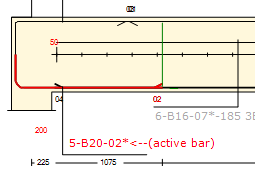
Select the 5-B20-02 label to make it the active bar.
Click on the left hand bar tag and drag it to the right
Next, drag it to the left, close to the left end of the beam.
This time the program realises that the lap length will be reduced by this action, and maintains the minimum lap length for the bar sizes in question.
Viewing Design and Dimensional Checks
Double click on the central long bar to replace the reinforcement diagrams with the design calculations and dimensional checks
Alternatively, use the Toggle between beam graphics and results
(
 ) button.
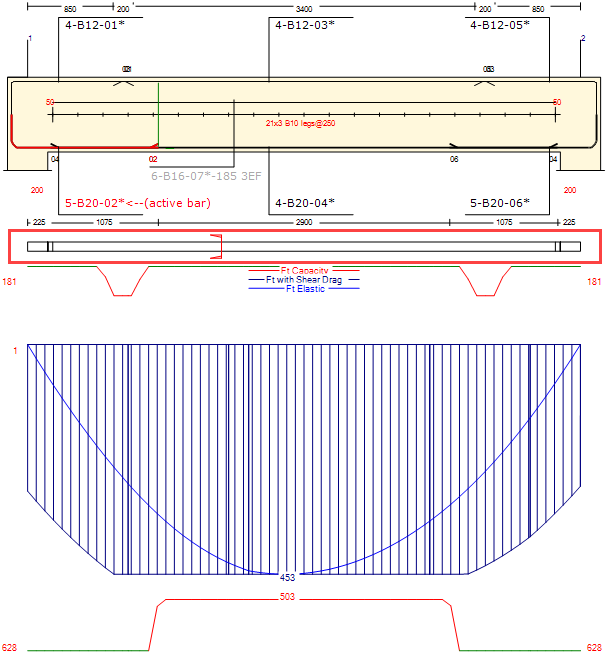
Scroll down through the calculations to see the full extent of the output.
Further Bar Manipulation
Move to the Beam Data tab.
The highlighted bar in the beam elevation can also be modified on the beam data tab, rather than graphically from the reinforcement diagram.
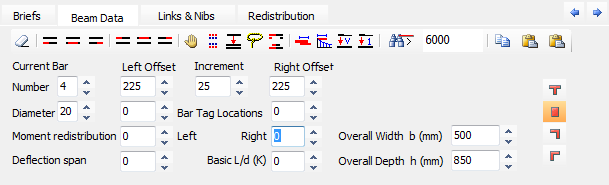 changed
Select the Beams Multiple Bar Drag (
 ) button.
This will let us drag all bars under the pick point, instead of just one.
Make 4-B20-04 the active bar and click on the bottom left lap (halfway between the tags) and drag the bars to the right
All the bars at this point move together. Note the immediate updating of the bending moment capacity envelope.
Deselect the Beams Multiple Bar Drag (
) button.
Splitting Bar Groups and Adjusting Links
Splitting Bar Groups
The bar groups can be split into separate groups and one of the groups moved into a new layer. This is particularly useful in narrow beams where there is insufficient width to adequately fit in the number of bars required.
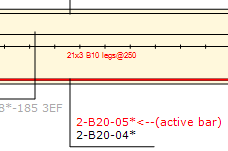
Select the 4-B20-04 label and click on the Split Current Label ( ) button.
Change the number of bars to 3 in each group.
While standing on the second 3-B20-04
label, click on the Switch Current Bar
(
 ) button.
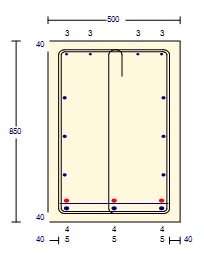
The selected group of the bottom middle bars is automatically moved into a second layer. The two layers are marked as B and BB, and are separated by a spacer bar as shown in the section to the right.
Adjusting Links
Move to the Links and Nibs tab.
The links in the beam can be altered in number, diameter, spacing and number of legs. There are three left and right columns, representing zones where the links can be altered. The middle zone relates to the nominal links to be used where no specific zones are filled in.
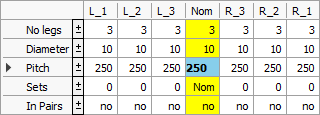
In this case we will accept the nominal 10 mm diameter links spaced at 250 mm centres using 3 legs across the section. These values can be changed by clicking the appropriate box and entering a new value.
Changing Beam Cross-section Shape
Move back to the Beam Data tab.
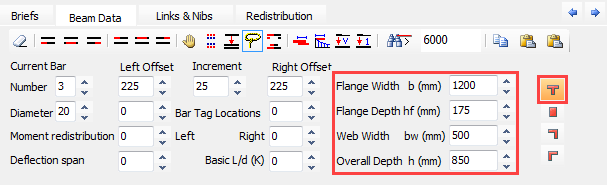
Click on the Tee Section ( ) button to change the beam cross-section to T.
Changed
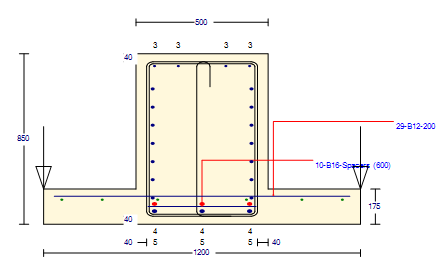
Enter 1200, 175, 500 and 850 mm for the Flange Width b (mm), Flange Depth hf (mm), Web Width bw (mm) and Overall Depth h (mm) editboxes respectively.
The moment capacity diagram and design calculations will immediately reflect the change in shape, and size of the cross-section.
Move to the Links & Nibs tab.
Check the Invert box to invert the section.
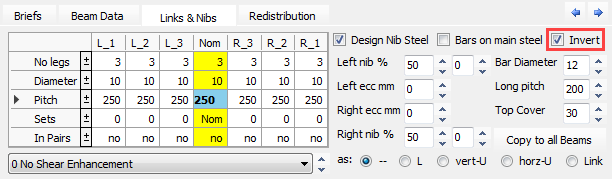
By default the vertical loads are applied at the ends of the cantilever outstands (nibs), with 50% of the load to each side as a worst case scenario. This will additionally induce bending and shear in the beam outstands and torsion in the beam.
To reduce the percentage of load applied to the nibs:
Click on the down arrow button for the Left Nib % until it reaches 10%, or simply enter a value of 10.
Repeat this process for the Right Nib.
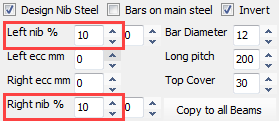
To view the various options, move
back to the Beam Data tab and
change cross-section to inverted L
by clicking on the L Section Left
( ) button.
Reset the section to a Rectangular section.
Print the Design Calculations
The design calculations, beam elevation and section detailing can be printed out as follows.
From the Print main menu select Print Current Design Output.
The Concrete Print Manager dialog appears. By default “Member 1” is highlighted. If there were more than one beam in the file you could select which members to print.
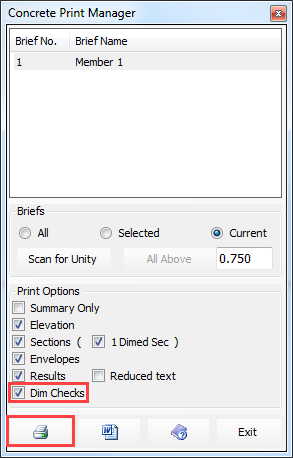
Under the Print Options field, most of the checkboxes are ticked by default.
Click in the Dim Checks checkbox to add these lines to the printout.
Select the Printer ( ) button.
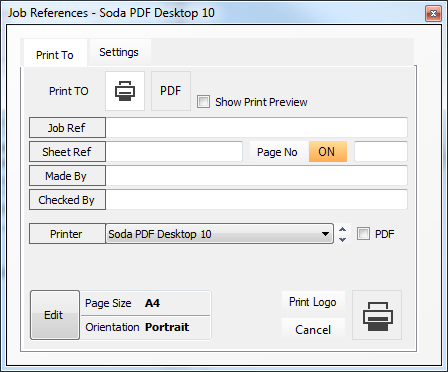
The Job References dialogue form will now appear.
The Job Reference dialogue enable you to finalise, or edit the job details that will appear in your printout prior to printing.
You can change the printer from the dropdown list of printers, and alter the page orientation from portrait to landscape.
Click the Printer ( ) button to print the calculations.
Scheduling the Reinforcement
Once the reinforcement has been detailed automatically and manually altered (if necessary), the bar bending schedule can be generated and printed.
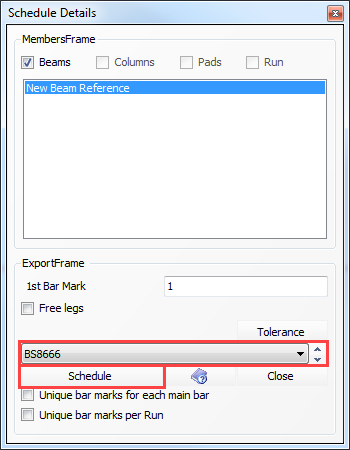
From the Print main menu go to the Print Bar Schedule (export).
You may be prompted to save the file first. You may also be prompted to match the beam reinforcement over the columns heads – this isn’t relevant in this single beam case.
The Schedule Details dialogue will now appear.
From the drop list of codes, select BS8666.
Click on the Schedule button to generate the bar bending schedule.
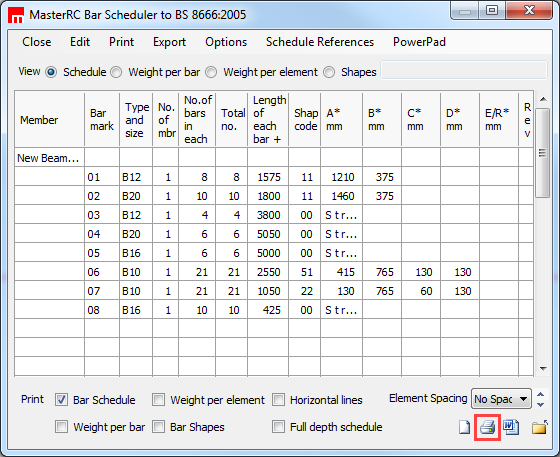
The MasterRC Bar Scheduler will now appear. This is an accurate schedule based on the elevation details.
Click on the Printer button to print the schedule.
Print the Text, Graphical & Tabular Output
From the File main menu, select Exit MasterKey Concrete option. This takes you back to the editing screen, and the graphical output of the analysis.
From the Output main menu, select View/Print Data. This displays a summary of the input data on screen.
From the Output Options field,
select the Print (
) button. On the appeared Job References dialogue click on Printer button.
Close the Summery of Data, by clicking on the Close button and move to the Output tab.
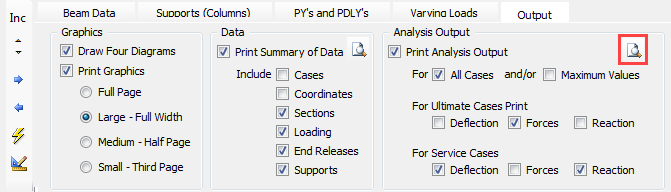
This will allow you to select which parts of the graphics, input data and tabular analysis output you wish to print.
You can preview the data by
selecting the Preview Analysis Output
(
 ) button.
From the Print main menu go to the Print Current Brief and select the Print button to print.
End of Tutorial