Introduction to MasterBeam
Loading MasterBeam
launch the main program of MasterSeries.
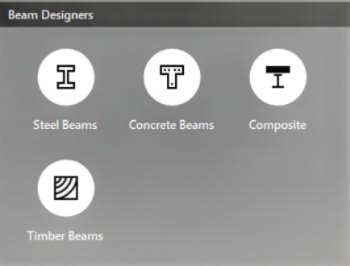
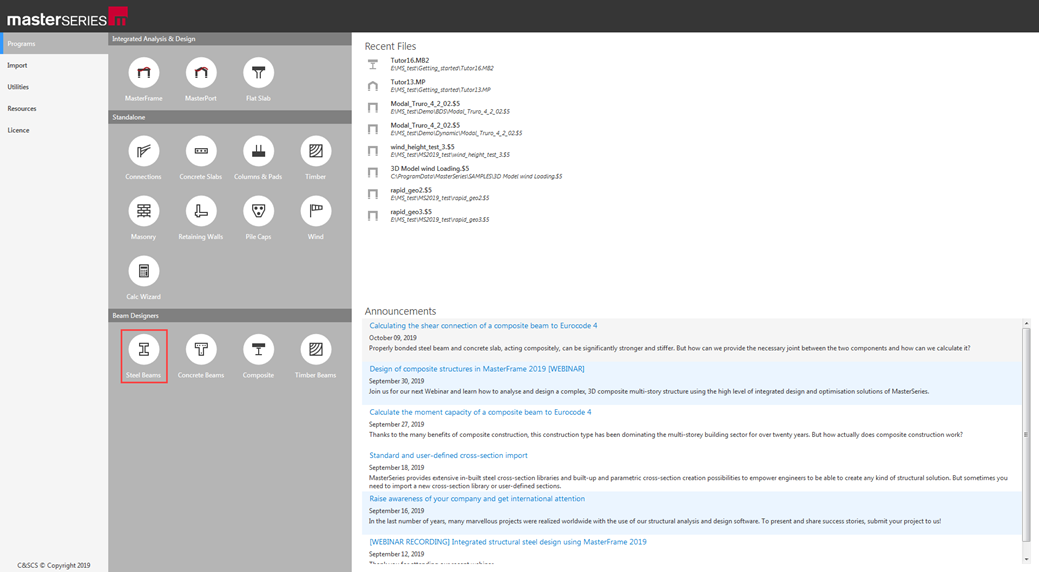
While on the Programs tab, select Steel Beams from the Beam Designers options.
This tutorial will require you to have access to MasterBeam: Steel Beam Designer.
MasterBeam Steel Beam Designer is specialist structural software providing analysis and design of simple & continuous beams, cantilevers and sub frames with up to 16 spans to EuroCode 3, BS 5950 or SABS 0162.
If you do not have access to any of this software, please contact us for a 14-day free trial to learn how it can benefit you and your business.
Overview & Outcome
In this tutorial we will aim to create, analyse and design a steel beam using MasterBeam. This tutorial aims to provide you with a solid understanding of:
- Defining the span, properties and loadings
- Setting the support conditions
- Carrying out analyse of the frame
- Design of the steel beam
- Viewing and printing the results
- Version Information
This tutorial has been written for version 2020.01 of the MasterSeries software suite. Subsequent versions of the software may have additional features or changes in layout; however, the general procedure will remain the same.
Contact
We strive to make our tutorials as simple as possible without compromising on the technical aspects of the analysis procedure. Should you discover any errors, omissions, or are in need of additional clarification, please contact us by emailing your comments, or corrections to help@masterseries.com.
We’re social – follow us on Facebook, LinkedIn and Vimeo to keep up to date!
Loading Masterbeam
To start this tutorial, launch the main program of MasterSeries.
While on the Programs tab, select Steel Beams from the Beam Designers options.
The File Selector dialogue
The File Selector dialogue will now be displayed.
You can use the File Selector to navigate in your folder tree and to select, modify or delete your existing model files or create a new one.
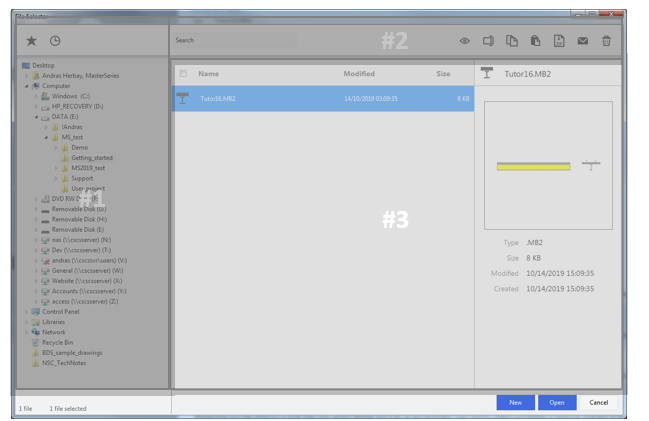
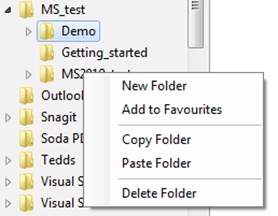
The left side of the File Selector is a usual Windows file tree (#1) which can be used to navigate between the folders. By clicking with the right mouse button on one of the folders in the tree, the following functions will be available:
1. Create a new folder in the selected folder
2. Add the selected folder to Favourites to create a shortcut
3. Copy selected folder to the clipboard
4. Paste the content of the clipboard to the selected folder
5. Delete the selected folder.
By clicking on the Star ( ) button on the top of the file selector tree, we can see the
saved favourite folders. By selecting one of them, the file tree will
immediately jump to there. By clicking the Star icon at the end of the line, we can
remove or add each of them.
) button on the top of the file selector tree, we can see the
saved favourite folders. By selecting one of them, the file tree will
immediately jump to there. By clicking the Star icon at the end of the line, we can
remove or add each of them.
The table, on the right of the File Selector (#3), lists all of the steel beam designer files contained in the selected folder.
Just like in any other table application, by clicking on the header, the content of the table can be ordered by name, modification date or size.
Selecting one of the model files, it can be opened by clicking on the Open button or using the top tool bar’s functionalities (#2), it can be manipulated.
 View/hide the model
preview window
View/hide the model
preview window
 Rename the selected
model file
Rename the selected
model file
 Copy the selected
file(s) to clipboard
Copy the selected
file(s) to clipboard
 Paste the selected
content of the clipboard to the actual folder
Paste the selected
content of the clipboard to the actual folder
 Zip the selected file(s)
with all the additional files
Zip the selected file(s)
with all the additional files
 Zip and attached to a
blank email the selected file(s) with all the additional files
Zip and attached to a
blank email the selected file(s) with all the additional files
 Delete the selected file(s)
Multiple file selection is available to select the files while pressing the Ctrl button, or using the range selection by selecting the first one then select the last one while pressing the Shift button. Or all of the files can be selected/deselected by clicking in/out the checkbox on the top of the first column.
To create a new model file click on the New button on the bottom, then type the name (for example Tutor04-1) and click on the Create button.