Masterkey Introduction
Loading Connection Design
Launch the main program of MasterSeries.
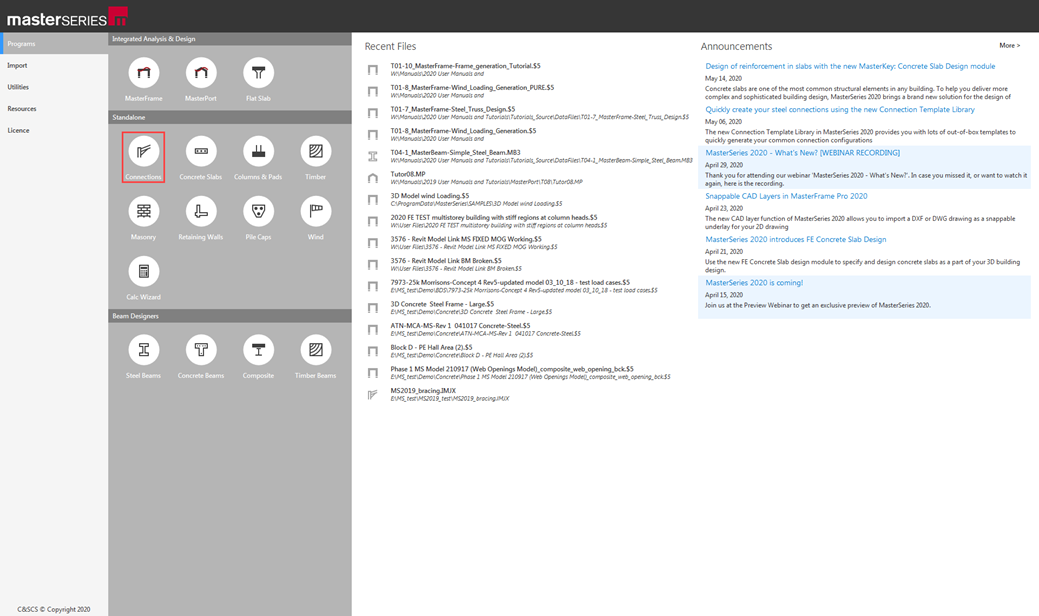
While on the Programs tab, select Connections from the Standalone options.
Introduction
This tutorial will require you to have access to MasterKey: Moment and Simple Connections, or PowerPad.
MasterKey Moment and Simple Connections are the UK's two leading software programs for the design of structural steel connections. The powerful editing facilities and the optional automatic design, enable the software to design and draft multi-storey and portal frame connections with maximum speed, economy and accuracy.
MasterSeries PowerPad is a complete structural analysis and design suite, and is the ideal choice for those who require a wide range of capabilities at an extremely affordable price.
If you do not have access to any of this software, please contact us for a 14-day free trial to learn how it can benefit you and your business.
Overview & Outcome
In this tutorial we will aim to create, analyse and design a steel beam using MasterBeam. This tutorial aims to provide you with a solid understanding of:
· The Joint Template Library
· The design of simple and moment connections
· Adding load cases, and new joints
· The automatic design of joints
· Interactive mode for MasterFrame and MasterPort
· The importing of joints and printing of results
Version Information
This tutorial has been written for version 2020.01 of the MasterSeries software suite. Subsequent versions of the software may have additional features or changes in layout; however, the general procedure will remain the same.
Contact
We strive to make our tutorials as simple as possible without compromising on the technical aspects of the analysis procedure. Should you discover any errors, omissions, or are in need of additional clarification, please contact us by emailing your comments, or corrections to help@masterseries.com.
We’re social – follow us on Facebook, LinkedIn and Vimeo to keep up to date!
Loading Connection Design
To start this tutorial, launch the main program of MasterSeries.
While on the Programs tab, select Connections from the Standalone options.
The File Selector dialogue
The File Selector dialogue will now be displayed.
You can use the File Selector to navigate in your folder tree and to select, modify or delete your existing model files or create a new one.
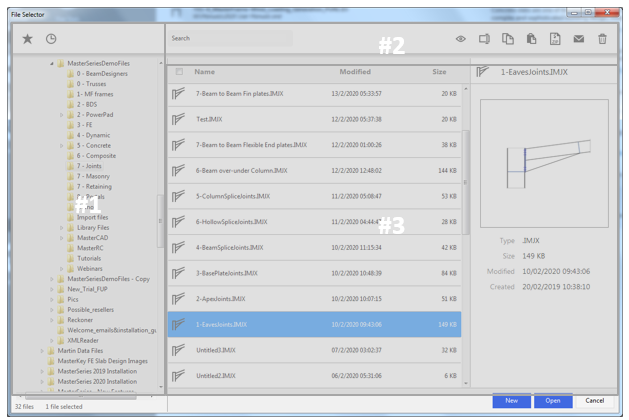
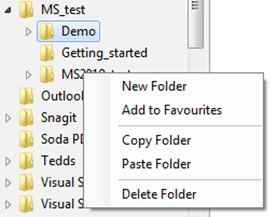
The left side of the File Selector is a usual Windows file tree (#1) which can be used to navigate between the folders. By clicking with the right mouse button on one of the folders in the tree, the following functions will be available:
1. Create a new folder in the selected folder
2. Add the selected folder to Favourites to create a shortcut
3. Copy selected folder to the clipboard
4. Paste the content of the clipboard to the selected folder
5. Delete the selected folder.
By clicking on the Star ( ) button on the top of the file selector tree, we can see the
saved favourite folders. By selecting one of them, the file tree will
immediately jump to there. By clicking the Star icon at the end of the line, we can
remove or add each of them.
) button on the top of the file selector tree, we can see the
saved favourite folders. By selecting one of them, the file tree will
immediately jump to there. By clicking the Star icon at the end of the line, we can
remove or add each of them.
The table, on the right of the File Selector (#3), lists all of the connection files contained in the selected folder.
Just like in any other table application, by clicking on the header, the content of the table can be ordered by name, modification date or size.
Selecting one of the model files, it can be opened by clicking on the Open button or using the top tool bar’s functionalities (#2), it can be manipulated.
 View/hide the model
preview window
View/hide the model
preview window
 Rename the selected
model file
Rename the selected
model file
 Copy the selected
file(s) to clipboard
Copy the selected
file(s) to clipboard
 Paste the selected
content of the clipboard to the actual folder
Paste the selected
content of the clipboard to the actual folder
 Zip the selected file(s)
with all the additional files
Zip the selected file(s)
with all the additional files
 Zip and attach to a
blank email the selected file(s) with all the additional files
Zip and attach to a
blank email the selected file(s) with all the additional files
 Delete the selected
file(s)
Delete the selected
file(s)
Multiple file selection is available to select the files while pressing the Ctrl button, or using the range selection by selecting the first one then select the last one while pressing the Shift button. Or all of the files can be selected/deselected by clicking in/out the checkbox on the top of the first column.
To create a new model file click on the New button on the bottom, then type the name (for example Tutor03-1) and click on the Create button.
The Default Settings
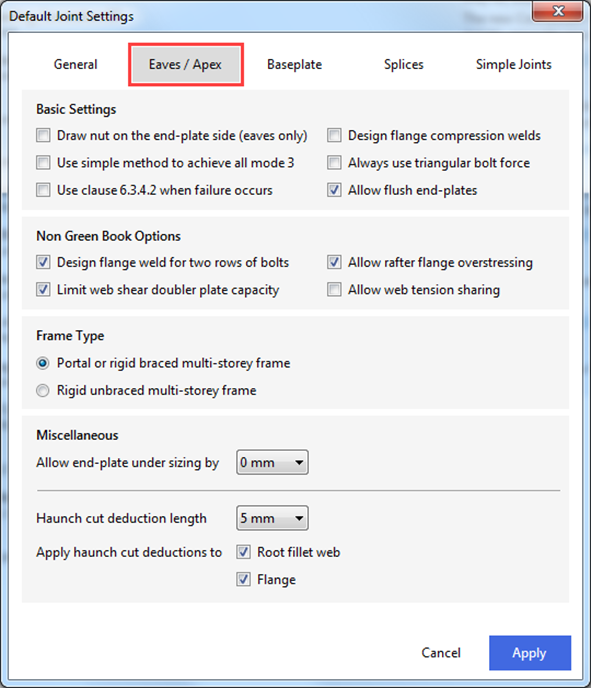
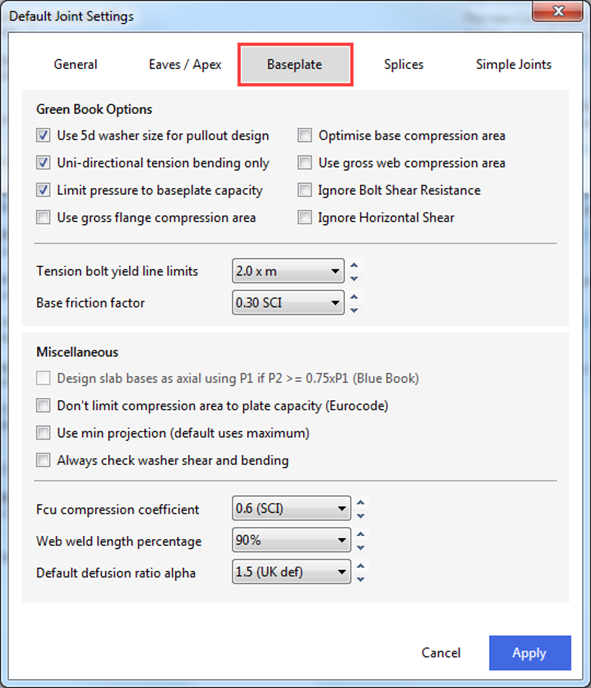
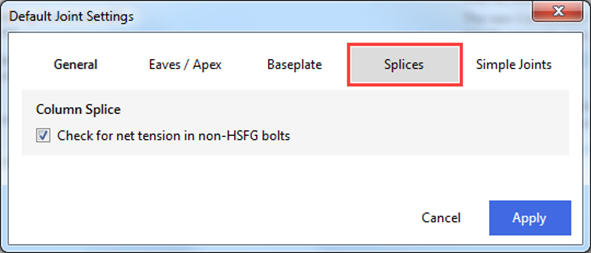
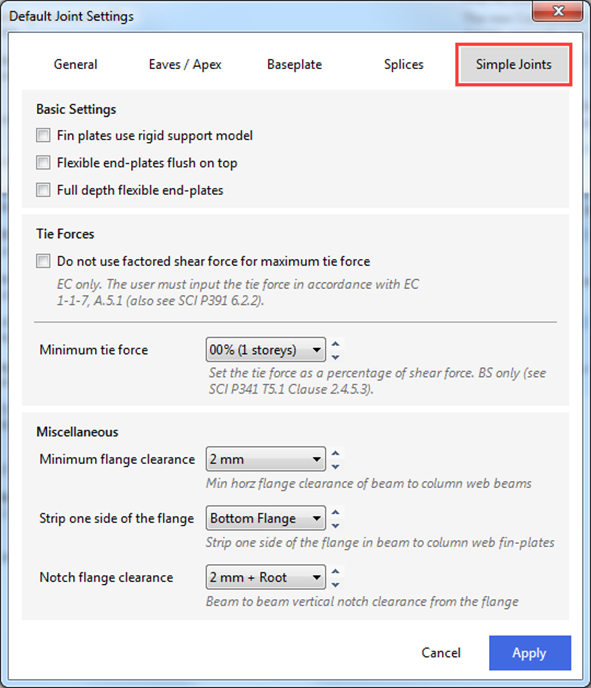
MasterKey: Connections has a lot of different input values and options. To speed up the design process some of these are stored as defaults. These are defaults are displayed on the start-up of any new connections project. They should reflect your design or fabrication style and will be used when you create your next file.
For now, set the values to match the ones shown below.
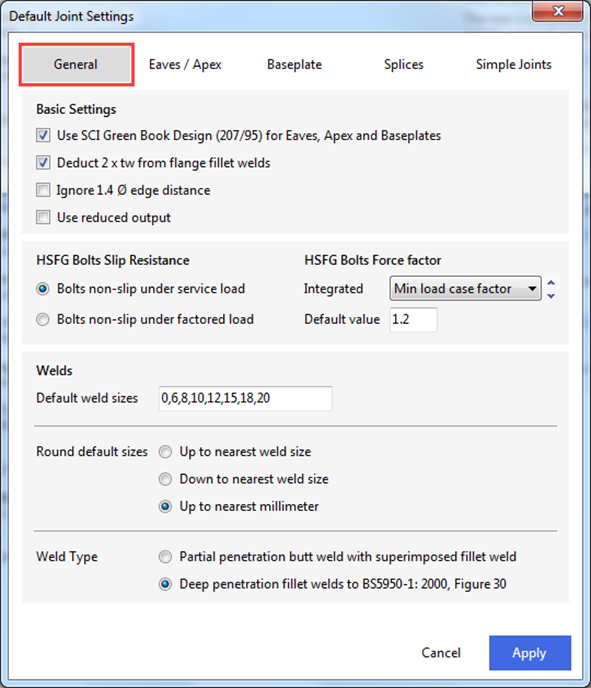
When finished, click the Apply button to set the default values.