Defining a Composite Beam Member in MasterFrame
To ensure your member is defined as a "yellow composite member" in MasterSeries for editing and checking, you need to meet several criteria at the MasterFrame (editing) stage, which then displays the member in yellow.
Here's a comprehensive list of what needs to be done:
Prerequisites for a Member to be Identified as a Yellow Composite Member (at MasterFrame Editing Stage):
Member Properties
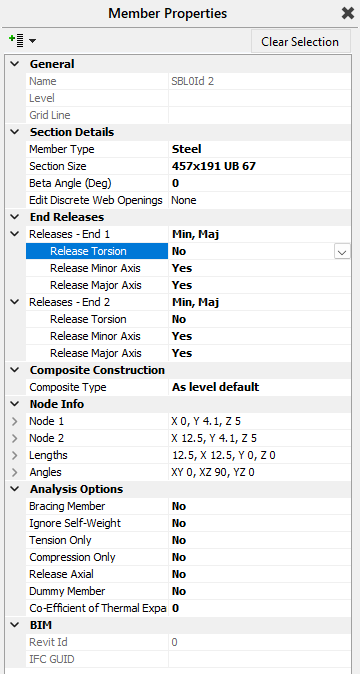
Section Type: The member must be an I section or channel section.
Beta Angle: It must have a beta angle of exactly 0. You can check this by switching on the 'Member Orientation' button in the top toolbar. To change it, go to 'Properties' > 'Member Cross Section Orientation (β angle)' and set the angle to 0 degrees
End Releases: Both ends of the member must be released in the major axis so it is seen as a simply supported beam. You can check this by switching on the 'Draw Member End Releases' button on the top toolbar. To alter, select 'Release Ends' from the 'Properties' menu and release the major axis where needed by clicking on the appropriate end of the member.
Member Attributes: The member must not be set as a 'bracing' member. Member attributes can be accessed from the 'Properties' menu.
The member can not be:
- Curved Member
- FE Attached Beam
- Double Members
- Compound Sections: It must not have a top plate or top channel on an I section (compound section).
Composite Settings
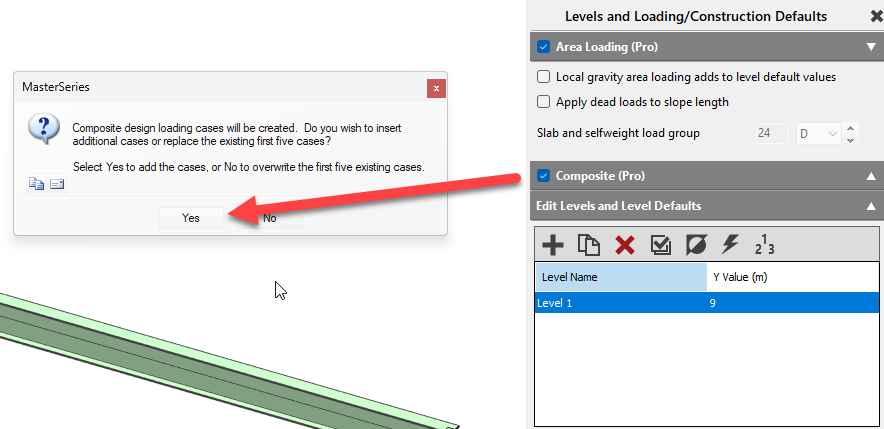
Composite Construction: The Composite setting must be turned on within 'Loads' > 'Floor and Roof Panels - Area Loading and Construction (Pro)' > 'Default Loading and Construction Per Level'. and turn on Composite (Pro).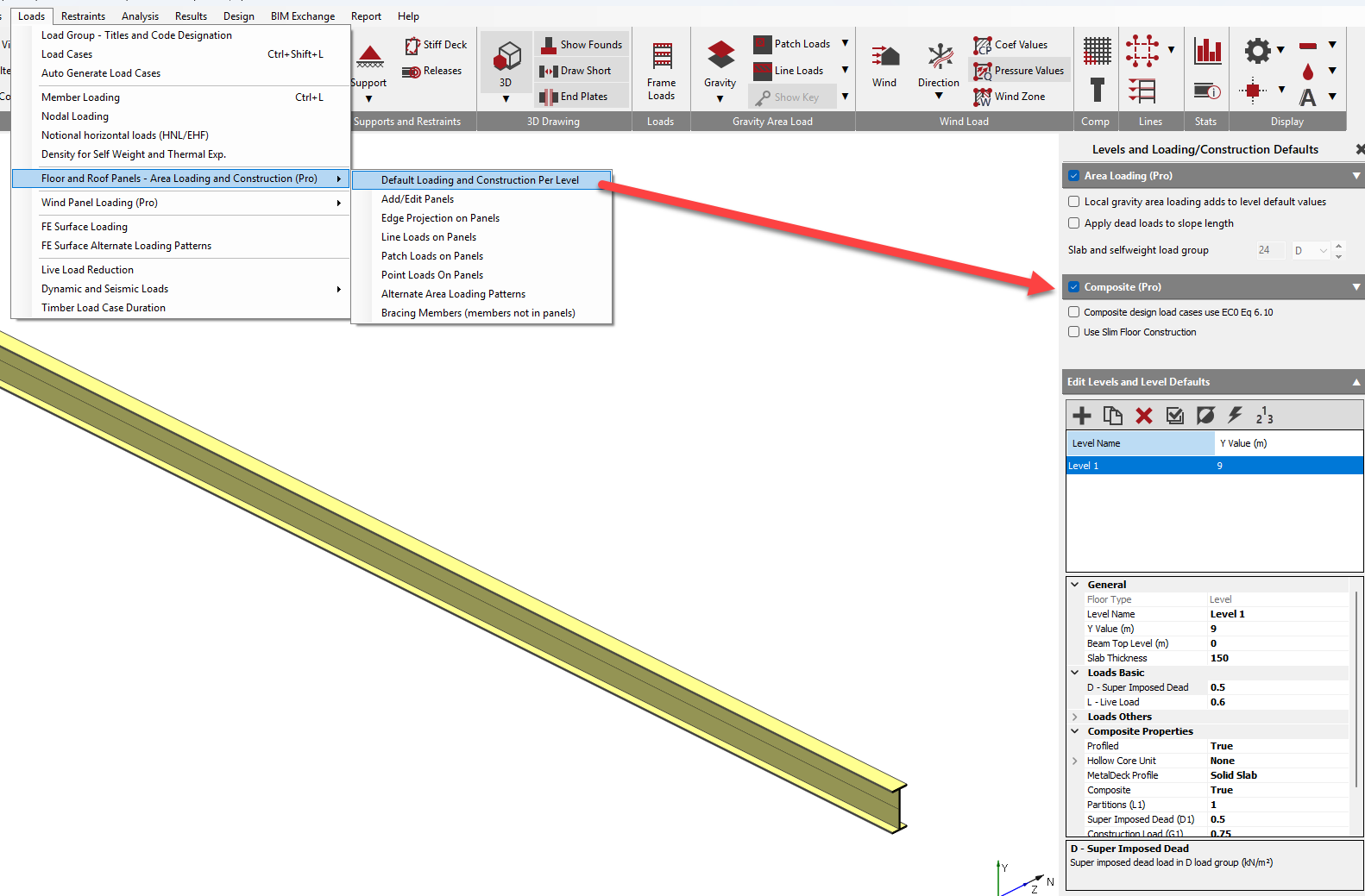
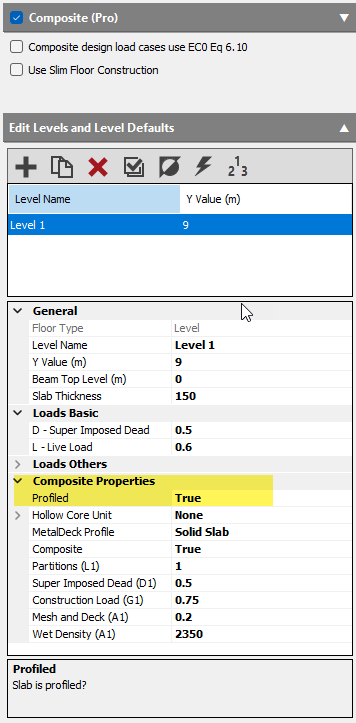
Level Defaults: It must not be set as non-composite in the level defaults. This can be checked under the 'Composite Properties' heading, where 'Profiled' and 'Composite' options should be set to 'True'.
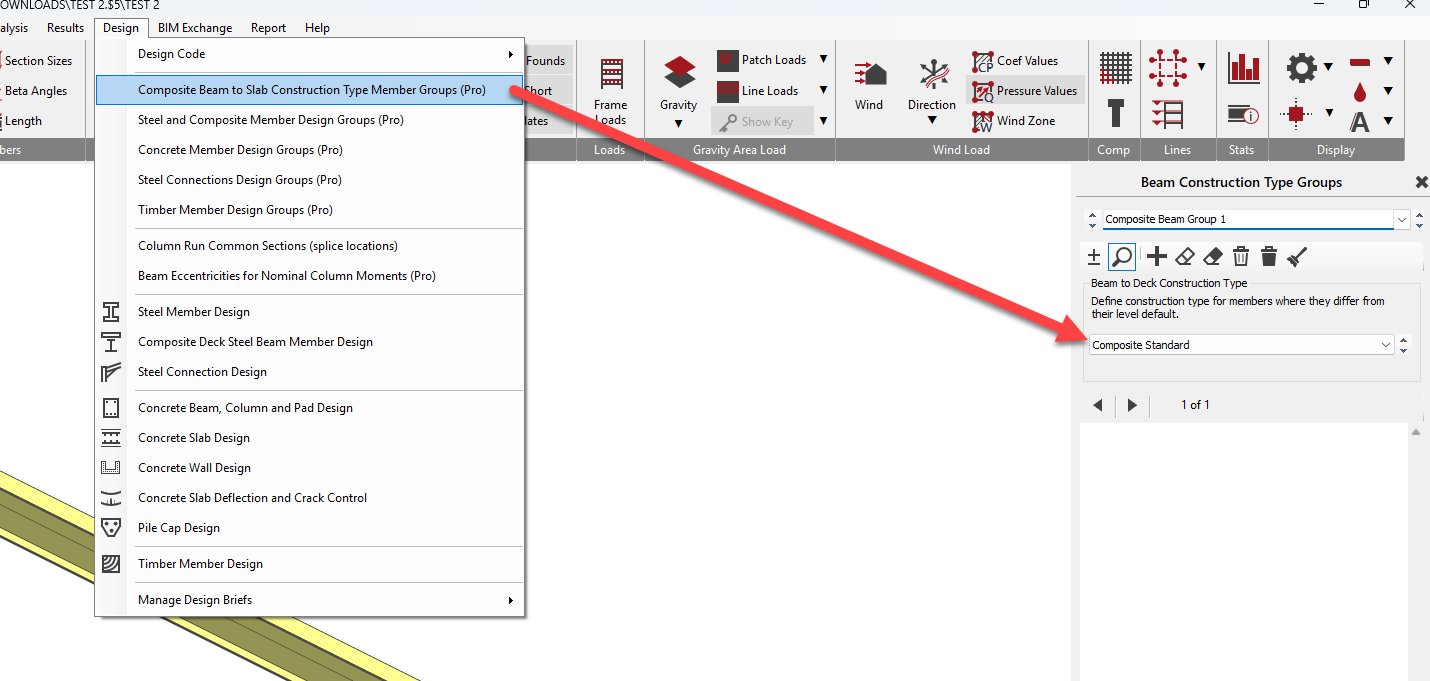
Member Construction Type Groups: It must not be set as non-composite in the member construction type groups. If a beam is unintentionally placed in a non-composite group, you need to remove it from that group via 'Design' > 'Composite Beam to Slab Construction Type Member Groups (Pro)'.
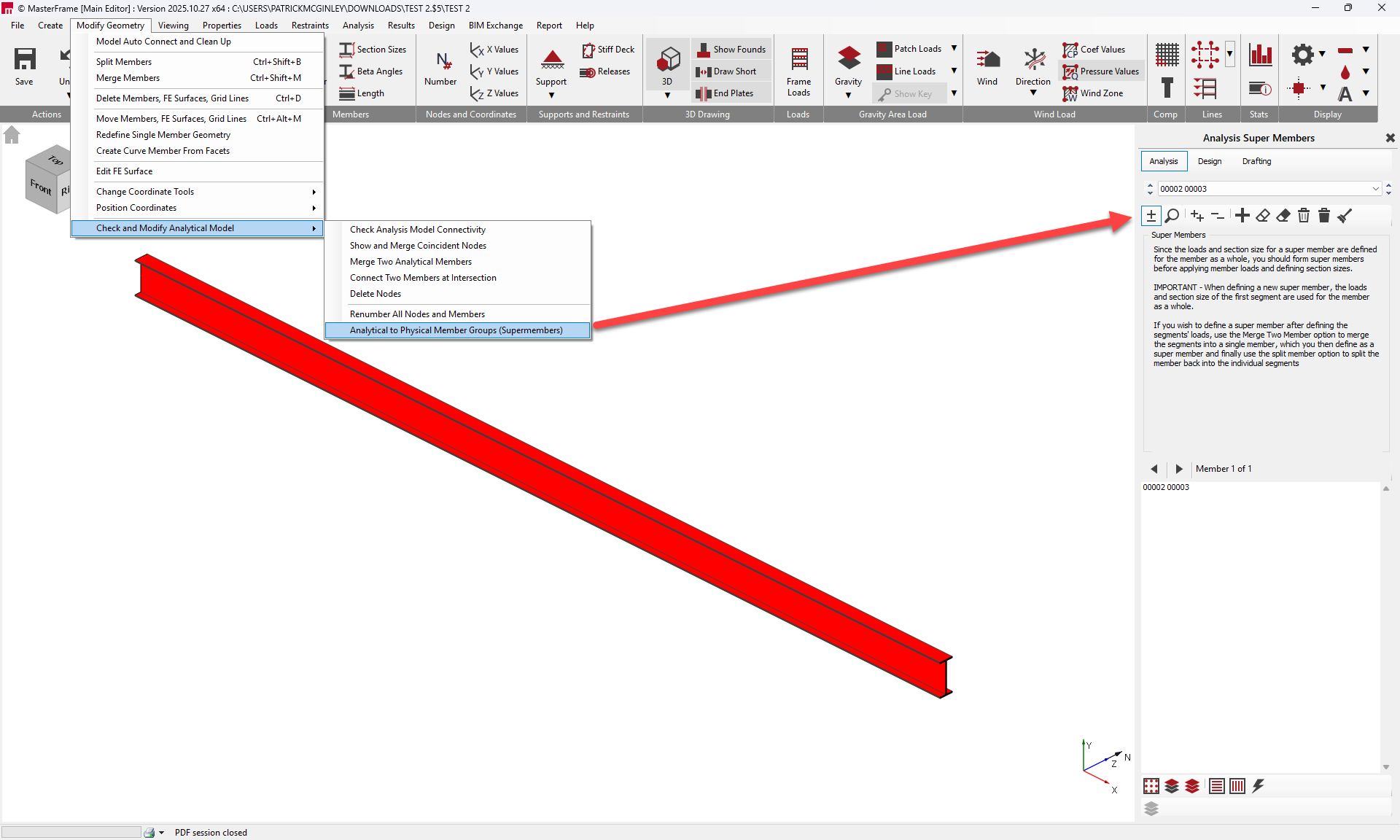
Primary Beams (Supermembers): Primary beams that are formed from several members, or split up - must be set up as Analysis Supermembers. These supermembers must be released only at their ends, with no intermediate releases.
How to Check if a Member is a Yellow Composite Member:
- Graphical Display: In MasterFrame, you can visually check by clicking on the 3D icon and selecting the option to Colour by Material. Composite members will appear in yellow, while steel members will be green and bracing members blue.
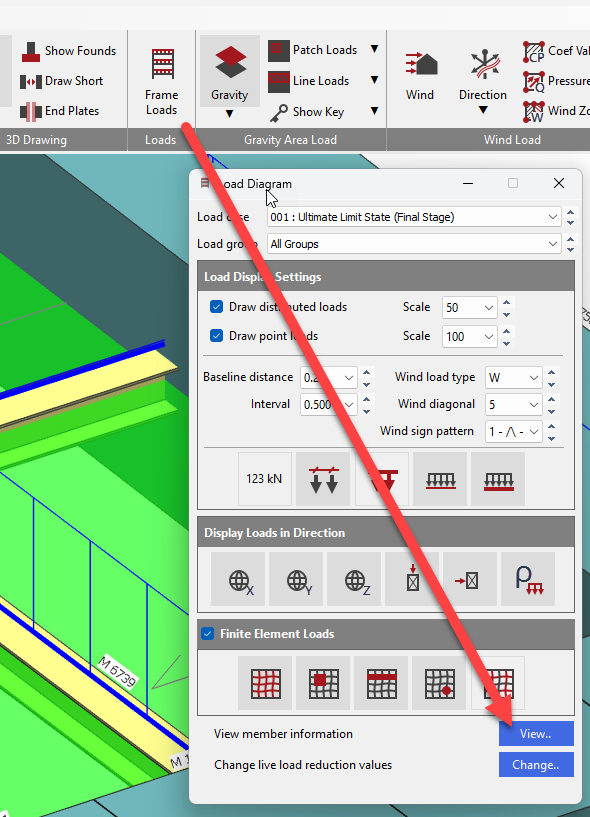
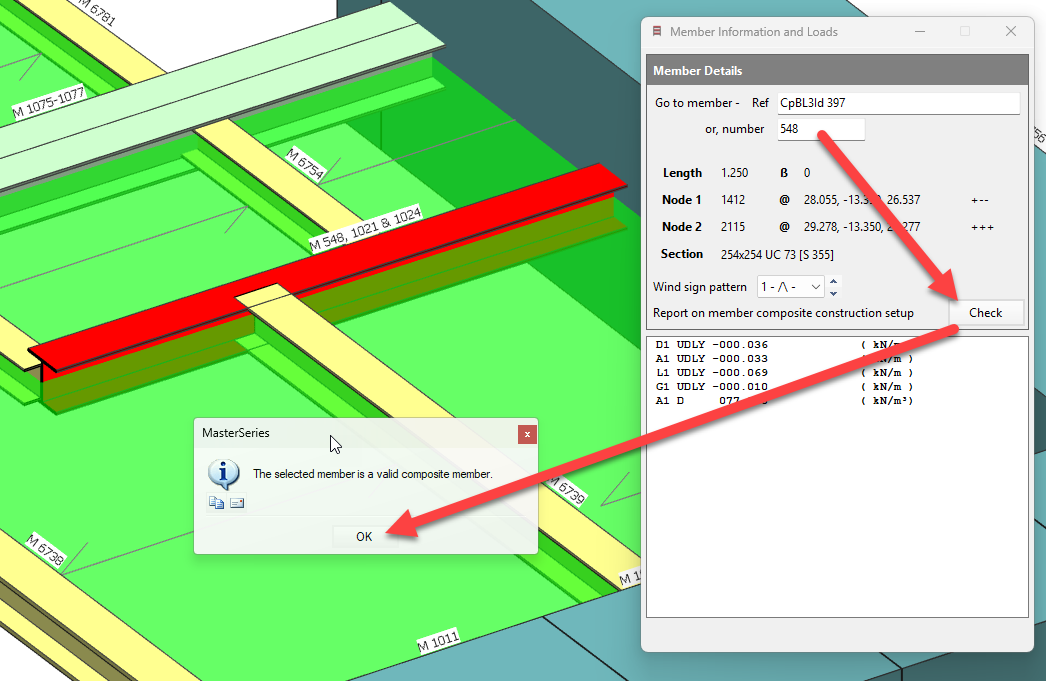
- 'Check Composite Construction' Button: Under Frame Loads, In the View Member Information and Loads window, there is a ‘Check' Composite Construction button which reports on the status of the MasterFrame edit stage checks for the selected member. This will indicate if the beam is considered a valid composite member.
Additional Checks at the Composite Design Stage (after editing): Once the initial criteria are met and a composite brief is applied, the program performs further checks, though these are more related to the design phase than the initial definition:
- It checks if there is any hogging moment in the member.
- It verifies if there is a slab thickness of more than 85mm on at least one side.
- It confirms if the profile is the same on both sides and along the length of the member.
If a composite brief cannot be applied to a member that appears yellow, the program will report the reason in the output window or message box.