Integrated 2d Timber Fink Truss Design
To create and design a timber truss in MasterFrame using the integrated MasterKey Timber Design module, you can follow these steps:

Step 1: Generate the Truss Geometry
Go to File > New and enter a file name.
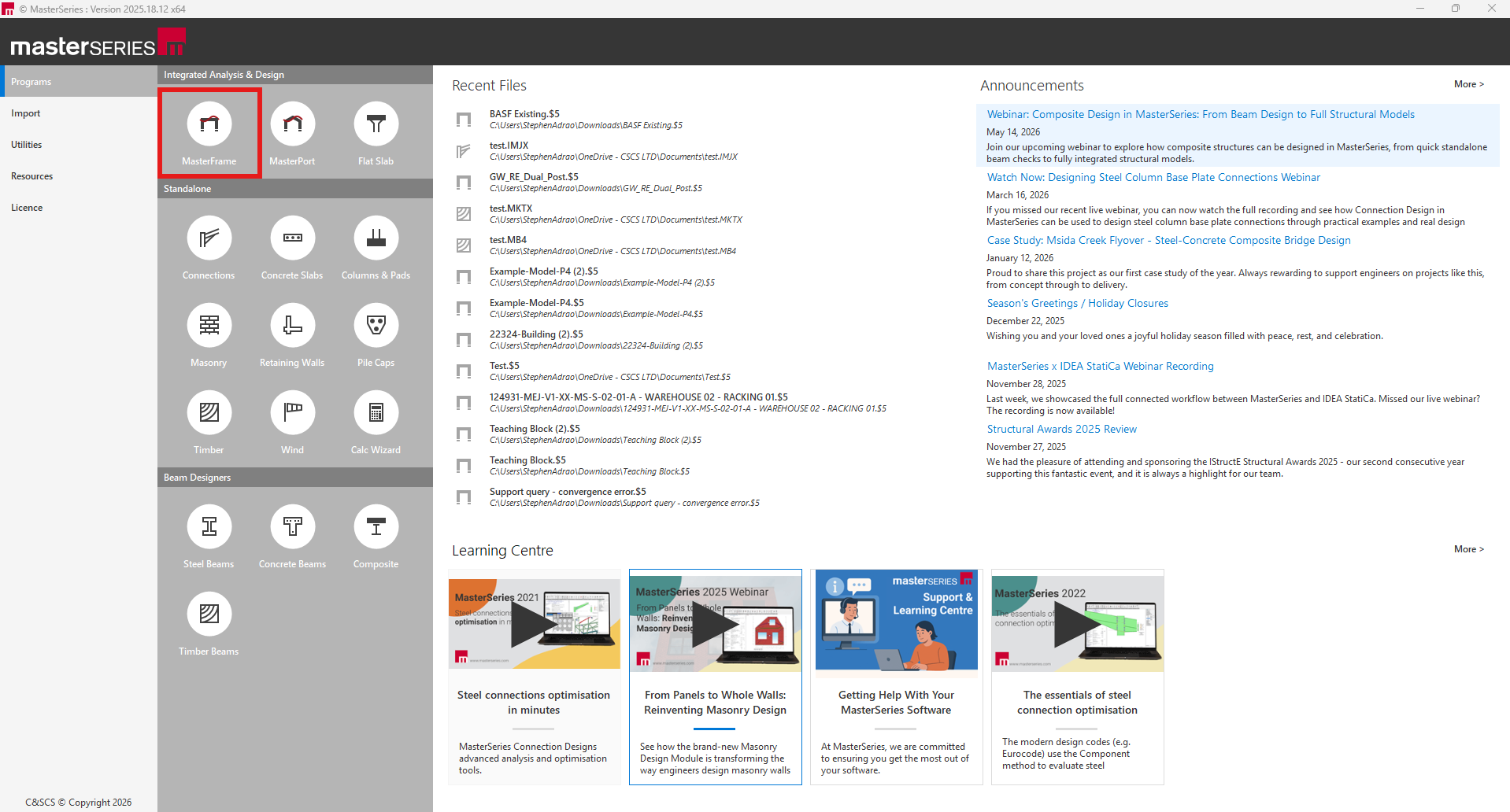
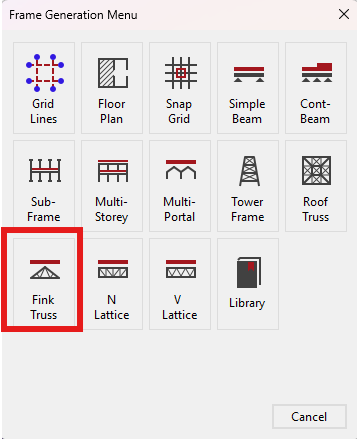
From the Frame Generation Menu, select a starter truss such as Roof Truss, Fink Truss, or Lattice Truss.
In this example we will choose the Fink Truss.
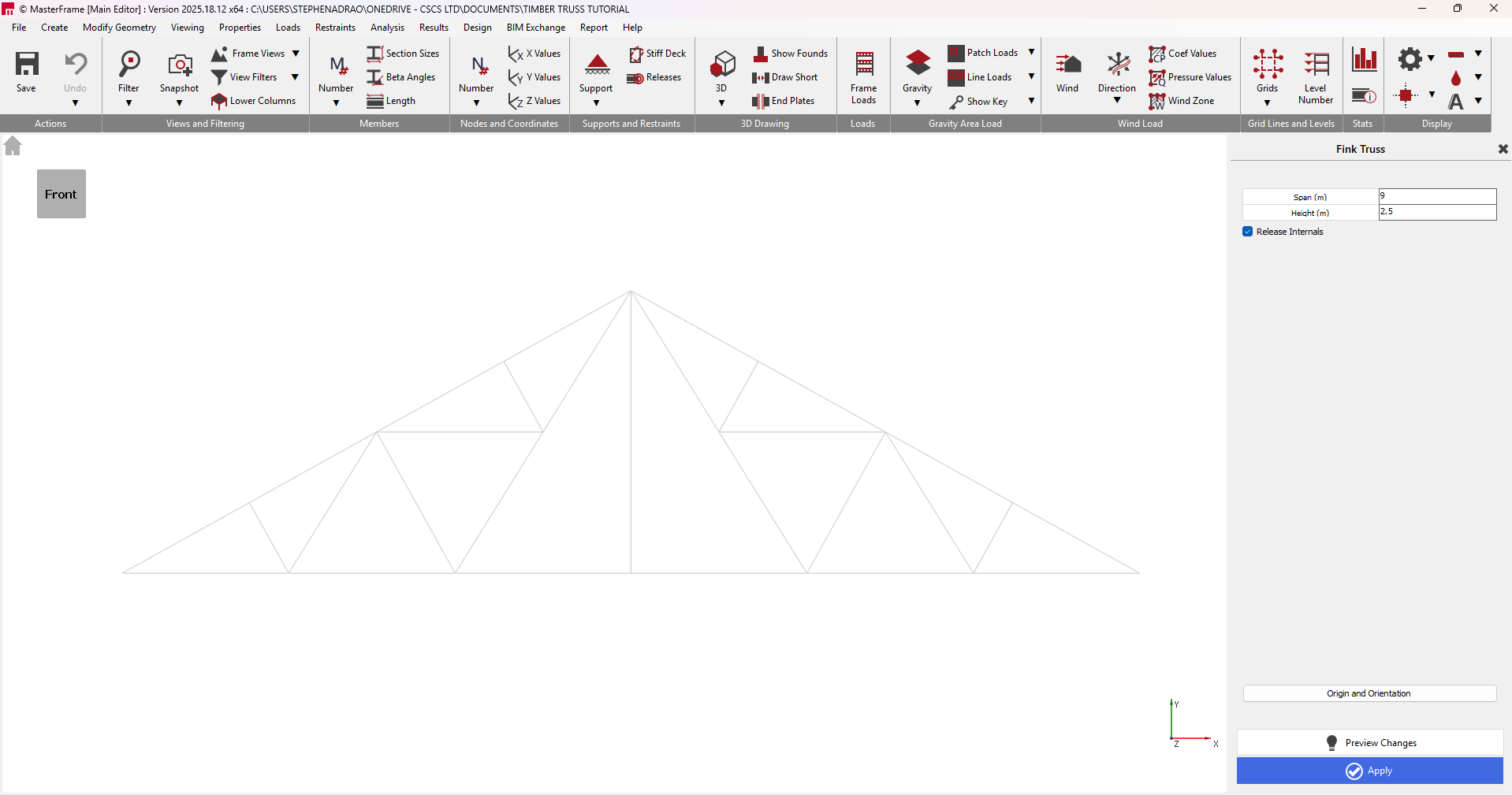
Input a 9m span and a 2.5m Height. For trusses, you usually want to check the "Release Internals" option so that the internal web members only take axial loads.
Step 2: Assign Timber Properties
Before we assign the timber properties we will need to delete a few internal members.
Go to Modify Geometry >Delete Members. Delete the internal members to replicate the image below.
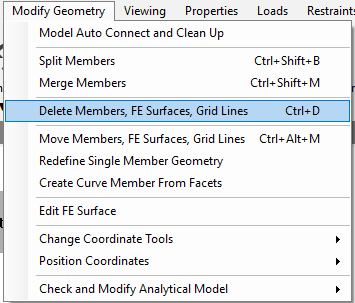
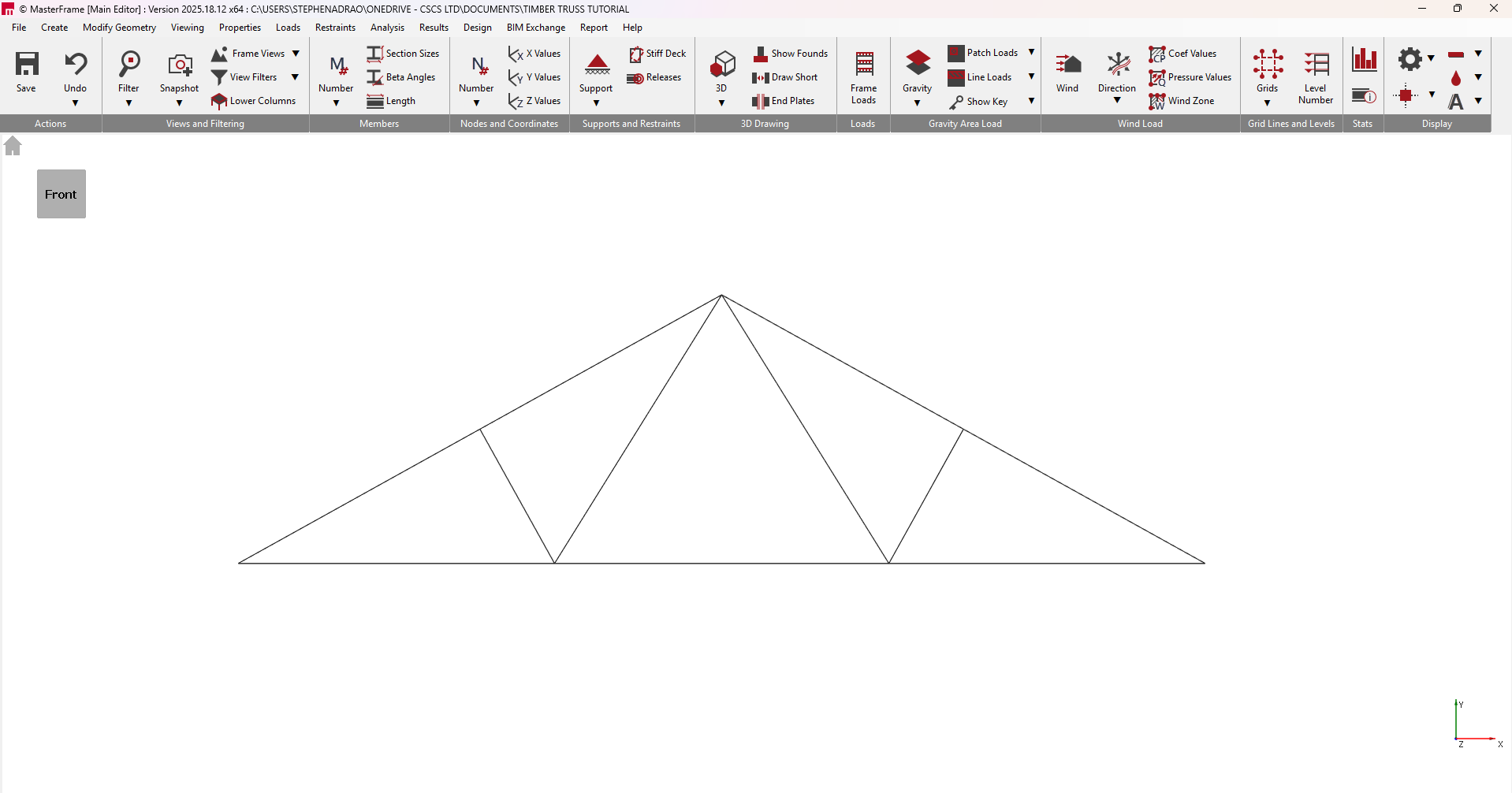
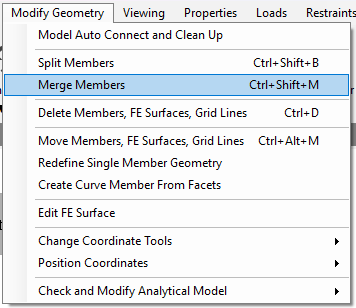
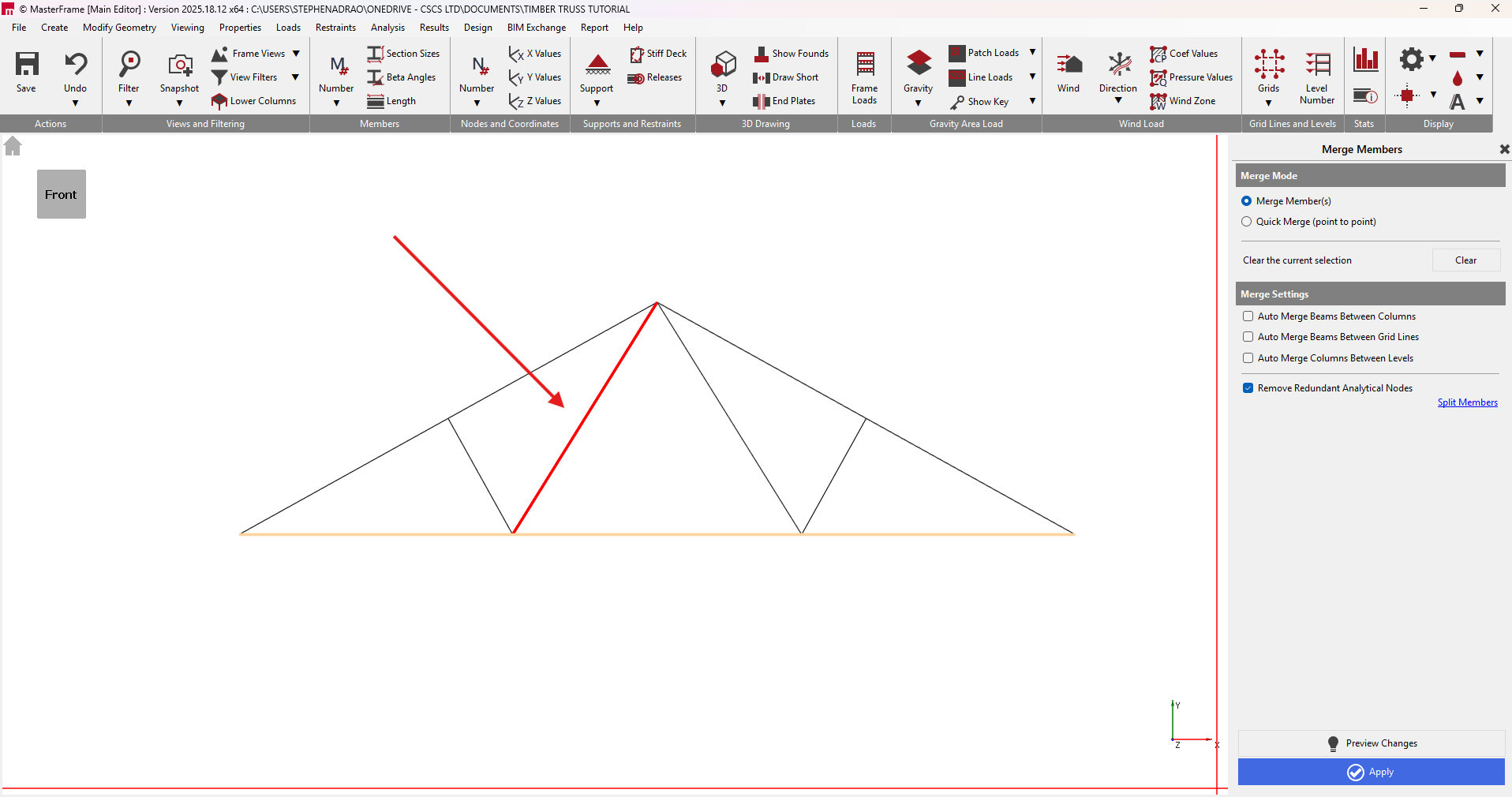
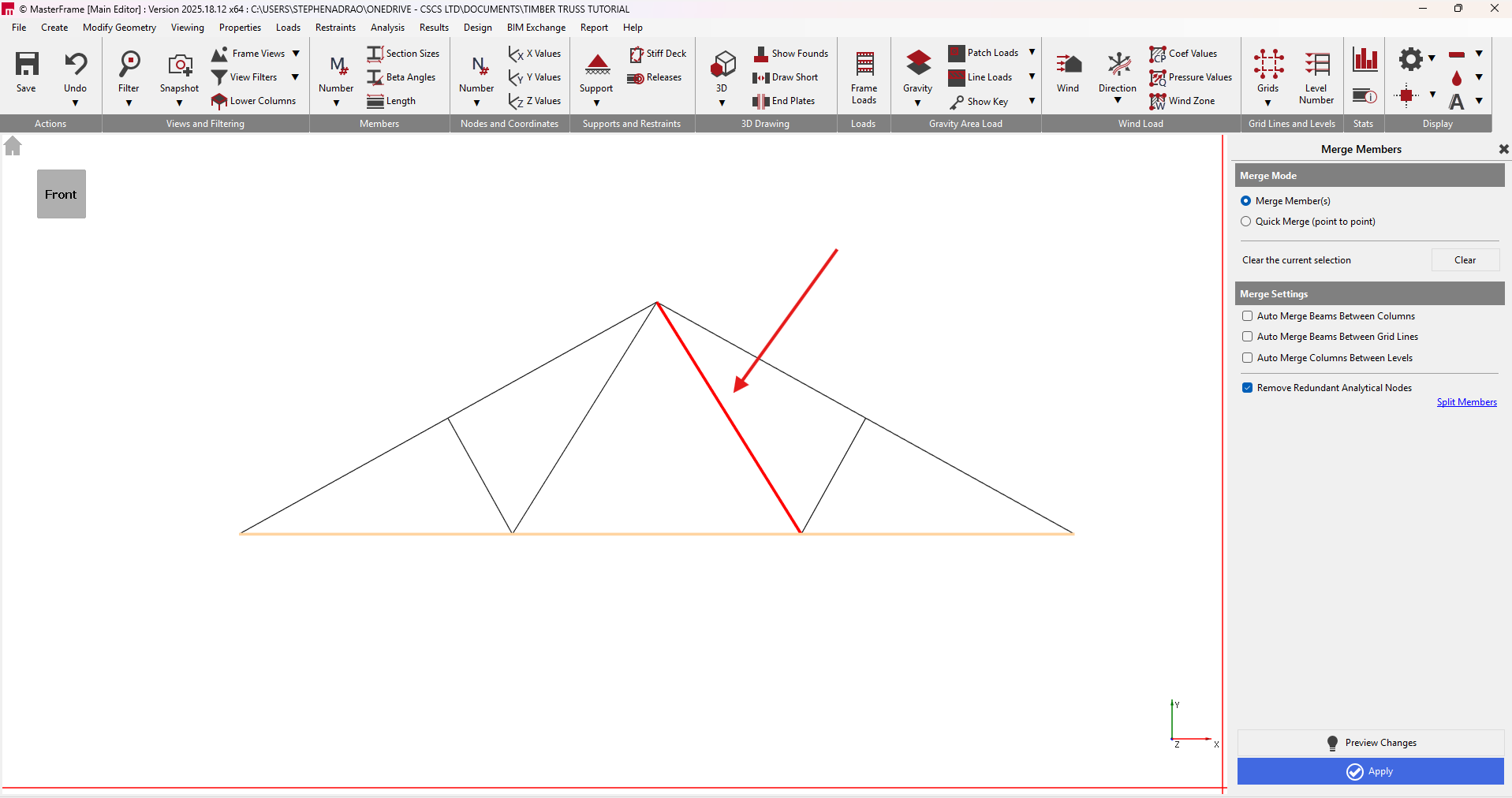
We will need to merge some members. Go to Modify Geometry > Merge Members.
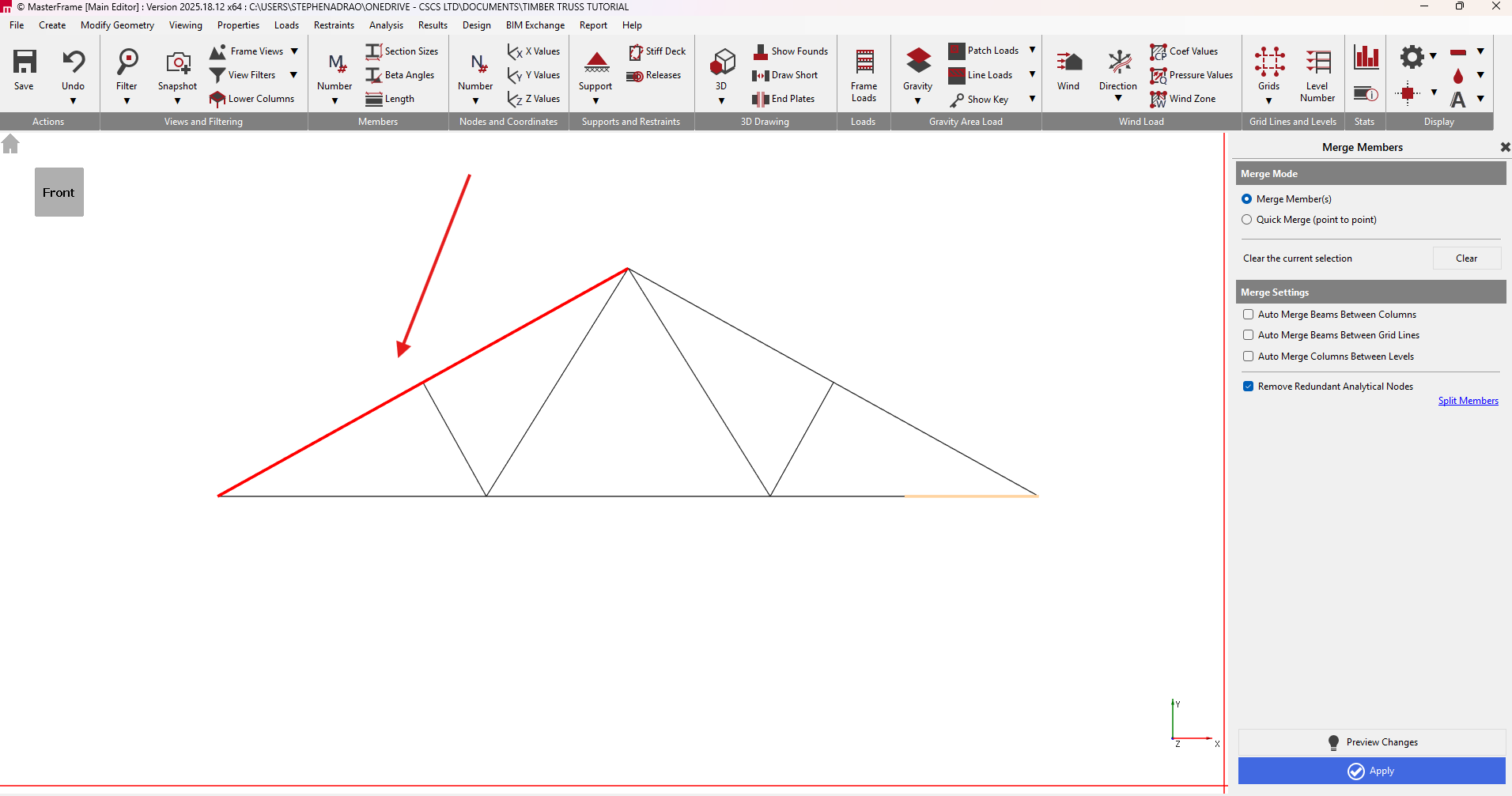
The top chord will be merged together to create two members.
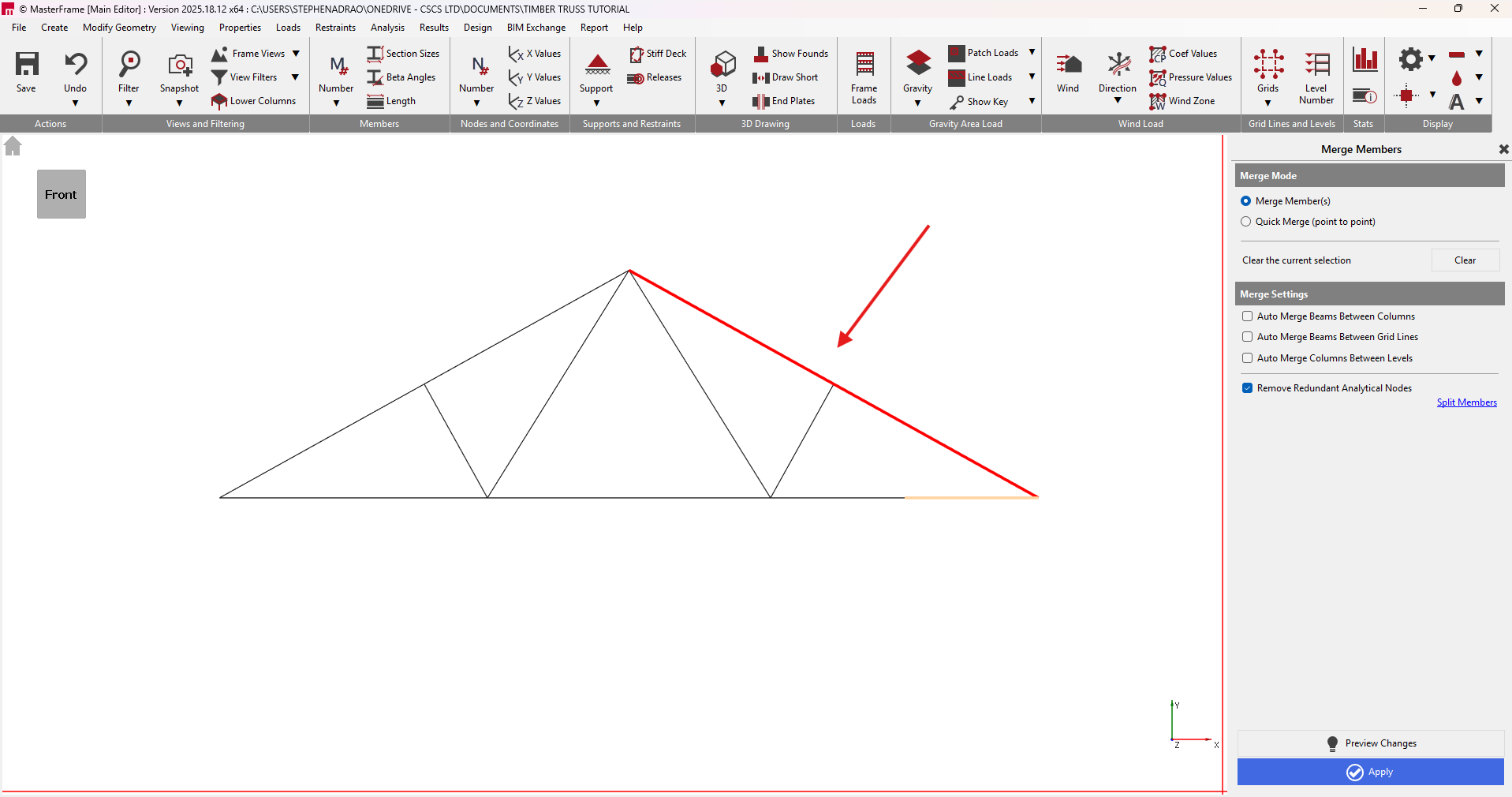
The bottom chord will be merged together to create one member.
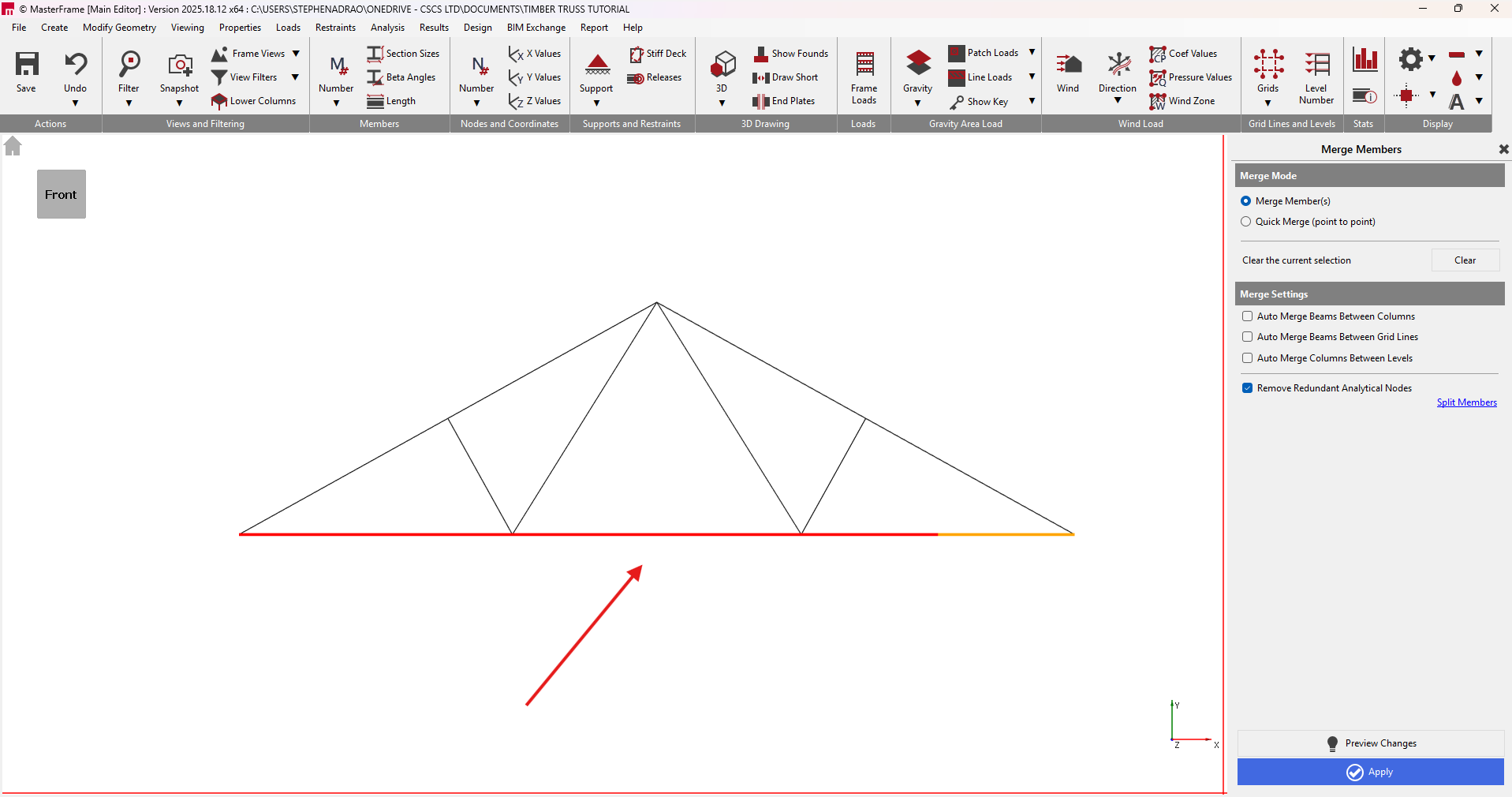
Internal members will also be merged together.
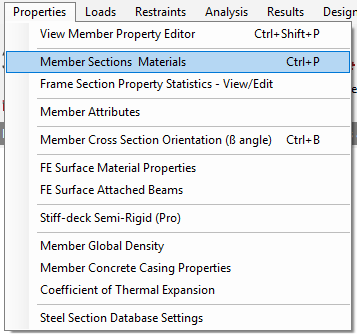
To assign the timber properties. Navigate to Properties > Member Sections Materials.
Select the Concrete & Timber section type, a Rectangular Section and click the Sawn Timber. Ensure you check the Use E Min option so that the creep factor is correctly applied to the elastic modulus during structural analysis.
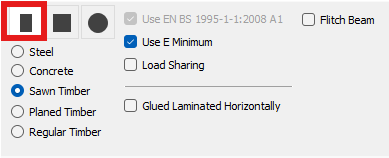
We are defining the width w and height h of the C24 structural wood beam top chord Cross-section as
- Width w = 125mm
- Height h = 220 mm
Tip: You can use the Edit and Paste Icon
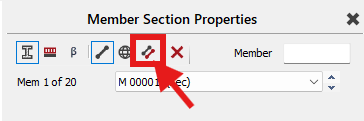
To assign the properties to the members.
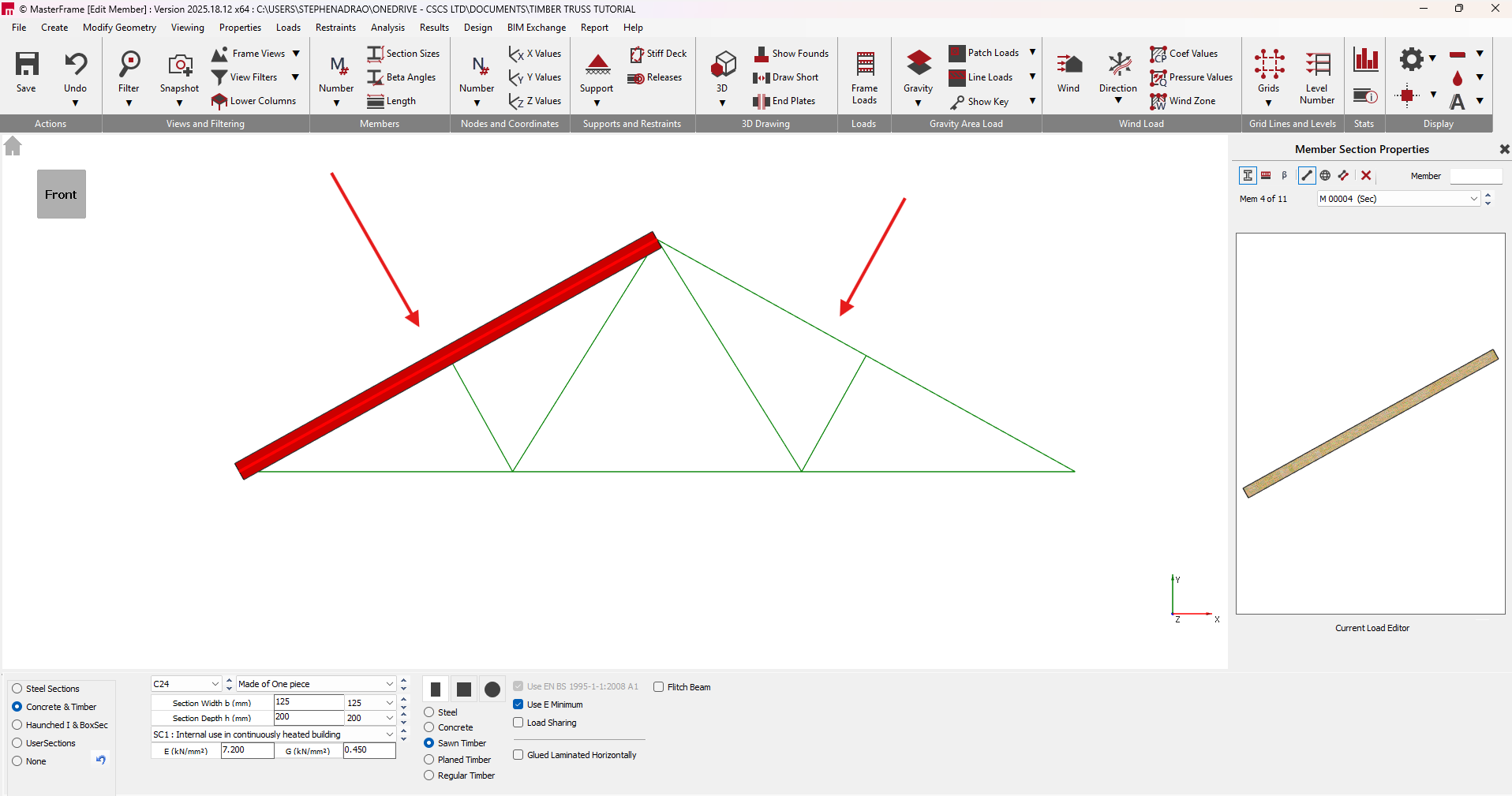
The values for the compression diagonal are defined as
- Width w = 63 mm
- Height h = 125 mm
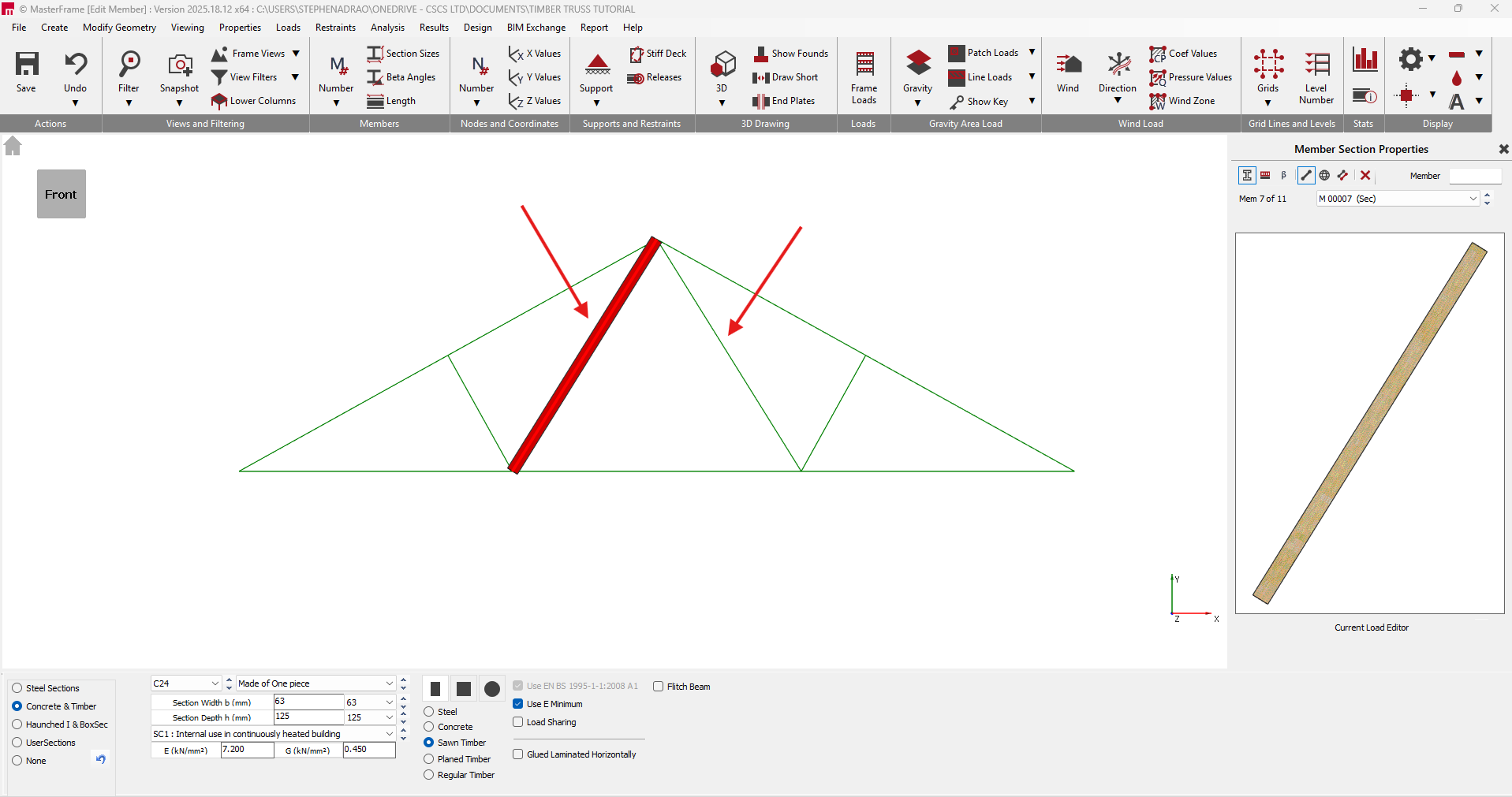
The cross-sectional dimensions of the tension diagonal are defined as
- Width w = 63 mm
- Height h = 125 mm
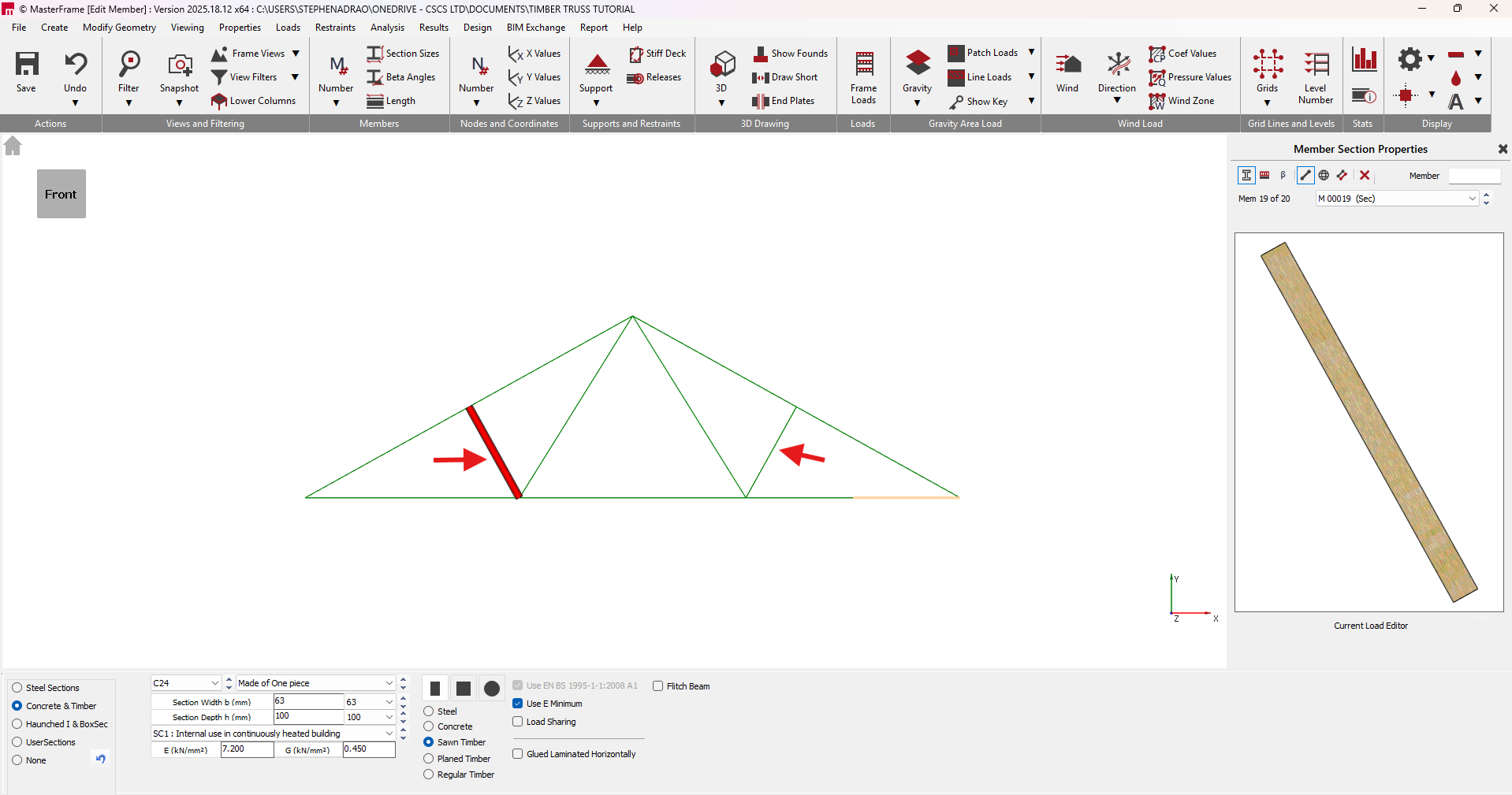
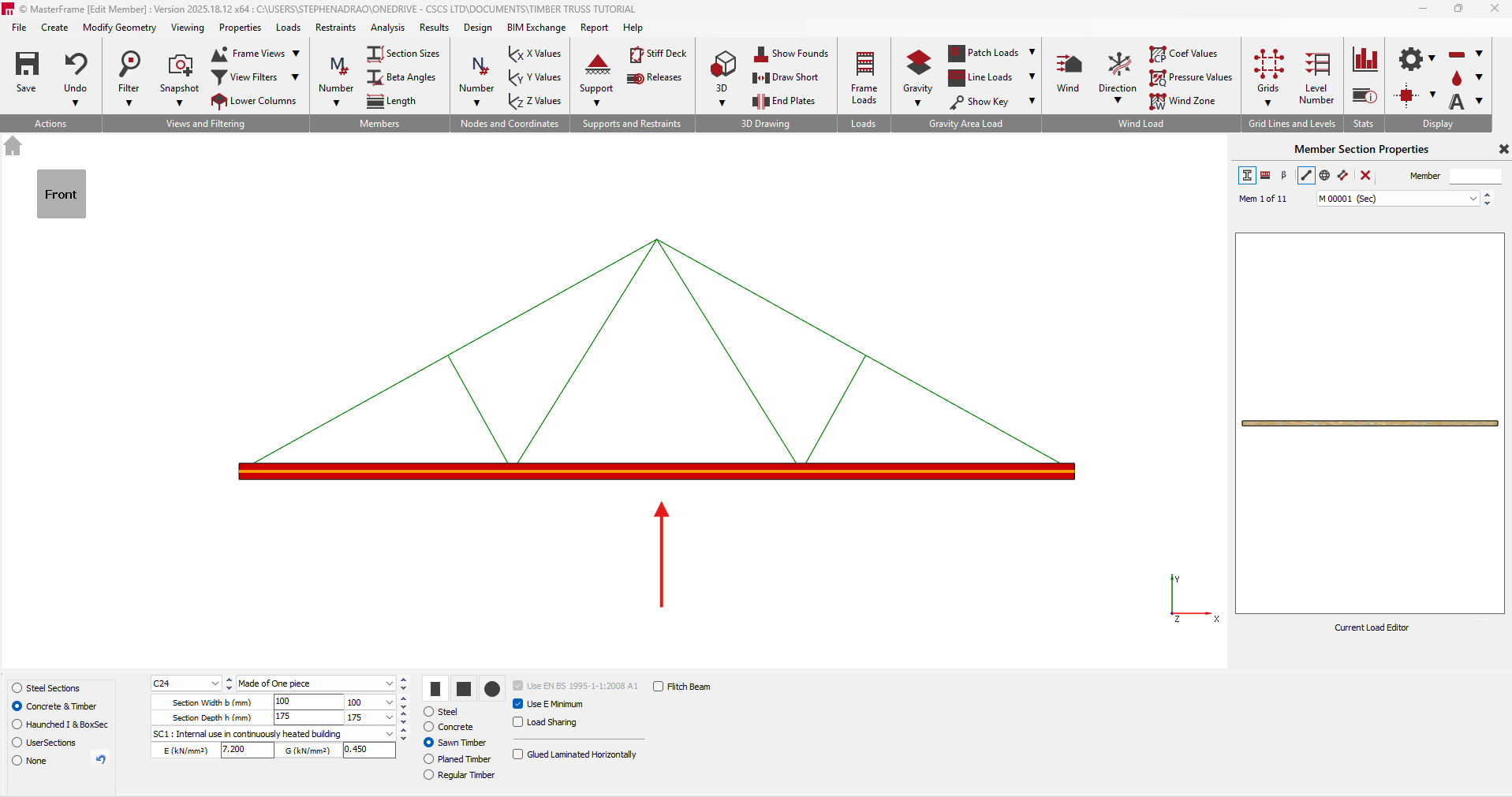
The dimensions of the tension bottom chord are
- Width w = 100 mm
- Height h = 175 mm
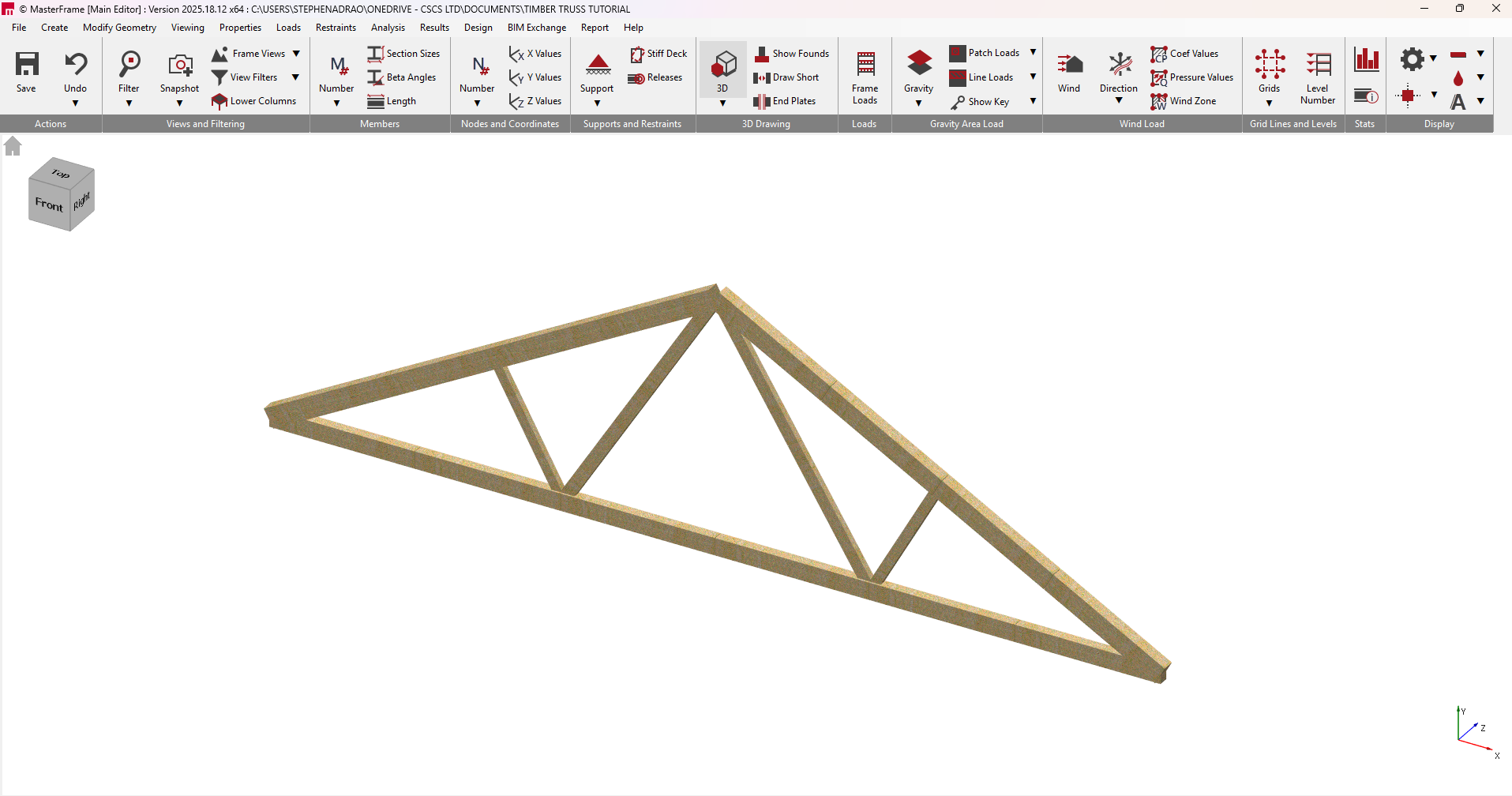
Step 3: Define Supports
Go to Restraints > Nodal Static Supports.
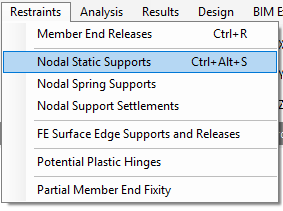
By Default, a pinned and roller support has been defined at the ends of the truss.
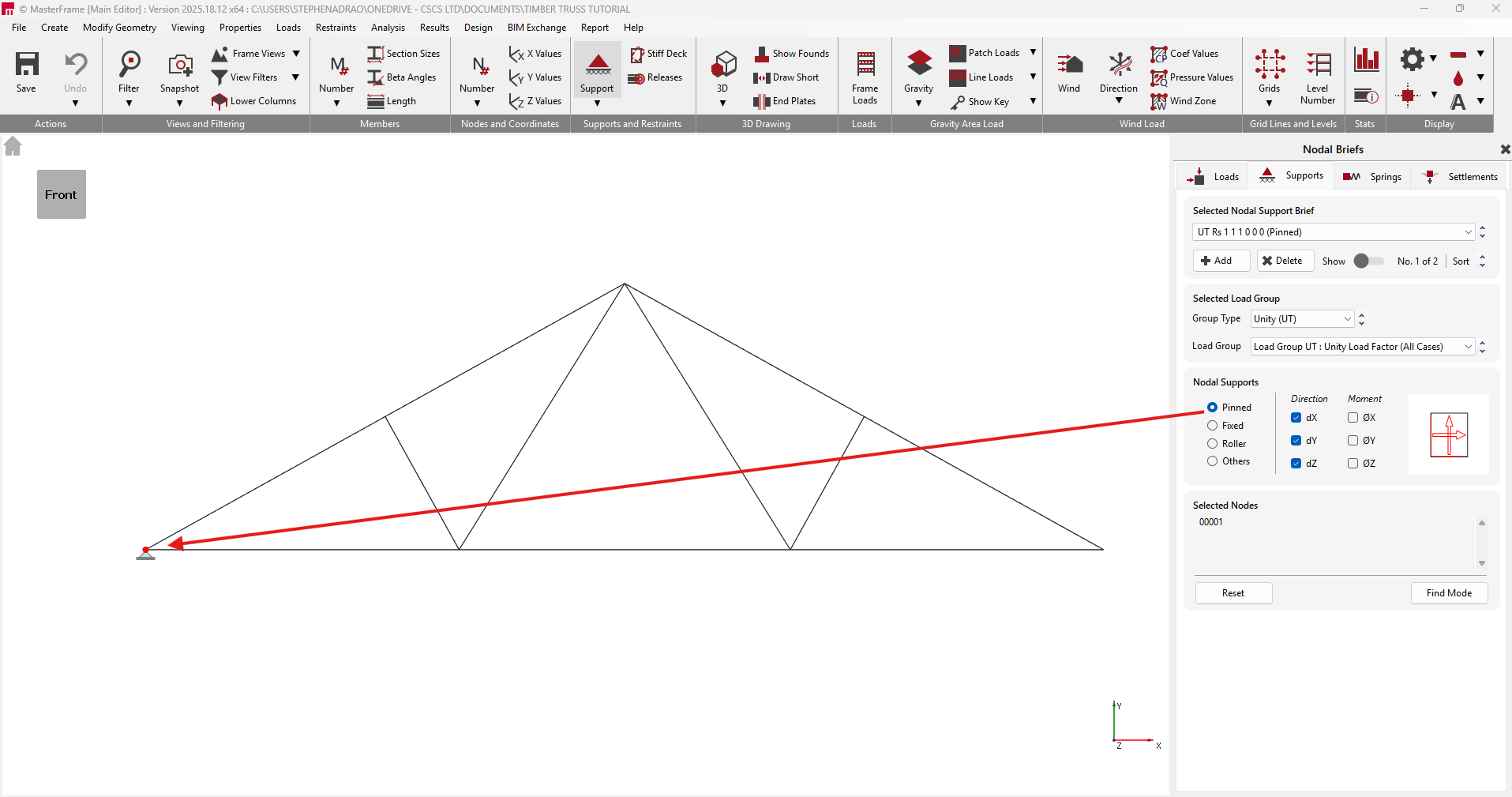
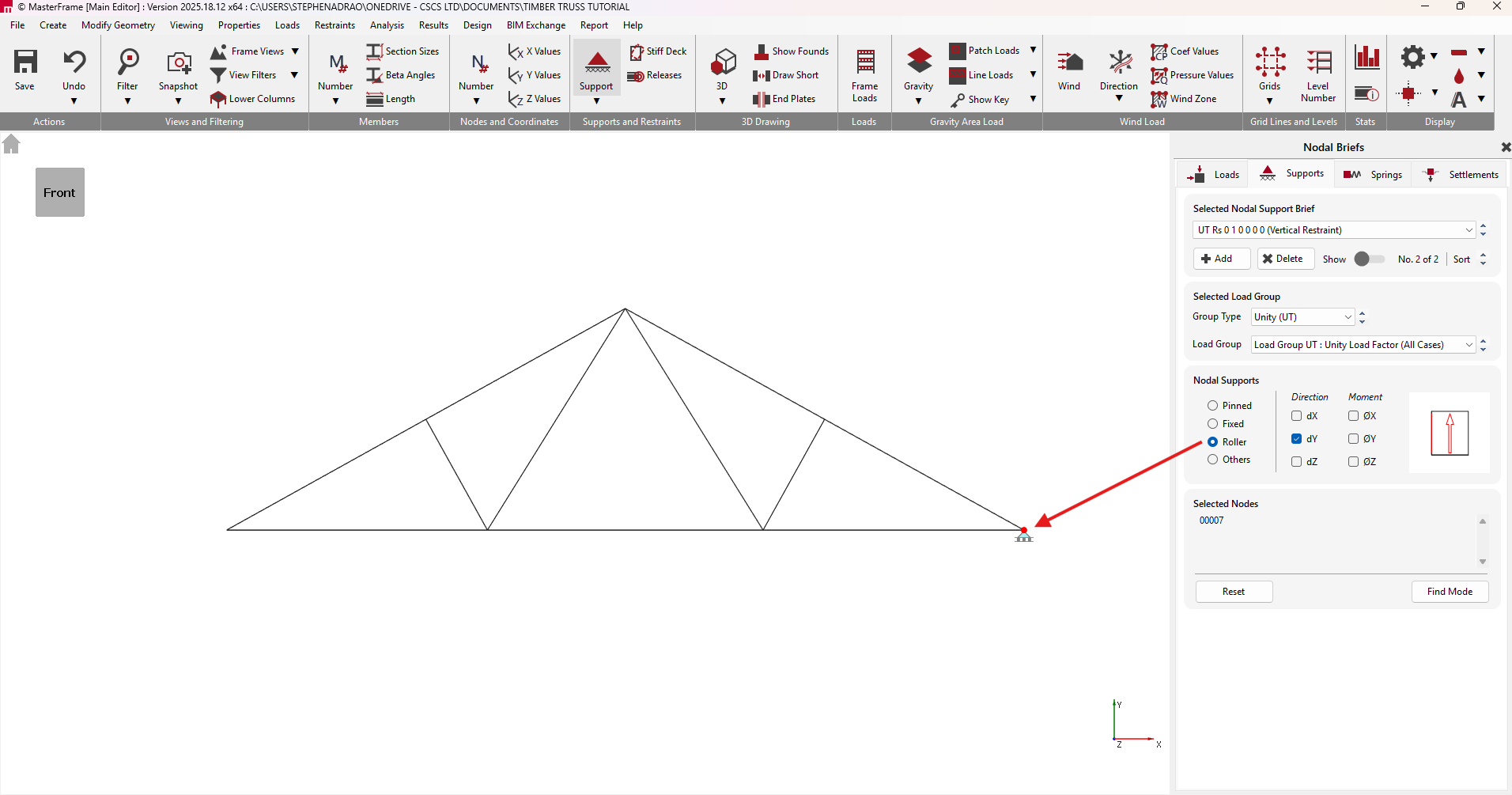
Step 4: Apply Loads and Combinations
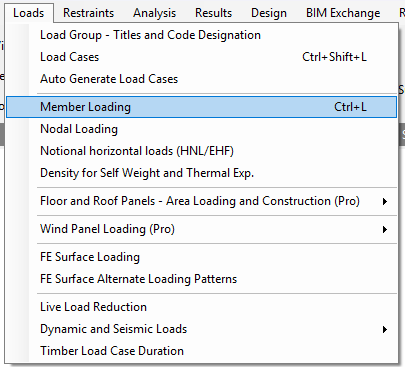
Apply your required Dead, Live, and Wind loads using the Loads menu and selecting Member Loading.
We will be applying a dead load of 4kN/m in the Y direction, live load of 4kN/m in the Y direction and a wind load of 1kN/m in the Normal (N) direction along the top chord of the truss.
Click the UDL icon  3 times and change to dead, live and wind.
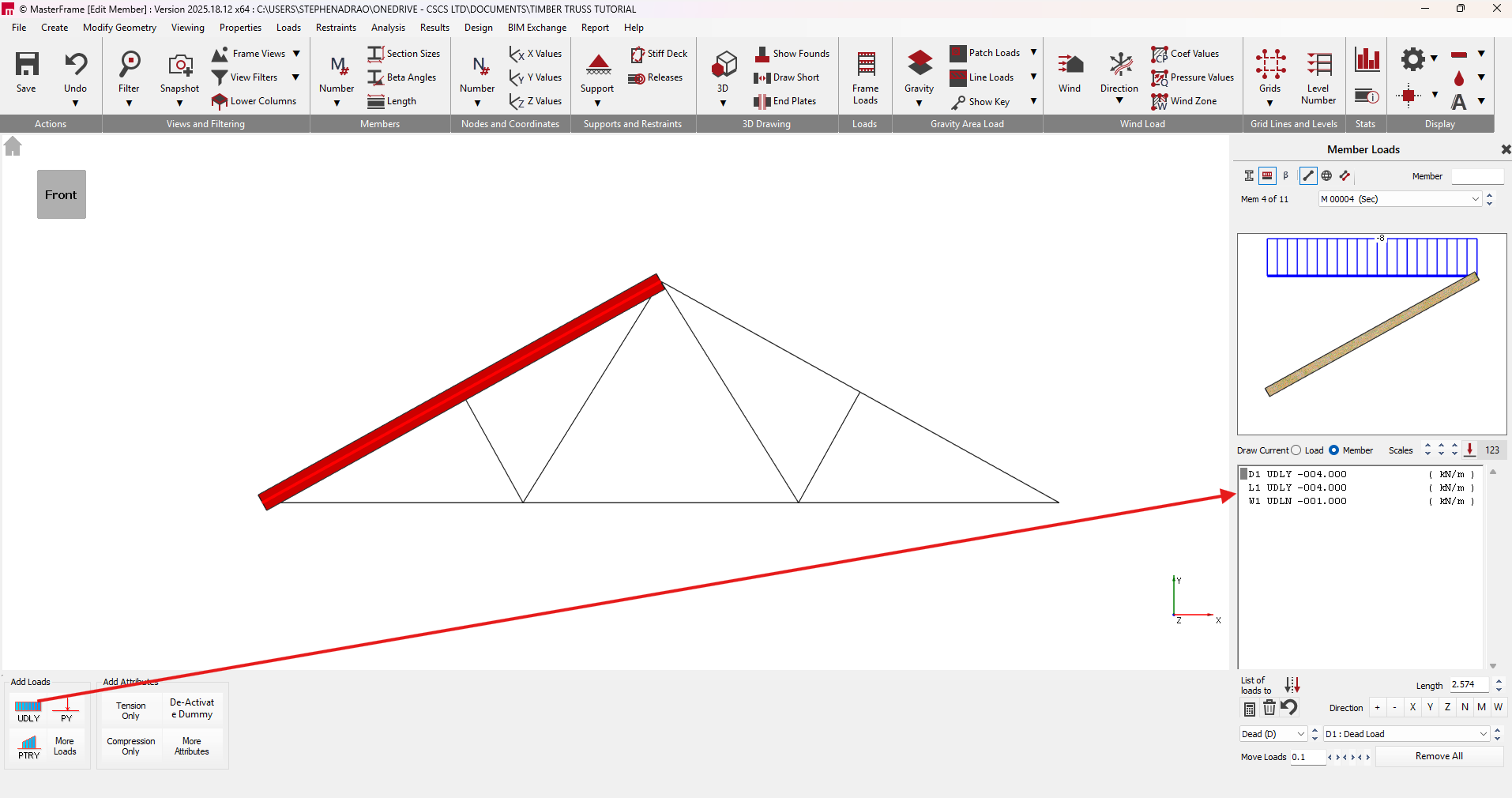
Tip: Again you can use the Edit and Paste Icon  to paste the created loadings onto the members in the top chord.
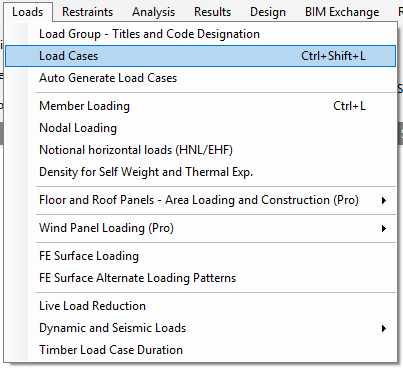
Create your loading combinations by going to Loads > Load Cases.
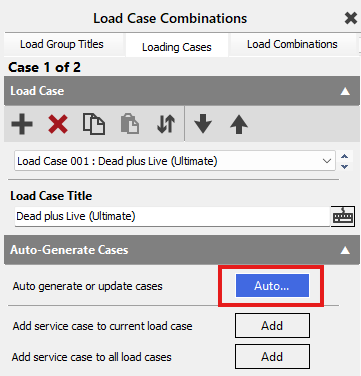
We will use the Auto Generate function to create the load cases.
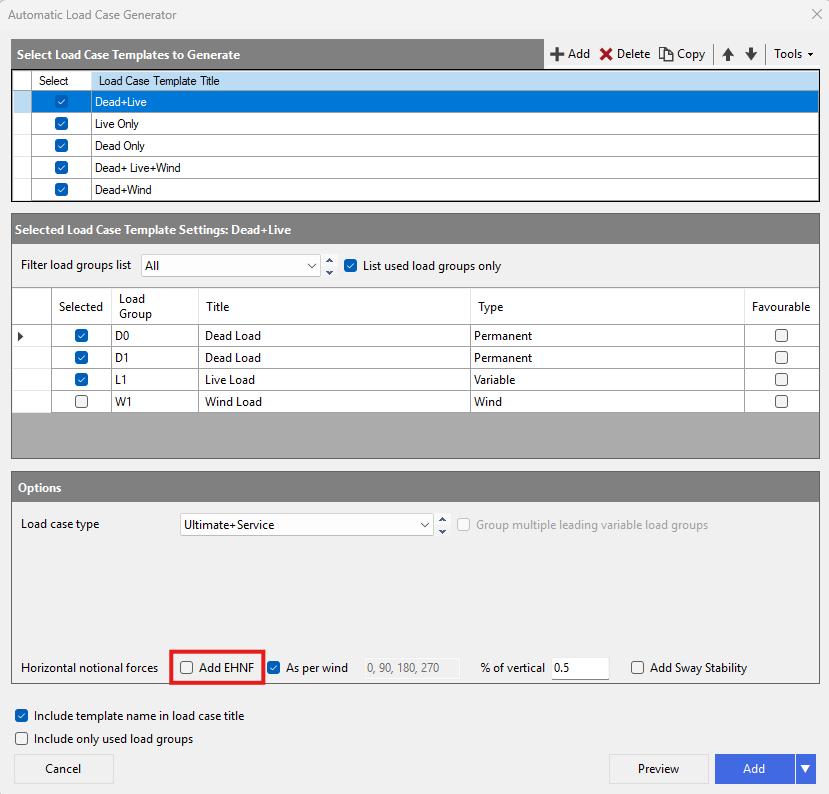
In this example we will have all the load case templates ticked whilst leaving the "Add EHNF" unchecked.
By clicking the "Preview" button you can see the load cases that will be generated.
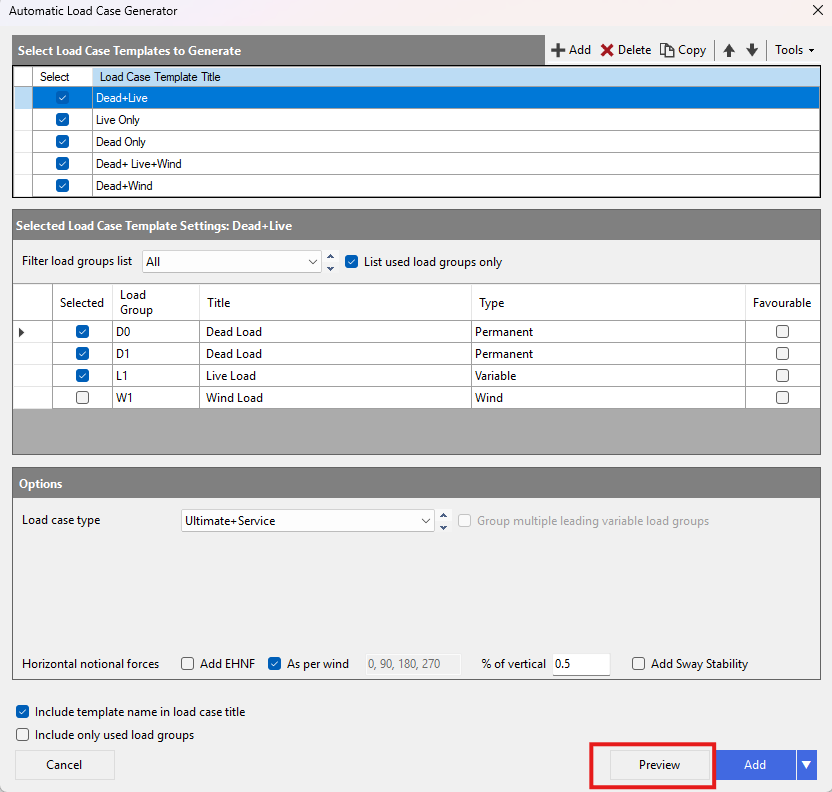
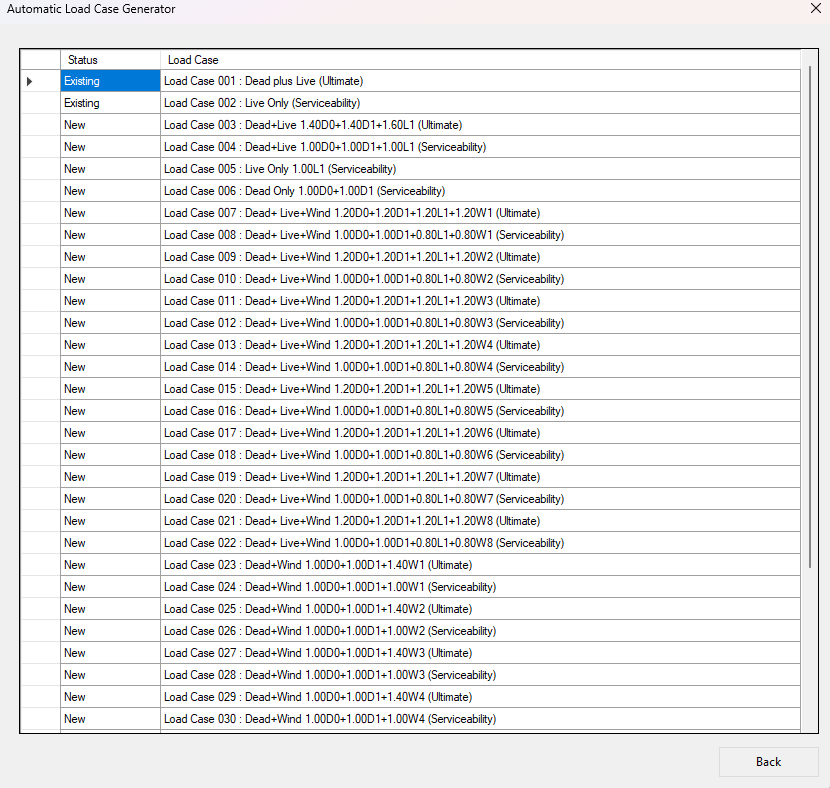
Now you can click "Add". You should have 38 load cases.
For serviceability limit state deflection checks in integrated design, you must manually adjust the load factors for your serviceability cases to properly account for creep components under Eurocode 5.
Step 5: Set Timber Load Durations
Go to Loads > Timber Load Case Duration.
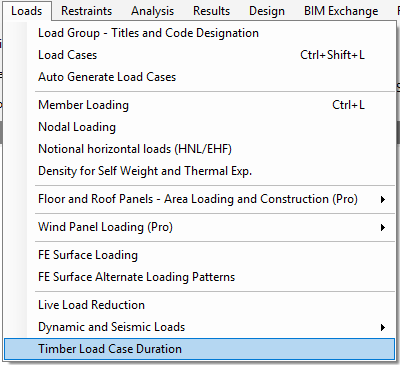
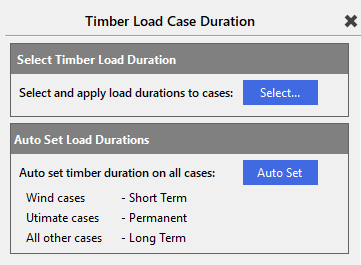
In the Timber Load Duration section, use the Auto Set button to automatically assign the appropriate duration (e.g., Short Term for wind cases, Permanent for ultimate cases) to each load case. The load duration affects the permissible stresses in the timber design.
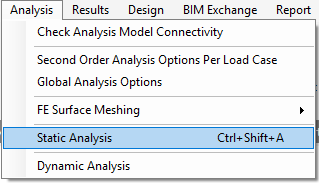
Step 6: Analyse the Frame
Run the structural analysis by selecting the analysis options and solving the model.
Select the "Plane Frame" analysis type.
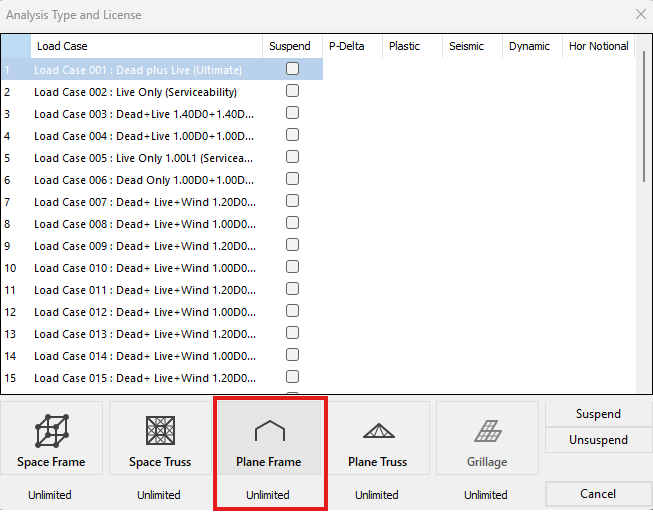
Ensure unneeded service cases are suspended so the integrated design uses the most critical deflection case.
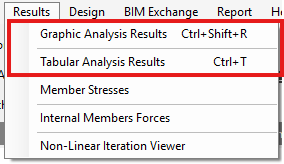
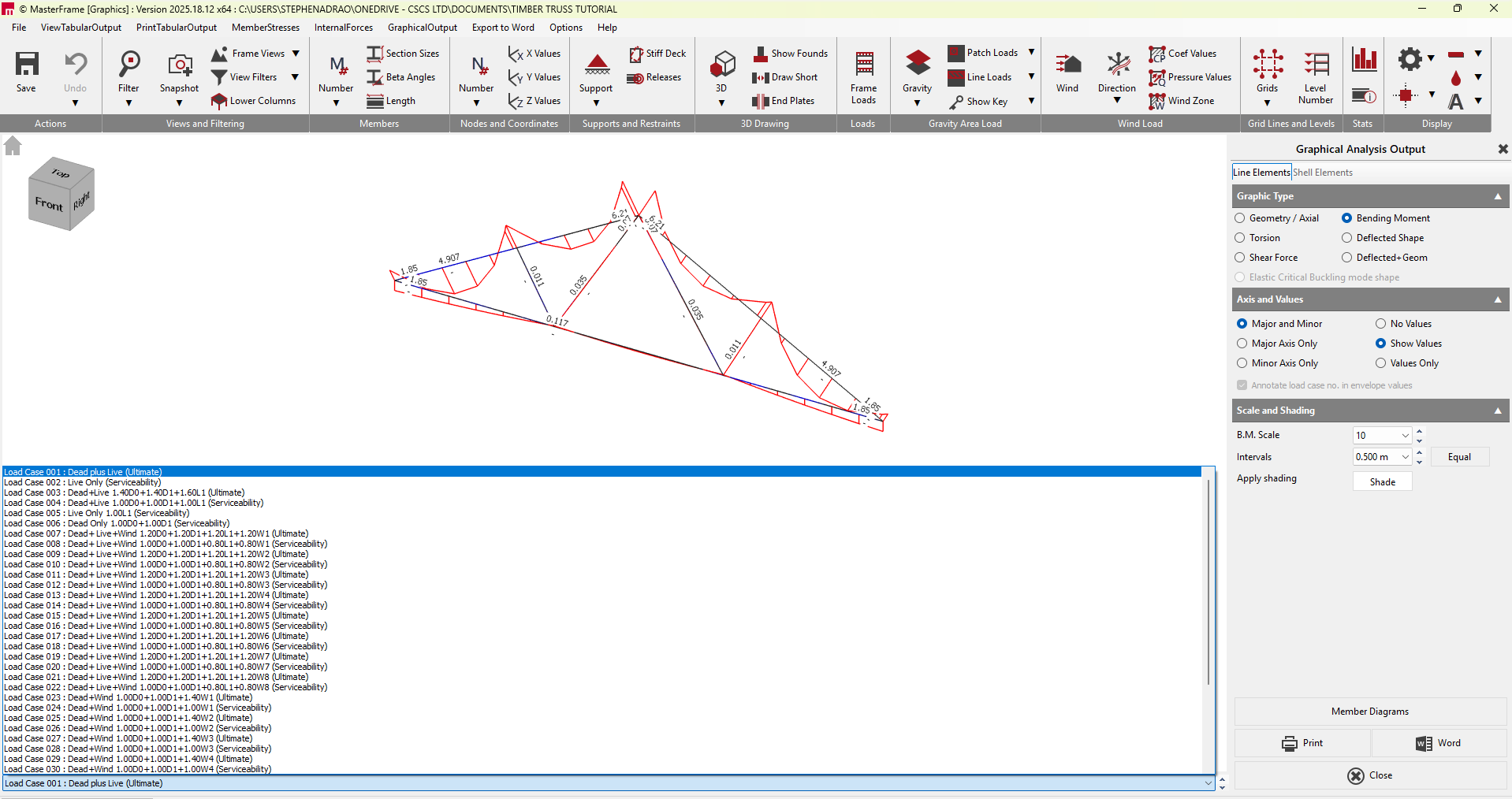
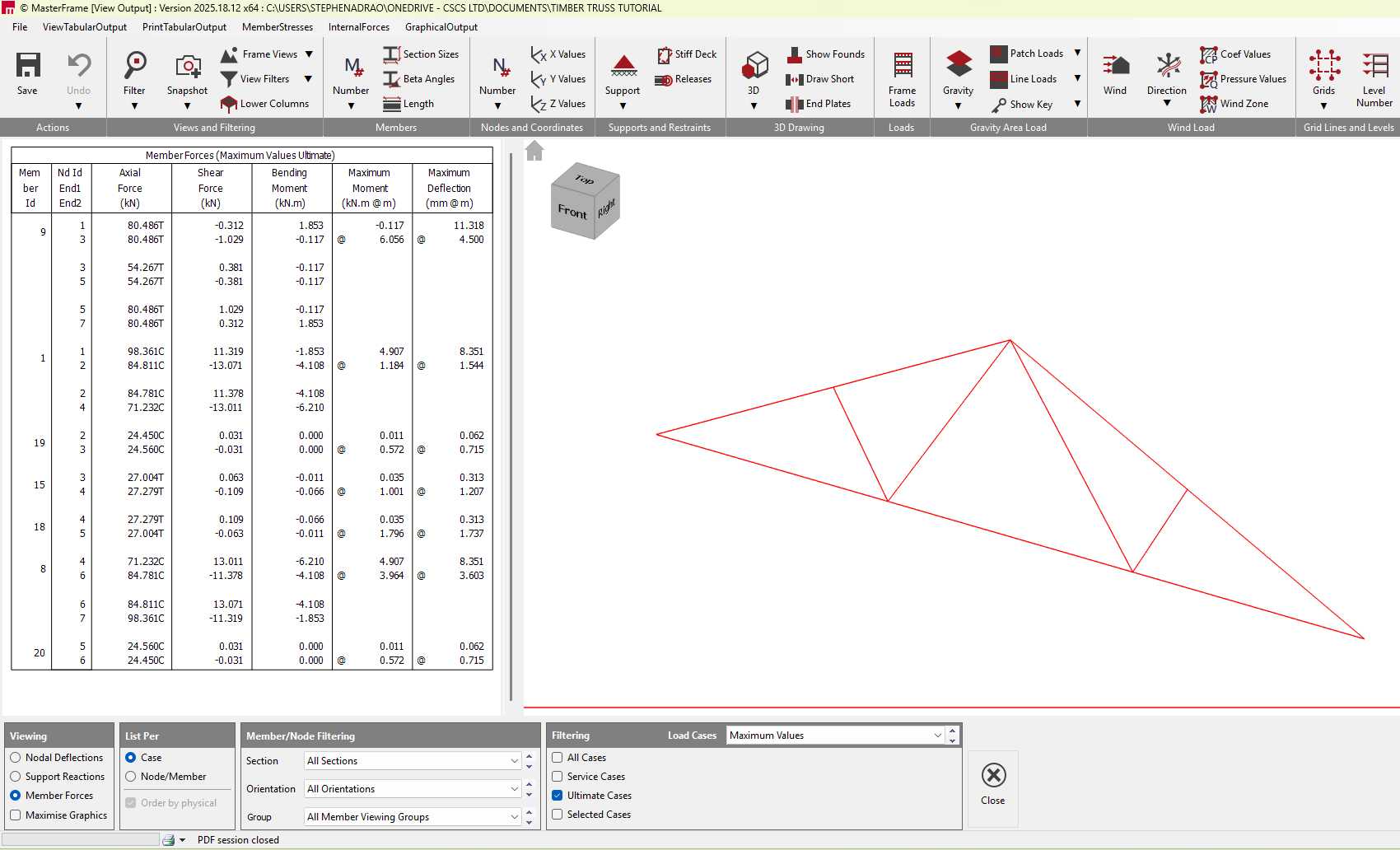
You can now view the Graphical and Tabular Results.
Step 7: Integrated Timber Design
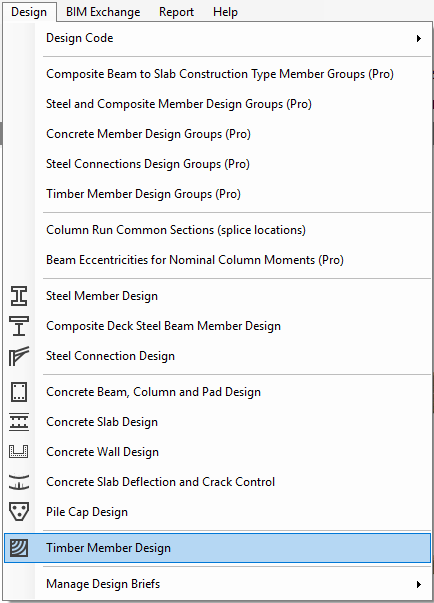
Go to Design > Timber Member Design.
MasterKey will automatically apply an Axial with Moment design brief to each timber member, bringing in the axial forces, moments, shears, and deflections from the analysis.
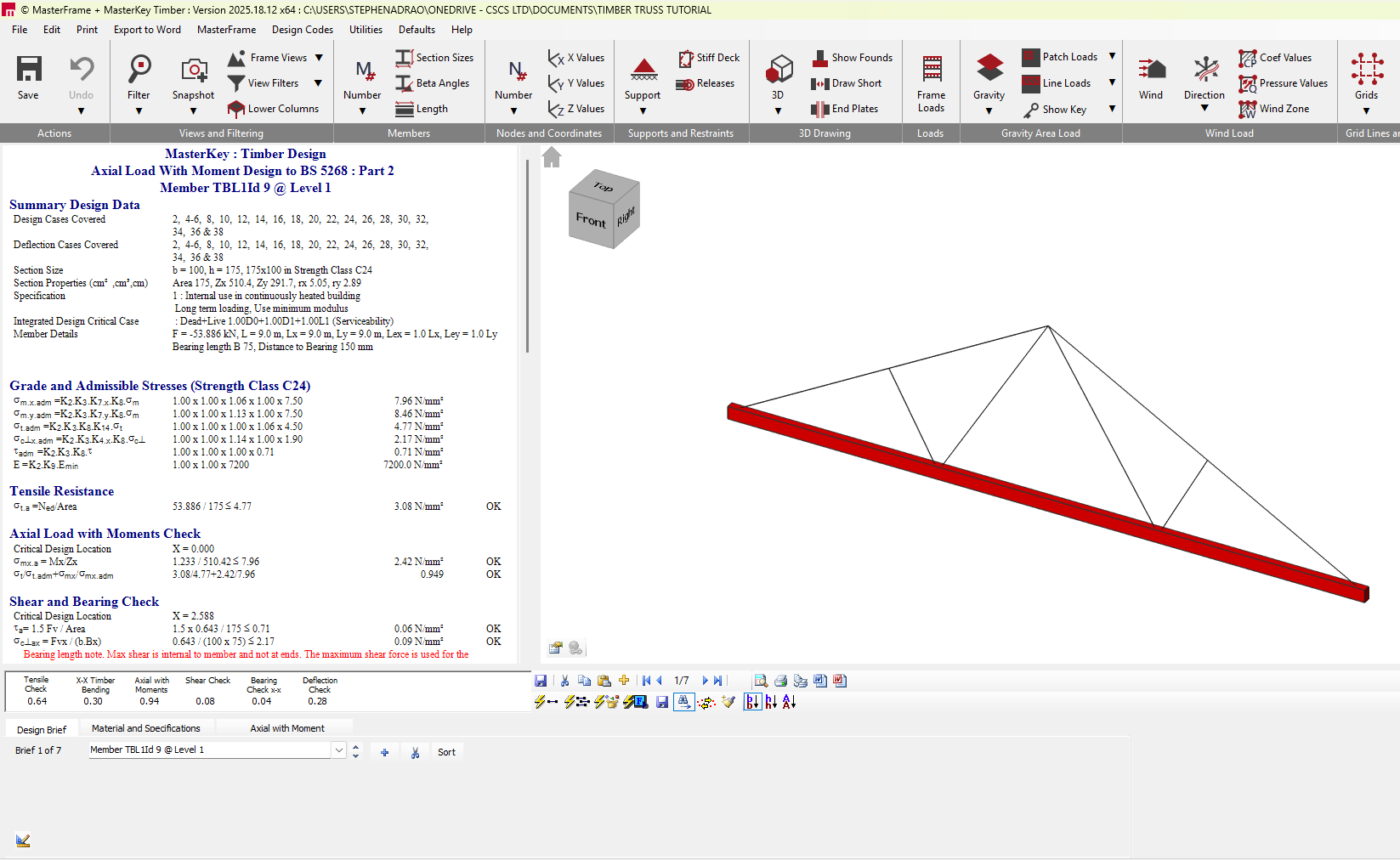
You can review the unity ratios to see if members pass or fail. A cyan background indicates a failure in the design brief.
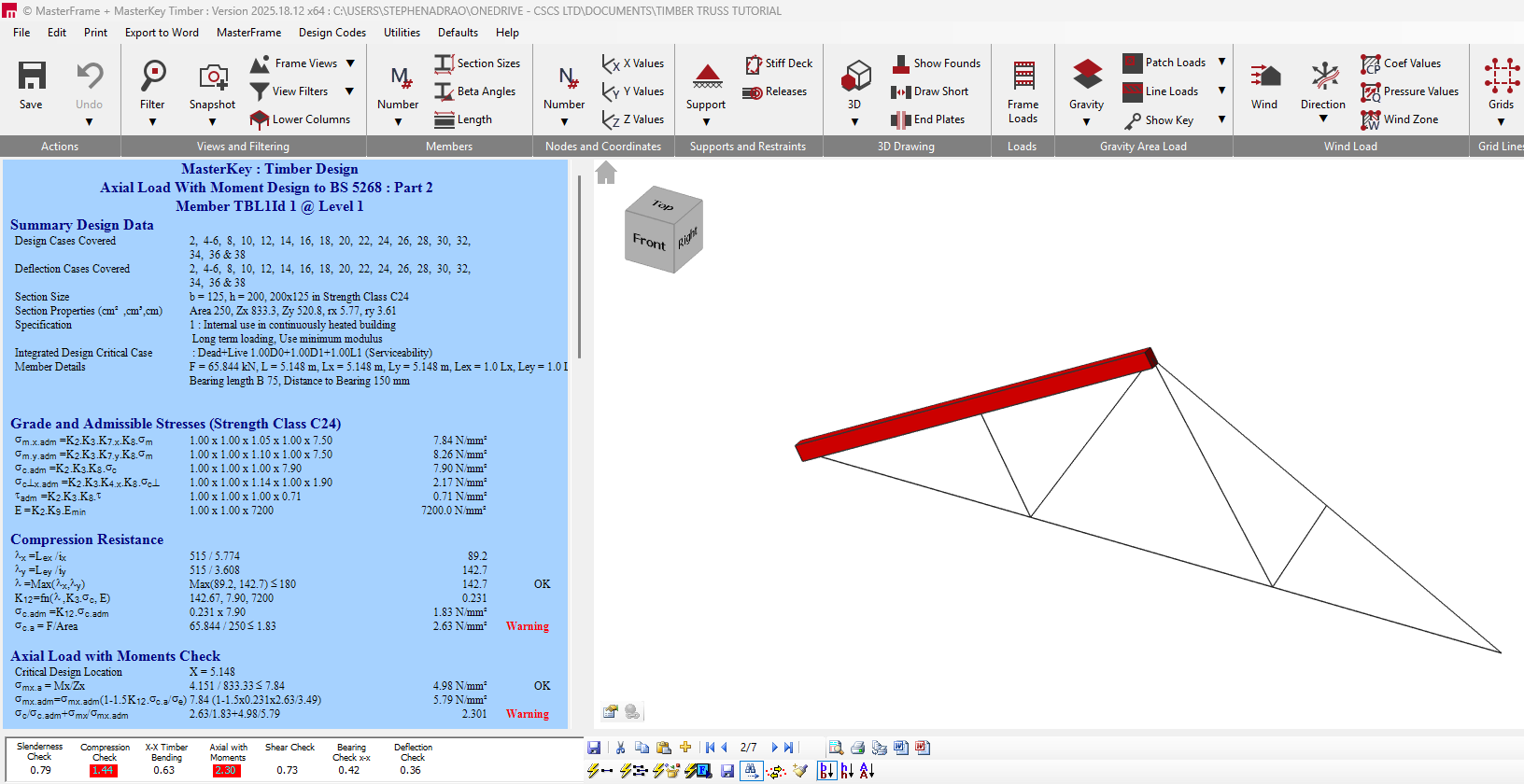
Use the Auto Design ALL icon ( ) to allow the program to size the timber members automatically, or change section sizes manually in the Material and Specifications tab.
If member sizes change during this process, the frame must be re-analysed.
If you are unsure about the required design parameters, load factors, or how to model specific truss connections, please advise contacting support.
When designing timber rafters in MasterSeries - whether using the standalone MasterKey Timber Design module, MasterBeam Timber, or integrated within a MasterFrame 2D/3D model, understanding how the software evaluates combined axial compression and bending, lateral restraint, and effective lengths is essential.
1. Key MasterSeries Behavior: Automatic vs. Manual Effective Lengths
A frequent source of confusion when designing timber rafters in an integrated MasterFrame model is why incoming bracing, purlins, or intermediate nodes do not automatically reduce the rafter's buckling length.
- No Automatic Node-Based Portioning for Timber: Unlike the Steel Design module (which features automatic portioning tools for purlins/rails), MasterSeries Timber Design does NOT automatically calculate effective lengths from intermediate nodes or Z-plane supports along a member.
- Default Assumption: The software defaults to using the full node-to-node physical member length (L) for both major and minor axis buckling checks unless you manually override it in the timber design brief.
- High Failure Rates / Slenderness Errors: If a 4 m to 6 m rafter has no manual restraint spacing specified, MasterSeries evaluates minor-axis buckling over the full 6 m length. This leads to slenderness ratio failures (λ > 180) or massive ULS compression utilization ratios (e.g., 5.0+).
2. Defining Effective Lengths (Lx, Ly) & Multipliers (Kx, Ky)
All buckling parameters for timber rafters subjected to combined bending and axial force are configured under the Axial with Moment design tab in MasterKey Timber:
- Lx (Major Axis Length): The effective buckling length for in-plane bending/compression about the local X-X axis.
Ly (Minor Axis Length): The effective buckling length for out-of-plane bending/compression about the local Y-Y axis.
- This should be set to match the spacing of out-of-plane restraints, such as purlins (e.g., \(1.2\text{ m}\)), noggins, or tile batten gauge (e.g., \(0.33\text{ m}\)).
- Kx & Ky (Effective Length Factors): End-fixity multipliers applied to Lx and Ly (\(L_{eff} = K \cdot L\)). These default to \(1.0\) and are adjusted based on your engineering judgement for rotational/positional end fixity.
Cranked or Segmented Rafters
If a rafter is modeled in MasterFrame as a series of short, straight segments (e.g., for a cranked beam or faceted roof), MasterSeries will default to taking each individual segment length as the buckling length. In this scenario, you must manually enter the total unbraced length across the combined segments into Lx and Ly to ensure global buckling is checked accurately [Ticket 10625, Ticket 17589].
3. Lateral-Torsional Buckling (LTB) vs. Axial Compression Checks
MasterSeries treats flexural Lateral-Torsional Buckling (LTB) and axial compression buckling as separate failure modes:
                           +-----------------------------------+
                           |   MasterSeries Timber Rafter      |
                           |          Restraint Setup          |
                           +-----------------+-----------------+
                                             |
                 +---------------------------+---------------------------+
                 |                                                       |
                 v                                                       v
+---------------------------------+                     +---------------------------------+
| Flexural LTB (Bending)          |                     | Minor Axis Buckling (Axial)     |
+---------------------------------+                     +---------------------------------+
| • Tick "Fully restrained on     |                     | • Set 'Ly' input in Axial with  |
|   compression side" (for tile   |                     |   Moment tab to purlin /        |
|   battens, sarking, ply deck)   |                     |   batten centers (e.g. 0.33m)   |
| • Eliminates / suppresses LTB   |                     | • Prevents slenderness failure  |
|   failure under downward load   |                     |   (lambda > 180) under axial    |
+---------------------------------+                     +---------------------------------+
- Compression Flange Restraint (LTB): If tile battens, sarking, or OSB/plywood decking continuously brace the top flange, check the "Fully restrained on compression side" option under the Beam Buckling section. This suppresses LTB failure under gravity loading.
- Axial Buckling Persistence: Ticking "Fully restrained on compression side" only addresses bending LTB; it does not eliminate the minor-axis axial compression buckling check. You must still input the minor-axis restraint centers into Ly.
4. Load Duration (kmod) & Stiffness (E Value) in MasterFrame
In Eurocode 5 (BS EN 1995-1-1) and BS 5268, timber strength and elastic moduli are modified by load duration (kmod) and service class (kdef).
- Why Load Duration is Greyed Out in Integrated Design: In a MasterFrame-linked model, you cannot change the load duration directly inside the Timber Design module. Because load duration alters the Young's Modulus (E) used in the structural analysis matrix, it must be assigned before running the analysis in MasterFrame via Loads > Timber Load Case Duration (or using the Auto Set button).
- Automatic Emin Selection: For timber members carrying axial compression (such as rafters), MasterSeries automatically applies Emin (rather than Emean) for buckling calculations in accordance with code requirements.
- Creep Deflections (Emin,fin ): To evaluate long-term final deflections (ufin ) including creep under Eurocode 5, tick "Use E.mean.fin" under Properties > Member Sections Materials in MasterFrame.
Summary Checklist for Troubleshooting Rafter Design
| Problem / Query | Cause in MasterSeries | Recommended Solution |
|---|---|---|
| Rafter fails with 5.0+ utilization or \(\lambda > 180\) | Ly is defaulting to the full unbraced span | Open Axial with Moment tab and set Ly to purlin/batten centers (e.g. 0.33 m or 1.2 m) |
| LTB failure under gravity bending | Top flange treated as unrestrained | Check "Fully restrained on compression side" in the design brief |
| Load duration / \(k_{mod}\) greyed out | MasterFrame controls \(E\)-modulus analysis input | Go to MasterFrame: Loads > Timber Load Case Duration prior to running analysis |
| Segmented rafter underestimates buckling span | Software uses individual segment length | Manually override Lx and Ly with the total unbraced span length |