
Preferences
Customising Your MasterSeries System
Preferences options may be accessed from the Utilities menu on the MasterSeries Start-up screen.
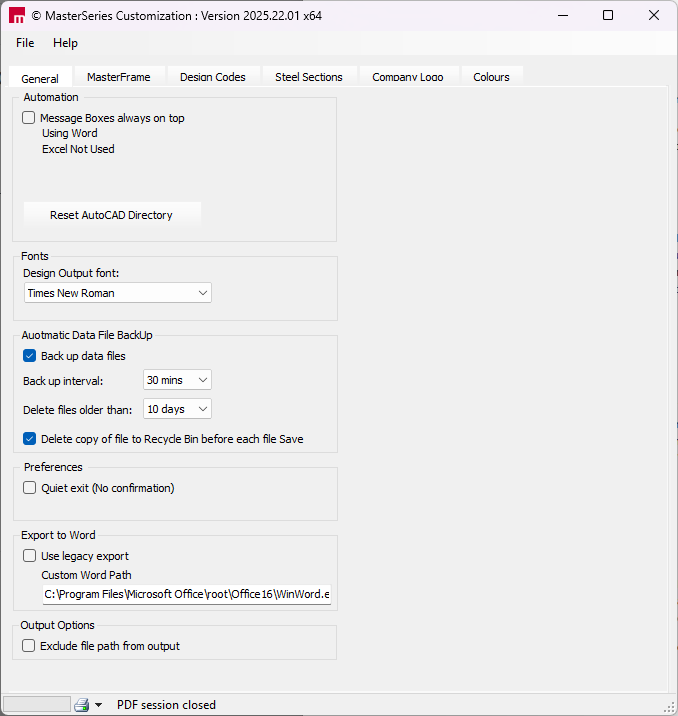
General tab
Checkbox function, in the Automation field, indicates which version of MS Word for PowerPad documents and MS Excel for the Calculation Wizard are being used.
MasterSeries drafting and detailing programs export information to AutoCAD, during which process MasterSeries can load AutoCAD automatically. In order to do this, the user must initially use the Reset AutoCAD Directory function to select the directory where AutoCAD is currently installed.
In the Automatic Data File BackUp field, we can turn on/off the auto backup function. If it is on then MasterSeries automatically create backups from the model files according to the selected frequency. Backup files will be deleted automatically after the selected days.

MasterFrame tab
MasterFrame uses context sensitive custom cursors. In older monitors with slow refresh rates they may appear to flicker, therefore you have the option to turn them off and use the default Windows cursor.
Select to view and print particular member material properties in the MasterFrame data file.
Specify which MasterFrame
analysis licence to check for.
This can be useful for speeding
up log on to MasterFrame on a
Network dongle by specifying tocheck only for the licence on the MasterFrame version you have.
Mouse movement sensitivity for the new MasterSeries graphics can be modified to
increase/reduce speed. 
Design Codes tab
In the Default Design Code and Settings field, select the default Design Code (only licensed design codes will be active). Change values that appear in the load factor spin button in the load combination form. The default sign convention of drawing bending moments on the tension side of the beam and shear force may be reversed.
Maximum Service Case Load Factor determines which load cases will be used as a ULS and which as an SLS. So, those load cases which contain lower load factor then the set limit will be selected as SLS and which have higher will be ULS.
The options in the BS 5950 Automation field, automatically change the beam and beam portion check to Axial with Moments when more critical and print both the Simplified and More Exact Checks.
In the Concrete Design field, you can change values that appear in Concrete Design Basic Data and Defaults form.
In the Timber Design field, user defined timber grades can be added to EC and BS.
The options in the Default Country for EuroCode National Application field can be used to check the used EuroCode parameters for each of the chapters. With the Add user defined country values ( ) option you can create a user defined NA as a copy of one of the previously created NA.
When you create a EuroCode National Application user defined country set, the data is stored in a file C:\ProgramData\MasterSeries\ECConstants[YourCountryName].xml file, where [YourCountryName] is the name given to your set. The "C:\ProgramData\MasterSeries" is known as the MasterSeries common application folder and is shared by all MasterSeries year version installs on the same PC, hence all EuroCode National Application user defined country sets will be available in all year version of MasterSeries installed on the same PC. You can copy the EuroCode National Application country set "ECConstants[YourCountryName].xml" files from one PC to another but must be stored in the MasterSeries common application folder.

In most areas within the MasterSeries application where the design code can be selected there will also be a 'Country' drop list where your EuroCode National Application country set will be available for selection.

The 'Defaults' Euro norm values and the 'UK' National Application value are provided by default. These sets can not be changed or deleted, but can be copied to new user defined sets.
Steel Sections tab
The steel sections database can be customised and new sections added if required. For details, see the manual document – “23 The Steel Sections and Open Library”. SC_ToDo

Company Logo tab
The company logo, which appears in printed output and in PowerPad documents may be changed here.
- Click on the Browse button and locate the directory and highlight the file name.
- Click O.K
- Click on the Save new logo ( ) to change in the printed output
- Select Change in PowerPad to update the logo in the PowerPad template file
The logo is automatically resized to the appropriate dimensions in the company title block. You can also update your PowerPad title block so that PowerPad Word documents have your title block appearing at the top.

Colours tab
MasterSeries uses a defaults colour set and colour schemes in various parts of the program. These can be modified in the Colours tab.
To change the default colour:
- . Drop the Colour in Graphics list
- Select one of the default colour set
- Choose an alternative colour from the colour palette area at the centre of the screen
The default font styles and sizes used in the MasterFrame graphics area can also be set at the bottom of this drop list.

Saving and Retrieving Customisation Settings
Once the system has been customised the settings must be saved.
Selecting the Exit: Using Current Settings from the File menu, the current settings can be saved as the default settings.
Selecting the Exit Using MasterSeries Default, the References dialogue will be closed without saving the settings. With the Reset to MasterSeries Defaults option, all of the settings can be reset to defaults.
