Standalone - Steel Beam Analysis & Design (EN1993)
This tutorial outlines the fundamental steps for new users to perform Steel Beam Analysis and Design using the MasterBeam Steel Beam Designer.
The process generally moves from defining geometry and loads to running the analysis and finally executing the steel design checks.
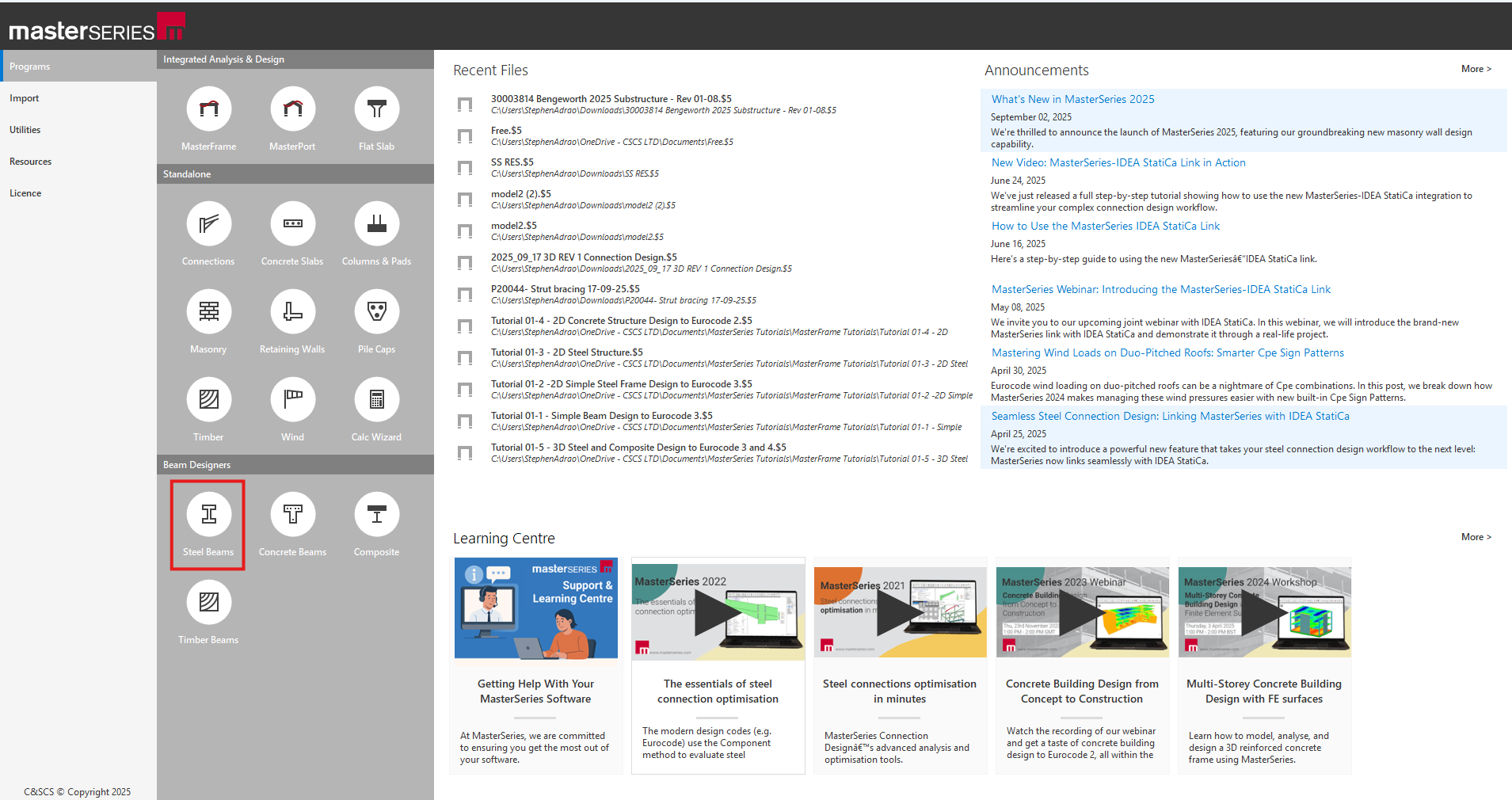
MasterBeam Steel Beam Analysis & Design Walkthrough
The MasterBeam Steel Beam Designer is designed for the analysis and design of single and multi-span beams, as well as continuous beams and beams incorporated within sub-frames. It can accommodate up to 16 varying spans in a sub-frame or continuous beam, including the option for end spans to be cantilevers.
Define Beam Data and Geometry
Start a Brief: A 'brief' represents a single run of beams. You can create multiple briefs within one file by going to the Add tab near the bottom of the screen.
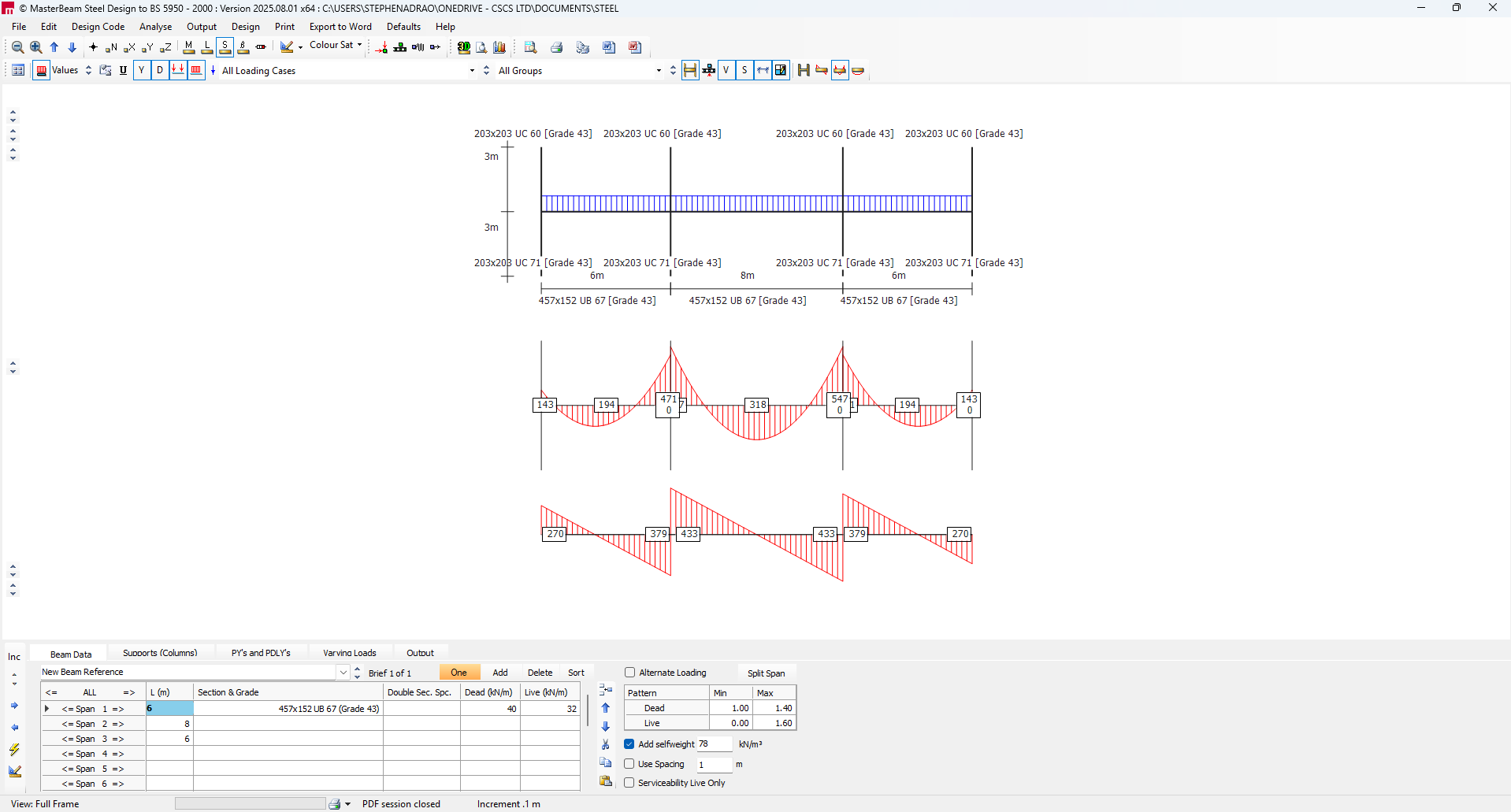
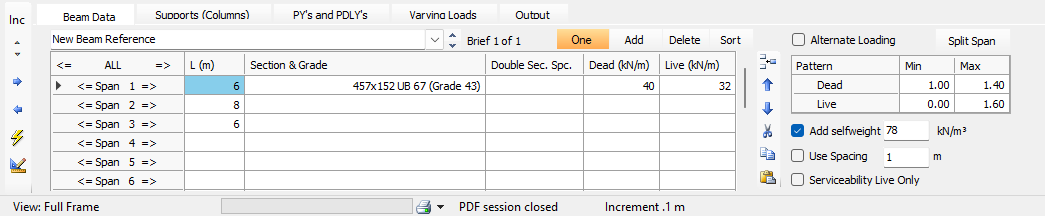
Enter Span Lengths and Sections: Enter the length for each span and specify the section size and grade.
You can choose to have all sections adopt the type and size entered for the first span using the ‘One’ section size button. If this is unchecked, you can define a unique section size for each span.
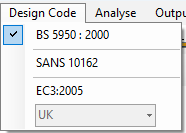
Select Design Code: Ensure you select the appropriate design code and national annex by going to the Design Code tab at the top of the screen.
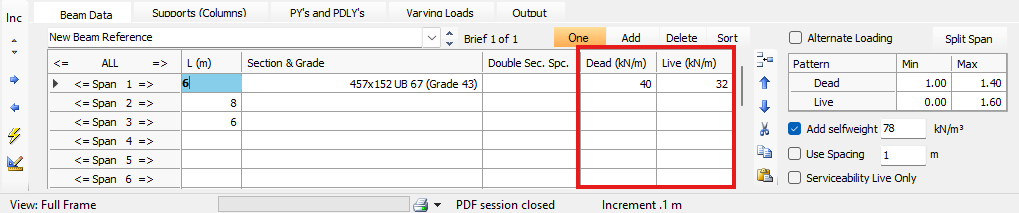
Enter Loads: Input the unfactored dead and live loading.
The program automatically generates several load cases, including: All spans loaded (ultimate and service), and Alternate spans (even) and (odd) loaded (ultimate).
Define Supports (Columns)
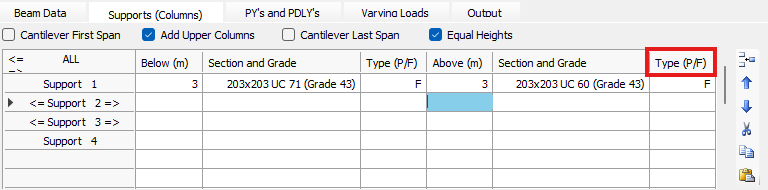
Define Support Type: Access the Supports (Columns) area. The beams can be analysed either as a pin-supported continuous beam or as part of a sub-frame.
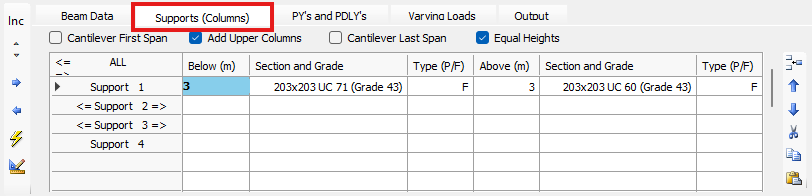
Sub-frame Analysis: If analysing as a sub-frame, specify the column heights above and below the beam, along with the column section sizes and end fixities. The upper columns can optionally be omitted.
Support Efficiency Principle: Like beam data, if support data is not entered into a line, it will assume the data from the line above.
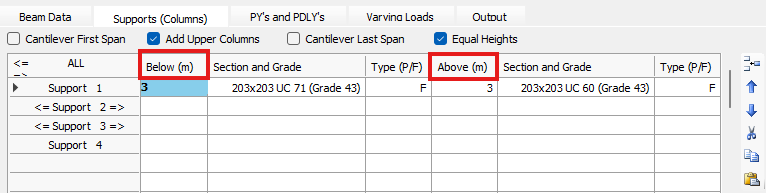
Continuous Beam Analysis: To analyse the system solely as a continuous beam, ensure the column heights are set to zero and the support types are set to pinned (P).
Set Fixity: In the Type(P/F) column, you can enter the percentage fixity of the beam ends.
For example, entering 0/P/0 results in a pinned connection to the base of the column and 0% fixity to the connected beams, effectively creating a series of simply supported beams.
Add Specific Loading
Point Loads and Partial UDLs: These are entered by specifying the span number, the unfactored dead and live loads, and the distance from the start of the span. Partial UDLs require both start and finish distances.

Varying Loads (Trapezoidal): Enter varying or trapezoidal load patterns similar to partial UDLs, but specify the different load intensities at each end.
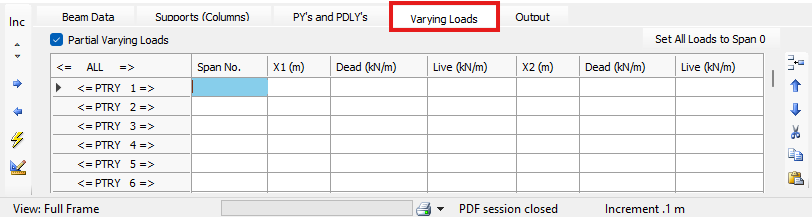
Advanced Load Placement (Rolling Loads): If you enter the span number as zero for a point load or partial UDL, you can move the load along the length of the entire beam run, treating it as a rolling load. This is useful for optimising load positions or column/pile locations.
Review Analysis Output
Viewing Results: The results can be viewed on screen via the 'Output' menu at the top of the screen.
- You can view the input data file by selecting 'View/Print Data'.
- Select 'View Tabular Output' to see Nodal Deflections, Support Reactions, or Member Forces and Moments.
- Use the Top Toolbar to control the graphical display, choosing which loadcase and load group (e.g., bending moment, shear force, deflection) to view.
Execute Steel Design
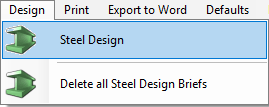
Enter Design Area: Once the analysis of the sub-frame or beam is complete, move to the Design area. This can be done via the ‘Design’ menu (selecting 'Steel Design') or by clicking the dedicated icon in the bottom left corner of the screen.
Design Options: The beams can be designed in two main ways:
- Individually: Each span is designed for a separate section size.
- Grouped: All beams are designed as a group, with the largest section size being applied to the whole group.
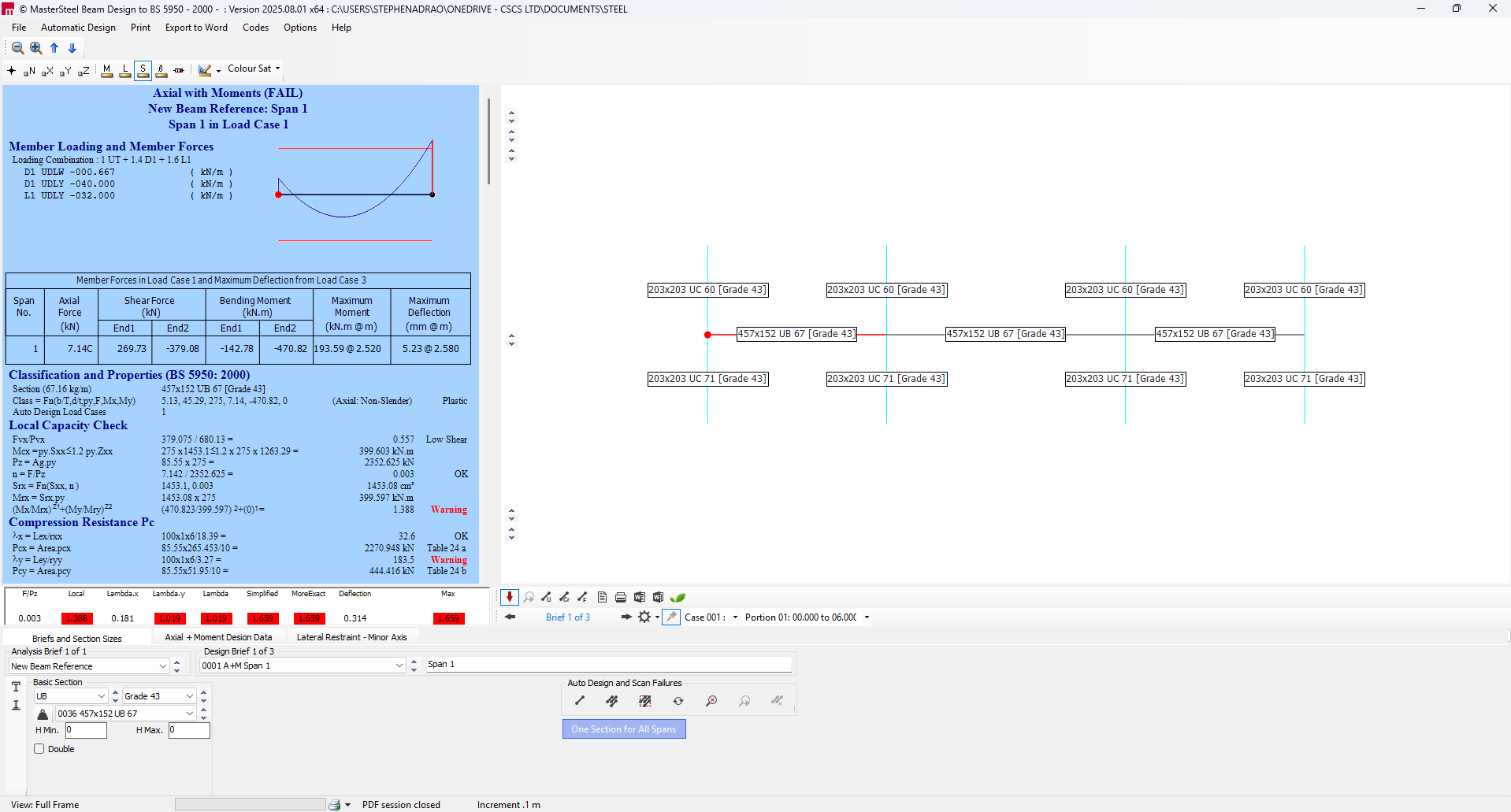
Lateral restraints - Minor Axis : Specify whether the beams are fully restrained or define various effective lengths. Restraint positions can be specified for the Beam and Beam Portion checks.
Automatic design options can be chosen for auto design and selection of sizes are available.

Printing Design Output
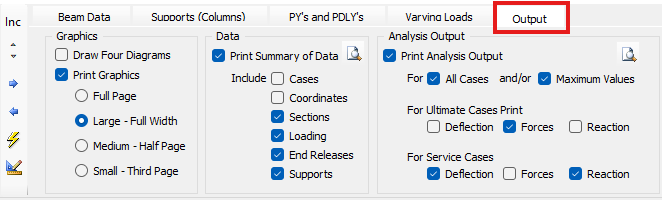
Print Analysis Report: In the Print tab, customise the analysis report. You can choose to print 3 diagrams (loading, shear, and bending moments) or 4 diagrams (including the deflected shape). You can also print a summary of the input data and analysis output (ultimate and service cases).
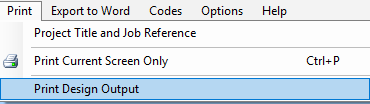
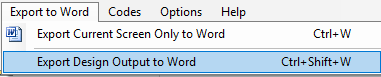
Print Design Calculations: Once you are satisfied with the design, the design calculations and results can be printed to a printer, exported to a PDF file, or exported to a Word document (if you have the PowerPad module).