Main Installation
Overview
This section describes the procedure for installing the main MasterSeries software, including optional components such as MasterRC and Network Dongle support.
⚙️ Important:
The main MasterSeries installation is always required, even if you are not installing MasterRC or using a network dongle.
If you encounter any installation issues, please refer to the Troubleshooting section of this manual.
Installing the Main MasterSeries Software
The following steps must be completed on each local workstation from which MasterSeries will be used.
Step 1 – Download the Latest Version
Visit the MasterSeries Client Area.
Log in using your Username and Password.
Navigate to:
Client Area → Download → Main Downloads
Download the appropriate installation file for your PC:
MasterSeries YYYY.MM.DD Full Installation (64-bit)
The downloaded file will have a name similar to:
X64_MasterSeries_Setup_YYYY_MM_DD.exe
Step 2 – Start the Installation
Open File Explorer and navigate to your Downloads folder, typically:
C:\Users\<YourUsername>\Downloads\
Double-click the X64_MasterSeries_Setup_YYYY_MM_DD.exe file to begin installation.
Follow the installation wizard to complete setup.
Default installation path:
C:\Program Files\MasterSeries YYYY\
where YYYY is the version year (e.g., 2025).
To change the installation directory, click the Change… button during setup.
Step 3 – Check for Updates and Patches
After installation, it is recommended to check for any available patches.
Patches contain updates, bug fixes, new features, and improvements.
To download patches:
Log in with your credentials.
Navigate to:
Client Area → Download → Patches
Review available patches by date and download the most recent version that:
Matches your MasterSeries year version (YYYY), and
Is newer than your initial installation.
Patch file naming convention:
MasterSeries_Update_YYYY_MM_DD.exe
⚠️ Ensure that MasterSeries is closed before installing a patch.
If the software is open, you will be prompted to close it and restart the patch installation.
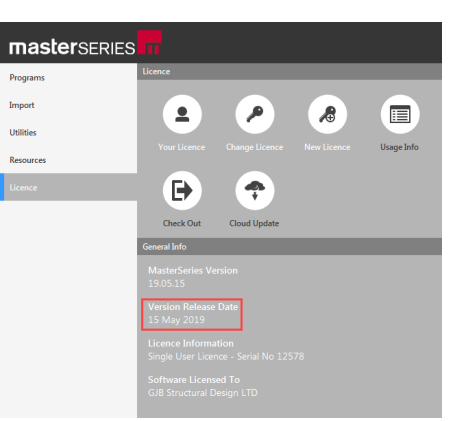
You can check your current version from within MasterSeries under:
License → About (on the startup screen).
Step 4 – Installing Your Company Title Block
MasterSeries requires a custom title block containing your company details for use in design and calculation reports.
This file contains up to five lines of text and is linked to your licence.
How it’s provided:
The software will attempt to automatically download your title block via MasterSeries web services.
Alternatively, a file named MSTitleBlock.txt is attached to your Confirmation Order email.
If you have not received it, email admin@masterseries.co.uk to request one.
Manual setup:
Save the MSTitleBlock.txt file to a convenient location.
When MasterSeries is first launched, you will be prompted to browse and select the file.
💡 If you have previously installed your title block on this machine, this step is not required.
Your title block is specific to your licence and cannot be edited.
For any amendments, please contact admin@masterseries.co.uk.
Step 5 – Running MasterSeries for the First Time
Click the Windows Start button.
Navigate to:
All apps → MasterSeries [Year] → MasterSeries [Year]
Launch the application.
Before starting:
If using a Softlock Licence, ensure your Network Softlock Licence Server is installed and running.
If using a USB Dongle, confirm it is connected (for single-user) or properly configured (for network).
Initial licence setup:
When launched for the first time:
MasterSeries will search for a local single-user dongle.
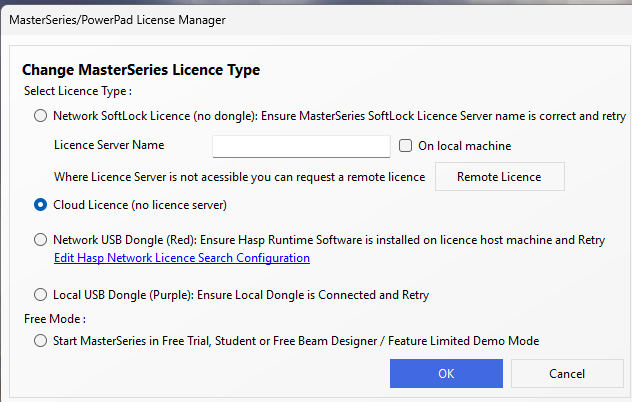
If none is found, it will prompt you to select a licence type.
Choose the correct licence option and follow the on-screen instructions.
Evaluation mode:
If you do not have a licence:
Select Feature Limited Demo Mode.
Click OK.
Restart MasterSeries.
The evaluation version will load automatically, displaying available programs and any feature limitations.
This is a one-time initialization process and will not be required for future launches.