
Data Files
Your MasterFrame input file is in stored in a format that is friendly to computers but is not very legible. Thus, we have a dedicated option to view & print your data file.
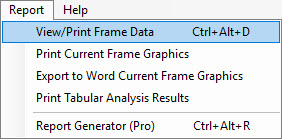
From the menu, you select Report > View/Print Frame Data
A typical Data File is displayed below.
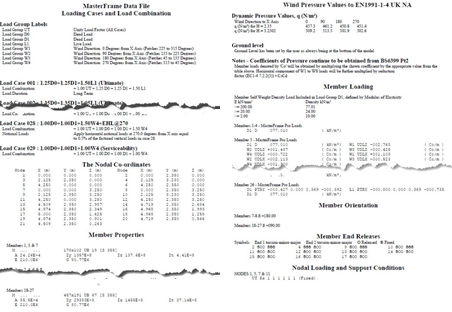
The contents will vary depending on your licensed modules, the options you have used in the frame and the Display Options and Print Options selected.
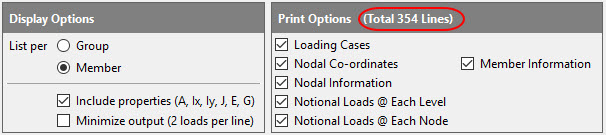
Play around with the different options and your display will automatically update to reflect your choice. As you select options, the total number of lines to be printed is shown to the right of the Print Options title.
You can reduce the number of lines/pages using the following settings.
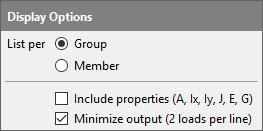
List per Group – Members with the same section will be bundled together. Members with the same loading will be bundled together.
Don’t Include Properties (A, IX...) just the section size is shown. E.g. 457x153 UB 52 [S355]
Select to Minimize output (2 loads per line)
As well as viewing the Data File we can also print it.
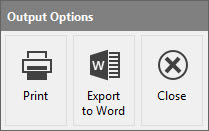
Exporting to Word
Exporting to Word requires PowerPad or MasterSeries Office Tools. If you don't have either of these, the option will be greyed out.
Click on Export to Word.
1.A dialogue appears saying Starting Word.
2.Click OK.
3.The MasterSeries will load Word, and select the correct template file
4.The Word document will minimise (don't panic)
The exporting will start
One or more progress screens will appear
7.When the exporting is finished, Word will reappear.
Printing
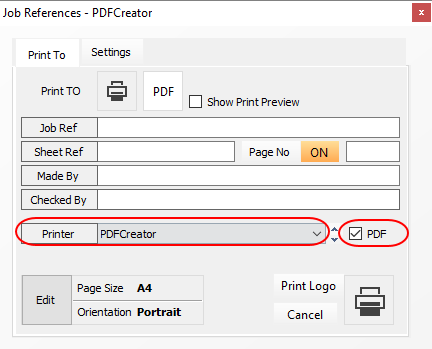
We can print to any Windows printer or to a PDF file. These are both activated by clicking on the Print button. This displays our Printer dialogue.
If you are printing to a PDF writer, you must check the PDF checkbox as highlighted opposite. This is so the MasterSeries does not close the PDF document with each print operation.
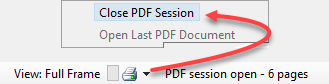
Only when you have finished all your PDF printing, perhaps from more than one print operation, do you click on the small printer in the status bar at the very bottom of the screen and choose 'Close PDF Session'. This finalises the pdf file and sends it to your PDF writer.
MasterSeries also has an inbuilt PDF writer, selectable as 'MasterSeriesPDF' from the printer drop list, thus avoiding the need to install a separate PDF writer printer. The 'MasterSeriesPDF' printer is set as a PDF printer automatically. When using the 'MasterSeriesPDF' printer you can specify a file name that the document will save when you 'Close PDF Session'

The printer dialogue also allows you input Job & Sheet information together with Page numbers and who Made the calculations.
You can change the document size and orientation through the Edit button. For PDF files you can keep switching orientation between pages. This means that one PDF document could have the Data file in Portrait with Graphics Landscape and the design results Portrait again.